AI Video Transition Effects: Review Before You Share
Review AI video transition effects by pausing at the first change, the transition midpoint, and the final frame. Approve the clip only if the same subject or product remains recognizable, the camera direction still makes sense, the lighting change has a visible cause, and the final frame supports the next cut. If one of those checks fails, make one constrained retry or use a clean edit—not a vague request to “make it smoother.”
Last updated: September 27, 2026 · about 7 min read
This is a post-render approval guide. It does not replace the pre-generation planning in AI video transition prompts, which explains how to choose a shared anchor, motion bridge, camera path, protected details, and ending before a render. Here, the question is different: whether a completed transition is safe and useful enough to share, revise, or cut from the edit.
Watch once, then stop at three frames
Start with a normal-speed watch. If the transition feels wrong, do not immediately change the prompt. Then pause at three places:
- The first change. This is where a face, object edge, light, or camera direction often begins to drift.
- The midpoint. This is where the scene is most likely to morph, duplicate, or lose its physical logic.
- The final frame. This determines whether the next shot, title card, or loop can begin cleanly.
Use the same player size and crop that the audience will get when possible. A transition that seems fine in a small preview can show broken hands, label changes, or a camera jump in a full-size export.
Use this five-part approval checklist
| Review point | Pass looks like | Pause or reject when |
|---|---|---|
| Identity or product | The same person, character, or object stays recognizable | Face, clothing, logo area, silhouette, or count changes |
| Geometry | Hands, edges, horizon, and spatial relationships remain readable | Limbs duplicate, objects melt, or the room folds unnaturally |
| Lighting | A shadow, doorway, wipe, or time change visibly motivates the shift | Light flips without a cause or changes the subject's color unexpectedly |
| Camera direction | The view continues one planned path | The camera reverses, teleports, spins, or changes height without reason |
| Final-frame continuity | The ending holds long enough for the next edit | The last frame is distorted, unstable, or implies a different scene than intended |
The checklist is not a hunt for pixel perfection. It is a way to catch changes that alter meaning. A slight texture shimmer may be harmless in a playful background. A different face, a missing product feature, or a fabricated event is not harmless merely because the transition is fast.
Check the subject before the spectacle
An AI transition can hide a problem by placing the most unstable area under a wipe, flash, or motion blur. Pause through the handoff and inspect the subject that viewers are meant to recognize.
For people, check face, hair, clothing, hands, body scale, and direction of travel. For a product, check silhouette, cap, color, count, and any area that a viewer could mistake for a real label or feature. For a place, check the landmark relationship, horizon, doors, windows, and shadows.
If the clip changes a real person in a way they did not agree to, or makes an event look camera-recorded when it was not, do not use the fact that it “looks smooth” as a reason to publish. Consent and truthful context are separate approval checks.
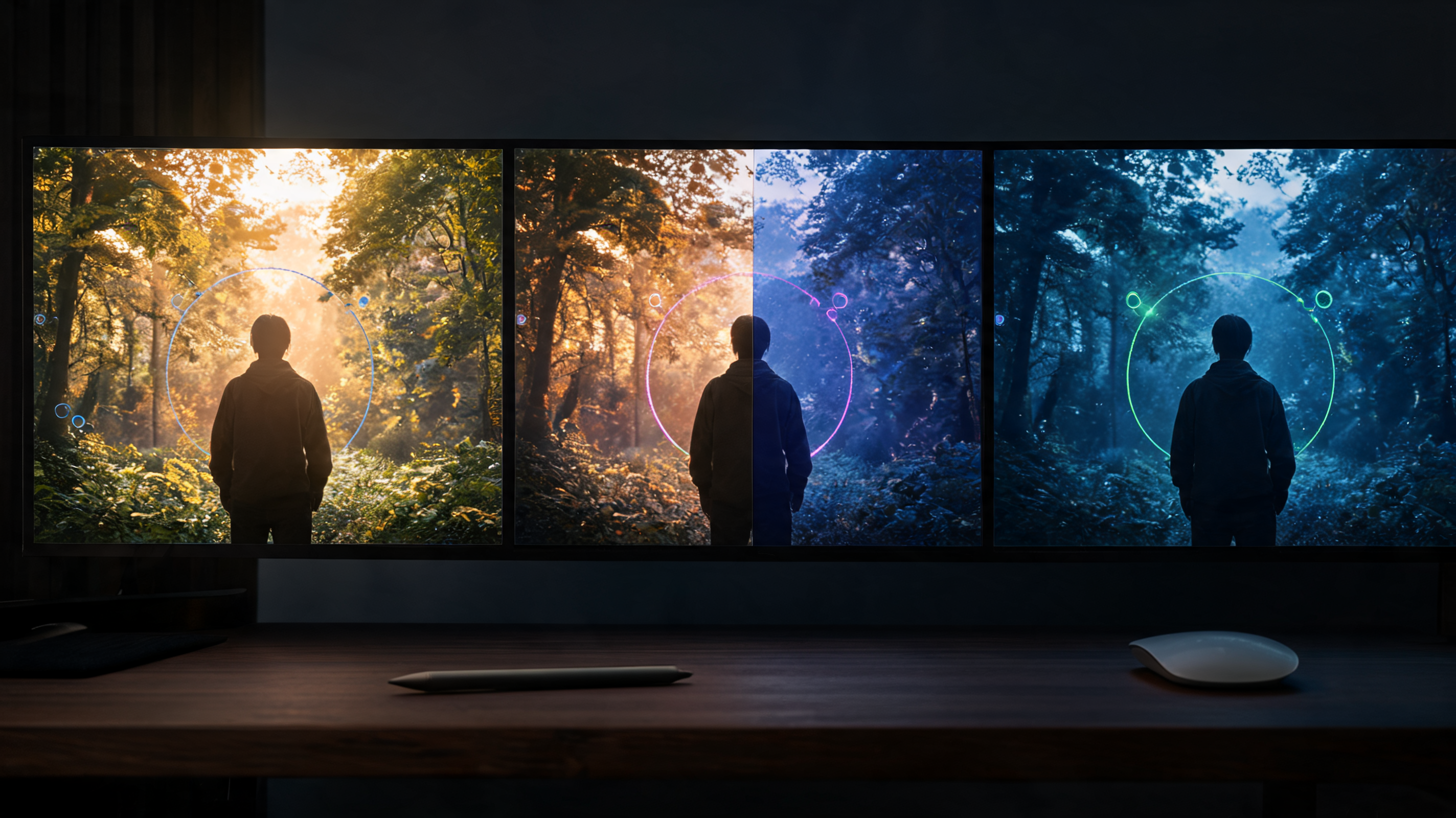
Reviewing opening, midpoint, and ending frames separates a usable transition from a merely impressive preview.
Decide whether the light change has a cause
Lighting can make a scene change feel motivated when it has a visible bridge: a doorway opens, a person passes a window, a foreground object covers the lens, or the shot moves from one clearly named time of day to another. It becomes risky when the subject's skin tone, clothing color, or product finish changes without a physical reason.
Ask two questions:
- Can a viewer point to the action that explains the light change?
- Did the change preserve the details the project needs to show accurately?
If the answer to either is no, retry with fewer changing variables. Preserve the same camera and subject while simplifying the environment change, or use a conventional cut. Adobe’s guidance on video prompts similarly emphasizes clear action, context, camera movement, and temporal detail; those are useful review categories even when the tool is different.
Test the camera path against the edit
The camera does not need to be technically impossible to be distracting. What matters is whether its direction reads as one continuous choice.
A forward move
A forward push can work through a doorway, mirror, screen, tunnel, or foreground object. Review whether the subject stays centered enough and whether the destination scene begins at a compatible camera height.
A lateral pan
A pan can reveal a new environment behind a wall, person, pillar, or object. Check that the subject does not reverse direction and that straight edges do not bend as they cross the frame.
A locked view
Locked framing makes a light, color, or background change easier to judge. If the image still morphs with the camera locked, the issue is likely the source compatibility or the number of requested changes—not camera choreography.
A small orbit
A small orbit may be expressive, but it asks the model to invent unseen sides of a face, object, or room. If the protected item depends on exact geometry, use a smaller move or a new cutaway rather than trying to repair the invented side.
Choose one remedy after review
Do not send the same unclear complaint into another render. Match the remedy to the failure.
| Failure in the completed clip | Constrained retry | Better editorial decision |
|---|---|---|
| Face or product changes at midpoint | Keep the source; reduce motion and name protected details | Cut before drift, or use a new source shot |
| Background melts during a wipe | Keep the camera locked and use one simpler foreground obstruction | Use a hard cut with an intentional sound or graphic bridge |
| Camera changes direction | Specify one path and compatible endpoints | Replace the transition with two independently stable shots |
| Lighting changes the subject's color | Keep the subject lighting stable; change only the environment | Grade a conventional cut instead |
| Final frame will not settle | Ask for a short stable ending and remove extra action | End earlier on the last clean frame |
Change one condition on the retry. If you replace the source, move the camera, alter the action, change the ending, and add a new effect together, you cannot learn what fixed the issue. Keep a note of the exact frame where the first output stopped being usable.
Check the transition in the context it will be shared
Drop the candidate clip next to the preceding and following shots before approving it. A transition can be coherent in isolation but fail as an edit because its final light direction, subject position, or movement points away from the next scene.
For a short social post, also check the opening and ending as potential loop points. For a client video, retain the permitted source, selected output, prompt or brief, generation date, and any conventional edit applied after generation. That record helps a reviewer understand what was generated and what was not.
If a realistic synthetic scene could be mistaken for evidence, an endorsement, or a real event, add clear context and follow the destination’s current policies. YouTube’s altered or synthetic content guidance is an example of a live platform rule to consult at upload time; it does not substitute for permission, rights, or truthful representation.
Why no video is embedded here
We searched YouTube on September 27, 2026 for “video transition effects ai.” DataForSEO verified that leading results were embeddable, but they teach how to create AI transitions or connect footage, not the specific post-render approval decision in this checklist. No video is embedded rather than suggesting that a creation tutorial validates identity, geometry, lighting, camera-direction, and final-frame review.
FAQ
What should I check first in an AI video transition?
Check whether the person, character, or product remains the same through the first visible change. A visually dramatic transition is not usable if it changes the key subject or creates a misleading detail.
When should I retry an AI transition instead of cutting it?
Retry when one isolated issue has a clear constraint, such as an overactive camera or an unstable ending. Use a clean cut when the source lacks compatible geometry, the protected detail keeps changing, or the transition would create a false impression.
Can I publish an AI transition that depicts a real person?
Only with appropriate permission and honest context. Do not use generated video to suggest a real action, event, endorsement, or recording that did not occur. Check the current policy for each distribution platform before upload.
Sources and next step
- Adobe, Writing effective text prompts for video generation, checked September 27, 2026.
- YouTube Help, Disclosing use of altered or synthetic content, checked September 27, 2026.
Plan the next transition with shared anchors and one motion bridge, then use ClipTrend’s AI image-to-video workspace to run the simplest version before adding polish.