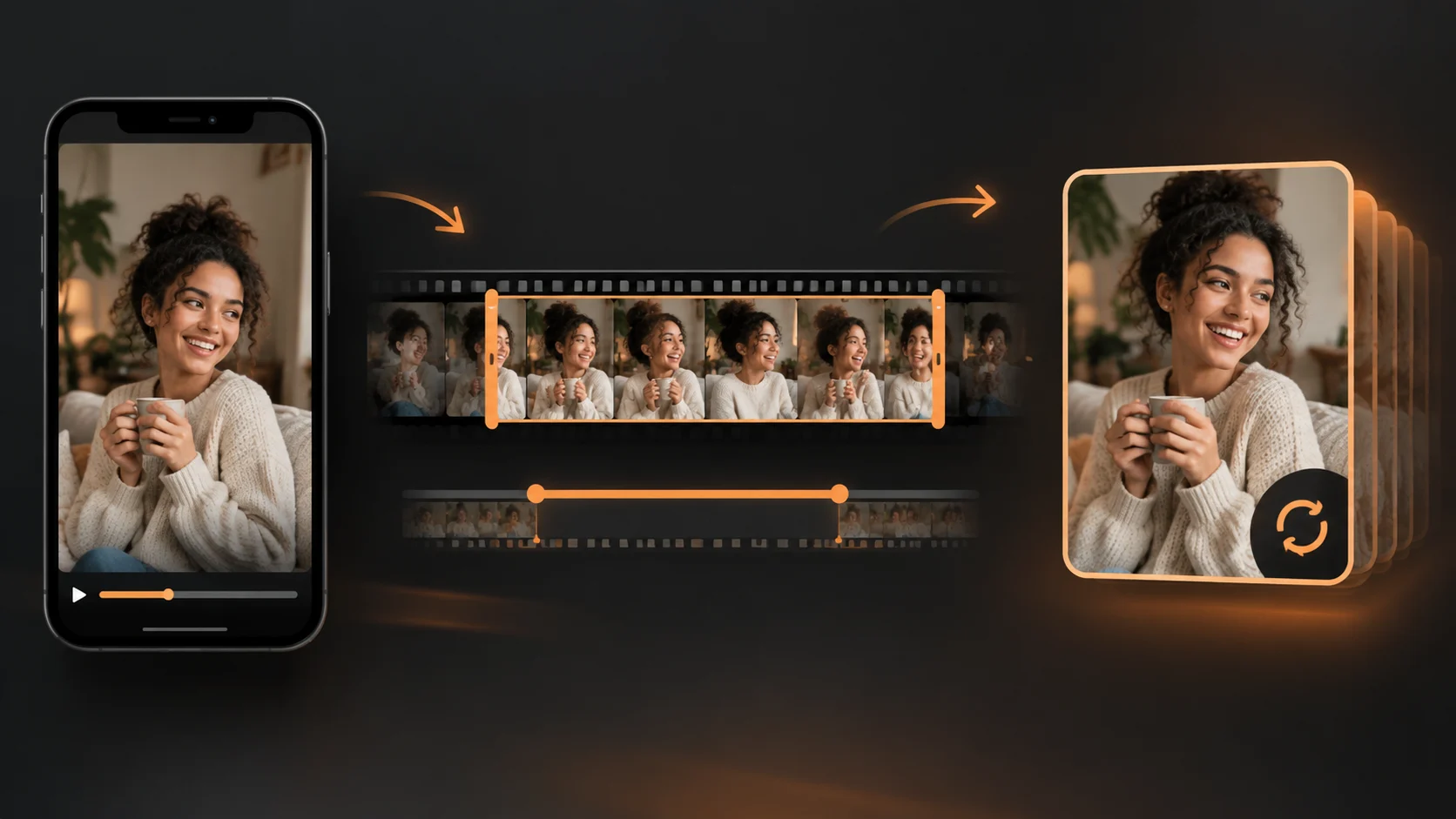
Video to GIF
Keep the action and leave the dead time behind
Choose one clear action. Start close because the GIF maker uses the first ten seconds. Preview it; confirm the subject stays readable.
Try it now →Make motion worth sharing
Turn a short video or 1–12 images into a GIF in your browser. Preview the result, then download it through your protected ClipTrend account.
Upload one MP4, MOV, or WebM. The first 10 seconds become your GIF.
Free account
Paid account
A good loop is short enough to replay naturally and focused enough to understand at a glance. These three practical workflows show how to prepare video, arrange images, and choose an export for the place where your animation will be viewed. Each section focuses on choices you can make before conversion, while trimming, framing, and ordering are still easy to change.
Choose one clear action. Start close because the GIF maker uses the first ten seconds. Preview it; confirm the subject stays readable.
Try it now →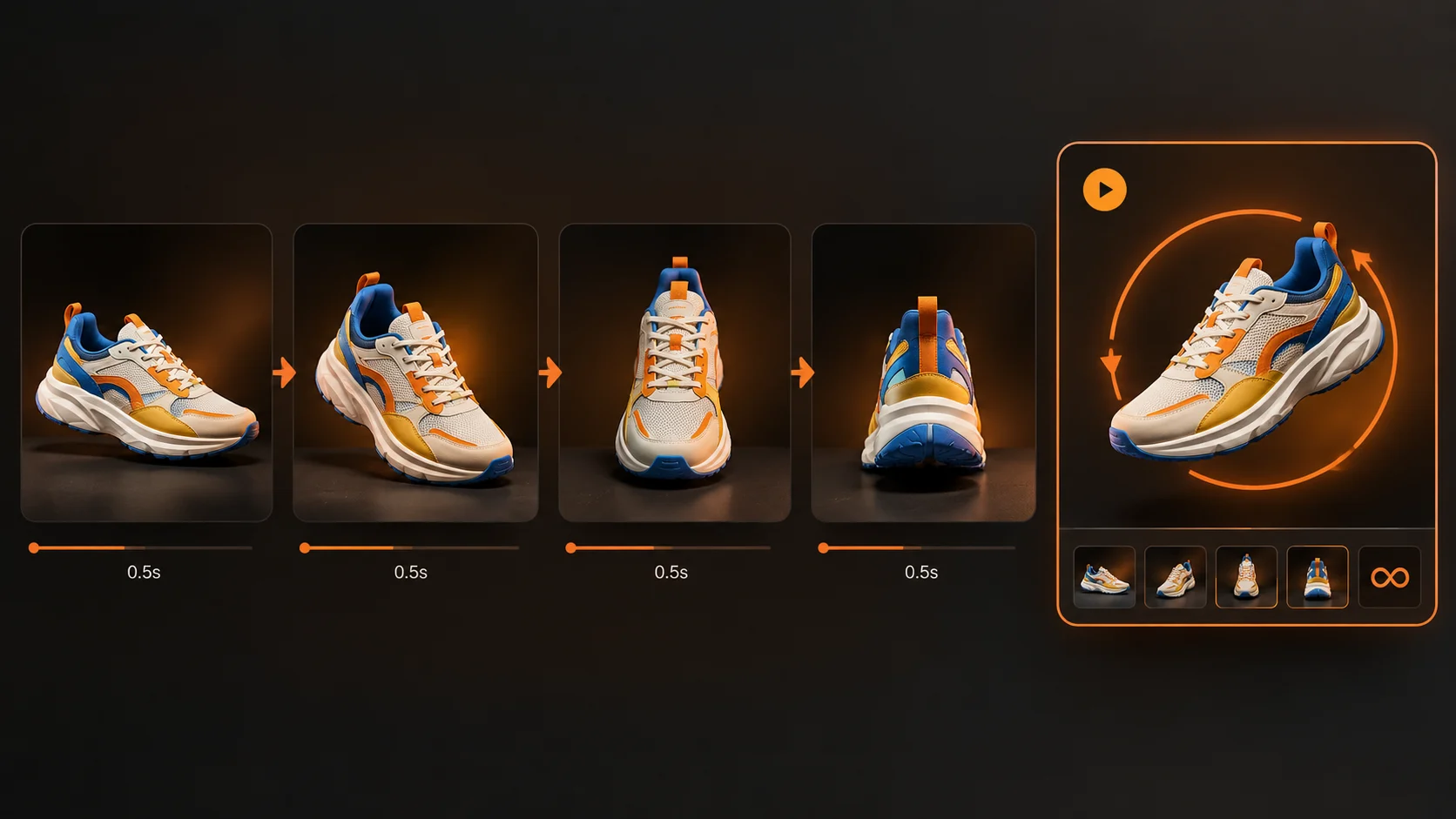
Add 1–12 images in playback order. One image creates a static GIF; two or more create animation. Keep the crop and subject position consistent.
Try it now →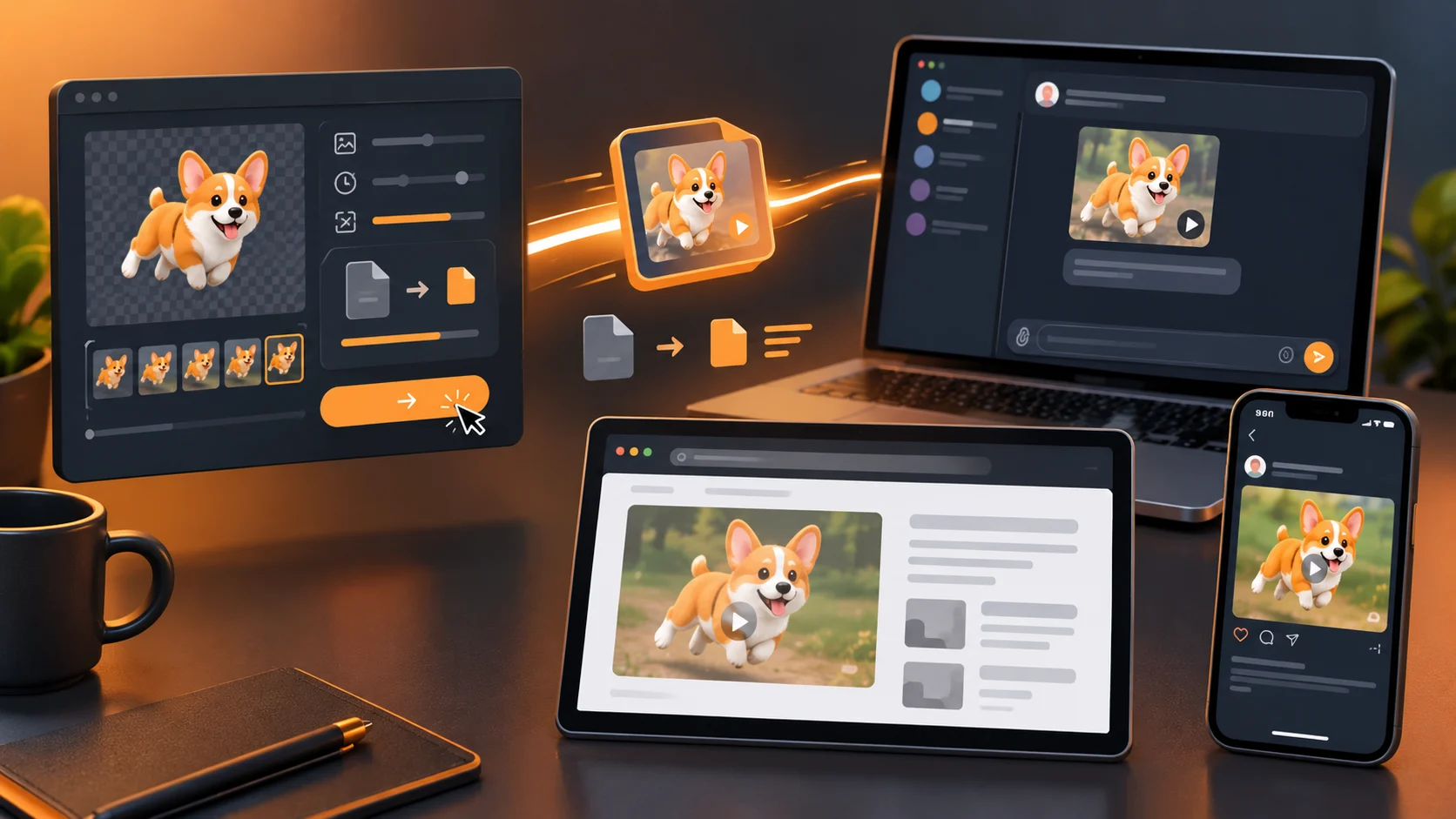
Choose the GIF size for its destination. A compact loop suits reactions and loads faster on websites. Check the final-to-first transition before sharing.
Try it now →The interface keeps the two input methods separate so the upload rules are visible. You can review the source, account limits, and exact credit cost in one place.
Select Video to GIF for one short clip, or Images to GIF for a sequence of 1–12 pictures. One picture makes a static GIF; two or more make an animation. The uploader checks the file type and shows a local preview before you continue.
Check the format, longest-side limit, frame rate, watermark, and availability timing for your account. Nothing in the page asks you to guess which export rules will apply after the upload.
Conversion uses exactly one credit after admission. Failed or cancelled work is refunded. The finished GIF is verified in private storage, and downloading it again uses no extra credit.
Output limits follow the account type shown in the workspace. The sizes below describe the longest side, so the export keeps the source proportions rather than forcing every loop into the same shape.
The export is GIF only, up to 480px on its longest side at 10 fps, with a ClipTrend watermark. Free conversions are usually ready in about 1–2 minutes, depending on the source and device.
The export is a GIF up to 960px at 15 fps, without a watermark and with priority delivery. Encoding time can still vary, and a larger file cannot restore detail missing from the source.
A successful conversion costs exactly one credit. Failed or cancelled work is refunded, and later downloads do not cost extra. If you need a fresh source image before building a sequence, visit the AI Image Generator, or browse more practical options in the ClipTrend tools catalogue.
Choose Video to GIF, upload one short MP4, MOV, or WebM video, and create a GIF from its first ten seconds. Begin the file near the action you want to repeat. Previewing the source helps you avoid spending the loop on an introduction or an empty final frame. A successful conversion uses one credit.
The image workflow accepts 1–12 JPG, PNG, or WebP images. One image creates a valid static, one-frame GIF; two or more images animate in upload order. For a steadier result, use matching dimensions and keep the subject in a similar position.
Free accounts export a GIF up to 480px on its longest side at 10 fps with a ClipTrend watermark. Free conversions are usually ready in about 1–2 minutes, depending on the source and device. Repeat downloads do not use another credit.
Paid accounts export a GIF up to 960px at 15 fps without a watermark. Paid plans prioritize delivery, although upload and encoding time still varies with the source and device.
Longer motion, larger dimensions, more frames, and detailed colour changes can all increase the file size. Start with a shorter source and choose the smaller available export when the destination has an upload limit. A simple loop with a stable background is generally easier to compress than a busy camera move.
Use enough pictures to show a clear change, not a fixed number for every idea. Two frames can make a simple comparison, while four to eight carefully matched frames can show rotation or progress. Adding near-duplicates usually lengthens the animation without making it clearer.
The GIF format does not carry an audio track. Choose a visual moment that can be understood silently. If sound is essential, keep the original video and use a video editor instead of converting that moment to GIF.
A failed or cancelled conversion does not remain charged. Once a conversion succeeds, later downloads are included, so saving the same completed result again does not use another credit. Keep your source file if you may want to change the sequence or export settings later.
Pick one short video or a small set of related images. Review the preview and account limits, then turn the part that matters into a GIF you can replay and share.
Open the GIF maker