AI Image Tools

Background remover: remove background from photos

Separate a person, product, or pet from its surroundings. Upload a photo to the AI background remover, inspect the cutout, and save a PNG you can place on a new backdrop.

Upload a photo to see its transparent PNG here.

1 credit per successful generation — free and paid accounts alike.

Preview download: up to 512 × 480. Upgrade to unlock Max at the original resolution.

Repeat downloads are free. Failed removal is not permanently charged.

Background remover examples

Background remover · portrait

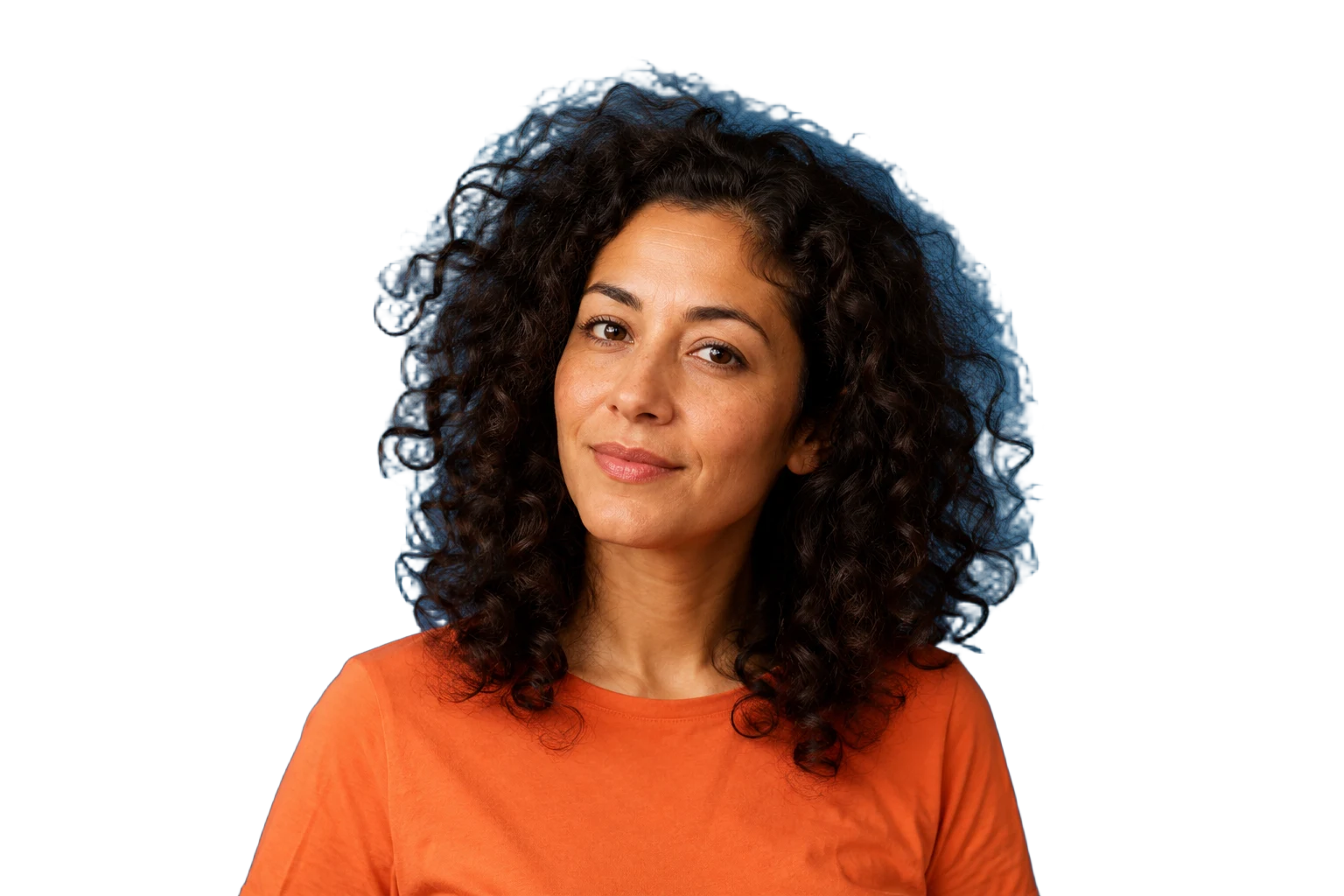
Portraits and curly hair

Use the background remover for a speaker card, profile image, or thumbnail. Compare loose curls and the shoulder outline with the source before placing the portrait on a new colour.

Check the PNG over light and dark layers. A background remover cannot recover cropped shoulders or sharpen a blurred face.
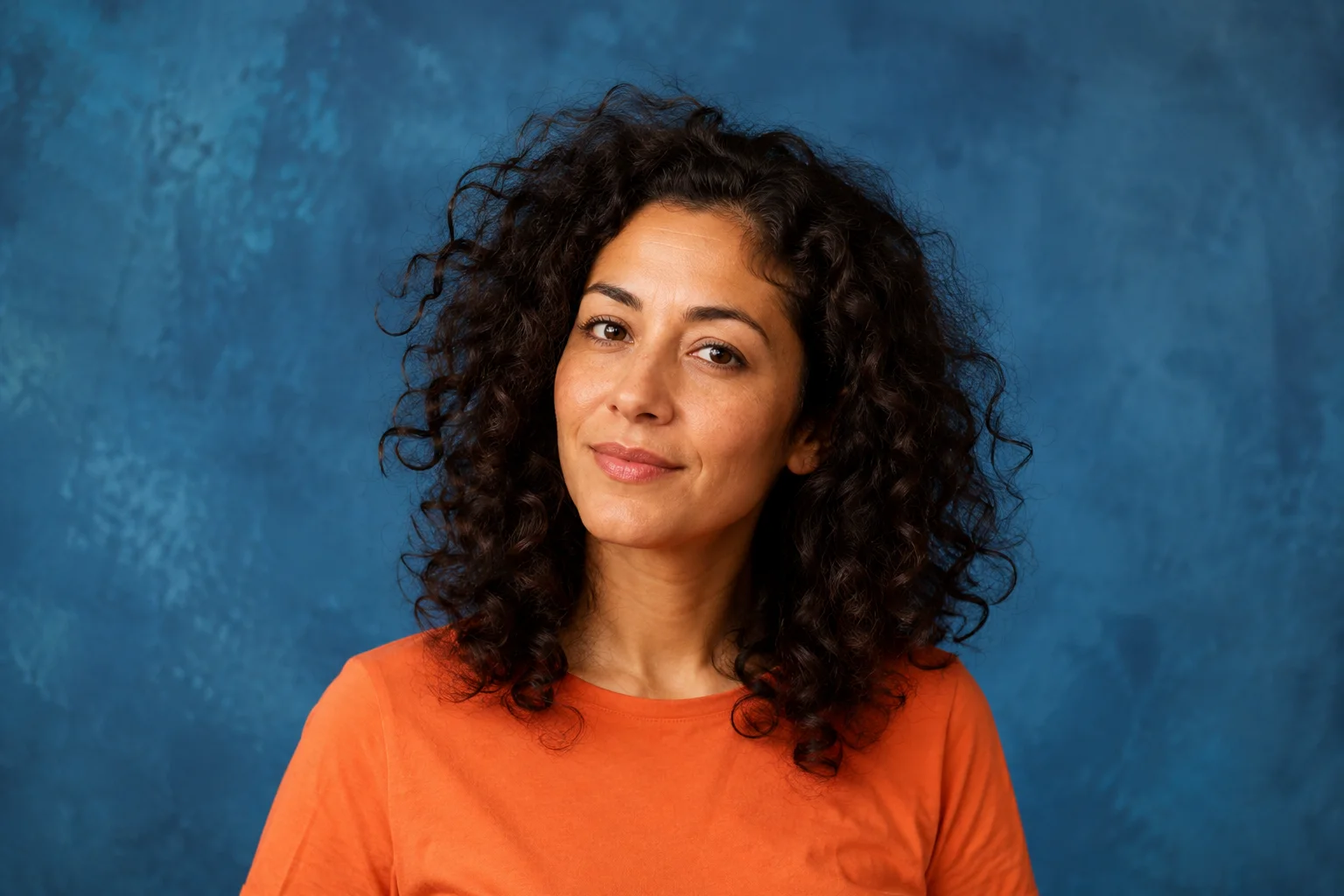
Woman with curly dark hair and an orange shirt against a blue studio backdrop
Source photo
The same woman with the blue backdrop removed, showing the retained curls
Actual cutout
Background remover · product

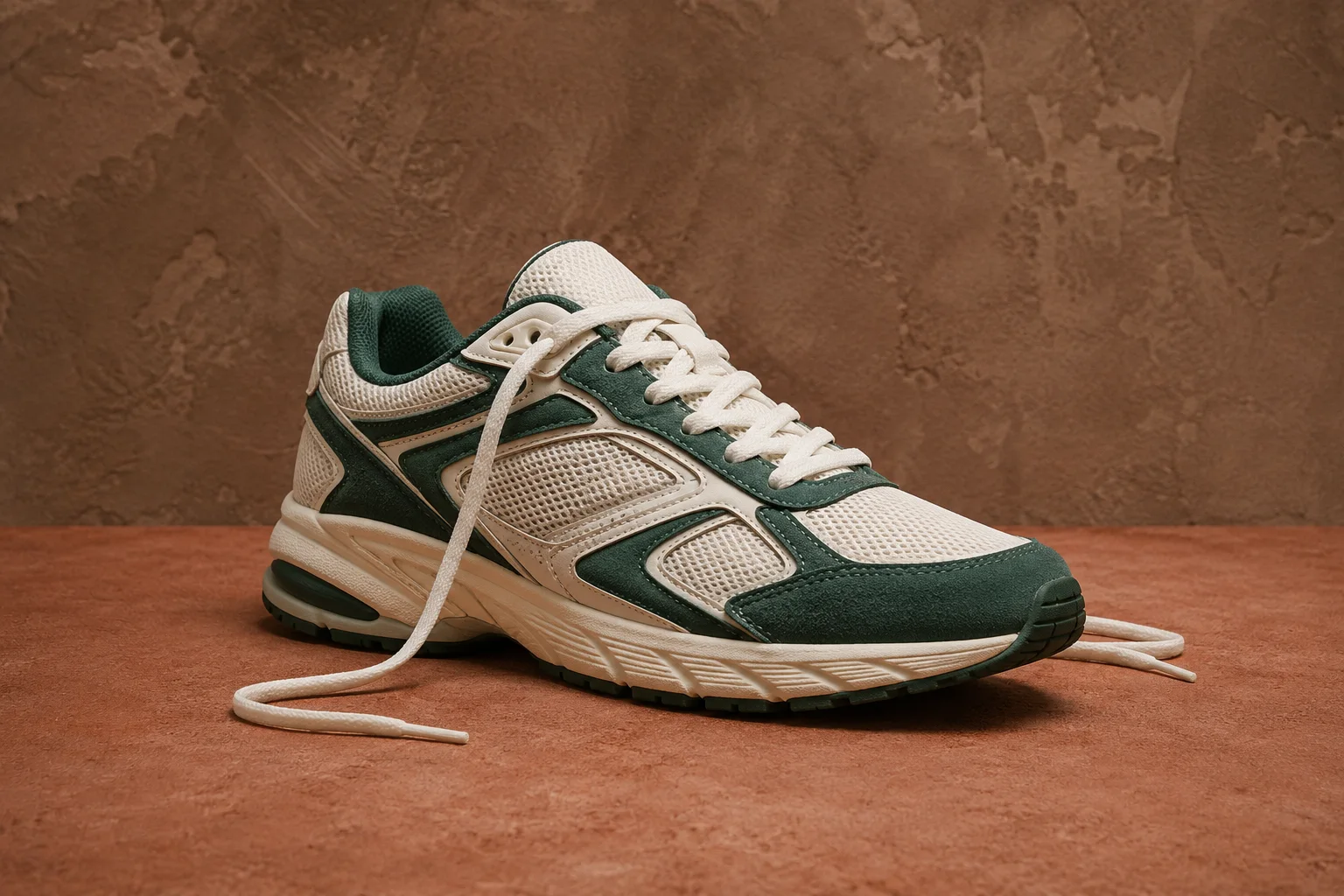
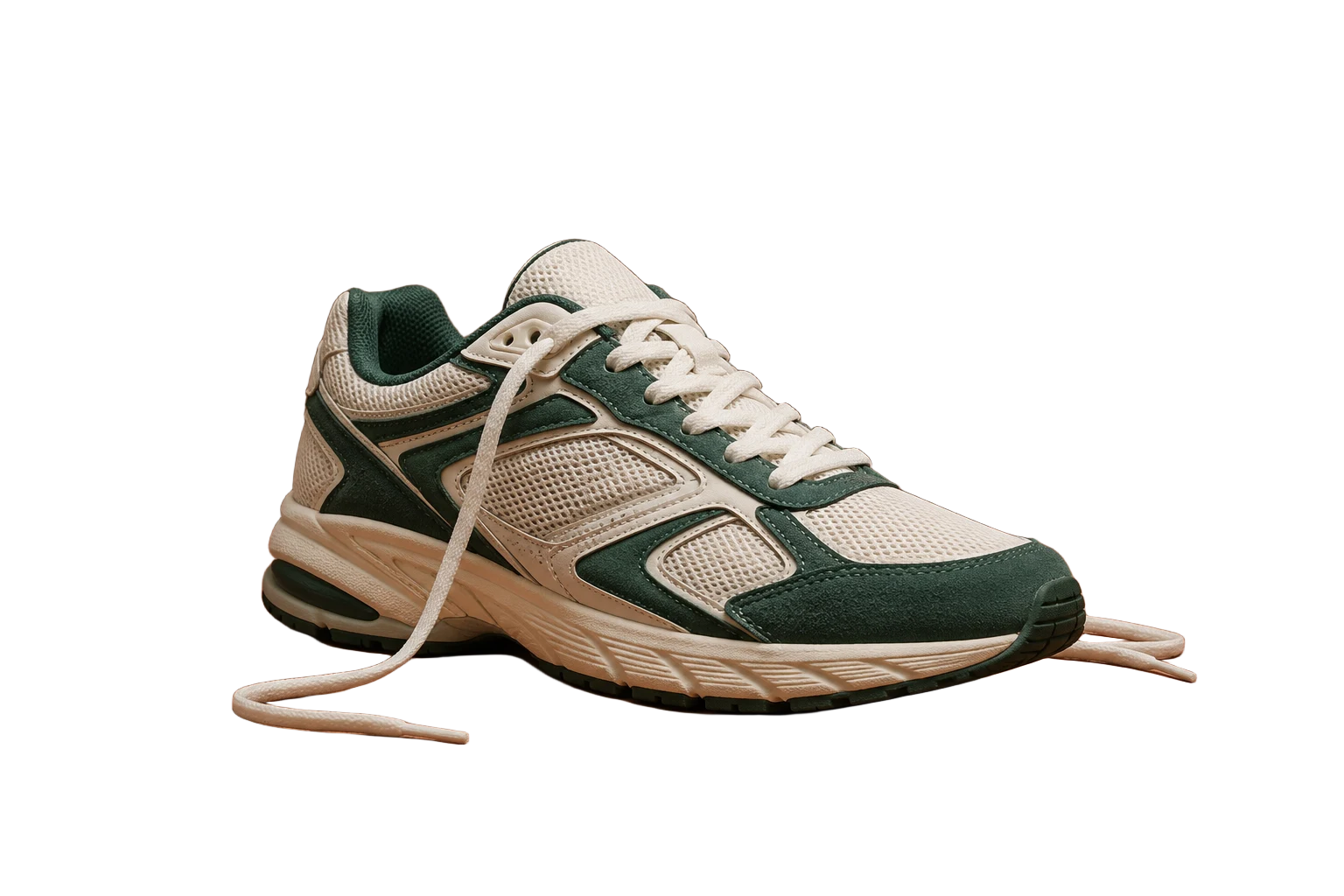
Product photos and laces

Use the background remover for product photos that need a consistent catalogue layout. Inspect the laces, sole and narrow openings, not just the broad silhouette.

Keep matching margins around each product. Background removal should not change the item’s proportions, colour, or material appearance.

Cream and green sneaker with loose laces on a terracotta studio tabletop
Source photo
The cream and green sneaker after background removal, with its laces visible
Actual cutout
Background remover · pet

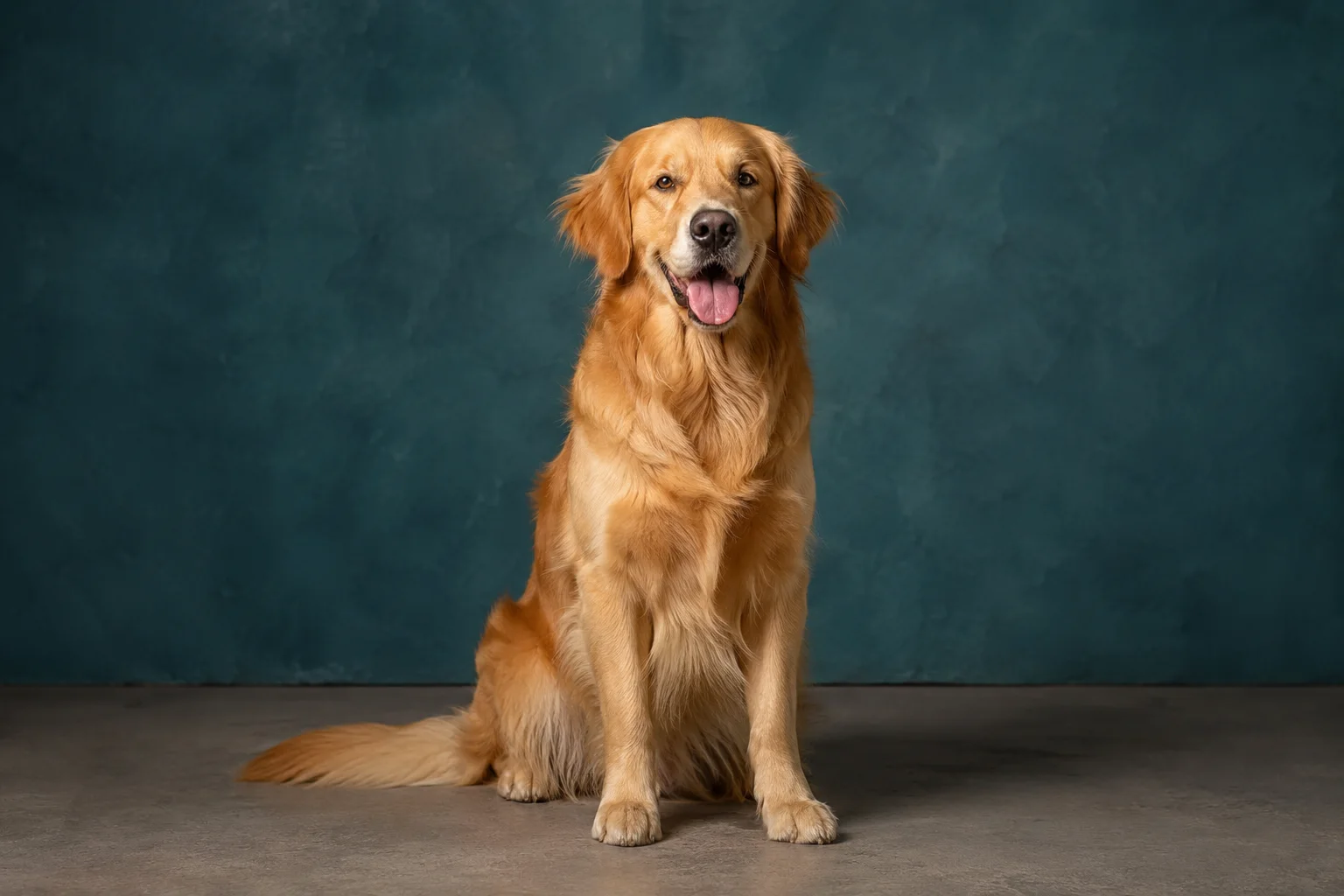
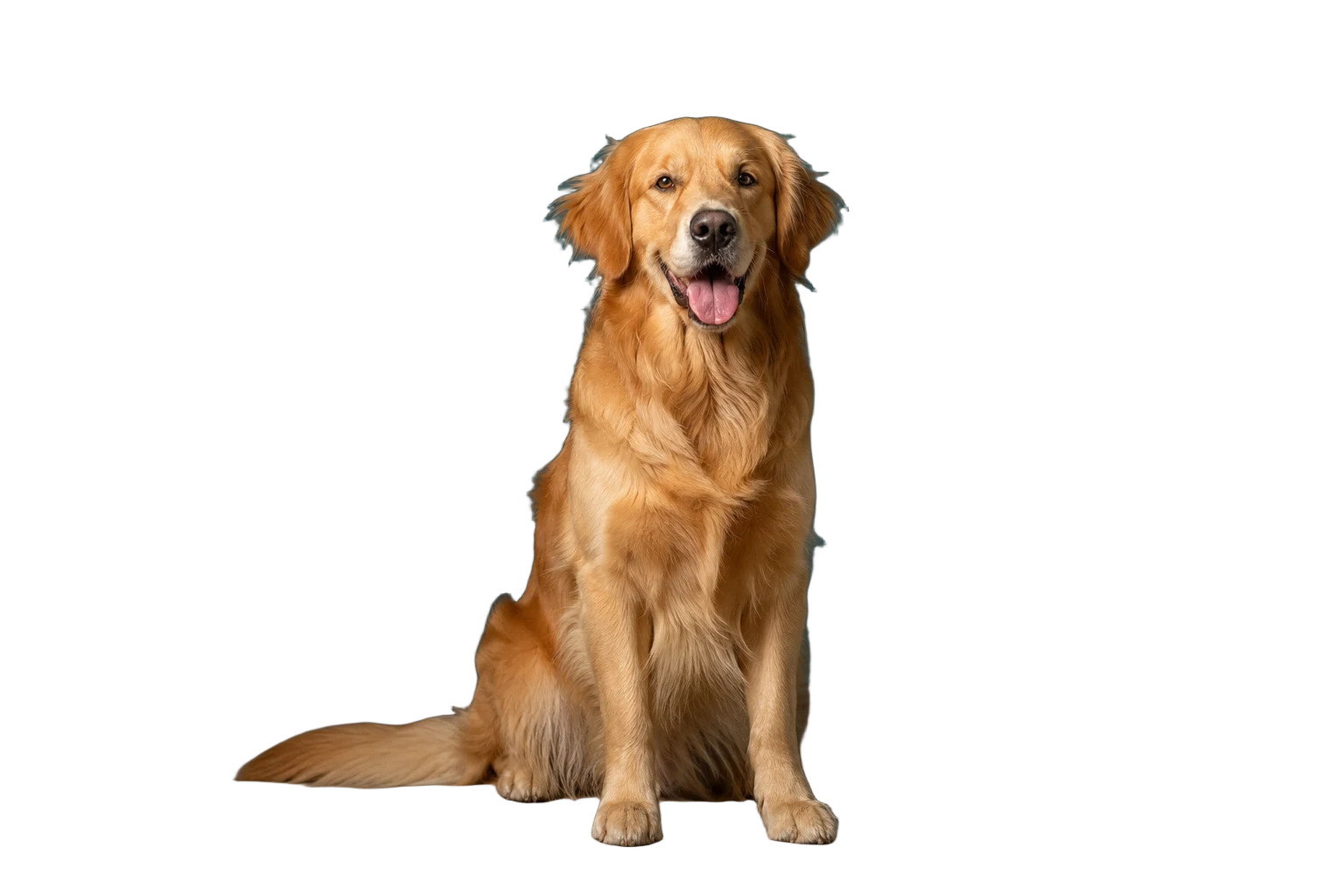
Pet portraits and soft fur

Fur is a harder boundary for an AI background remover. This example retains a dark fringe around parts of the ears and body, with some rough edges.

Inspect the cutout on your intended background. This result needs manual refinement before a large print; repeating the same upload will not repair it.

Golden retriever sitting in front of a teal studio wall
Source photo
The golden retriever isolated from the teal wall with soft fur around its outline
Actual cutout

How to use the background remover

  1. 1. Choose a clear photo

    Upload a JPG, PNG, or WebP with a visible subject. Leave space around its outline; the background remover cannot recover anything cropped out.

  2. 2. Inspect the cutout

    Select Remove background. Inspect hair, narrow gaps and low-contrast edges at your intended display size before downloading.

  3. 3. Save and place

    Download the PNG and add a colour or photograph beneath it in your editor. Match the subject’s lighting and scale to the new scene.

Background remover for product photos

Build a consistent product layout

Use the background remover for product photos, catalogue cards and presentations. Align cutouts with matching margins, then check small components and colours against the original.

Prepare a portrait or pet cutout

Prepare a speaker card, thumbnail or pet collage. Use photos you have permission to edit and check hair or fur against the final background.

Background remover download sizes and credits

Preview: up to 512 × 480

Available to every account after generation. Preview keeps the image’s proportions and transparency, without adding a watermark. Smaller sources are never enlarged.

Max: original dimensions for paid users

Paid users can download Max without a second charge. It retains the uploaded dimensions, but does not invent detail or improve edge prediction.

Generation costs 1 credit for everyone. Paid accounts include priority processing and original-resolution Max downloads. Repeat downloads are free; failed removal is not permanently charged.

AI background remover questions

How do I use the background remover?

Upload a JPG, PNG, or WebP and select Remove background. Successful generation costs 1 credit for everyone. Download Preview, or choose Max with a paid account; downloads add no charge.

Can I use the background remover for product photos?

Yes. Use a clearly visible product with space around its outline. Check laces, handles and shadows before publishing. The background remover does not correct colours or rebuild missing parts.

Why does the background remover return a PNG?

PNG preserves transparency; JPG does not. The checkerboard is only a viewing aid, not part of your download. Add a coloured layer underneath the PNG in your editor to check it.

Does the AI background remover redraw my subject?

No. The tool identifies the foreground without generating a new face, pose or product. Its predicted outline can still lose thin details or retain unwanted pixels, so inspect the result.

Can the background remover handle hair, glass, and shadows?

Hair, fur, glass, sheer fabric and reflections can need manual refinement. A contact shadow may remain. These examples show actual output, not guaranteed accuracy for every image.

What image size can I upload?

Use a JPG, PNG, or WebP up to 10 MB, with neither side above 4,096 pixels and no more than 16 megapixels. Resize a copy if needed and keep the original.

Why is my free download smaller than 512 × 480?

Preview fits within those limits without stretching. A 1,536 × 1,024 source becomes 512 × 341. Paid Max downloads keep the uploaded dimensions; Max is not AI upscaling.

Is this background remover ready for batch work?

This background remover processes one image at a time. There is no batch upload or manual brush. Keep lighting consistent across product photos and review each cutout separately.

Ready to remove a background?

Start with one photo. Check the transparent Preview, then choose the download size that fits your project.

Background Remover — Remove Background Online | ClipTrend