
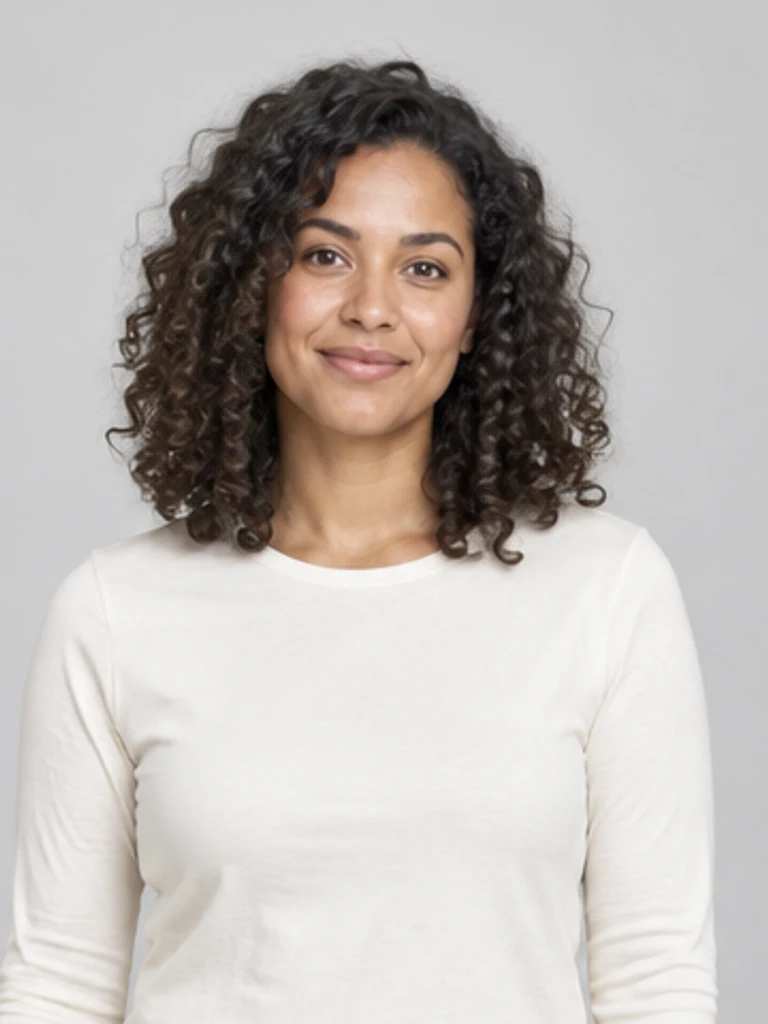
Clown Face: compare three treatments
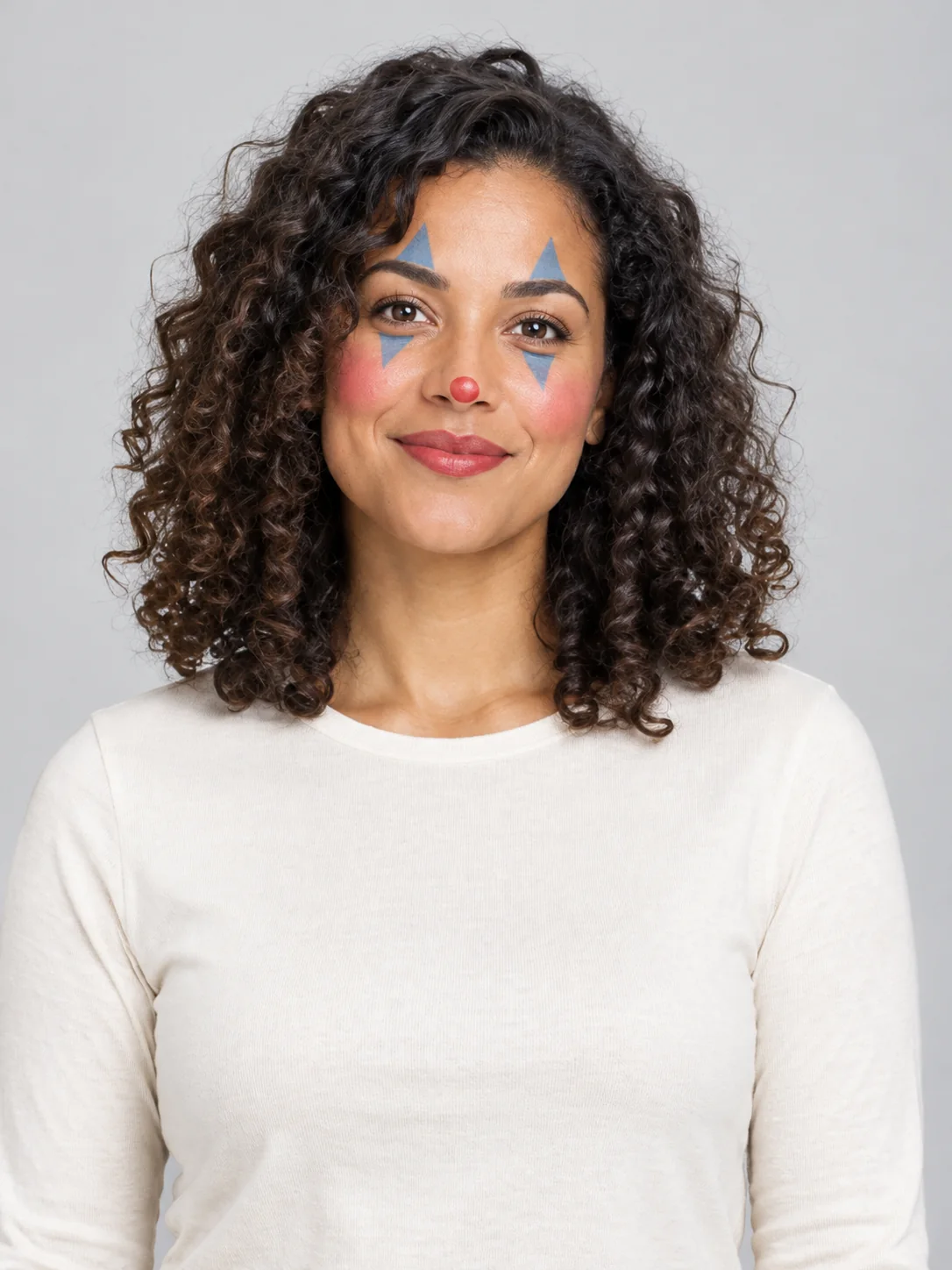
Clown Face: Pastel clown
The pastel look uses a small red nose, soft blue eye accents and rosy cheeks. It aims for theatrical face paint with the uploaded person still recognizable underneath. A close, evenly lit portrait makes the eye and mouth shapes easier to read. Check that the paint follows the face without changing the size or position of the eyes.
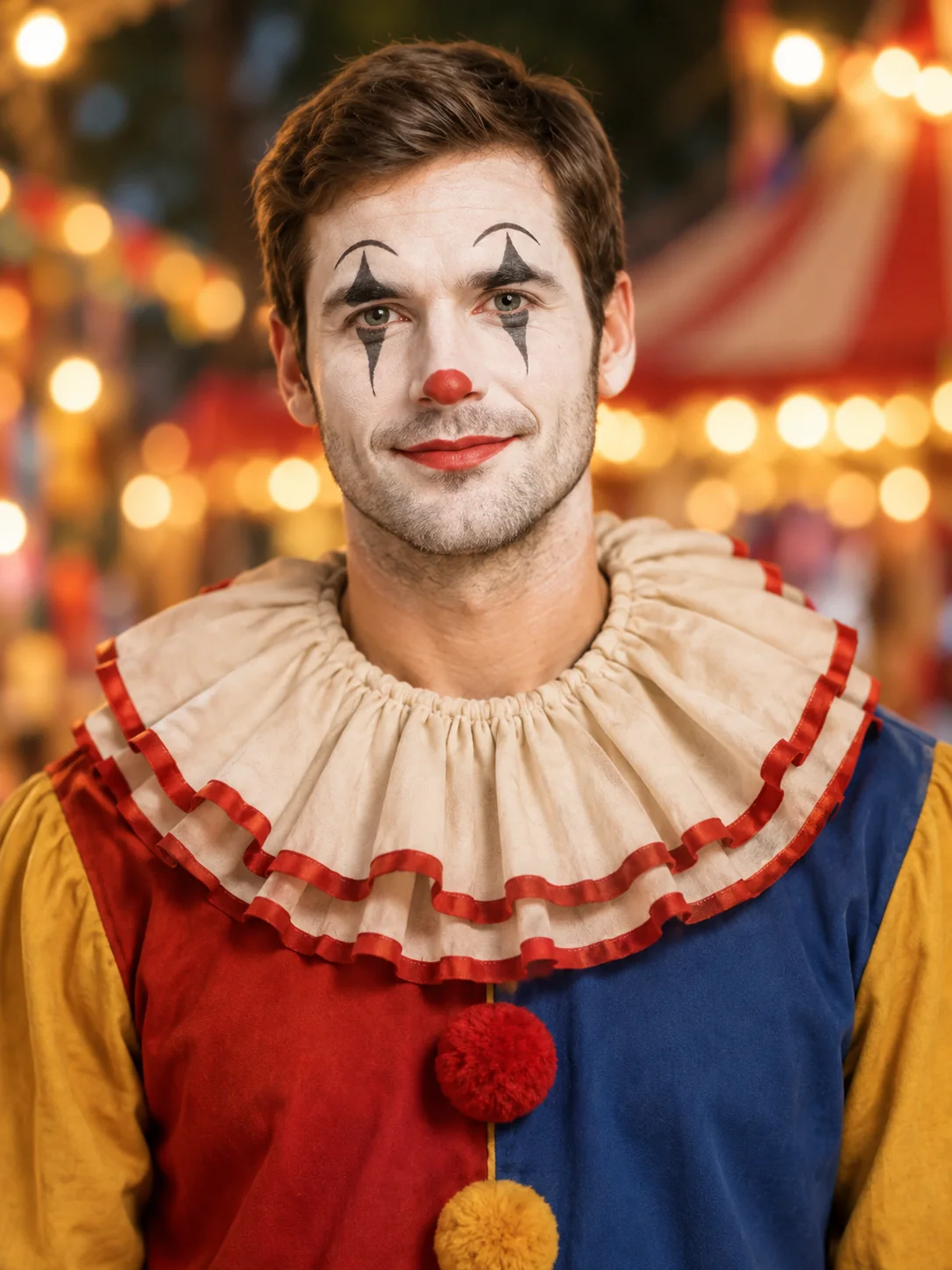
Clown Face: Classic clown
The classic preset adds a pale base, curved black eye accents and a modest red mouth. It has more contrast than the pastel version and a warm carnival setting. Use it to compare a bolder makeup idea. The result is an edited photograph, not a face-paint kit or a step-by-step lesson in applying the design to real skin.
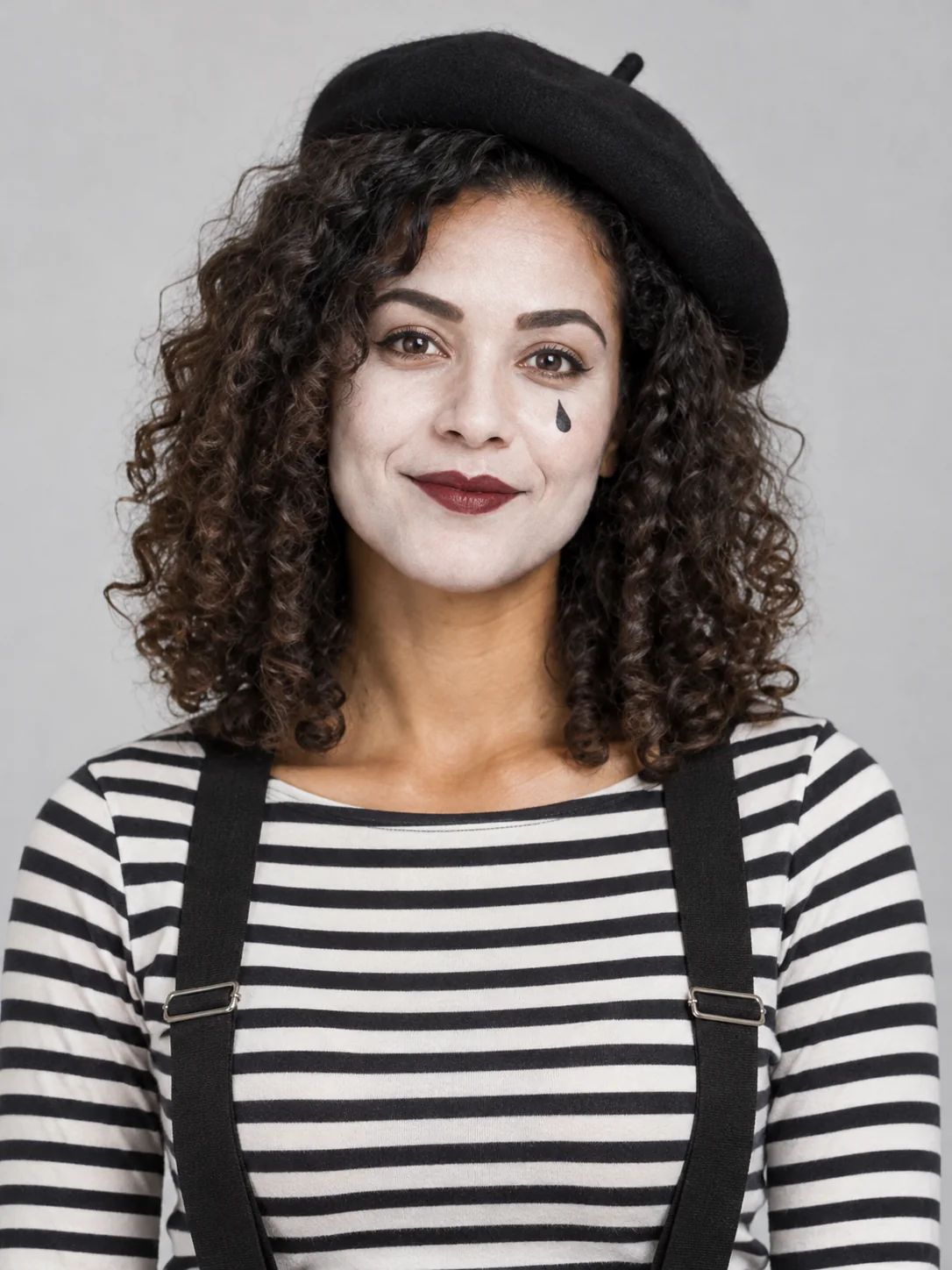
Clown Face: Vintage mime
The vintage mime option uses a small dark teardrop and restrained burgundy lip. It is a quieter theatrical style rather than a horror transformation. The uploaded subject should remain recognizable through the paint. Before sharing, inspect the boundaries around the lips and eyelids; generated cosmetics can look convincing in a small preview while containing odd details close up.
What to provide for Clown Face
Use a sharp portrait with the face unobstructed and light across both sides. A photo with one person is easier to follow than a group shot. Avoid heavy beauty filters, sunglasses and tiny faces in distant photographs. The public sample uses a fictional adult; your result uses the person in the photograph you upload.
Your source photo
A close adult portrait with the whole face visible.
When to use it
Choose this Clown Face tool when you want this specific still-image output.
What it produces
Preview theatrical clown face paint in three different styles.
- ✓3:4 image composition
- ✓Choose one of the three treatments
- ✓Add optional visual details
Review the result
Open the original before sharing.
When to use it
Check the parts that define the Clown Face look, not just the thumbnail.
What it produces
One finished generated image per request.
- ✓recognizable face under paint
- ✓clean eye and mouth shapes
- ✓no injury or warped anatomy
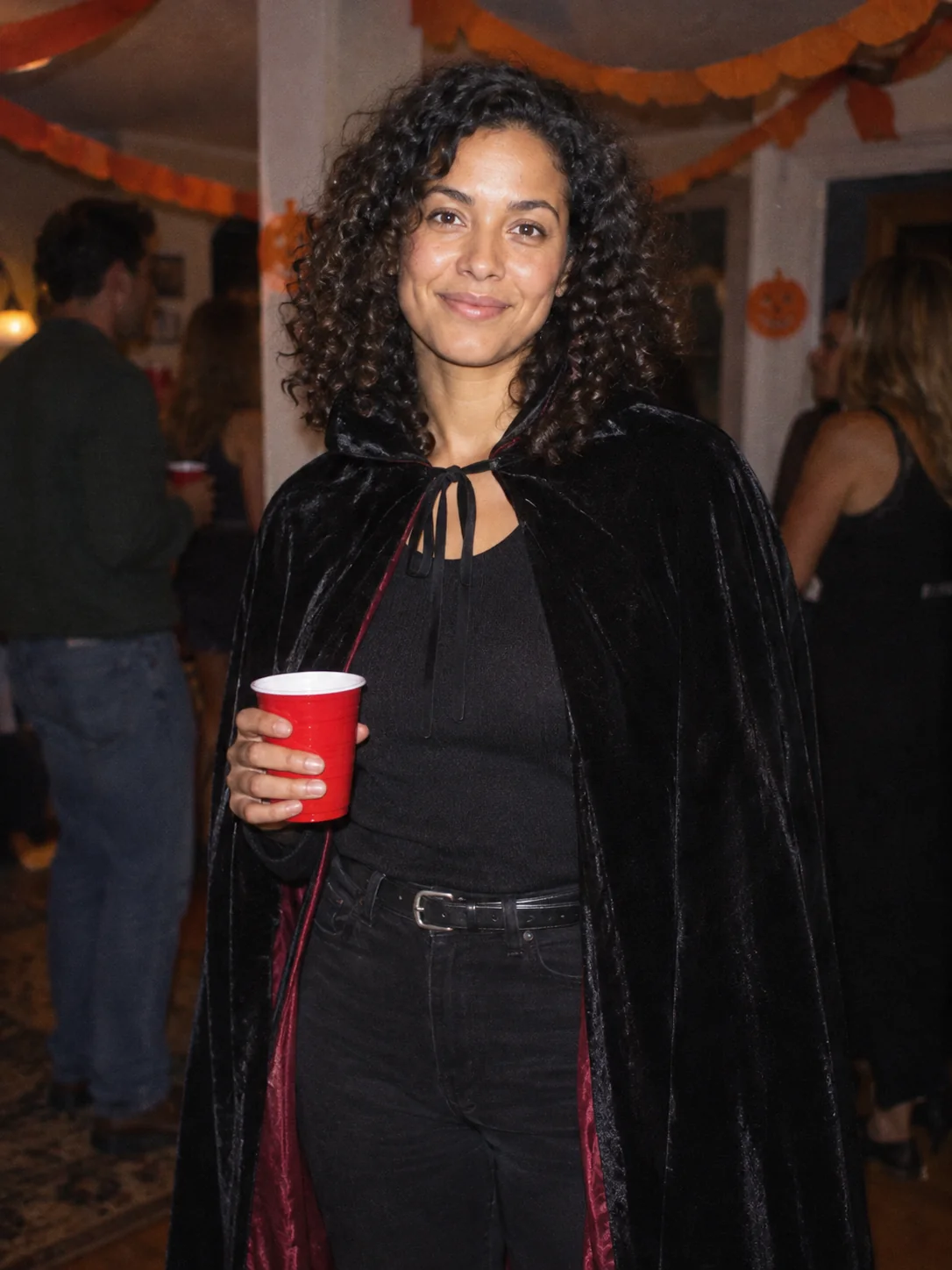
Costume Party
Put yourself in a Halloween costume party photograph.
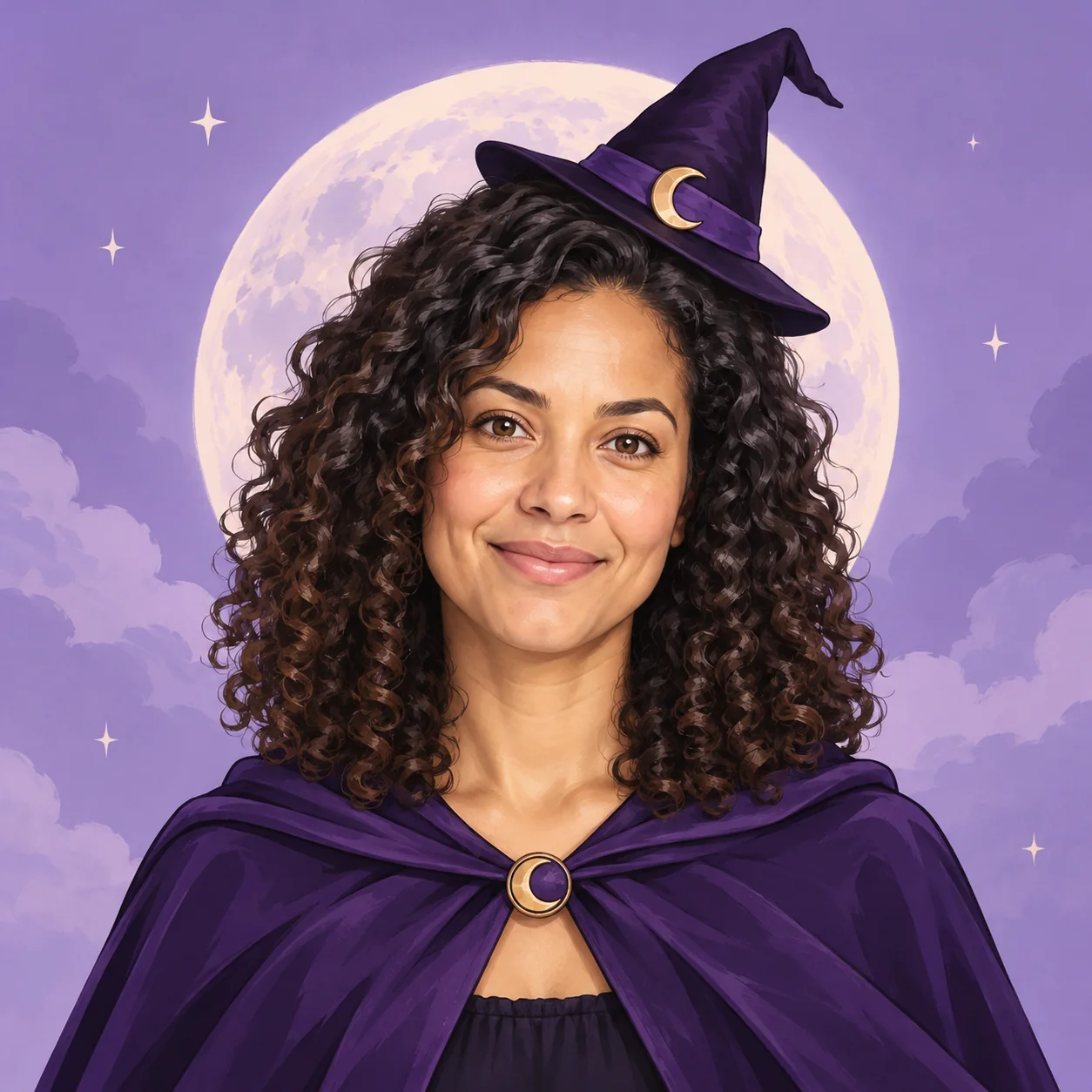
Halloween Avatar
Make a Halloween profile picture that stays readable in a small circle.
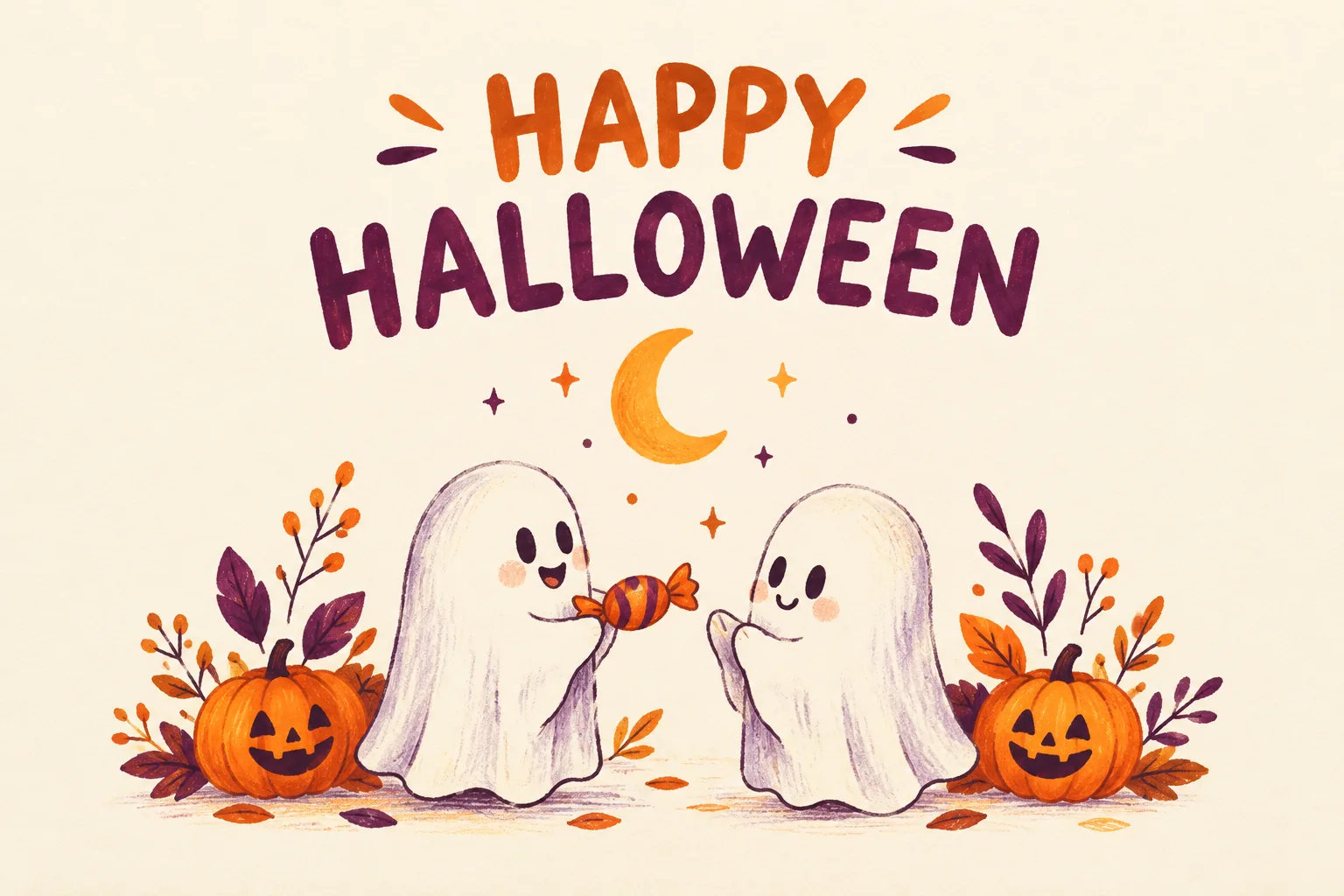
Halloween Card
Create a Halloween greeting card with your own short message.
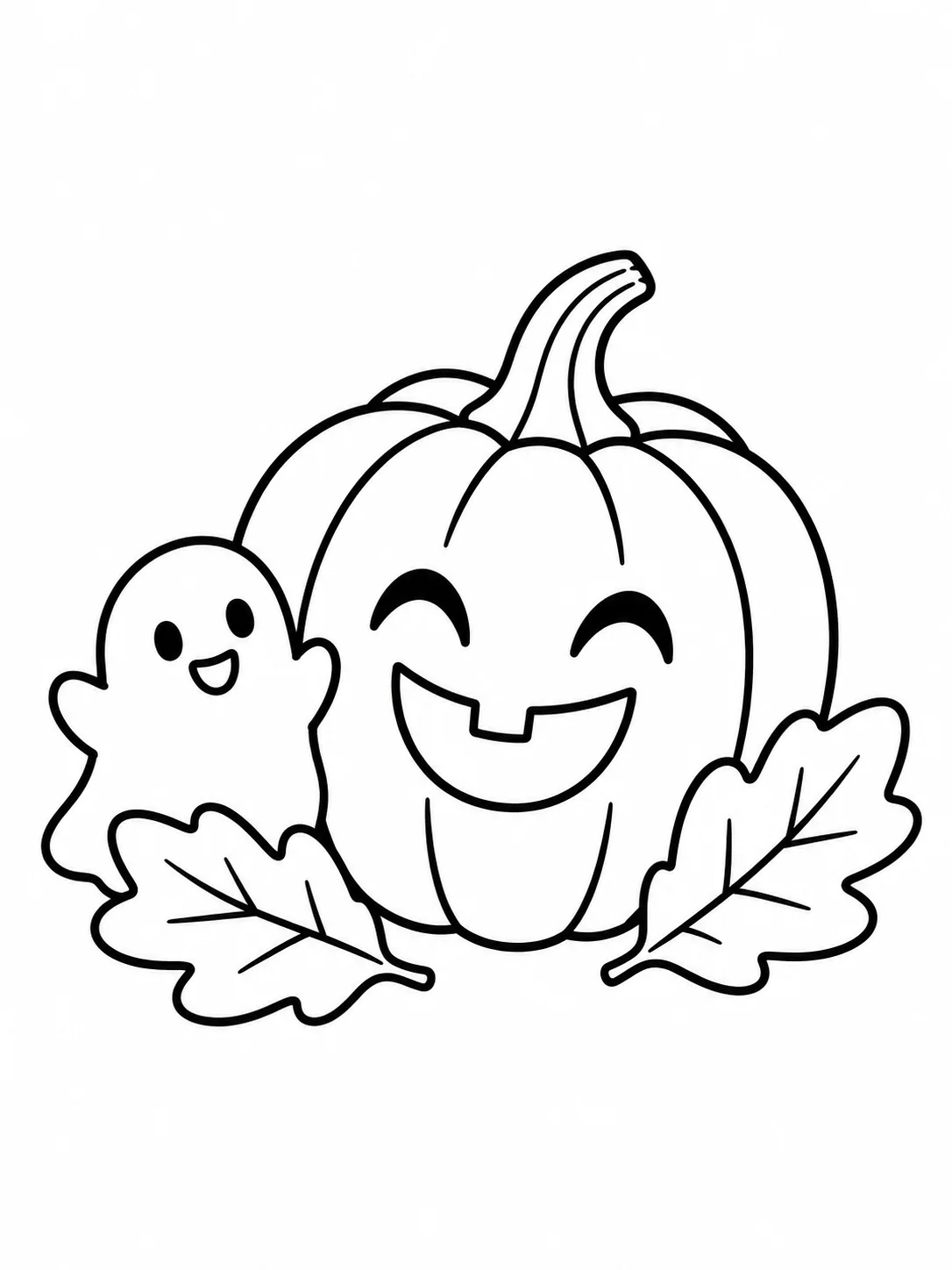
Halloween Coloring
Make black-and-white Halloween coloring sheets with empty spaces to fill.
Halloween Logo
Explore an original Halloween logo concept with a short brand name.
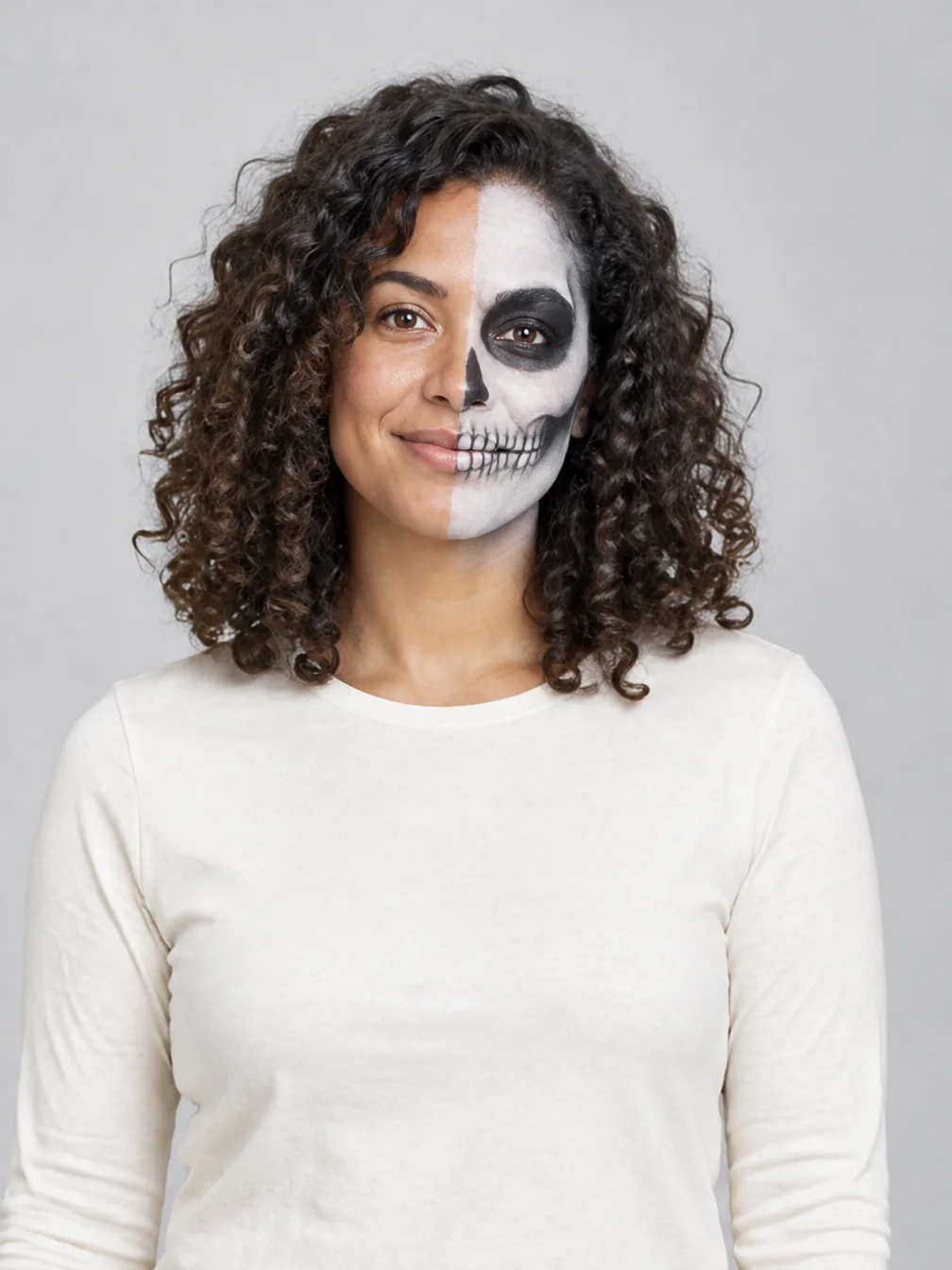
Halloween Makeup
Preview different Halloween makeup looks on your own face.
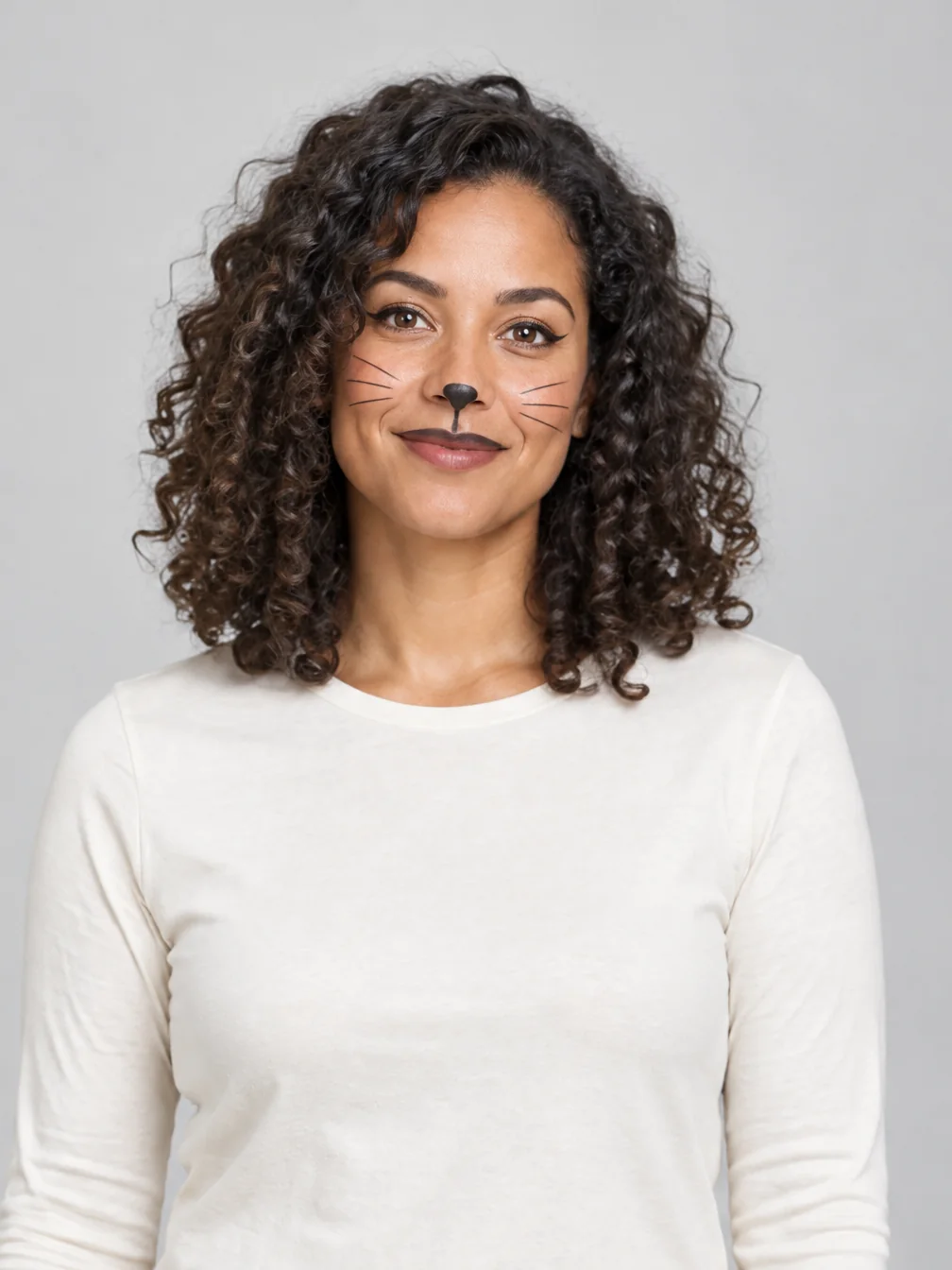
Cat Halloween Makeup
Try cat face paint while keeping your own human face.
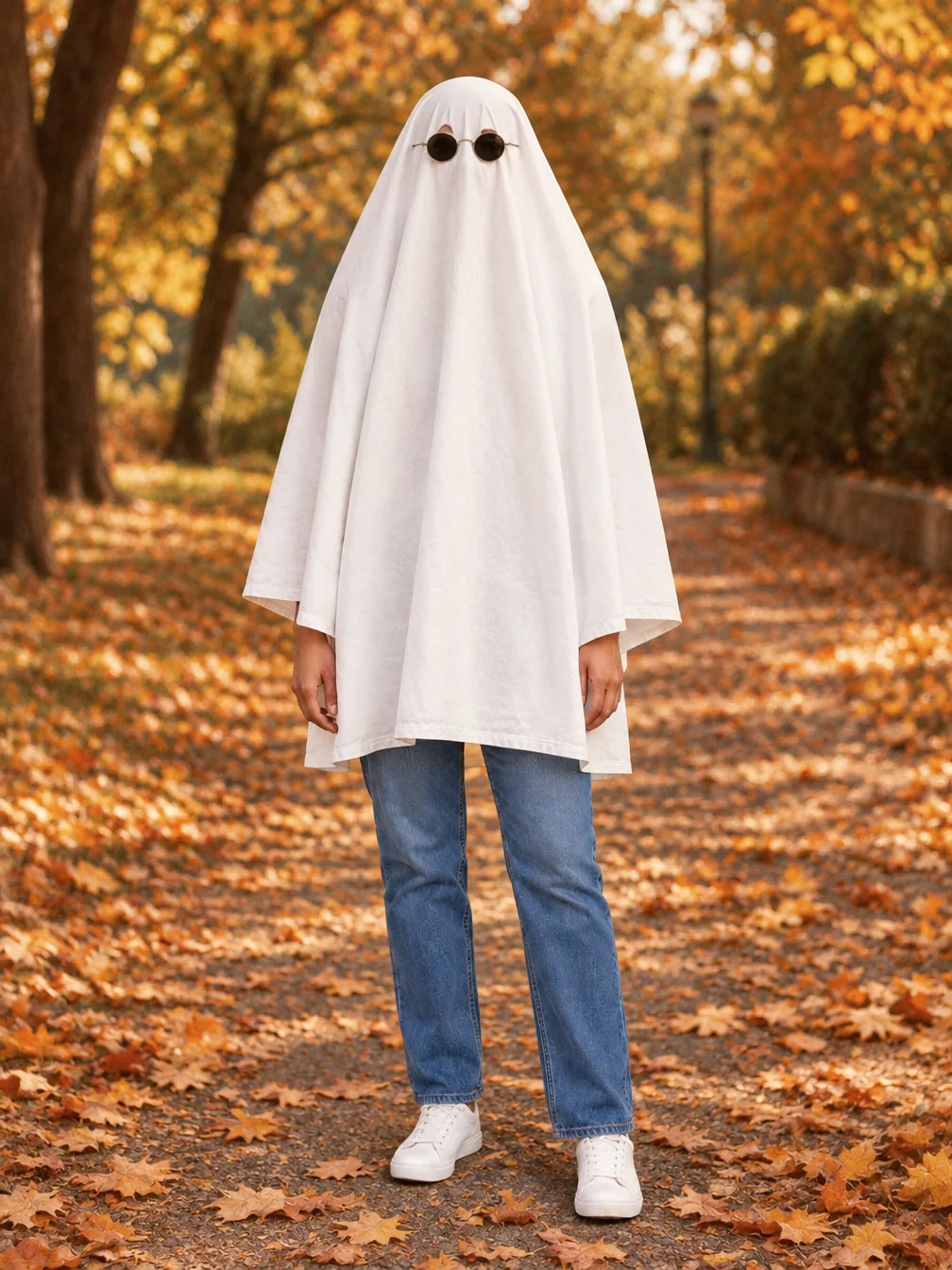
Ghost Photoshoot
Get the white-sheet-and-sunglasses ghost photoshoot look.
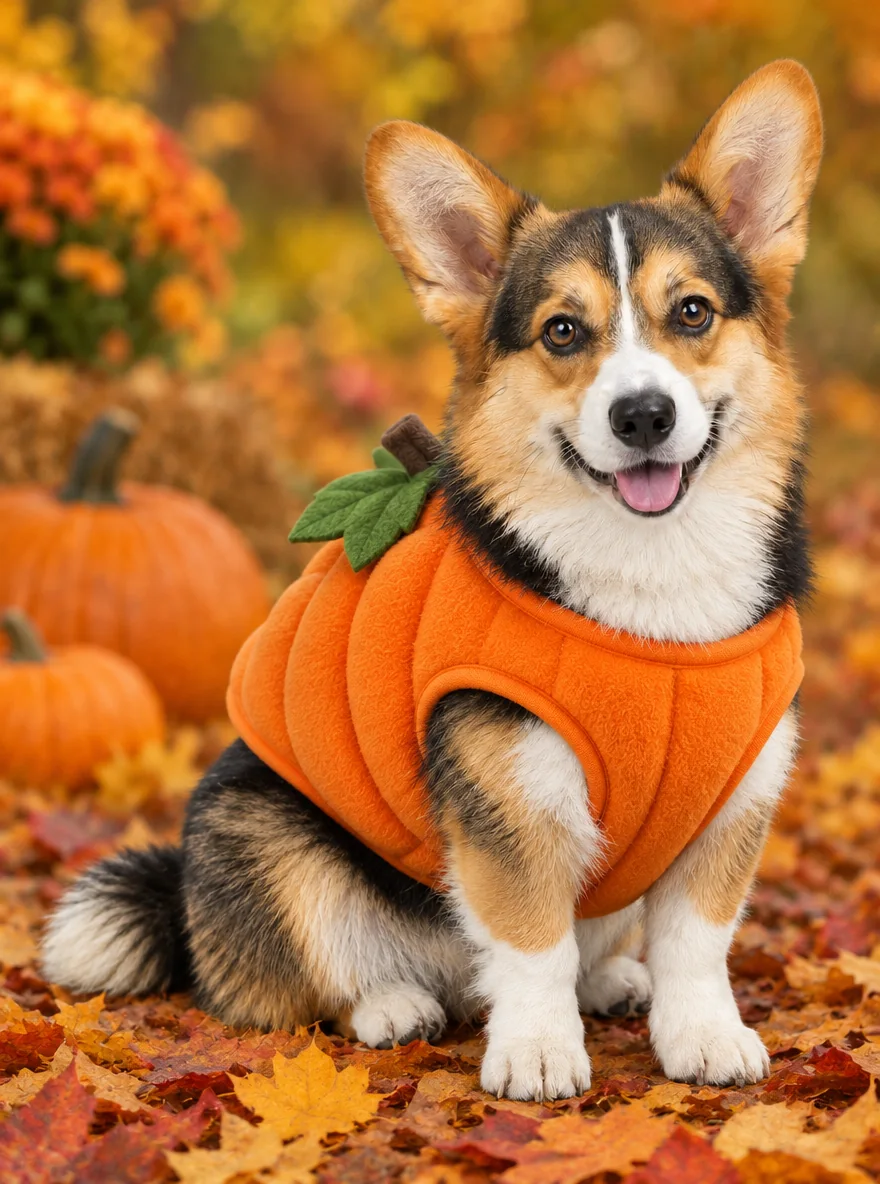
Pet Halloween Costume
Preview a Halloween costume on your own dog or cat.
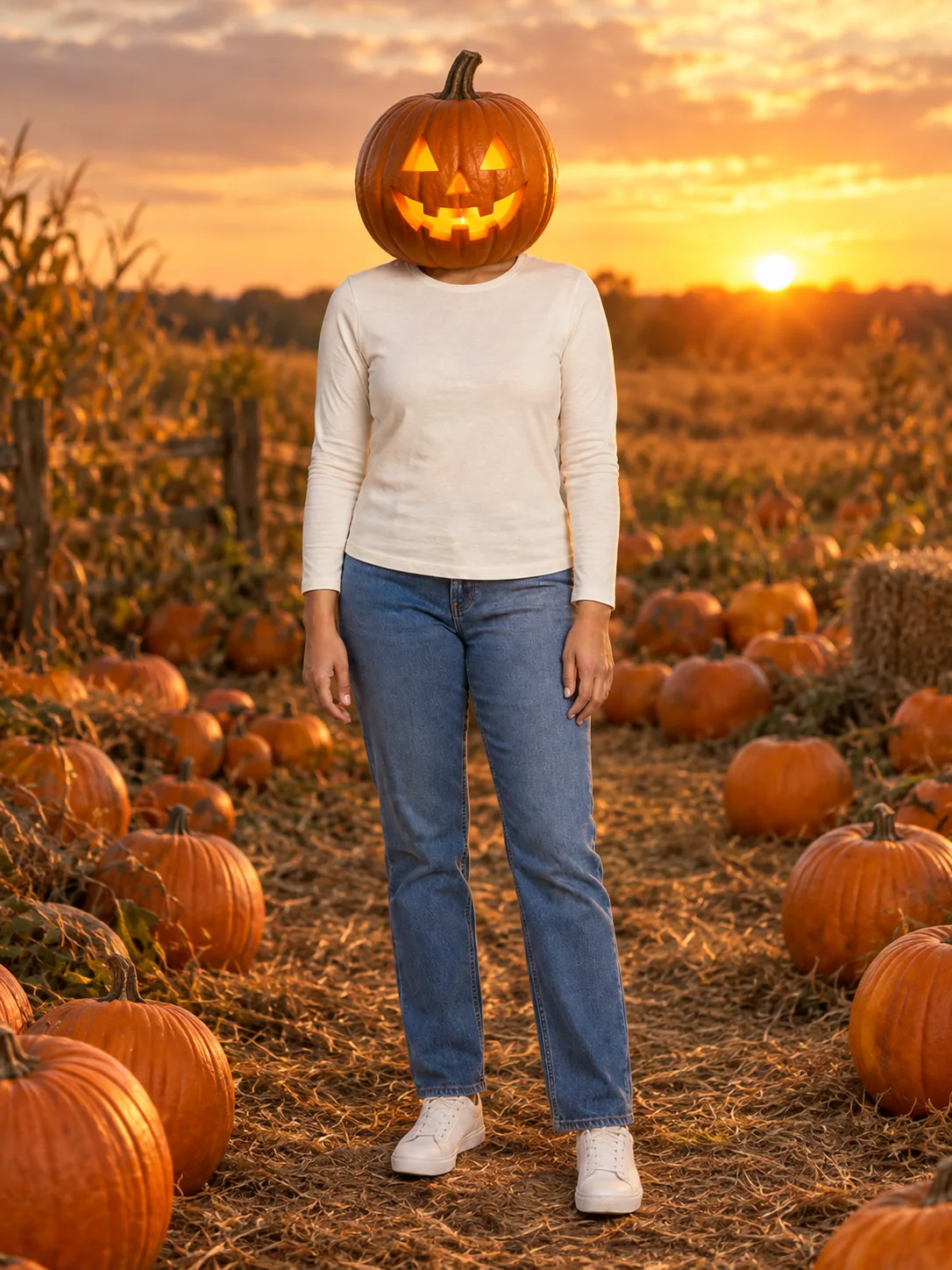
Pumpkin Head Photoshoot
Turn a full-body photo into a jack-o-lantern-head autumn photoshoot.
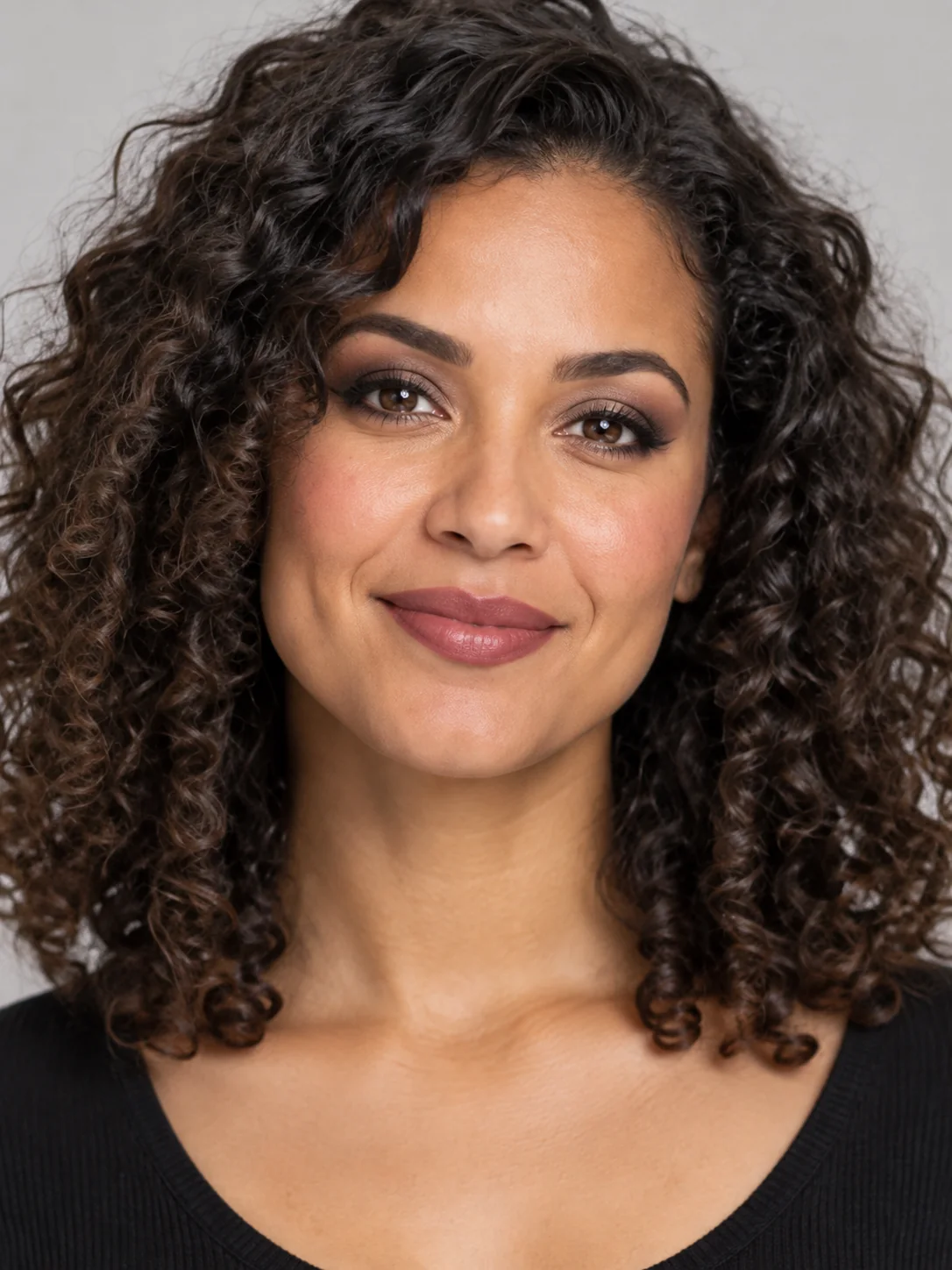
Goth Makeup
Preview dark eye makeup and lip colors on your own face.
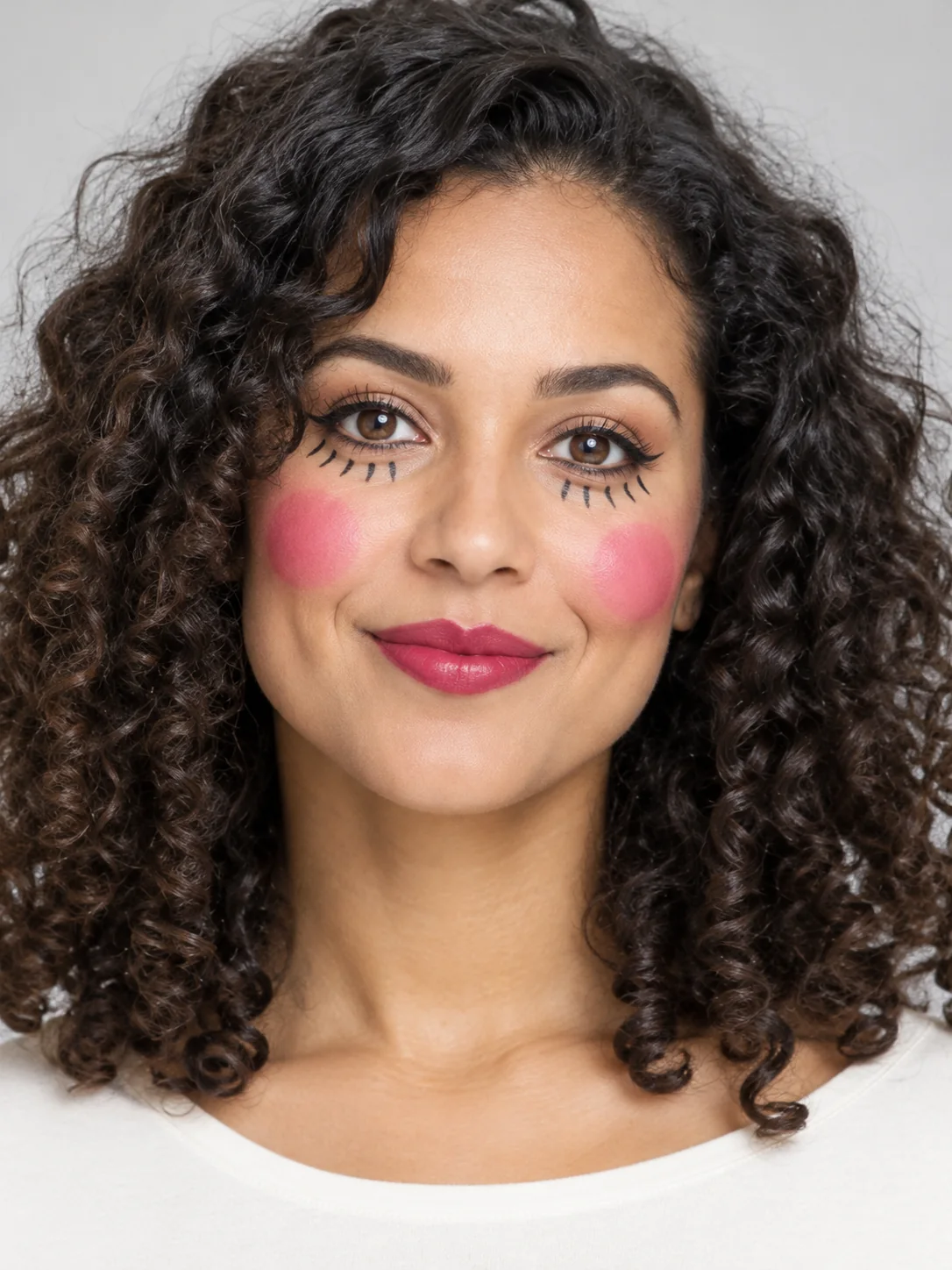
Doll Makeup
Try a doll-inspired makeup look without turning into a plastic toy.
Frequently asked questions
How do I make a Clown Face image?⌄
A close adult portrait with the whole face visible. Choose one of the three treatments, add any extra visual details and press Generate. Use a photograph you own or have permission to edit. Sign in and check your available balance before starting. The result appears when generation and delivery have finished.
What does Clown Face cost, and can I try it free?⌄
Each image costs 20 credits, shown before you generate. Eligible new users who sign in with Google using a Gmail address can receive 30 welcome credits, enough for one image at this price. Free-trial eligibility restrictions apply. Viewing the examples does not start a paid request. Further generations use your available credits; choose your input and treatment before submitting so you do not create an unwanted second request.
Which Clown Face look should I choose?⌄
The three choices are Pastel clown, Classic clown, Vintage mime. Compare the examples above for composition, colors and the details each treatment changes. Select the closest starting point, then use the optional details box for a small adjustment. Each selection produces one image rather than all three at once.
Can I customize Clown Face?⌄
You can add up to 400 characters of extra visual details. Describe useful visible details such as colors, props or the setting. The selected image format and reference requirements still apply. More instructions do not guarantee a more accurate result; a short, consistent request gives you a clearer result to evaluate.
What should I check in my Clown Face result?⌄
Check recognizable face under paint, clean eye and mouth shapes, no injury or warped anatomy. Open the full image instead of relying on a small preview. Generated details can vary between runs, including faces, hands, small objects and lettering. If a detail matters for the way you will use the image, verify it before downloading or sharing rather than assuming it matches the example exactly.
What file does Clown Face produce?⌄
This page makes one still image at 1K resolution in a 3:4 composition. Photo face-paint effect; not an emoji dictionary or physical face-paint product. The examples show the image treatment rather than a promise of an identical result for every subject or description.
How do I save my Clown Face image?⌄
Wait for the completed result, open it to review the full image and use its download action. Your generation is also available in My Creations. If a request is still processing, check that existing request rather than repeatedly pressing Generate. The finished file is the image output; it is not a layered design project.
Create your Clown Face image
Preview theatrical clown face paint in three different styles. Choose your preferred look and review the example before generating.
Try Clown Face