Sean Avery · Updated
AI Photo Editor to Video: Edit a Still Before You Animate
Use an AI photo editor before image-to-video when the still needs one deliberate visual change before it moves: a cleaner setting, a corrected distraction, a more suitable light direction, or a product composition that is already approved. Preserve the original, make one controlled edit, compare it with the baseline, and only then animate the version that is stable enough to become the first frame.
This is a different problem from writing a motion prompt. The existing image-to-video prompt examples explain how to describe motion after you have chosen a starting image. This workflow helps decide whether that starting image needs editing first—and when editing adds more risk than value.
Decide whether the still needs an edit
Do not edit a photo simply because an AI editor is available. Start by naming the video’s one visible purpose: a product turn, a subtle portrait movement, a room walkthrough feeling, or a short social reveal. Then ask whether the existing still already supports that purpose.
An edit may be useful when the subject is well framed but one nonessential part competes with it. Examples include a distracting background object, an inconsistent backdrop in a product set, or lighting that makes the main form hard to read. Keep the requested change narrow.
Skip the edit when the original carries details that must remain exact: a product label, a person’s identity, a newsworthy scene, a legally sensitive image, or a client-approved photograph. Image-to-video already changes pixels over time; adding a speculative still edit first makes it harder to identify which stage introduced a problem.
Preserve the baseline before you prompt
Keep three files or records together:
- Original still: the unedited source and its rights or approval context.
- Edited candidate: one version with a short note describing the requested change.
- Animation candidate: the specific still you sent to image-to-video plus the motion prompt.
This small separation keeps revisions readable. If the video drifts, you can compare the animation to the edited still; if the edited still has changed too much, you can compare it to the original. It also prevents a later teammate from mistaking an AI-edited image for the untouched source.
For shared work, a content-provenance standard such as the C2PA specifications can inform recordkeeping. It does not validate creative claims or replace consent, permission, and human review.
Make one controlled photo edit
ClipTrend AI Photo Editor accepts an uploaded JPEG, PNG, or WebP with a written instruction. Its current low quality but fast option uses one reference; Pro can use up to 10 references for more controlled combinations. The practical rule is the same in either mode: separate what must stay fixed from what may change.
Use this prompt pattern:
Keep [fixed subject and framing] unchanged. Change only [one requested element]. Preserve [important colours, proportions, identity, text, or layout].
For example:
Keep the sneaker’s shape, colour, stitching, logo placement, sole, camera angle, and crop unchanged. Change only the background to a plain warm-grey studio surface. Preserve the product proportions and edge detail.
That is a clearer handoff than “make this product photo better.” It gives the editor a defined change and gives the reviewer a defined comparison. For a portrait, preserve face, expression, hairstyle, clothing, pose, crop, and lens perspective before asking for a background or lighting adjustment.
Avoid combining a new setting, a wardrobe change, a pose change, a camera move, and a style transfer in one still edit. That is no longer a preparation step; it is a broad recreation that may be harder to animate reliably or to represent accurately.
Review the edit before adding motion
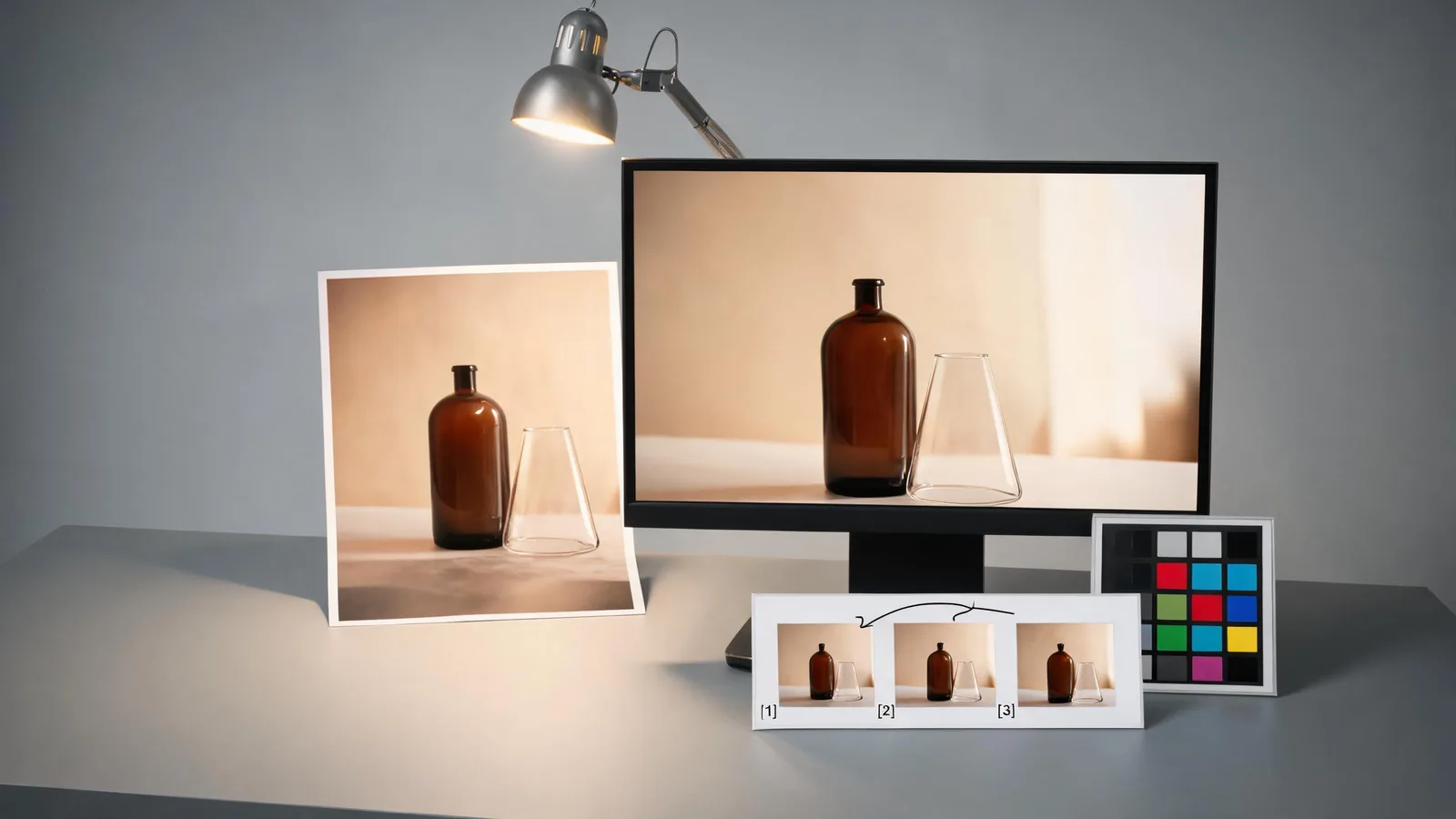
Open the original and edited version side by side. Check the subject first, then the edit. The new background can look attractive while the product shape, identity, hands, text, or room geometry has quietly changed.
| Question | Pass condition | If it fails |
|---|---|---|
| Did the requested change happen? | The one named edit is visible | Rewrite the edit instruction more specifically |
| Did fixed details stay fixed? | Subject, crop, proportions, and critical details match the baseline | Return to the original or use a narrower edit |
| Is the image animation-ready? | The main subject is readable and there is one plausible motion idea | Simplify the composition before generating video |
| Can the result be used honestly? | Rights, consent, product accuracy, and context are clear | Do not animate or publish until the issue is resolved |
This is also where you decide whether an untouched still is safer. “No edit” is a valid result when accuracy matters more than a cosmetic improvement.
Hand the selected still to image-to-video
Once the still is approved, open AI Image to Video and give it one motion job. The stable pattern is:
subject + one action + camera behavior + stability rule
For the edited sneaker image, that might be:
The sneaker slowly rotates a few degrees toward camera; gentle camera push in; keep its shape, stitching, logo placement, studio surface, and framing stable.
The edit established the still’s background and product details. The motion prompt should not ask the generator to redo them. If the intended video needs a second major change—such as a new scene or different outfit—make it a separate shot rather than stacking it into the animation prompt.
Start with a short test and inspect the finished clip against the selected still. Look for edge shimmer, altered proportions, new objects, changed text, or a camera move that makes comparison difficult. If the video is wrong, simplify one variable: use the original still, reduce the photo edit, reduce the motion, or lock the camera.
Use this workflow responsibly
Only edit and animate material you own or have permission to use. Be especially careful with recognizable people, customer images, brands, prices, documents, and real locations. An AI-edited-and-animated video can look plausible while still being unsuitable as evidence or an exact record.
Keep the original source available, disclose material synthetic edits where context requires it, and ask the relevant owner before sharing a result that could imply a real event, endorsement, product feature, or person’s action. Those are editorial decisions, not settings an image or video generator can make for you.
FAQ
Should I always edit a photo before turning it into a video?
No. Edit only when one focused still-image change helps the motion goal. A clean original is often the safer first frame, especially when the subject needs to remain exact.
What should I preserve in an AI photo-editing prompt?
Name the subject, framing, proportions, key colours, and any identity, text, label, or layout that must not change. Then request only one edit.
Can I ask the animation prompt to fix the edited image?
It is better to fix the still first. Image-to-video should add one motion action and a camera behavior, not repair a broad set of unresolved still-image problems.
What is the difference between this guide and image-to-video prompt examples?
This guide covers choosing and preparing the first frame. The image-to-video prompt examples guide covers the later motion-prompt step once the source image is already selected.
Edit only what makes the animation clearer
Choose the original when it already carries the story. When one controlled visual change makes the still easier to animate, preserve a baseline, review the edit, then send only the approved version to AI Image to Video. That restraint makes it easier to diagnose the next result and easier to explain how the video was made.