AI Video Template Export Checklist for Shorts, Reels, and TikTok
After an AI video template gives you a usable render, do not upload the first file immediately. Keep a clean master, review the full clip, then make platform-specific delivery copies with the subject, captions, and ending checked at phone size. This checklist is for the post-render step: preparing an AI video template for YouTube Shorts, Instagram Reels, and TikTok without confusing a good generation with a finished upload.
It follows a different question from our guide to choosing AI video templates for Shorts, Reels, and TikTok. That article helps you select a template before generation. This one starts after you have a render and need to decide whether it is ready to export, crop, and publish.

First: decide whether the render is worth finishing
Play the full clip once without looking for a fix. Can a viewer understand the opening, motion, reveal, and ending? Then play it again with a narrow review goal. A template can be technically generated yet still be a weak delivery file because the face drifts, the product changes shape, the crop loses the main action, or the last frame arrives too fast.
Reject or regenerate when a problem changes the point of the clip. Do not try to rescue a broken identity, misleading product detail, unreadable overlay, or accidental claim with export settings. A clean export preserves quality; it does not repair content.
Use this short accept/reject checklist:
- The first visual beat is understandable with sound off.
- The important subject remains visible through the actual motion.
- The ending does not cut off an action, caption, or product view.
- There is no distorted anatomy, identity drift, invented logo, or false product feature.
- You have permission for the input image, music, voice, and final use.
- The clip does not imply a real event, testimonial, or performance that never occurred.
If you cannot approve those points, return to the template or source brief and make a narrower generation. It is faster than spending time on a file that should not ship.
Preserve one clean master before making variants
Download or store the accepted source as your master. Do not overwrite it while trimming a hook for one platform, adding a caption for another, or sending a compressed file to a teammate. Use a name that identifies the project, template, approved version, and date—not “final-final-new.”
For example: spring-launch-floating-product-master-v03-2026-09-08. Keep a short companion note with the source asset, template used, prompt or brief, approval owner, and any rights limits. That record makes it possible to answer a later question about where an image, clip, or music choice came from.
The master should be visually clean: no platform watermark, no temporary review notes, and no baked-in social UI. Make delivery files from it. If one platform needs a shorter opening or a different crop, create a named variant while leaving the master untouched.
Check the vertical frame, not just the editing canvas
Short-form platforms place interface elements around the video. The exact layout can change by device and product update, so do not treat an old pixel diagram as permanent truth. Instead, preview the exported file in the current upload flow and keep the subject and any required real copy comfortably away from the edges.
TikTok’s own creative guidance calls out a safe zone because on-screen interface elements can obscure a creative. That is a good general rule for vertical video: important faces, products, captions, and calls to action need breathing room.
Check each version for:
- Top and bottom clearance: UI, account labels, captions, or controls should not cover the point of the shot.
- Center readability: A face, product, or reveal should still work when the viewer’s eye is pulled toward the middle of the phone.
- Caption room: If you add real overlay text later, make sure the moving image does not fight it.
- Crop continuity: A crop cannot remove the hands, product edge, or setup that makes the motion understandable.
- Thumbnail moment: Pause on likely preview frames. Is the image still clear without movement?
Do not add fake platform badges, metrics, comments, or UI elements to make an AI clip appear as if it is a real post. That can mislead viewers and becomes brittle the moment the interface changes.
Create variants only for a real delivery need
One vertical master may work across Shorts, Reels, and TikTok, but its surrounding context is not identical. Keep the content decision separate from the delivery decision:
| Delivery decision | What to change | What not to change casually |
|---|---|---|
| Shorter hook | Trim a slow lead-in if the opening remains truthful | The core action or a required disclosure |
| Platform crop | Reframe around the subject and safe space | Identity, product shape, or the visual claim |
| Captions | Add accurate, readable copy in the platform-safe area | Invented results, endorsements, or prices |
| Audio | Use approved narration or licensed music | A track you do not have rights to use |
| Ending | Choose a readable final frame or natural loop | A conclusion that changes what happened |
Make variants only when there is a reason you can name. “TikTok has a tighter crop around the product,” “Reels needs the approved caption version,” or “Shorts needs a clearer final frame” are meaningful reasons. “I might need another file” is not.
Review compression and upload behavior
Export a sensible high-quality delivery file from your editor, then upload a private or test version where the platform allows it. Watch it on a phone after processing. This is the only reliable way to see the combination of compression, crop, interface, and playback behavior your viewer will receive.
Look for blockiness in gradients, banding in dark scenes, shimmering fine patterns, softened faces, dropped frames, clipped audio, and captions that become hard to read. If a problem only appears after upload, change the source or export settings deliberately and record what changed. Do not keep repeatedly encoding the same compressed download; go back to the clean master.
For YouTube Shorts, use the current upload experience and its available checks rather than relying on an old third-party template. Confirm the current upload behavior in YouTube’s own help before a time-sensitive campaign. Platform documentation is evidence for the interface at the time you check it, not a guarantee that your particular AI render will be accepted or perform well.
Confirm audio and rights separately
An appealing template render can hide an awkward legal or editorial mismatch. Before export approval, identify every source:
- the original image or footage used as input;
- any recognizable person, location, product, or trademark;
- music, voice-over, sound effect, and stock insert;
- generated visual claims or realistic scenes; and
- the intended paid, organic, client, or internal distribution.
If the clip includes a real person, use consent appropriate to the use and do not let generation turn it into a deceptive performance. If it uses a brand or product, review the exact visual result at full size. If it will run as paid creative, add the claims, disclosures, and approvals your organization requires before export—not after it has been shared.
Hand off a file another person can actually use
A good handoff makes the next action obvious. Send the delivery file with a short note containing the platform, aspect ratio, duration, version, audio status, owner, and what the recipient should review. Link the clean master rather than attaching an unnamed duplicate.
Example handoff note: “Reels delivery, vertical, v03; derived from approved master v03. Review caption clearance and product silhouette on a phone. Music is licensed for organic social only. Owner: marketing review.” It is more useful than “please post this.”
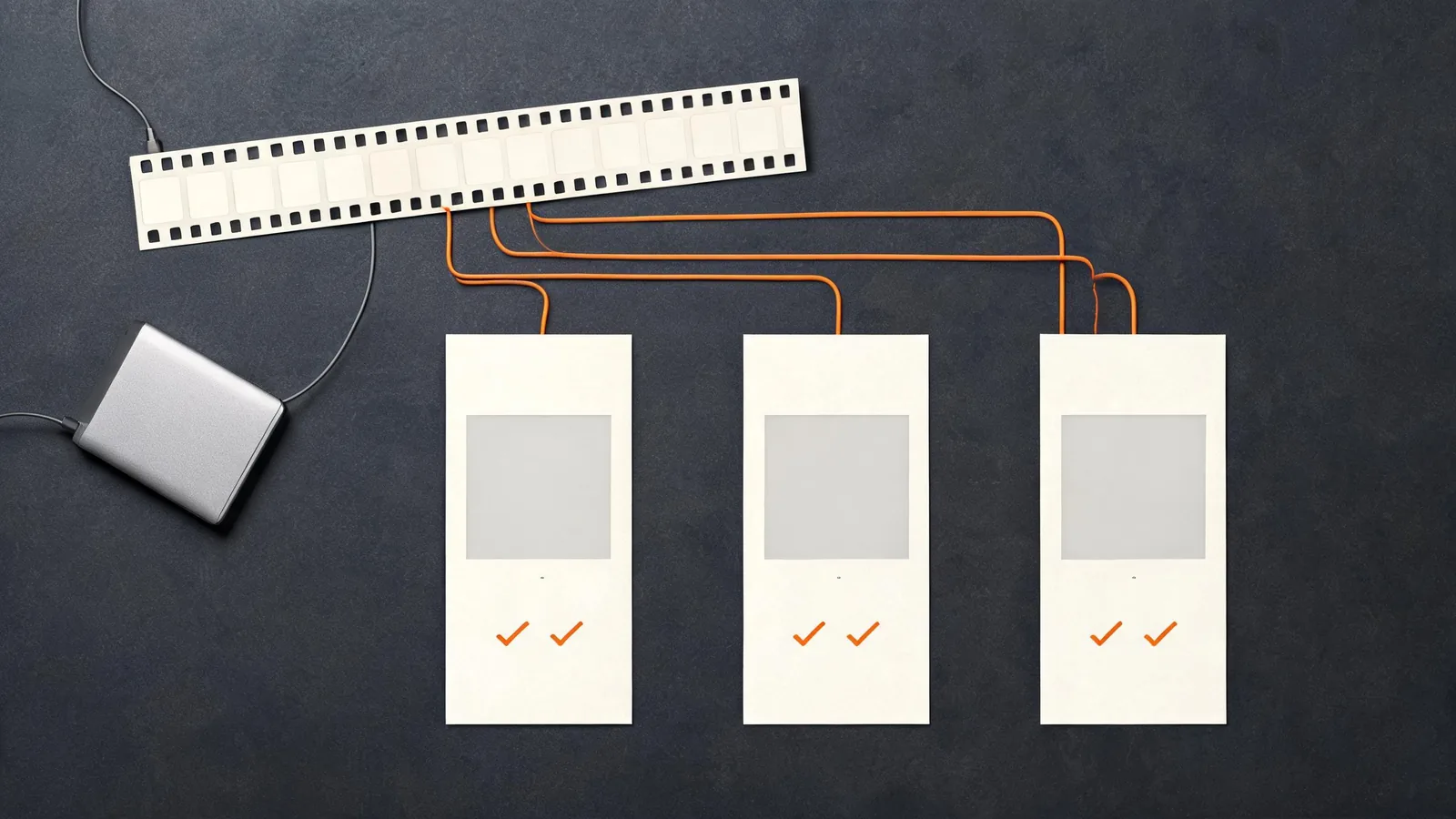
Final AI video template export checklist
Before upload, answer yes to each line:
- [ ] I approved the full render, not only the strongest frame.
- [ ] I kept one clean, named master file.
- [ ] The variant has a stated purpose and has not overwritten the master.
- [ ] The subject, captions, and ending stay visible in the current platform preview.
- [ ] I checked the processed upload on a phone, including compression and audio.
- [ ] All music, input, people, trademarks, and claims have the permissions and review they need.
- [ ] The file name and handoff note identify the platform, version, owner, and limits.
FAQ
Should I upload the same AI video file everywhere?
Sometimes a single master is suitable, but check each upload context first. A platform-specific crop, caption placement, audio choice, or ending may need a named delivery variant. Keep the master unchanged.
What is the most important export check?
Watch the processed upload on a phone. It reveals the real crop, interface overlap, compression, and audio behavior better than an editing timeline alone.
Can export settings fix a bad AI generation?
No. Export can preserve an accepted clip but cannot repair a false detail, drifting face, unclear action, unreadable text, or rights issue. Regenerate or revise the source instead.
Do I need a safe zone for organic video?
Yes, as a practical review habit. Interface elements vary by platform and device, so keep important content away from edges and use the current upload preview before publishing.
Publish with a file you can defend
The safest fast workflow is simple: approve the render, protect the master, make only necessary variants, and inspect a real processed upload. Browse ClipTrend video templates when you need the source format; use this checklist when the question becomes whether the finished file is ready to leave your editing folder.