Free GIF Maker: Turn Videos and Images Into Shareable GIFs
A free GIF maker is most useful when it helps you isolate one moment that can be understood without sound. In ClipTrend GIF Maker, you can turn the first ten seconds of one MP4, MOV, or WebM file into a GIF, or arrange 1–12 JPG, PNG, or WebP images in playback order. Start with a short, clear action; then preview the loop and choose the export that suits where it will appear.
This is a practical guide for a creator, support writer, marketer, or team member who needs a compact animation for a message, help article, social post, or internal update. It explains what the current ClipTrend tool does, what to check before sharing, and where a GIF is the wrong output.

Choose the right source first
The fastest route to a useful GIF is not a longer source file. It is one visible action with a clean beginning and end.
Choose Video to GIF when you have a short clip and only want one repeatable moment: a product turn, a screen gesture, steam lifting from a drink, or a reaction that still makes sense muted. ClipTrend uses the first ten seconds of the uploaded video, so trim or begin the source near the part you actually want to loop.
Choose Images to GIF when you have a deliberate sequence. The tool accepts 1–12 images. One image produces a static one-frame GIF; two or more images play in upload order. Keep the crop, camera angle, and subject position consistent. A sequence of nearly identical but misaligned images usually looks less intentional than a smaller, cleaner set.
The GIF89a specification is the long-standing technical format reference. In day-to-day work, the important practical point is simpler: a GIF is a visual loop, not a substitute for a full video deliverable. If the moment relies on dialogue, music, or exact spoken instructions, keep the original video instead.
Make the loop easy to understand
Before you upload, write one sentence that describes what a viewer should notice. For example:
- “The bottle rotates once, then returns to the front label.”
- “The cursor opens the export menu and selects one option.”
- “Three product angles play in the same order each time.”
- “The before-and-after comparison changes once, then repeats.”
That sentence gives you a useful editing rule. Remove an intro, a paused end frame, or a second unrelated action when it does not help the viewer understand the loop. A GIF does not need to tell a whole story. It needs a clear repeat.
For an image sequence, make the first and last frames feel related. A large jump from the last frame back to the first is not automatically wrong, but it should look purposeful. Product turns, progress steps, and simple reactions work well when the transition is tidy. Fast cuts, camera shake, and busy moving backgrounds make a small loop harder to read.
Use the current ClipTrend GIF Maker workflow
- Open ClipTrend GIF Maker and choose Video to GIF or Images to GIF.
- Upload one supported video, or upload 1–12 supported images in their intended playback order.
- Preview the source. For video, confirm the useful action occurs in the first ten seconds.
- Check the export rules displayed for your account before creating the GIF.
- Make the GIF, then inspect the finished loop at the size and in the context where it will be used.
- Keep the original video or source images. A saved GIF is an output, not the editable source for a later revision.
ClipTrend currently offers GIF output only. Free accounts can export up to 480px on the longest side at 10 fps with a ClipTrend watermark. Paid accounts can export up to 960px on the longest side at 15 fps without a watermark and with priority delivery. A successful conversion uses one credit; failed or cancelled work is refunded, and downloading the same completed GIF again does not use another credit. The workspace is the source of truth for the limits and price shown to your account.
Pick an export for the destination
The right GIF is not necessarily the largest available file. Choose the output for the place it has to work.
| Destination | Practical starting point | Review before sharing |
|---|---|---|
| Chat or support reply | One obvious gesture or status change | Is the action readable at a small size? |
| Help article | A short task step | Does it explain the step without relying on tiny text? |
| Social post | One clear visual payoff | Does the loop work with sound off and a quick scroll? |
| Product or portfolio page | A restrained product motion | Are edges, labels, and the final-to-first transition stable? |
Smaller dimensions and simpler motion are generally easier to share. Longer motion, more frames, larger dimensions, and detailed colour changes can make the file heavier. If a destination imposes its own upload limit, test the finished GIF there rather than assuming the export will behave the same everywhere.
Review the whole loop, not one attractive frame
Watch the GIF several times. The first pass catches whether the idea lands; the next passes catch the small problems people see after the novelty wears off.
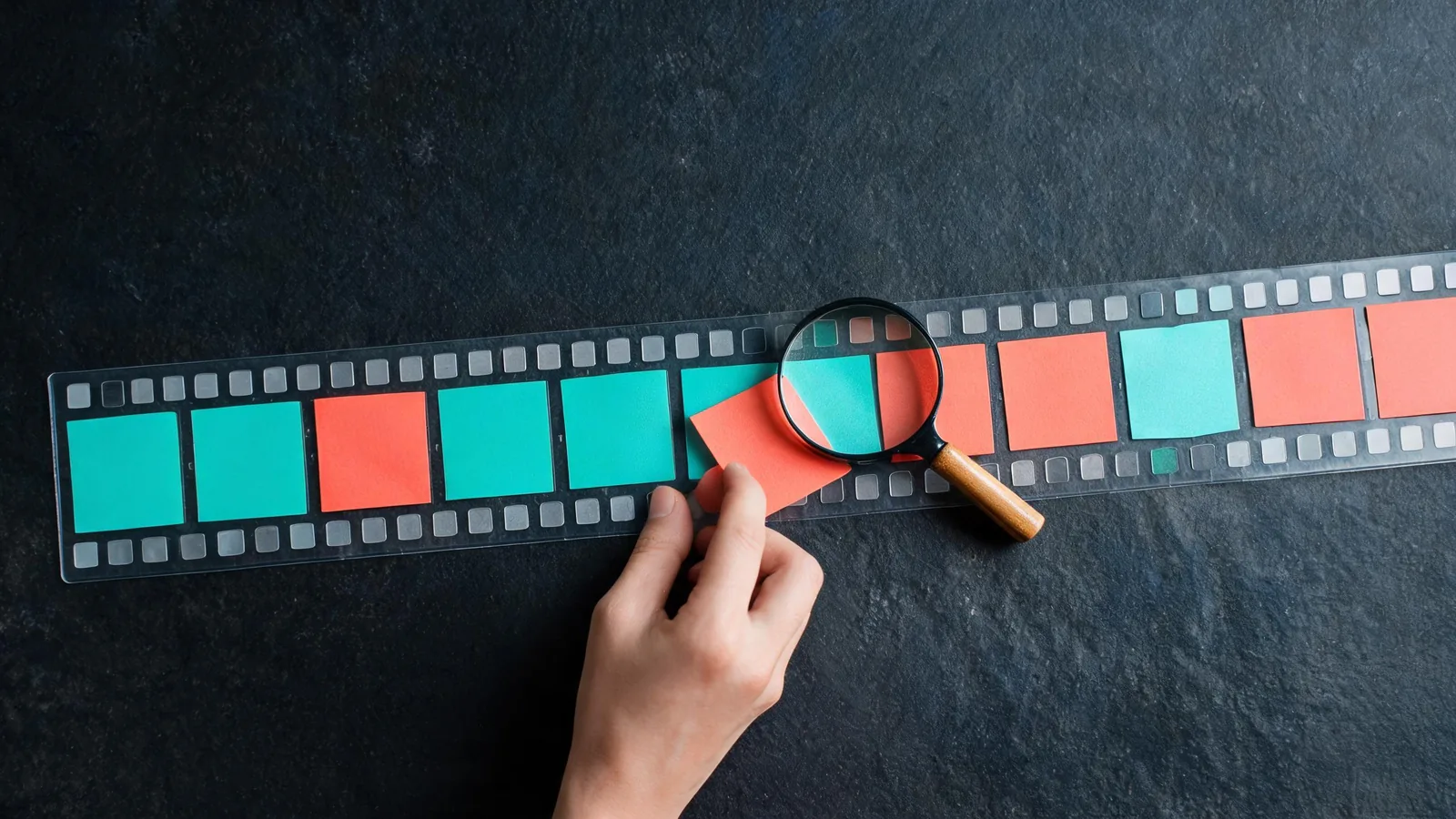
Use this short checklist:
- The first frame tells the viewer what they are looking at.
- The main action is visible without audio.
- The final frame returns to the first frame without an awkward pause or jump.
- Important edges, hands, product shapes, and small details remain readable.
- No confidential material, customer data, or unlicensed source image is visible.
- The animation has been tested in its real destination, not only in a desktop preview.
If one detail is wrong, fix the source or shorten the loop rather than hoping compression will hide it. If the point is a design concept rather than existing footage, you can first make a permitted source visual with the AI Image Generator, then arrange the approved frames in GIF Maker. Keep any generated visual separate from claims, prices, legal language, or documentary evidence that must be verified independently.
Keep source rights and context clear
Only upload material you own or have permission to use. That matters for customer footage, recognizable people, product photography, client assets, and licensed illustrations. A GIF can travel farther than its original post, so remove information that should not appear outside its intended audience.
When a team needs to record how an asset was made or changed, the C2PA specifications are a useful technical reference for content provenance. They do not replace permission, editorial review, or a clear internal approval process. Keep the original file, the approved export, and a short note about intended use together in your asset system.
FAQ
Can I make a GIF from a video?
Yes. Upload one MP4, MOV, or WebM file in Video to GIF. The current ClipTrend GIF Maker uses the first ten seconds, so place the action you want near the beginning of the source.
Can I make an animated GIF from pictures?
Yes. Images to GIF accepts 1–12 JPG, PNG, or WebP images. Two or more images animate in the order you add them; one image makes a valid static GIF.
Does a GIF include sound?
No. Choose a moment that still communicates visually. If audio is essential to the message, distribute the original video or a video edit instead.
Is the free GIF maker unlimited?
No. A successful conversion uses one credit. Free and paid accounts have different displayed output limits and delivery conditions; check the workspace before creating a GIF.
Make one compact loop
Pick the one action that deserves to repeat, begin the source near that action, and review the final-to-first transition before sending it anywhere. Open the free GIF maker when you have the video moment or image sequence ready.