Grok Imagine Video Length: Plan a 6- or 10-Second Clip
Grok Imagine video length on ClipTrend.ai is 6 or 10 seconds as of October 15, 2026. Choose 6 seconds for a small movement or quick reveal; choose 10 when the same action needs a lead-in, a readable middle, and a settled ending. Select the length in the Grok Imagine generator before generating. Writing a different duration in the prompt does not add another option to the picker.
By the ClipTrend.ai Editorial Team · October 15, 2026
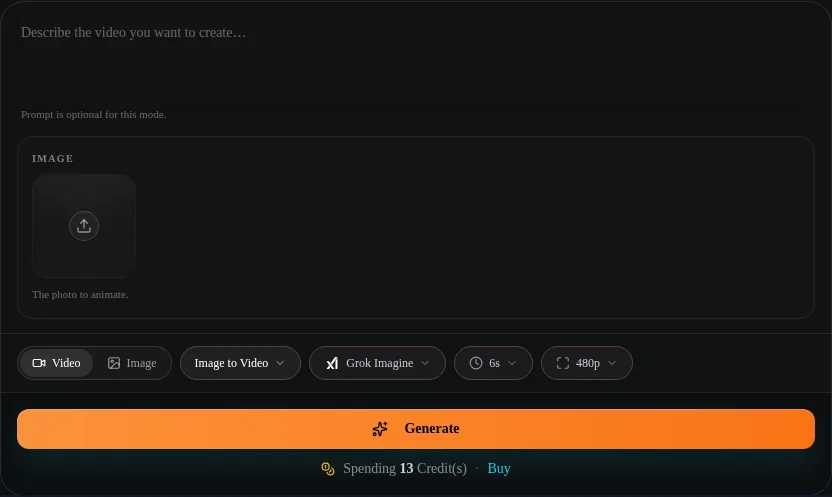
This guide covers the controls offered on ClipTrend.ai. Other Grok apps and services can expose different models, lengths, and extension features. The timelines below are planning examples, not measured results or guarantees of frame-accurate timing.
Should you choose 6 or 10 seconds?
Choose six seconds for a small movement and ten for a movement with more setup and a settled ending. Ask what must happen before the viewer understands the shot. Steam rising from a cup needs little setup. A character noticing something, turning toward it, and resting in a new pose has more stages. Giving both ideas the same duration can make the first feel stretched and the second feel rushed.
Choose one main action and one camera instruction. If you need a second location, another character's reaction, or a cut to a different angle, consider making a separate clip. Extra runtime helps a movement breathe; it does not turn a single shot into an edited sequence.
| Your shot needs | Starting length | What to leave out |
|---|---|---|
| One small gesture, breeze, or camera drift | 6 seconds | A long introduction before anything changes |
| A brief product reveal from an already useful view | 6 seconds | A new location and a second reveal |
| A slow turn with a visible pause afterward | 10 seconds | Unrelated gestures during the turn |
| A gentle camera move that needs a readable destination | 10 seconds | Several conflicting camera paths |
| Several events or a complete story | Separate clips | Trying to solve the whole sequence with one longer request |
Neither setting is a universal quality upgrade. A clear six-second idea can be more useful than a ten-second clip with no clear purpose. Use the longer option because the action needs room, then inspect whether the result actually uses that room well.
Where is the duration control on ClipTrend.ai?
Open the Grok Imagine model page. The generator opens in Image to Video mode. Add your source image and, if helpful, a prompt describing the movement. For a scene without a source photo, switch to Text to Video and keep Grok Imagine selected.
The control row contains the model, duration, and resolution. Open the duration control, select 6s or 10s, and read the credit quote after changing settings. Resolution and length are separate choices: selecting 720p does not tell the generator how long the action should last.
Check the actual model name before submitting. The workspace lets you change models, and another selection can expose different durations. This article's six-or-ten choice applies to Grok Imagine on ClipTrend.ai, not every model in the catalog. Sign in and check your available credits before generating.
If the controls have changed since the date above, follow what the current interface offers. The xAI Imagine documentation describes a broader set of model capabilities; an option documented there is not automatically available in this ClipTrend.ai workflow.
A six-second plan: establish, move, hold
For a short shot, make the opening immediately useful. A source image already showing the subject clearly saves you from asking the model to reveal everything before the action can begin. Keep the subject recognizable and give the movement a destination.
Here is a planning sketch for an illustrated fox looking toward a falling leaf:
| Part of clip | Intended beat | Prompt instruction |
|---|---|---|
| Opening, roughly 0–1 second | Fox is already visible in the clearing | Keep the opening composition clear and stable |
| Middle, roughly 1–4 seconds | Fox makes one small head turn toward the leaf | A single gentle turn; body stays in place |
| Ending, roughly 4–6 seconds | Fox holds the new pose | Let the motion settle; no new action at the end |
A suitable prompt is:
A watercolor fox sits in an autumn clearing. It makes one small, gentle head turn toward a drifting leaf, then rests in that pose. Keep the body in place and the camera fixed. Preserve the watercolor style and the clear silhouette. One continuous shot with a calm ending.
Treat the time ranges as your editing plan. They help you decide what belongs in the shot, but the generator may interpret the pacing differently. If the fox turns immediately or never settles, review the actual clip and simplify the instruction rather than assuming exact timestamp commands will fix it.
A ten-second plan: give one movement a destination
Use ten seconds when the opening context and ending matter as much as the motion. A slow push toward a product can need space for the viewer to register both the object and the detail being revealed. Keep those stages part of one continuous action.
| Part of clip | Intended beat | What the viewer should understand |
|---|---|---|
| Opening, roughly 0–2 seconds | Product is visible with room around it | What the subject is and where it sits |
| Middle, roughly 2–7 seconds | Camera slowly moves closer | Which texture or detail matters |
| Ending, roughly 7–10 seconds | Movement settles into the closer framing | Where to look before the clip ends |
For a product scene, try:
One matte ceramic vase stands on a pale wooden table in soft window light. Make a slow, gentle camera push toward its ribbed surface, keeping the complete vase recognizable. Finish in a stable closer composition. Keep the vase and table still. No cuts, no rotation, and no additional objects.
A closer view asks the model to create detail that may be small in the source. Use a sharp source photo with the important texture visible. More seconds cannot recover a label that was unreadable to begin with.
For more starting briefs, see the Grok image-to-video prompt guide. Use those as motion ideas and adapt the pacing to the selected duration.
What if ten seconds still feels crowded?
Simplify the shot to one action or split it into separate clips. Read the prompt aloud and count the verbs. “Walks in, waves, picks up a cup, turns, and sits” contains several actions, each with its own transition. Remove everything except the event the viewer must notice. A list of actions can remain crowded even in the longer option.
Also separate subject motion from camera motion. A moving subject plus a pan, zoom, orbit, and focus change gives the model several problems to solve at once. Start with a fixed camera for the action, or a still subject for the camera move. Add complexity only when it serves the shot.
If you need a longer finished sequence, generate separate shots and assemble them in an editor. Keep the source assets, lighting direction, and framing consistent where continuity matters. Editing multiple clips is a separate workflow; it does not mean this generator has a one-click extension option or guarantees a seamless join.
Review pacing separately from visual defects
Watch once for the story of the motion: does the action begin clearly, remain readable, and finish intentionally? Then watch again for unwanted changes in the subject. These are different review questions and can need different fixes.
A clip that ends during the movement may need a simpler action or a stronger instruction to settle. A distorted face or disappearing hand calls for source and motion review. Extending the duration alone is not a reliable repair. The face and hand stability checklist explains how to check the source, simplify motion, and change one cause at a time.
Before keeping a take, check:
- The main action is understandable without reading the prompt.
- The opening frame is useful, with no unnecessary delay before the subject becomes clear.
- The camera follows one deliberate path or stays fixed.
- The final moment gives you a usable place to cut.
- Important faces, hands, products, and edges remain acceptable throughout.
A longer selected length does not oblige you to use every moment in the final edit. Keep the portion that serves the sequence, while preserving enough lead-in and ending to make the cut feel intentional.
What does the site-wide clip-length snapshot show?
As of October 14, 2026, 82% of videos in ClipTrend.ai's anonymous summary used a five-second length. These numbers come from ClipTrend's anonymous summary of 2,639 generations in the last 30 days and contain no personal data. The reporting window was September 14 through October 14, 2026.
That is a site-wide snapshot across video workflows, not a Grok-specific result, a quality comparison, or a recommendation to choose five seconds here. Grok Imagine's available choices on ClipTrend.ai are six and ten seconds. The practical question remains whether your action fits clearly into the selected clip.
FAQ
How long are Grok Imagine videos on ClipTrend.ai?
As of October 15, 2026, the Grok Imagine generator on ClipTrend.ai offers 6-second and 10-second lengths. Check the duration control with Grok Imagine selected before submitting.
Can I request a different length by writing it in the prompt?
A prompt does not add a new duration setting. Choose one of the lengths available in the interface, then use the prompt to explain the movement and its intended ending.
Should I always choose ten seconds for better quality?
No. Choose ten seconds when one action needs more room for its setup, movement, and ending. Inspect the result for pacing and visual defects; a longer clip is not a guarantee of better quality.
Can I make a longer finished video from these clips?
You can assemble downloaded clips in a video editor. Plan continuity between shots and inspect the joins. This guide does not claim a built-in Grok extension tool on ClipTrend.ai or promise that separate clips will connect seamlessly.
Next step: plan one shot before you generate
Open Grok Imagine on ClipTrend.ai, choose six or ten seconds, and describe one action with a clear ending. A simple shot gives you a concrete result to review and a useful place to make your next edit.
For related workflows, see the Grok prompt guide and the visual stability checklist.