AI Wedding Video Effect: Plan a Short, Respectful Clip From Two Photos
An AI wedding video effect is best treated as a short, clearly labeled creative preview—not as a record of an event. Start with two portraits you are allowed to use, choose one modest visual beat, and put dates, venue details, and other exact information into the final edit. ClipTrend's Toss & Run wedding template gives couples a focused starting format once those basics are settled.
Last updated: July 22, 2026 · about 7 min read
Wedding imagery carries more expectation than a casual trend clip. A viewer may assume a photo is a real moment, a couple may want the result to look like them, and an announcement still needs correct names, dates, and context. A useful workflow separates the imaginative motion from the factual information and gets permission before either portrait is uploaded.
Decide what the clip is for
One short effect does one job well: it can add a playful opener to a save-the-date, preview a mood for a private group chat, or sit beside real footage in a recap. It should not pretend to be documentary evidence or carry every detail of the wedding plan.
| Intended use | A sensible visual direction | What belongs outside the generated clip |
|---|---|---|
| Save-the-date teaser | A brief, clearly labeled couple moment | Date, location, RSVP details, and names |
| Private planning preview | A modest mood or movement test | Vendor decisions and budget information |
| Recap insert | One imaginative transition between real photos | What happened, when, and where |
| Social post | A short visual hook with AI disclosure | Caption, credits, and any required notice |
If the goal is unclear, pause before generating. “Make it cinematic” is an aesthetic preference, not a publishing plan. A sentence such as “a six-second AI-labeled opener before our real announcement card” gives the effect a boundary.
Use portraits with permission and a simple brief
Both people should know how their portrait will be used and where the result might be shared. Choose clear, well-lit images where the face is easy to recognize. Avoid uploading a photo of someone who has not agreed, a child, or an image whose source you cannot explain.
For a two-person visual, keep the request modest: one shared frame, a gentle movement, and a setting that does not imply a real ceremony. The AI video template checklist is useful for choosing the source, first-second message, and final crop before you open a template.
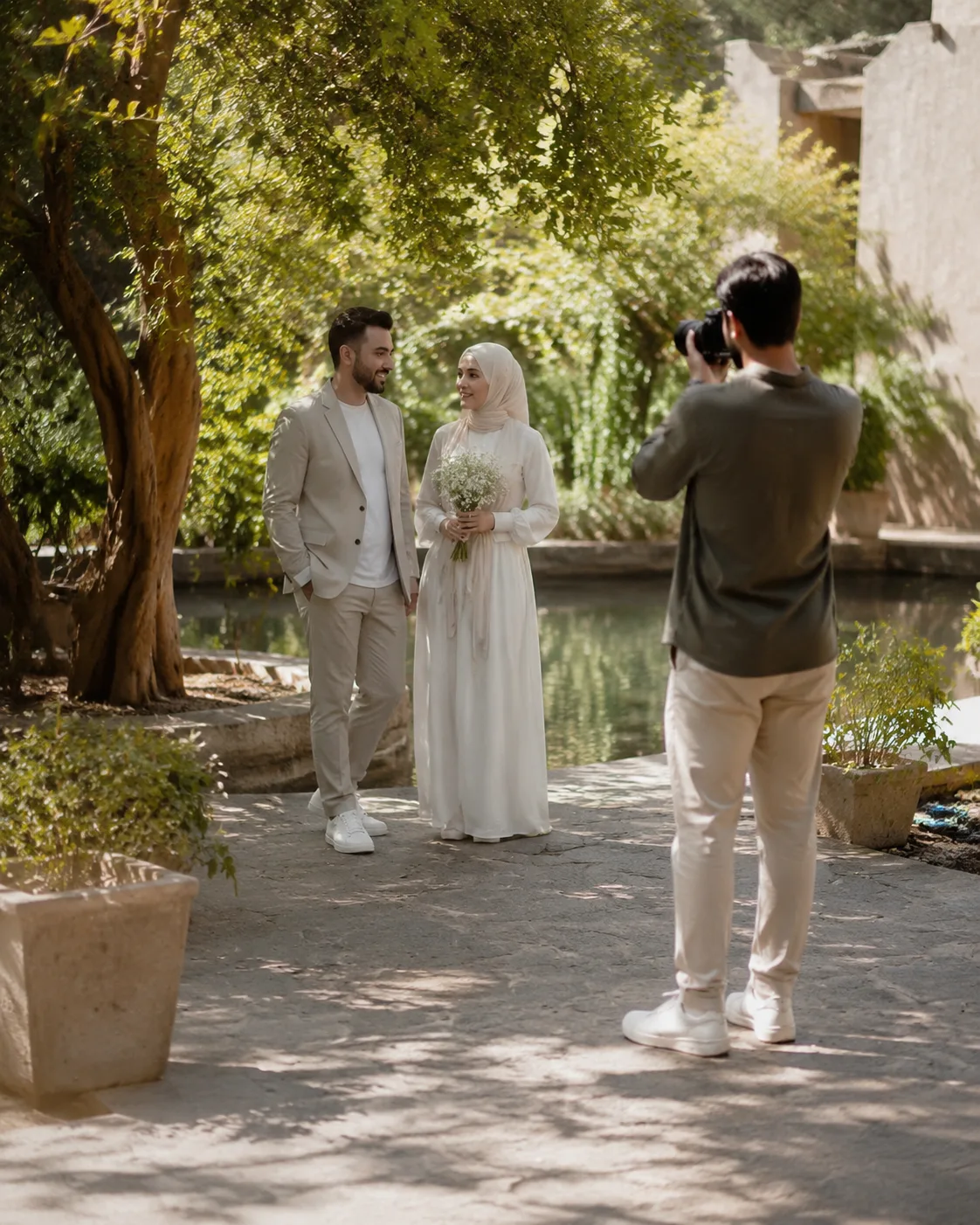
The effect can suggest a mood. It should not be presented as a photograph of an event that took place.
Keep the first visual beat simple
Busy scenes make it harder to check identity, body proportions, background details, and crop. Start with one movement that a viewer can understand without sound: a slow approach, a flower-petal transition, or a held couple frame. Review it as a visual idea, not as proof that the scene was filmed.
The Toss & Run wedding template is designed around a single flower-toss moment. Use it only if that format matches the couple's intended tone. If the aim is a custom narrative or a factual event recap, real footage and a conventional edit are usually the clearer choice.
Put facts and disclosure in the final edit
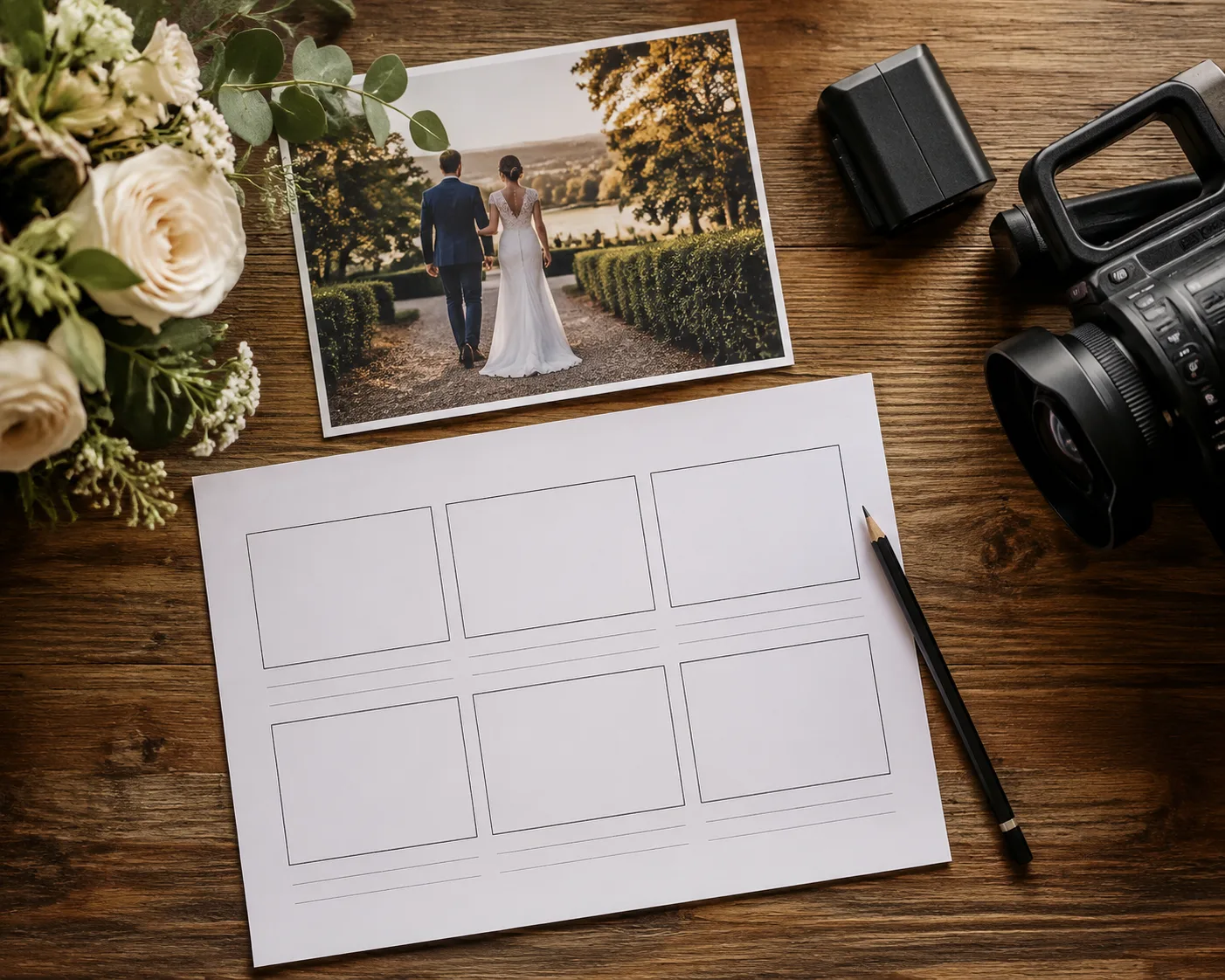
Do not rely on generated frames for exact text. Add names, dates, venue references, captions, music clearances, and any required disclosure with approved assets in a standard editor. Preview the finished version where it will be watched: a vertical feed, a message thread, or a wedding site.
Use direct language in the caption when the clip is public. “AI-generated wedding preview” is clearer than leaving viewers to guess. The disclosure should be close to the clip, not buried under unrelated hashtags or comments.
Review before you share
Before publishing, check the exported file rather than trusting the prompt or the preview thumbnail:
- Both people gave permission for this use and audience.
- The clip does not imply a real ceremony, venue, or event that did not happen.
- Faces, hands, clothing, and background details still feel respectful and recognizable.
- Exact names, dates, prices, and other facts were added from verified sources.
- The AI-generated nature of the effect is disclosed when the audience could otherwise mistake it for real footage.
If a render changes a person's appearance or creates an awkward context, do not post it as a near miss. Replace the source, simplify the idea, or use a still image instead. For the wider review process, see brand-safe AI video.
FAQ
Is an AI wedding video effect a replacement for wedding footage?
No. It can be a clearly labeled creative preview or visual insert, but it should not be presented as a record of a real ceremony, venue, or moment.
What photos work best for a two-person wedding effect?
Use clear portraits that both people have agreed to share. Good lighting, a straightforward face angle, and an uncluttered background make the visual easier to review.
Should I disclose that a wedding clip is AI-generated?
Yes when viewers might reasonably assume it is real footage. Put a plain disclosure in the caption or nearby context, and follow the disclosure rules of the platform where it is posted.
Where should I add names and dates?
Add exact names, dates, venue details, and RSVP information in a conventional editor using approved copy. Generated frames are not dependable for information that must be accurate.
Make the effect an honest opener
Choose one respectful visual idea, get permission, disclose the synthetic clip, and let the verified announcement carry the facts. When the format fits, begin with the Toss & Run wedding template and finish the post in your normal editing workflow.