AI Video Camera Shot List: Plan Moves Before You Prompt
An AI video camera shot list is a pre-prompt plan: give every shot one job, one safe camera choice, one detail that must stay stable, and a note about how it connects to the next shot. It is not a bigger prompt bank. Its purpose is to stop a sequence from asking one generation to establish a place, reveal a product, follow a person, and land a closing frame all at once.
Last updated: September 5, 2026 · about 7 min read
Disclosure: AI video outputs can change from run to run. A shot list reduces ambiguity; it does not guarantee continuity, camera precision, or an exact match to a planned frame.
Plan the cut before the wording
The earlier AI video camera movement prompts guide helps you phrase individual pan, zoom, dolly, orbit, tilt, tracking, and locked-off moves. This companion has a different job: decide whether a move is needed at all, what each shot communicates, and where to cut before you write those words.
A traditional shot list often includes shot size, type, movement, and production notes. StudioBinder’s shot-list overview describes those core fields. For AI video, add two more: the detail that must not drift and the condition for cutting to the next shot. Those details protect continuity when each clip is generated separately.
Use six fields for every AI shot
Make the list short enough to use while prompting. This version is suited to a product clip, simple fictional scene, or social sequence:
| Field | What to decide before prompting | Example |
|---|---|---|
| Purpose | What the viewer should learn or feel | Establish a quiet desk setting |
| Frame | Wide, medium, close, or detail | Wide |
| One camera choice | Locked, slow push, simple pan, or another single move | Locked-off |
| Protected detail | What must remain recognizable | Blue notebook, clean desk, morning light |
| Continuity note | What carries into the next clip | Notebook stays closed on left side |
| Cut or continue | The final frame needed for the edit | Cut when hand enters from right |
Do not turn this into a technical inventory for a model that does not expose lens or motion controls. The goal is a clear visual instruction, not a fake production spec. If a field will not change the next prompt or review decision, leave it out.
Start with a four-shot sequence
For a first sequence, plan no more than four clips. Each should do a different storytelling job.
| Shot | Job | Safe direction | What to preserve |
|---|---|---|---|
| 1. Establish | Show where the moment happens | Locked frame or very gentle push | Overall layout and main subject position |
| 2. Orient | Bring the important object or person into focus | Still frame or small push | Shape, color, and readable non-generated details |
| 3. Action | Show one meaningful movement | One simple movement tied to the action | Hands, object identity, and direction of travel |
| 4. Resolve | Give the editor a quiet place to end or cut | Locked frame | Final pose, product position, or empty space for an end card |
This pattern is useful because it distributes risk. A wide first shot has room to establish the scene. A close shot can protect the object that needs attention. The action shot carries the one change. The final shot gives you an honest landing point instead of forcing a dramatic camera move at the end.
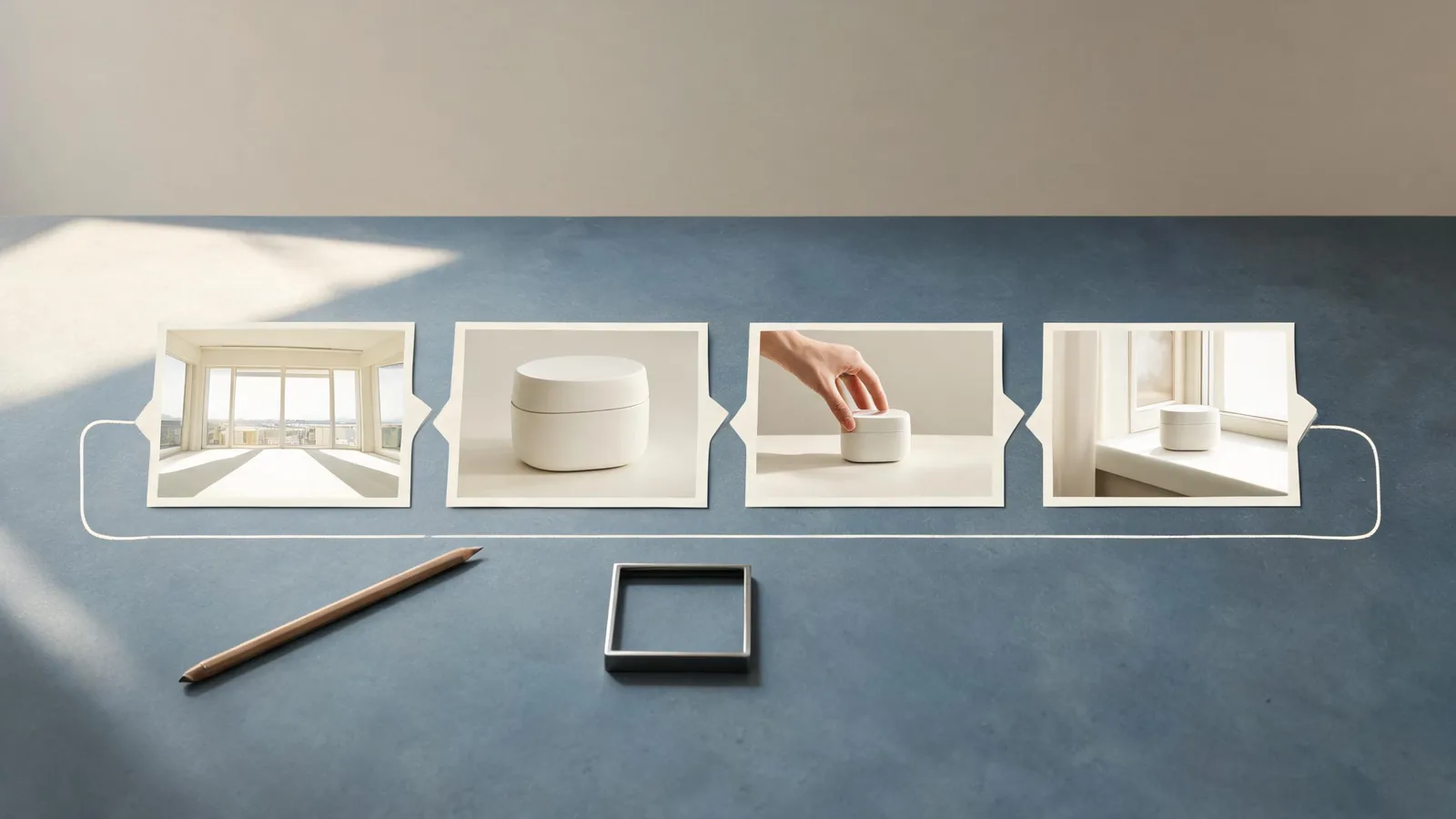
A sequence becomes easier to prompt when each card has one visual job and one continuity decision.
Pick the move from the shot’s job
Ask a plain question: what would movement add here? If the answer is only “make it feel cinematic,” keep the camera still. A locked shot is often the safest way to preserve a face, product outline, label zone, or complicated background.
Use a gentle push only when the sequence needs attention to narrow from the whole scene toward a subject. Use a small lateral reveal when the setting itself is the information. Save a more demanding movement for a shot with a simple subject and plenty of visual room. Never make the camera movement carry a second, unrelated action.
Before prompting, write one sentence such as: “The camera stays still while the notebook opens once,” or “A slow push moves toward the unbranded bottle; nothing else changes.” That is enough to turn the planned field into a usable instruction. For movement wording and stability limits, return to the camera movement prompt guide rather than copying a long move library into every shot.
Protect continuity between separate generations
AI clips do not automatically remember the previous clip. Your shot list should therefore record only the details an editor and a new prompt can actually compare:
- Position: Which side of the frame is the subject on?
- Direction: Is a hand, person, or object moving left-to-right or right-to-left?
- State: Is the notebook open or closed? Is the cup full or empty? Is the jacket zipped?
- Light and crop: Is the scene warm daylight, cool evening, wide, or close?
- Exit frame: What visible state must the next shot inherit?
Avoid asking a model to preserve tiny text, an exact serial number, a medical claim, or a factual before-and-after result. Put precise information in approved graphics or a normal edit. If an important continuity point fails, repeat or replace only the affected shot; do not pretend a mismatch is a deliberate cut.
Turn each row into a restrained prompt
Here is a four-shot plan for a fictional, unbranded notebook product moment:
- Establish: Wide desk in soft morning light; notebook closed on the left; locked camera; end as a hand enters from the right.
- Orient: Medium view of the notebook; gentle slow push; preserve its blue cover and left-side position; hand hovers without opening it.
- Action: Close view; locked camera; hand opens the notebook once; preserve cover color, page direction, and tabletop.
- Resolve: Medium view of the open notebook; locked camera; hand leaves frame; keep open pages still and leave clear space on the right for an editor’s verified end card.
The actual prompt for shot three can be concise:
Close view of an unbranded blue notebook on a wood desk. Locked camera. A hand opens the notebook once from right to left. Keep the cover color, page direction, desk surface, and soft morning light stable. End with the notebook open. No text changes, extra objects, or second hand.
Notice what is absent: a second camera move, a new setting, a product performance claim, or a vague request for “viral” energy. The list already did the strategic work, so the prompt can be specific without being crowded.
Review as a sequence, not four attractive clips
Put the outputs in the intended order before approving any of them. Then check the joins:
- Does the new clip begin with a state that the prior clip can plausibly cut to?
- Has the subject switched sides or changed scale without a purposeful reason?
- Does the one planned movement read clearly, or does it introduce a distracting wobble?
- Can you cut away before an unstable frame, rather than keeping it because the first second looks good?
- Is any generated detail likely to mislead a viewer about a real person, product, or event?
For a final sequence, use the image-to-video tool with the current live options and review the renders in an editor. Add captions, legal copy, prices, and verifiable facts as reviewed layers rather than expecting generated frames to carry exact information.
FAQ
What belongs in an AI video shot list?
At minimum, include the shot’s purpose, framing, one camera choice, a protected detail, a continuity note, and the final frame or cut condition. That is enough to plan a short sequence without over-specifying unsupported controls.
How many camera moves should an AI video shot have?
Start with zero or one. A still shot can be the right choice, especially for faces, products, labels, and complex scenes. Add a move only when it helps the shot’s specific purpose.
How is this different from camera movement prompts?
Camera movement prompts help phrase a selected move. A shot list decides whether that move belongs in the sequence, what it must preserve, and how the editor should join it to the next clip.
Can a shot list guarantee continuity in AI video?
No. It gives you a concise comparison standard and makes mismatches easier to identify. Generate and review each shot, then replace, shorten, or cut around any clip that does not match the required state.
Sources
- ClipTrend, AI video camera movement prompts
- ClipTrend, image-to-video tool
- StudioBinder, Shot List Template: core shot-list fields and planning guidance