Sniffer Dog AI: Make the Party Prank Video From a Photo
To make a Sniffer Dog AI video, open ClipTrend.ai's Sniffer Dog AI page, upload one clear photo of yourself or a consenting adult, and select Generate Video. The scene puts you in a festival crowd: a dog sits at your feet, you freeze, then fake-cry while friends laugh. The output is a 10-second vertical 720P video with sound. Generation usually takes 4–10 minutes; find the finished clip in My Creations, watch it through, and share it with a playful caption.
As of October 14, 2026 · By the ClipTrend.ai Editorial Team
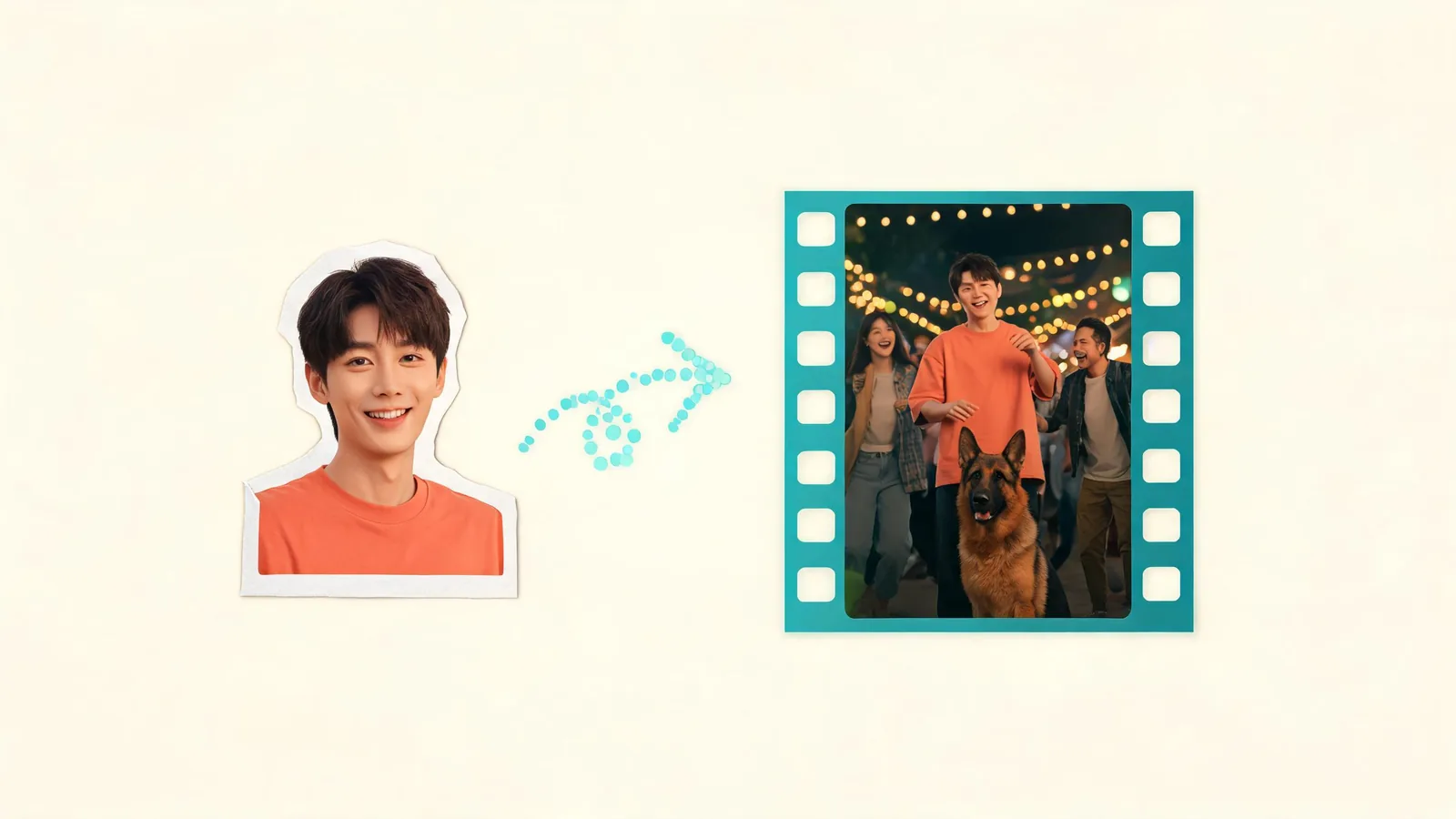
Disclosure: ClipTrend.ai provides the feature described here. The cover is an editorial illustration of the creation process. This guide refers to the feature page's own demo; it does not present newly generated test results.
1. Choose the person and agree on where the clip will go
Start with yourself if you want the simplest route from photo to group-chat joke. If a friend will appear, ask whether they are comfortable being shown dancing and pretending to cry. Also agree on the audience: approval for a private chat does not automatically cover a public Reel.
Use an adult who agreed to the result. The person is the center of the joke, so let them see the finished version before anyone else does. A recognizable face can make a playful clip feel personal; that also means the person's comfort matters more than getting a stronger reaction.
You need one person's photo. This page does not ask you to upload separate pictures of a dog or friends. The surrounding festival scene and supporting characters are generated. If you are looking for a detailed photo-use checklist, the source-photo permission guide covers consent and sharing questions to settle before uploading.
2. Pick a photo with a readable face and upper body
Choose a front-facing image in good light. The face should be sharp enough to recognize without zooming, with the upper body visible. Leave the person's hair and shoulders inside the frame. A simple portrait works better as a starting reference than a crowded party picture with several equally prominent faces.
Avoid sunglasses, strong face filters, deep shadow across the eyes, and a crop that cuts off most of the head. If you have several options, compare them at phone-screen size. Pick the one where the face is easiest to see, rather than the most dramatic photo.
The top in your photo can influence the outfit in the clip. Choose a shirt or jacket you would be happy to see carried into the festival scene. It does not have to be festival clothing, and you do not need a photograph taken at a concert. The feature creates the setting around the uploaded person.
| Photo choice | What to look for before uploading |
|---|---|
| Indoor portrait | Even light on the face and no heavy smoothing filter |
| Outdoor selfie | Eyes visible and no harsh shadow hiding the expression |
| Upper-body photo | One clear subject, with hair, shoulders, and top in frame |
| Group picture | Choose a separate single-person portrait instead |
These are selection tips, not a guarantee of perfect likeness. Generated expressions and movement can change facial details. A clear source gives you a better reference to compare with the finished result, but you still need to inspect the video.
3. Watch the page's demo before starting
The page pairs an example input photo with a playable result. Watch that sample to see the intended rhythm: dancing, the dog's arrival, the sit, the pause, and the oversized fake-tear reaction. Listen as well; music and crowd sounds are part of the effect.
Use the demo to decide whether this particular joke suits the person in your photo. It shows the format the feature is designed to make. It is not a promise that your face, crowd, expression, or camera movement will match the sample exactly.
This is a preset scene. The current page offers one-photo mode; it does not offer a script field, a choice of dog breed, or separate friend-photo slots. You do not need to write a prompt or bring a reference video. If you want a different kind of performance, choose a different effect before generating rather than expecting this one to become a custom scene.
4. Upload once and select Generate Video
Under Upload your photo, select the image you chose. Check that you supplied the intended person's picture before continuing. A quick file check matters when a camera roll contains several similar portraits or when you are preparing the clip for someone else.
The mode is 1 Photo. The page shows 80 credits per video beside Generate Video, as of October 14, 2026. Read the current amount there before starting. This guide does not assume that a balance shown in another part of your account applies to this particular effect.
Select Generate Video and follow any account or balance message shown by the page. Once a job has started, give that job time to finish. Repeatedly starting new jobs is not a useful way to make the first one complete sooner, and can leave you comparing multiple results you did not intend to request.
The generated clip supplies the crowd, the dog, the reaction, and festival sound. Your task at this point is to provide the reference photo and start the preset, rather than assemble those parts yourself.
5. Allow 4–10 minutes and check My Creations
The usual wait is 4–10 minutes, so allow roughly ten minutes when planning to share it. That is an estimate, not a deadline. Avoid promising a friend that the video will be ready at an exact minute.
You can leave the page while it works. The finished video is saved in My Creations. Return using the same account so you are looking at the place where that job was saved. Check for the existing result before deciding to begin another generation.
If the wait runs longer, look at the job's current status and any message shown in the interface. A delay on its own does not tell you whether a job has failed. If a specific failure message appears, follow the account's available recovery or support path instead of treating an unfinished preview as the final file.
For a clip you need before a gathering, generate ahead of time. The extra margin is useful for review and approval even when rendering completes within the usual range.
6. Review the whole ten seconds before sharing
Play the video from the beginning with sound on. First check recognition: does the central person look sufficiently like the photo, and would they be comfortable with the expression? Then watch the action. The dog approaching and sitting should be easy to follow before the person's comic reaction takes over.
Look for awkward hands, inconsistent faces, distracting movement, or an expression that feels uncomfortable rather than playful. These are things to review, not claims that a particular problem will occur. If the result does not work for the person involved, keep it private.
The output is vertical 9:16, 720P, and 10 seconds, with festival music and crowd audio. Preview it at the size people will actually watch. If you add text in a separate editor or social app, leave the dog's sit and the person's face visible. A large caption across the lower center can hide the setup that makes the reaction understandable.
Do not trim straight to the tears. Let viewers see the dancing and the dog first. Without that setup, the final expression can look like an unrelated reaction rather than the payoff of this sketch.
7. Add a short caption that stays with the joke
The funniest caption usually acknowledges the dog choosing you without explaining every frame. Here are suggested lines you can adapt; they are caption ideas, not descriptions of new example outputs:
- “The dog chose the most dramatic person here.”
- “I thought I was the main dancer. Apparently I was the main character.”
- “Ten seconds of being personally selected.”
Keep the joke about the exaggerated reaction. Avoid inventing a backstory for the person or naming a real event they never attended. The clip is generated from a photo, and a clear “AI comedy” note helps someone who sees it outside your original chat understand what they are watching.
For Shorts, YouTube's guidance on disclosing generated content says realistic scenes that did not happen need disclosure. Use the applicable upload setting as well as a clear caption. Check the destination's current controls when posting to another platform.
Send the approved version to the agreed audience. If you want the meaning behind the format before choosing a caption, the Sniffer Dog meme explainer focuses on the setup and reaction rather than the upload process.
Frequently asked questions
Does the source photo need to show me dancing?
No. Use one clear, front-facing portrait with your face and upper body visible. The feature generates the festival movement and scene around the person in that photo.
Can I close the page during generation?
Yes. The page says the result is saved in My Creations. Generation usually takes 4–10 minutes; return with the same account and check the existing job before starting another.
Where should I check if the finished clip seems missing?
Look in My Creations using the account that started the generation. Check the job status and any message in the interface. A longer wait alone does not establish that the job failed.
Can I upload photos of my friends as extra characters?
The current Sniffer Dog AI mode takes one photo of the central person. It generates the surrounding friends and crowd; there are no additional friend-photo fields on this page.
Make your party clip
Choose an agreed portrait, allow time for the render, and review the full scene before posting. Make your Sniffer Dog AI video when you are ready to put yourself in the joke.