Tip Toeing in My Jordans AI: Make Your Barn Dance Video
To make a Tip Toeing in My Jordans AI video, open ClipTrend.ai's Tip Toeing AI page, upload one clear, front-facing photo of yourself, and press Generate Video. Usually about ten minutes later, you get a ten-second landscape 720P barn-dance clip with the song included. You can leave the page while it works and return to My Creations. Preview the face, movement, and sound before downloading and posting.
As of October 14, 2026 · By the ClipTrend.ai Editorial Team
Disclosure: ClipTrend.ai provides this unofficial fan tool. It is not affiliated with Riff Raff or the original clip's creators. The cover is an editorial illustration, not a studio output.
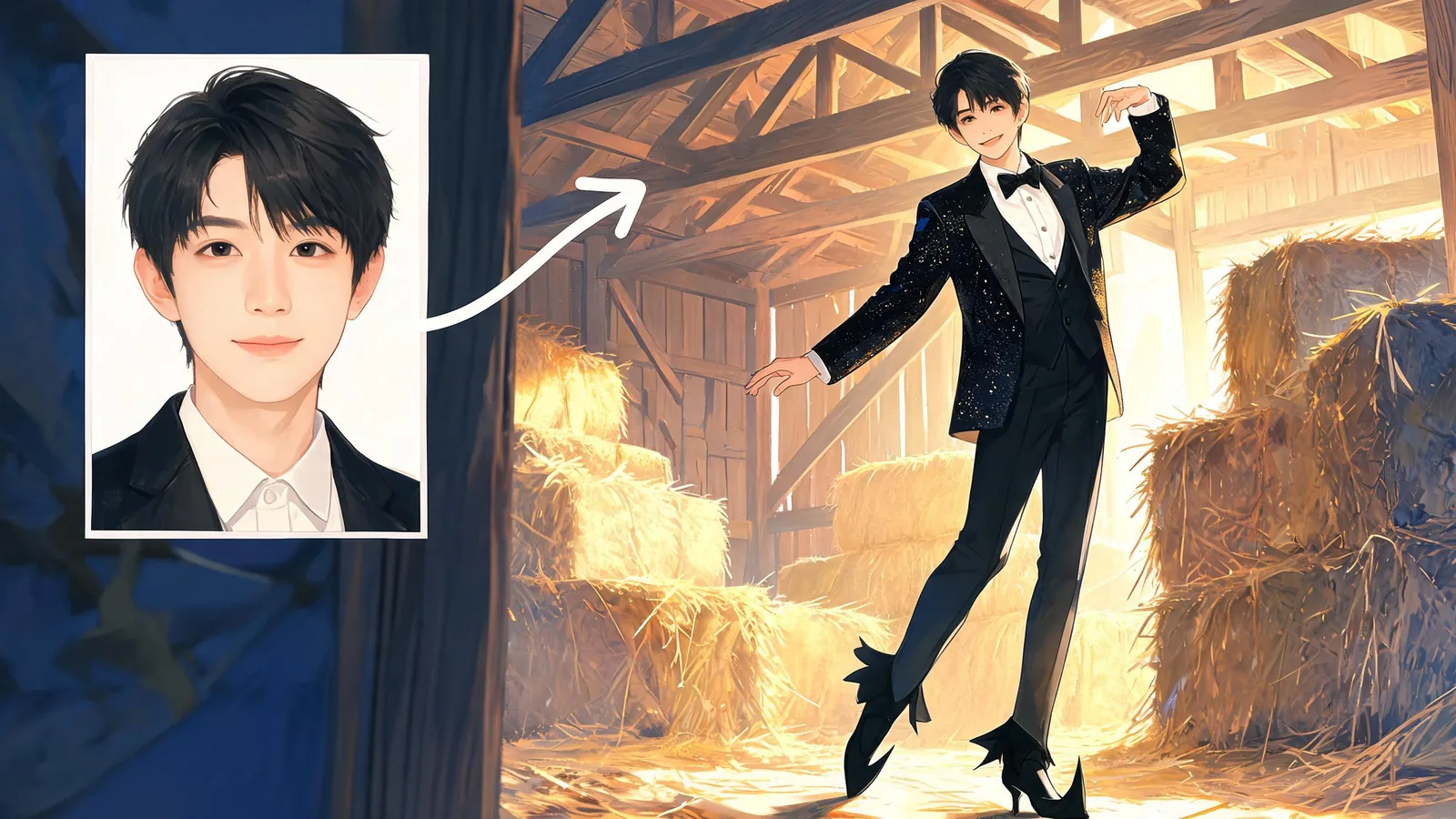
1. Check the page's own barn-dance demo
Start with the uploaded-photo-and-result demo on the Tip Toeing AI page. It shows the visual direction before you commit your own photo: a hay barn, a sparkly black jacket, a bow tie, pointed shoes, and light steps on tiptoe. The face comes from the upload; the recognizable outfit and dance come from the preset.
This is the AI Rumpelstiltskin meme. Its apparent old-film footage is AI-made. The Know Your Meme explainer documents the meme's origin and later remakes. You do not need to film yourself dancing, recreate the barn, or wear the costume for your source photograph.
Think about the finished format now. The studio produces a 16:9 landscape video, not a full-screen vertical version. The wide frame gives the barn and shoes room to appear. If you plan to post in a vertical feed, keep the whole video visible inside your editor rather than assuming a tight crop will preserve the joke.
2. Pick a photo with one clearly visible face
Use a straightforward portrait with one adult in it. A recent selfie in even light is a practical starting point. Keep both eyes, the mouth, the hairline, and some space around the head visible. A photo where the face is small in a large room gives you less detail to compare when reviewing the result.
Skip sunglasses, masks, heavy beauty filters, motion blur, and hats that conceal the hair. You do not need a theatrical expression. An ordinary photograph makes it easier to tell whether the finished dancer resembles the person you uploaded.
For example, choose a face-and-shoulders photo by a window over a distant party photo with several people. If the only suitable picture is a group shot, prepare a crop containing just the consenting adult you want to feature. Check that the crop remains clear; enlarging a tiny face does not restore missing detail.
Only upload yourself or another adult who has agreed to appear in this particular result. Ask separately about public sharing: someone may enjoy a private joke without wanting it on a public account. Do not upload photos of minors.
3. Upload the photo and confirm the preview
The page has one required photo input. Select your picture in Upload your photo, then check the preview. Make sure it is upright, shows the right person, and does not hide the face behind an accidental crop. Ordinary clothes are fine because the preset supplies the dancer's jacket, bow tie, and shoes.
You are choosing the dancer's identity, not casting every person in the scene. There is no second upload slot for a partner on this page. A friend or partner can be the dancer through their own separate run, with permission; uploading two people together does not create a documented two-person mode.
Before starting, read the credits displayed beside Generate Video and make sure you are comfortable with the current amount. If the page asks you to sign in, complete that step and recheck the upload before submitting. Keep the original photograph so you can compare it with the moving face later.
4. Generate once, then allow time for the clip
Press Generate Video when the upload is correct. The page describes the wait as usually about ten minutes. Treat that as an estimate rather than a countdown that guarantees completion at a particular second.
You can leave the page while the video is being made. The result is saved in My Creations, so you do not need to keep watching the upload screen. Return to the same account to find it. If the request is still shown as processing, check its status before starting another copy of the same request.
The finished clip is ten seconds long, landscape, and 720P, with the song included. Those are the current preset's specifications. There is no need to hunt for the original clip, upload reference footage, or add a second soundtrack just to complete this workflow.
If you see a failure message, read it before retrying. A slow request and a failed request call for different responses. Avoid repeated submissions while the first one is still active, and keep any visible error details if you need help from support.
5. Review the whole ten seconds with sound
Play the result from start to finish. A good opening frame is only the first check: watch the face in closer shots and while the dancer moves. Compare the eyes, mouth, face shape, and hair with your source photograph. Do not describe a result as recognizable until you have actually inspected it.
Next, watch the feet and clothing. The pointed shoes carry much of the joke, so check whether their shape and the tiptoe steps remain readable. Look for sudden changes in limbs, jacket edges, or the background. AI video can introduce irregular details even when the source photograph is clear.
Finally, listen. The studio includes the song, so turn up the preview volume before deciding that audio is missing. Check the saved file too. This review checklist helps separate a usable clip from one you would rather keep private:
| Check | What to look for before posting |
|---|---|
| Face | The dancer resembles the consenting adult in the upload throughout the clip. |
| Movement | The feet and limbs do not change abruptly or become distracting. |
| Framing | The barn, dancer, and pointed shoes remain visible. |
| Sound | The downloaded clip plays with audible music. |
| Permission | The featured person approves both the result and its intended audience. |
For a closer look at visual problems, read how to avoid warped faces and hands in AI videos. These checks cannot guarantee a perfect generation, but they give you specific reasons to accept or reject your own result.
6. Download, frame, and caption your remake
Download the clip you have approved. Keep that original file before making a social edit. In a vertical canvas, fitting the landscape video inside the frame preserves more of the scene than filling the canvas by cropping both sides. Preview the final export on a phone, where a caption or app controls can cover the shoes.
Use one short caption that adds your situation rather than explains every moment. These are suggested text ideas, not descriptions of videos we generated:
- “Me arriving five minutes before the snacks.”
- “When the group chat says dress casually.”
- “My entrance after finally finishing the laundry.”
A friend or partner idea works through separate, consent-based dancer remakes. Let each person choose their own portrait and approve their own clip; a side-by-side edit can be assembled afterward in an editor. Pets and drawn characters may inspire other meme remakes, but this page documents a one-person photo workflow. Do not assume it supports either kind of input.
The song is Riff Raff's “TIP TOE WING IN MY JAWWDINZ”; Apple Music's track listing identifies it on Neon Icon. Included audio does not promise that every platform will accept every upload. Check the destination's audio and AI-label options, and describe the video as an AI remake rather than footage of a real performance.
FAQ
Do I have to learn the dance first?
No. One photo supplies the dancer's face, while the preset supplies the barn, outfit, and steps. You do not upload a dance performance or record yourself moving.
Where do I find the video if I close the page?
Return to My Creations in the same account. The page says the video is saved there when it is ready. Usually about ten minutes is an estimate; check the existing request before submitting it again.
Can my partner appear beside me in the same generation?
The current Tip Toeing page has one photo input for one dancer. Make separate adult portraits with each person's permission if you want two remakes, then combine the downloaded clips in your own editor.
Should I add the song again in my editing app?
Listen to the downloaded file first: the studio's clip already includes the song. Adding another copy can create overlapping audio. A platform may handle uploaded music differently, so check its preview before publishing.
What should I do if the face looks wrong?
Keep the result private. Compare it with the upload, check whether the face was blurred or obscured, and choose a clearer source if you decide to try again. No photo choice guarantees an exact likeness.
Make your barn-dance remake
Want the context behind the dance before sharing it? The Tip Toeing trend explainer covers the old-movie confusion and the shoe joke. When your photo and permissions are ready, make your barn-dance video with Tip Toeing AI.