Alors on Danse AI: Make the Studio Duo With 2 Photos
To make an Alors on Danse AI video, open ClipTrend’s Alors on Danse AI page and upload two clear photos. Put the keyboard player in the first slot and the coach in the second, then select Generate Video. The result is a ten-second landscape 720P studio video with the original song. Allow about ten minutes; you can leave the page and find the finished clip in My Creations.
Updated October 14, 2026 · By the ClipTrend.ai Editorial Team
Disclosure: ClipTrend offers the tool described here. It is an unofficial fan tool, not affiliated with Stromae. The cover is a conceptual illustration, not a generated video result.
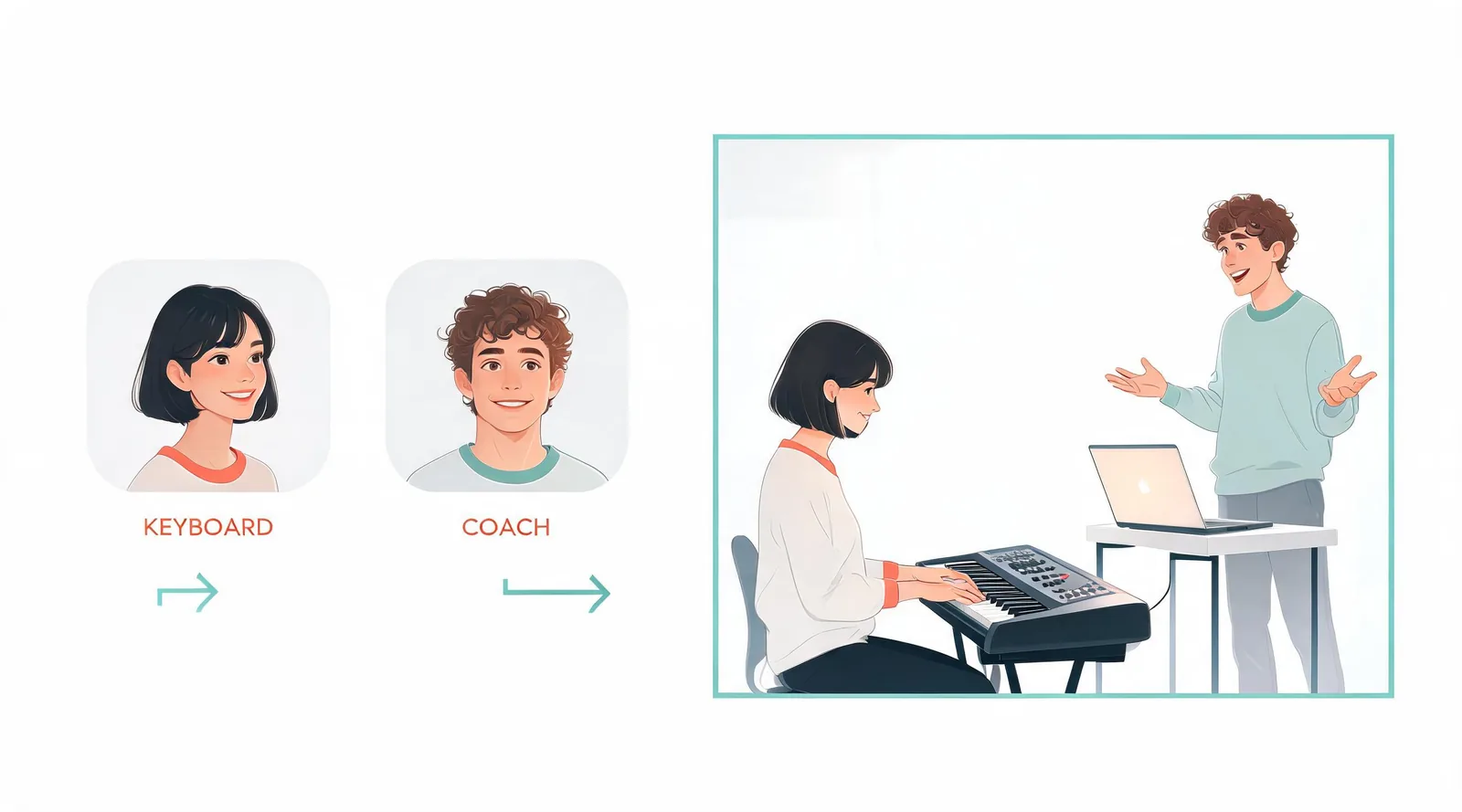
1. Choose the duo before choosing the photographs
The joke depends on two contrasting performances. The person on the left stays at a tiny keyboard. The person on the right coaches, gestures and points, then leans toward the camera. Decide who should get each part before opening your photo library.
A friend who usually keeps a straight face can take the keyboard, while the friend who narrates everything takes the coach. A couple can use the same contrast, or reverse their usual personalities. These are casting ideas, not examples of videos we have generated.
The page also supports a parent and child, pets and drawn characters. If you use a child's photograph, involve their parent or guardian and consider keeping the finished clip within the family. For people of any age, only upload someone who agreed to appear. Ask separately before posting their likeness publicly.
You need two separate images, one subject in each. They do not have to have been photographed together. A group photograph makes the intended subject ambiguous; choose individual portraits instead.
2. Prepare clear, front-facing photos
Use a photo where the face is visible and the subject faces the camera. For a person, include the head and upper body, with some space around them. Soft light from a window is often easier to work with than a dim room or harsh backlighting.
Avoid sunglasses, masks and strong beauty filters. A filter can change the face you want the finished clip to preserve. A distant figure in a landscape photo is also a poor starting point, even when the photograph itself looks attractive.
For a pet, select a clear image of that one animal with its face easy to distinguish. For a drawn character, use an image that makes the intended character unmistakable, rather than a busy panel filled with several figures. These subjects are supported by the page, but their appearance in motion still needs review.
You are choosing photographs for a fixed scene, rather than supplying the background of the final video. You do not need a keyboard, laptop or white wall in your source photos. Concentrate on the subjects' faces and on permission to use the images.
3. Assign the photos to the correct upload slots
The upload area is headed Pick who plays which role. The first slot says Keyboard player; the second says Coach. Check those labels instead of assuming that the order in your camera roll decides the casting.
| Upload slot | Role in the video | What to check before generating |
|---|---|---|
| Photo 1: Keyboard player | Plays the tiny keyboard on the left | This is the person you want in the steadier musical role |
| Photo 2: Coach | Gestures on the right and gets the close-up | This is the person you want reacting toward the camera |
If the roles are backward, swap the two photos before generating. Swapping the uploads swaps the roles. It does not require a different photograph or a written prompt describing the relationship between the subjects.
For example, a parent can be the keyboard player while their child becomes the enthusiastic coach. Reverse the upload order if the family joke works better the other way. For a human-and-pet pairing, think about which subject you want in the closing close-up before assigning the second slot.
4. Watch the page's own demonstration
The demonstration on the feature page shows an Alors on Danse AI result: a woman at the small keyboard and a man coaching in the white studio. It helps you recognize the composition, the two roles and the final camera-facing reaction.
Use that demonstration to set expectations about framing. Both characters need room within one landscape scene. This is a specific studio-duo remake, rather than an open-ended request for any dance, location or camera movement.
As of October 14, 2026, the page offers a two-photo, ten-second, 720P, landscape video with the original song. Plan around that output. If your intended post needs a longer story or a completely different setting, this particular effect will not supply those choices.
5. Read the Generate label and start once
After both portraits are in the intended slots, look beside the Generate button. The live page displays 160 credits per video. Read the displayed amount before starting, since that is the relevant information for the run you are about to make.
Select Generate Video once. The page's normal estimate is about ten minutes. Treat that as an estimate, not a promise that the video will appear at a particular second.
Keep track of the account you used. If you step away and return in another browser or device, you will need the same account to find your creation. Avoid making another request merely because you have left the tab; a second request creates another attempt rather than collecting the first one.
You do not need to film yourself playing the keyboard or record a coaching performance. The photos select the people or characters; the effect supplies the studio scene and its performance.
6. Leave the page if needed, then check My Creations
You can close the page while the clip is being made. The completed video is saved in My Creations. Return there to look for it, rather than treating an empty upload form as evidence that your earlier request vanished.
If the creation is still processing, give that existing run time to finish. The approximate ten-minute wait describes normal timing; it does not mean every run has failed once ten minutes have elapsed.
When it is ready, open the result and download it. Check the downloaded file as well as the browser playback before sharing. This catches practical issues such as a muted player or a file you saved from the wrong creation.
7. Review the face, roles and full frame
Watch all ten seconds. The coach's final lean toward the camera deserves particular attention because a face can look acceptable in a wide shot yet less convincing in a close-up. Also look at the keyboard player's face while the hands move.
Check whether each person is recognizable, whether the roles match your intention and whether anything in the motion distracts from the joke. An AI remake is not a recording of those people actually performing. Do not present it as footage of an event that happened.
For a pet or drawn character, judge whether the result fits the playful idea you had in mind. Support for the subject does not remove the need to inspect it. If the source image was unclear, improve the photograph before considering another attempt.
8. Keep both performers visible when posting
The clip is landscape. In a vertical TikTok or Reels composition, start by fitting the whole frame inside the canvas. Filling a vertical screen by cropping the sides can remove the keyboard player, the coach or the equipment that makes the scene recognizable.
Preview any crop from beginning to end. A composition that keeps both subjects visible at the start may still cut off the coach's final reaction. If you add a caption, keep it away from faces and from the small keyboard.
The original song is already included. Listen to the downloaded clip before deciding whether to change anything in your editor. Check the destination platform's current audio and AI-content requirements when uploading; a soundtrack in a file does not guarantee that every destination will accept it unchanged.
A plain caption can explain the casting without pretending it is real: “Our studio duo, imagined with AI.” Share the private preview with the people pictured before publishing to a wider audience.
What scene are you recreating?
The studio joke comes from the 2010 Made in Jamel comedy sketch featuring Stromae and Jamel Debbouze. It is set to Stromae's “Alors on danse”; Fnac's profile of Stromae discusses the song alongside his 2010 debut album Cheese. Jamel plays the exaggerated coaching part rather than documenting the song's actual creation.
For the origin and role contrast, read the Alors on Danse trend explainer. The practical task here is simply to cast your own pair into the two roles.
FAQ
Do I need a photo of both people together?
No. Upload two separate photos, each showing one clear subject. Photo 1 becomes the keyboard player and photo 2 becomes the coach.
Can I change who gets the closing close-up?
Yes. Put the intended coach in the second upload slot. Swap the photos before generating if you want the other person in that role.
Where do I find the clip after closing the tab?
Return to My Creations using the account that started the video. The finished result is saved there; you can open it and download it when ready.
What should I fix if my source photo is hard to recognize?
Choose a clearer front-facing image with one subject, visible facial details and even light. Remove sunglasses or strong filters, and review the full finished clip before sharing.
Make your studio duo
Ready to cast your pair? Open Alors on Danse AI, assign the keyboard player and coach, and start with two photos they have agreed to use.