How to Try On Couples Halloween Costumes Before You Buy
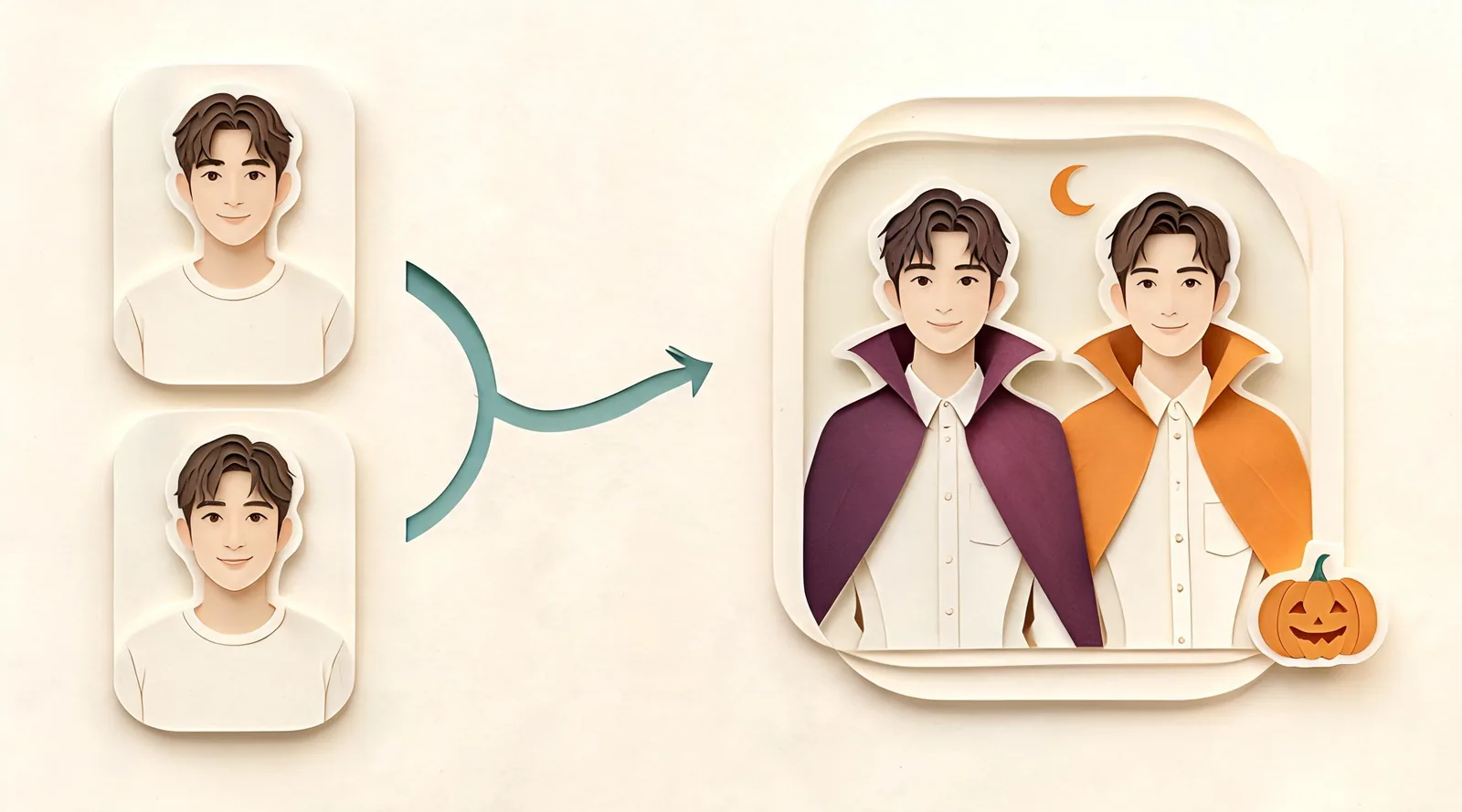
To try on couples Halloween costumes before buying, open ClipTrend.ai's couples costume studio, upload one clear selfie for each person, and choose a preset, costume reference, or short description. Generate a photo of you both, compare three pairs, then shortlist the outfit you can actually assemble. You do not need a photo together. The preview helps you judge colors and coordination; it cannot confirm garment size, fabric feel, or an exact retail match.
Updated October 12, 2026 · By the ClipTrend.ai Editorial Team
Disclosure: ClipTrend.ai publishes this guide and offers the studio described here. The cover is an illustration; see the studio's own demo for a product example.
1. Prepare one clear selfie per person
Start with two individual photos, each showing just one consenting person. Face the camera, leave the face uncovered, and use enough light to distinguish the eyes, nose, and mouth. A simple head-and-shoulders photo is a useful starting point. You do not need matching backgrounds or a coordinated pose, and you can take the pictures in different places.
Avoid sunglasses, heavy beauty filters, strong shadows, and hair across the face. A small face cropped from a distant group photo gives you less detail to work with than a fresh selfie. If one person's photo is sharp and the other's is blurry, retake the blurry one before comparing costumes.
Ask permission for both the transformation and any planned sharing. Agreement to appear in an ordinary photo does not automatically mean agreement to appear in a public costume post. Keep previews private until both people approve them.
The studio aims to keep both faces recognizable rather than swapping them with a costume model's face. Inspect the result, because generated details can still change.
2. Select two-person mode and place the selfies
As of October 12, 2026, the studio offers 2 People and 1 Person modes. Select the two-person option for a shared costume portrait. Upload the first selfie under Person 1 and the second under Person 2. Person 1 stands on the left in the result; Person 2 stands on the right.
That order matters most for an asymmetric pair such as astronaut and alien. Decide who should occupy each side before you upload. A matching vampire pair has less role ambiguity, making it an easier first comparison if you mainly want to check whether both faces remain recognizable.
Solo mode lets you explore your own half of a look; return to two-person mode to judge the pairing. Friends and siblings can use the duo workflow too.
3. Choose one of the three costume inputs
The costume section has three options: Pick a costume, Upload a costume, and Describe it. Choose the one that matches the decision you are making, rather than supplying several competing directions at once.
| Your starting point | Input to use | What it helps you decide |
|---|---|---|
| You have no firm idea | Pick a costume | Which broad theme suits you both |
| You found a particular costume set | Upload a costume | Whether its pieces and colors work together visually |
| You want an original combination | Describe it | How a custom duo concept might look |
Start with a preset when you are undecided
There are 12 couple presets: vampires, skeletons, ghost pirates, angel and devil, zombie bride and groom, witch and warlock, Victorian ghosts, mummies, ghost-town cowboys, astronaut and alien, Day of the Dead, and scarecrows. They give you a defined theme without requiring a detailed brief.
Pick something you could wear to your actual event. A cape-based pair is useful for a formal party; a plaid scarecrow pair may fit a relaxed outdoor gathering. If you want help choosing candidates, the 12 couples Halloween costume ideas guide compares the pieces and preparation each look needs.
Use a store screenshot for a specific set
Under Upload a costume, you can supply one image of a matching set or a separate reference for each person. A product photo, screenshot, or flat lay can show the wardrobe. The reference supplies the pieces and colors; your two selfies supply the people.
Crop a store screenshot around the outfit rather than including the search bar, checkout panel, and unrelated recommendations. Keep the defining pieces visible. If the listing shows a cape, vest, and shirt but the crop includes only the cape, it gives an incomplete wardrobe direction.
For different outfits, choose one clear reference per person. For example, a white jacket in one reference and a green outfit in the other makes an astronaut-and-alien pairing easier to understand than a collage of several possible purchases. Avoid using a stranger's portrait as one of your selfie inputs just because they modeled the costume.
Describe a custom idea with clear roles
In Describe it, type a short idea that identifies the two looks and their main pieces. The tool develops the idea into a fuller costume. A useful example brief is:
Person 1 on the left: a disco vampire in a purple jacket and black cape. Person 2 on the right: a matching vampire in a silver jacket and black cape. Keep both faces recognizable and the costumes fully clothed, with no gore.
This is a suggested input, not a report of a generated result. Keep the direction short enough to review against the output. If you want a famous duo, describe the wardrobe or upload a costume reference; named fictional characters are not built-in presets. Keep all concepts non-sexualized and free of gore.
4. Generate the photo and check the essentials
Once the selfies and costume direction are ready, use Generate Image. Read the credit amount displayed beside the control before confirming. The page estimates a photo in about a minute; that is a guide, not a guaranteed completion time.
Approve the result in a practical order. First, can you recognize both people? Then check whether the intended pieces appear on the right person. Finally, look for distracting mistakes in hands, accessories, and garment edges. A dramatic background should not distract you from a changed face or a missing jacket.
If a face looks wrong, check the original selfie before changing the costume brief. If the wrong outfit dominates, simplify the reference or clarify the left and right roles. Change one input at a time so you can tell what helped. Avoid repeatedly generating elaborate variations of a result whose basic identity or wardrobe is still unclear.
The page's Example input and Example result show two everyday selfies becoming a vampire-couple portrait and a short clip.
5. Compare three pairs using the same selfies
Choose three genuinely different candidates and hold the selfies constant. For example, compare vampires, scarecrows, and astronaut and alien. You are choosing between a formal look, a casual DIY look, and a contrasting pair, rather than three nearly identical cape colors.
You can keep the previews together on your device for comparison. Do not assume the studio provides a dedicated three-image comparison panel. Ask the same questions of each candidate:
- Would both people enjoy wearing their role?
- Are the important outfit pieces already in your wardrobe?
- Does the pairing still make sense without the generated background?
- Can you move, sit, and get through the event comfortably?
- Is the makeup effort acceptable to both of you?
If one person dislikes face paint, an impressive skeleton preview is still a poor choice for the evening. Make agreement part of the shortlist.
6. Check the real outfit before you buy
Return to the original listing or your wardrobe with a short pieces list. An AI image may invent a fastening, embellishment, or accessory that the seller does not supply. Check what is included, each person's measurements, the size chart, and the return conditions independently of the preview.
For a screenshot-based look, compare the generated colors and silhouette with the actual product image. Use the preview to decide whether the overall combination appeals to you, not to establish how a particular fabric will drape or whether a garment fits. A selfie is not a body measurement.
Before the event, inspect hems and any face covering for practical comfort. The FDA's Halloween safety guidance advises avoiding costumes that can cause trips and masks that obstruct vision. It also recommends testing makeup 24–48 hours ahead of use. A preview can show painted details; it cannot tell you how your skin will react to the makeup you buy.
7. Make a short video only after you like the photo
The photo is the wardrobe decision. Animation is optional. Once both people approve the still image, the studio offers a short vertical video; the HD option includes sound. Check the selected video option and its displayed credit requirement before proceeding.
Review the moving result again for recognizable faces and consistent clothing. Motion can introduce changes that are absent in the still. A cape moving attractively does not make the underlying costume more available or better fitting.
If you share the portrait or clip, label it as an AI costume preview so friends understand it is an idea, rather than a photograph of clothes you already wore. Keep the approved still as your reference when assembling the real outfits.
FAQ
Do our selfies need to be taken together?
No. Upload one separate, clear, front-facing photo for each person. The studio combines them into a shared costume image, with Person 1 on the left and Person 2 on the right.
Can we use a screenshot of two costumes from a store?
Yes. Use one reference image for a matching set, or one per person for different outfits. Crop away unrelated page elements while retaining the clothing you want to preview. The reference guides the wardrobe rather than replacing either person's face.
Why is one person's face less recognizable?
Compare the source photos for blur, poor lighting, filters, or an obscured face. Replace a weak selfie before adding more directions. Generated results still need review; recognizable faces are the intended behavior, not a promise that every output is exact.
Can a preview tell us which size to order?
No. It helps you consider the look and coordination. Check actual measurements, the seller's size chart, included pieces, and return policy separately.
Do we have to make a video?
No. You can use the costume photo to choose a look. Video is a separate optional step after you approve the photo, with sound available in the HD option.
Start with your first pair
Ready to narrow the shortlist? Open the couples Halloween costume studio with two permitted selfies and one clear wardrobe idea.