How to Use Seedance 2.5: References, Long Takes and Sound
To use Seedance 2.5, open the Seedance 2.5 model page, choose text-to-video or image-to-video, describe a scene, and set its length and resolution. Add references when you need visual or sound guidance, check the displayed credits, then generate and review the complete clip with audio on.
As of October 12, 2026, ClipTrend offers 4–30-second clips or Auto, 480p, 720p and 1080p output, and generated audio. This guide explains how to make the choices in the generator, with three original prompts you can adapt. The examples are suggested directions, not tested results or promises of exact reproduction.
1. Pick the starting material and generation mode
The model page opens with Seedance 2.5 selected. Use the mode menu beside the model selector to choose how the shot begins. The important distinction is whether your file must be the opening frame or simply guide the result.
- Text to Video: start with a written scene and no required source photograph. This suits a new location, a fictional object or an exploratory camera move.
- Image to Video: upload the still that should begin the clip. Describe the motion that follows, rather than describing a different opening composition.
- Reference to Video: use supporting assets to guide appearance, movement or sound. Identify their roles in the prompt instead of expecting every uploaded image to become a literal frame.
Only upload files you have permission to use. Seedance 2.5 does not accept reference images or videos showing real human faces. This applies even when you have permission from the person. Choose suitable objects, locations, animals or illustrated characters instead. The restriction is stated in the BytePlus ModelArk Seedance 2.5 documentation.
2. Set framing before you write the camera movement
For text-to-video, select the aspect ratio that suits the destination. A vertical social post and a landscape presentation need different compositions. Leave space for a later caption if you intend to add one in an editor; do not depend on generated lettering for essential product information.
For an image used as the first frame, the video follows the image ratio. A wide landscape photograph stays wide, and a portrait image stays tall. First-frame jobs use adaptive framing rather than forcing the uploaded scene into an unrelated ratio. Prepare the source image in the shape you need before uploading it.
3. Choose a duration that gives the action room
The length pill offers 4–30 seconds. Under Advanced, change Fixed duration to Auto duration to let the model choose a length for your prompt. Keep a fixed duration when your edit needs a known slot. Auto remains within the supported clip-length limit; you can trim the result afterward.
For longer takes, divide the action into a beginning, middle and ending. These are beats within one continuous shot, not necessarily separate cuts. Say which object the camera follows, where it travels, and what should occupy the frame when it stops.
ByteDance describes the model as designed for longer storytelling and reference control on its official Seedance 2.5 page. That describes its intended capability; a particular shot may still need simpler movement or another attempt.
4. Add references and assign each a job
The model-page Reference to Video card accepts reference images and one optional video. For multiple videos or audio references, open the full Image to Video workspace from the AI Video menu, select Seedance 2.5, and choose Omni Reference before generating. That panel accepts mixed image, video and audio uploads. Advanced on the model-page card controls generated audio; it does not upload audio files.
ClipTrend supports up to 30 reference images, 10 reference videos and 10 reference audio clips for Seedance 2.5. Reference videos have a combined 30-second limit, and audio references have a separate combined 30-second limit. The maximum file counts do not mean you need to fill every slot.
Start with a small set that has clear roles. For a product scene, one image might show the product, another the room, and a short video the camera movement. Check the upload labels and use those labels when naming files in your prompt. Explain what to take from each asset and what should stay fixed.
5. Write the action, camera and sound as separate instructions
Name the subject, then describe its actions, the camera, light and sound. Put each constraint beside the action it concerns.
A Sound: line is a writing convention for making the audio direction easy to read, not a special command you must use. Enable generated audio when you want a soundtrack, then describe the audible events. Turn audio off if you need a silent asset for later sound design.
Prompt A: one long, continuous take
Suggested setup: Text to Video, 20 seconds, landscape framing, 720p, audio on.
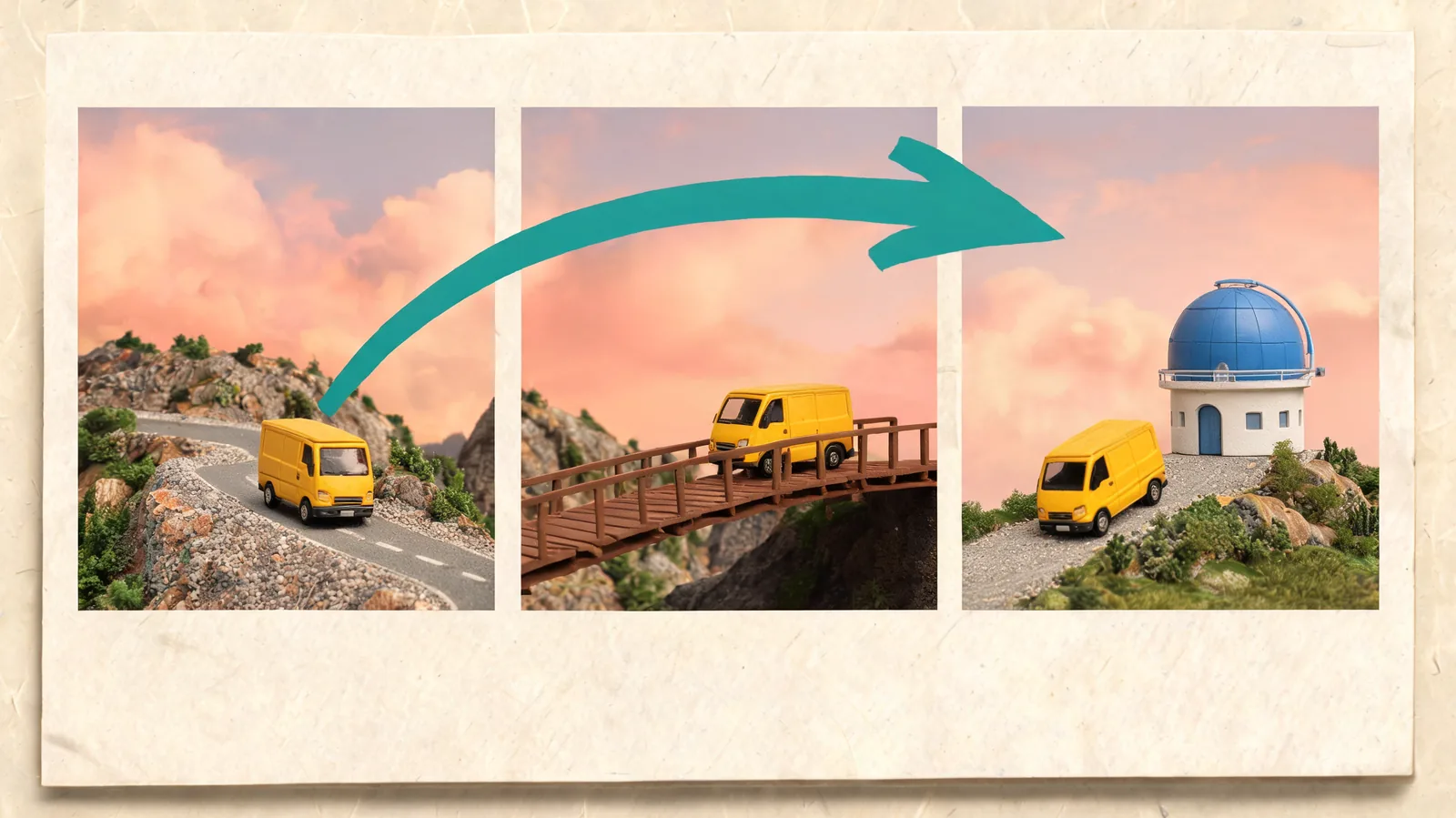
A small unbranded yellow delivery van drives along a mountain road at dusk. In one continuous shot with no cuts, the camera follows behind and slightly above the van as it approaches a wooden bridge, moves alongside it during the crossing, then rises gently as the van stops outside a blue observatory. Keep the van's shape and color consistent. The observatory is visible only near the end. Warm evening light, calm movement, no text or logos.
Sound: a quiet engine and tires on gravel, a brief wooden rattle on the bridge, then soft wind as the engine stops. No music or speech.
Prompt B: a scene guided by multiple references
Suggested setup: full workspace, Omni Reference, 10 seconds, 720p. Supply your own suitable assets: @image1 shows a teal ceramic teapot, @image2 a greenhouse table, @video1 a slow sideways camera move, and @audio1 gentle rain.
Use the teal ceramic teapot from @image1 as the only featured product, on the greenhouse table from @image2. Preserve the teapot's round body, curved handle and matte glaze. Follow the gentle sideways camera movement in @video1 without copying its subject. Steam rises from the spout while rain falls beyond the glass. Keep the teapot fully visible and the table stationary. One continuous shot, no people, no lettering.
Sound: use @audio1 as the guide for soft rain ambience. Add a faint kettle hiss, with no dialogue or music.
Replace the reference names with the labels shown for your uploads. A reference should have one clear purpose; copying a video's camera movement does not require copying its location.
Prompt C: a scene with a timed sound cue
Suggested setup: Text to Video, 8 seconds, 720p, generated audio enabled.
Close view of a miniature wooden sailboat floating in a shallow indoor pool. A gentle wave lifts the bow, the boat rocks once, and a small brass bell on the mast swings as the camera slowly pushes closer. The boat remains intact and centered. Soft window light, realistic water ripples, no people or text.
Sound: quiet water lapping throughout. One delicate bell chime when the bell swings, followed by a brief natural decay. No music or speech.
Watch and listen together. The prompt asks for a relationship between movement and sound; you still need to check the timing in the returned clip.
6. Select resolution and review the credit quote
Use 480p when a rough composition check is enough. 720p is a practical starting point for judging motion and framing. Choose 1080p when you need the larger output and can test playback in your delivery workflow.
Seedance 2.5's 1080p files on ClipTrend use HEVC, also called H.265. Some browsers or editors cannot play that format directly. A playback problem does not automatically mean generation failed. Download the file and check it in a compatible player before diagnosing the shot. For the resolution decision itself, see Seedance 2.5 1080p vs. 720p.
The generator shows the exact credits before Generate. Recheck that quote after changing length, resolution or references. Use the amount displayed for your current settings rather than assuming an earlier example still applies.
7. Generate, watch the full clip and revise one issue
Sign in when prompted, confirm your inputs, and generate. Review the entire result instead of accepting a good opening frame. For the van scene, check the bridge crossing and the final stop. For the teapot, watch whether the handle changes. For the sailboat, listen for the bell relative to the movement.
Before downloading, check:
- The subject retains its shape, colors and important details.
- The action follows the intended order and reaches a usable ending.
- Framing leaves room for the final crop or caption.
- Sound suits the scene and has no unwanted speech or music.
- The downloaded file plays in the intended editor or destination.
Change one instruction when something misses. If the camera moves too much, simplify the camera sentence. If references conflict, remove the least useful file. Keep a copy of the prompt that produced a useful take so later changes have a clear starting point.
FAQ
Why does my image-to-video result keep the photo's shape?
First-frame Seedance 2.5 jobs follow the uploaded image ratio. Prepare the image in your intended output shape before uploading it; a separate ratio choice does not force a new crop for that job.
Should I choose Auto or a fixed clip length?
Choose a fixed length when you need a specific duration in an edit. Auto lets the model select a length from the prompt and references within the supported range. Review and trim the result if your final slot is shorter.
How do I ask for sound with Seedance 2.5?
Enable generated audio and describe what should be heard. A Sound: line can separate that direction from the visuals. Specify timing when an effect should match an action, then check the returned audio yourself.
Can I upload a face photograph if I have consent?
No. Seedance 2.5 does not accept reference images or videos showing real human faces. Consent does not remove that restriction. Use suitable non-face material for this workflow.
What should I check when a 1080p preview will not play?
Check HEVC compatibility in the browser or editor. Download the file and test it in a compatible player. For an initial motion review, a 720p generation is another option.
Open the Seedance 2.5 generator on ClipTrend with one clear scene and the reference files that scene needs.