How to Make a Bulin 47 AI Video: One-Photo Tutorial
To make a Bulin 47 AI video, open ClipTrend.ai's Bulin 47 AI tool, upload one clear photo, and press Generate. Your person or character takes the lead performer's place in a 15-second vertical freestyle with the original beat and rap. Allow about 10–20 minutes; you can leave the page and retrieve the result in My Creations.
By the ClipTrend.ai Editorial Team · Last updated: October 11, 2026
The instructions below describe the tool as of October 11, 2026. Use your own image or a consenting adult's photo, never a minor's. ClipTrend.ai's Bulin 47 AI is an independent fan-made tool, not affiliated with or endorsed by Bulin 47, Kevin Wai, or their teams.
Before you start: what you need and what you get
You need one image of the person or character you want in the lead role. You do not need to record yourself dancing, supply a reference video, or find a separate music file. The freestyle scene is already prepared.
The page displays 720P output, 15 seconds, vertical 9:16, with sound. The intended remake keeps the red-lit doorway, crowd, camera movement, and performance timing while replacing the lead performer. Those are the preset's features, rather than choices you need to recreate with a long prompt.
Before uploading, watch the page's existing original clip, AI result, and uploaded-photo demo. It shows the relationship between the input and the finished scene. Use that example to decide whether this particular freestyle is the effect you want; a generated result can still need review for likeness and visual errors.
The original context is a street exchange between Bulin 47 and Kevin Wai. As of October 11, 2026, LatiNation's report on the freestyle describes an impromptu encounter outside a restaurant in Spain. You can read the story there without downloading the original footage or song. For this tutorial, the practical point is that the scene is fixed: your preparation centers on the photo.
1. Choose one clear, front-facing photo
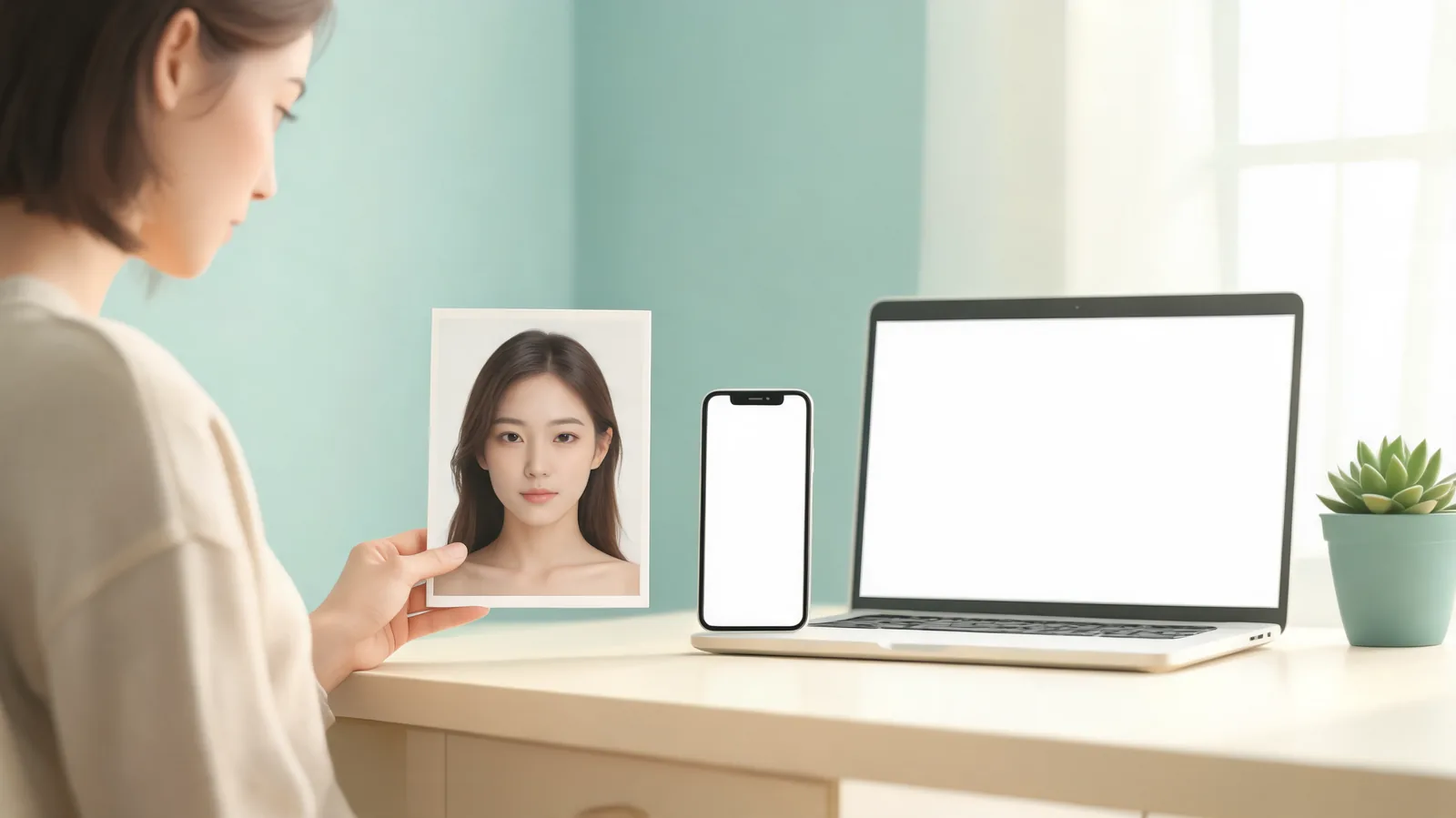
Pick a picture where the intended subject is immediately obvious. The face, hair, and upper body should be visible, with enough light to see facial details. Avoid sunglasses, masks, heavy filters, and a face turned far away from the camera.
A straightforward portrait works better as a starting point than a crowded party photo. If three people are in the image, it is unclear which appearance should carry into the lead role. Choose a separate single-person photograph rather than expecting the tool to make that decision.
You do not need a studio shoot. For example, a recent photo of yourself in a plain shirt, facing a window, gives you an uncomplicated input. A dim group selfie with a hand across your cheek introduces several problems at once. Fix the image selection before spending time on another generation.
| Photo choice | What to check | Better alternative if needed |
|---|---|---|
| Your own portrait | Face and upper body are visible; eyes are unobstructed | Take another photo in even light |
| A consenting adult friend | The friend agreed to this specific use and possible sharing | Ask first, then use a single-person photo |
| An original cartoon character | One clear character, front-facing, with a readable outline | Use a simpler pose and background |
| A group shot or dark selfie | Multiple subjects or hidden facial details | Replace it with a clearer single-subject image |
Cartoons and original characters are supported, too. You might use an adult cartoon explorer you drew, with a visible face and simple jacket. This is an input idea, not a claimed example result. Use artwork you own or have permission to use.
2. Open the effect and review its demo
Go to the Bulin 47 AI page. Check the original/result/uploaded-photo comparison before starting. Pay attention to which performer changes and which parts of the scene stay around them.
This is a specific freestyle effect. If you wanted a different dance routine or a new location, choose a different effect before uploading. The Bulin 47 workflow does not need you to design the doorway, direct a new crowd, or choreograph a separate dance.
Read the current information beside Generate before you submit. It is the place to confirm the credit requirement for your generation. This guide does not promise a free result or a particular account allowance.
3. Upload your photo and confirm the subject
Use the photo upload control and select your image. Look at the preview: is it the right person, and can you see their face clearly? Make sure you have not accidentally selected a thumbnail, an old screenshot, or a picture containing someone who did not agree.
For a real person, use yourself or another consenting adult. For a character, use an image you are allowed to adapt. Do not upload minors, even for a private joke or a family greeting.
Check these details while it is still easy to change the input. If you can barely recognize the face in the preview, select a clearer photo now. Do not assume the finished video will recover details missing from the source picture.
4. Press Generate once and let the video finish
After reviewing the input and the current Generate information, start the video. The page describes a usual wait of 10–20 minutes. That is an estimate, not a guaranteed delivery time.
Avoid treating the first quiet minute as a failure. A freestyle remake takes time; pressing Generate again can create another request rather than speed up the existing one. Check the task's status before deciding to retry.
You can leave the page during the wait. The completed video is available in My Creations, and returning to the effect page can resume the same run. Use the same account when looking for the result. Leaving the page is supported; starting from scratch is unnecessary just because you closed a tab.
If the wait extends beyond the usual range, look for an explicit status or error message. A longer wait alone does not tell you whether the task failed. Keep any useful task details when contacting support through ClipTrend.ai.
5. Find the result and watch all 15 seconds
Open My Creations and locate your freestyle. Watch the whole clip with sound before downloading or posting it. The appearance you supplied should occupy the lead role, while the familiar scene and original beat provide the context.
Do not judge only the first frame. Check whether the face remains recognizable as the performer turns, whether hands look plausible during gestures, and whether the outfit changes unexpectedly. For a cartoon, examine the character's outline, colors, and expression through the movement.
Then listen. The preset includes the original beat and rap; it is not a recording of your voice. If the audio is missing or a result has a distracting visual problem, hold off on sharing and inspect what you downloaded. This tutorial does not promise perfect facial consistency or lip synchronization.
6. Download and prepare the post
Download the finished video and play the saved file before opening your posting app. Check that its sound is audible and that the full clip is present. The vertical 9:16 format fits the intended short-video presentation, but a platform's preview can still crop edges or cover them with controls.
Keep the original beat if that is the version you intend to share. Adding a second song on top can obscure the rap or make the performance feel out of time. Also check the destination platform's rules for audio and AI-created content; having sound in a generated file does not guarantee every upload will be accepted.
A clear caption can say that this is an AI remake using your photo. Avoid presenting the clip as evidence that the depicted person actually performed with the artists. If you used a friend's image, let them review the final video before it goes public.
Frequently asked questions
Do I have to upload the original freestyle video?
No. The preset scene is already prepared on the Bulin 47 AI page. Your only image input is one photo of the intended person or character; you do not need to download or upload the original footage.
Can I close the tab while my video is being made?
Yes. The page says you can leave during the usual 10–20-minute wait and find the result in My Creations. Return using the same account, and check the existing task before starting another generation.
Which photo should I replace if my face looks unclear?
Replace a dark, heavily filtered, side-facing, or obstructed photo with a clear front-facing image showing one subject's face and upper body. Better input can reduce ambiguity, but it cannot guarantee a flawless result.
Can I use my own cartoon instead of a selfie?
Yes. Cartoons and original characters are supported. Use one clear character image you own or are permitted to use, then review its appearance throughout the finished video.
Where do I check the credits before starting?
Read the current information beside Generate on the effect page. Confirm it before submitting rather than relying on an older tutorial or assuming that browsing the tool includes a free generation.
Make your first freestyle
Choose one portrait you have permission to use, compare it with the page's demo, and review the result before sharing. If you want the background to the meme first, read the Bulin 47 freestyle and AI trend explained.
Ready to upload your photo? Open ClipTrend.ai's Bulin 47 AI.