How to Do the Burning Bridges AI Trend With One Photo
To do the Burning Bridges AI trend, open ClipTrend.ai's Burning Bridges AI page, upload one clear photo, and press Generate. Your person or character takes the lead in a chandelier-lit party scene, with a crowd, a raised cup, and pointing gestures. The result is a 15-second vertical video with the song included. Usually, it takes 10–20 minutes.
By the ClipTrend.ai Editorial Team · Updated October 12, 2026
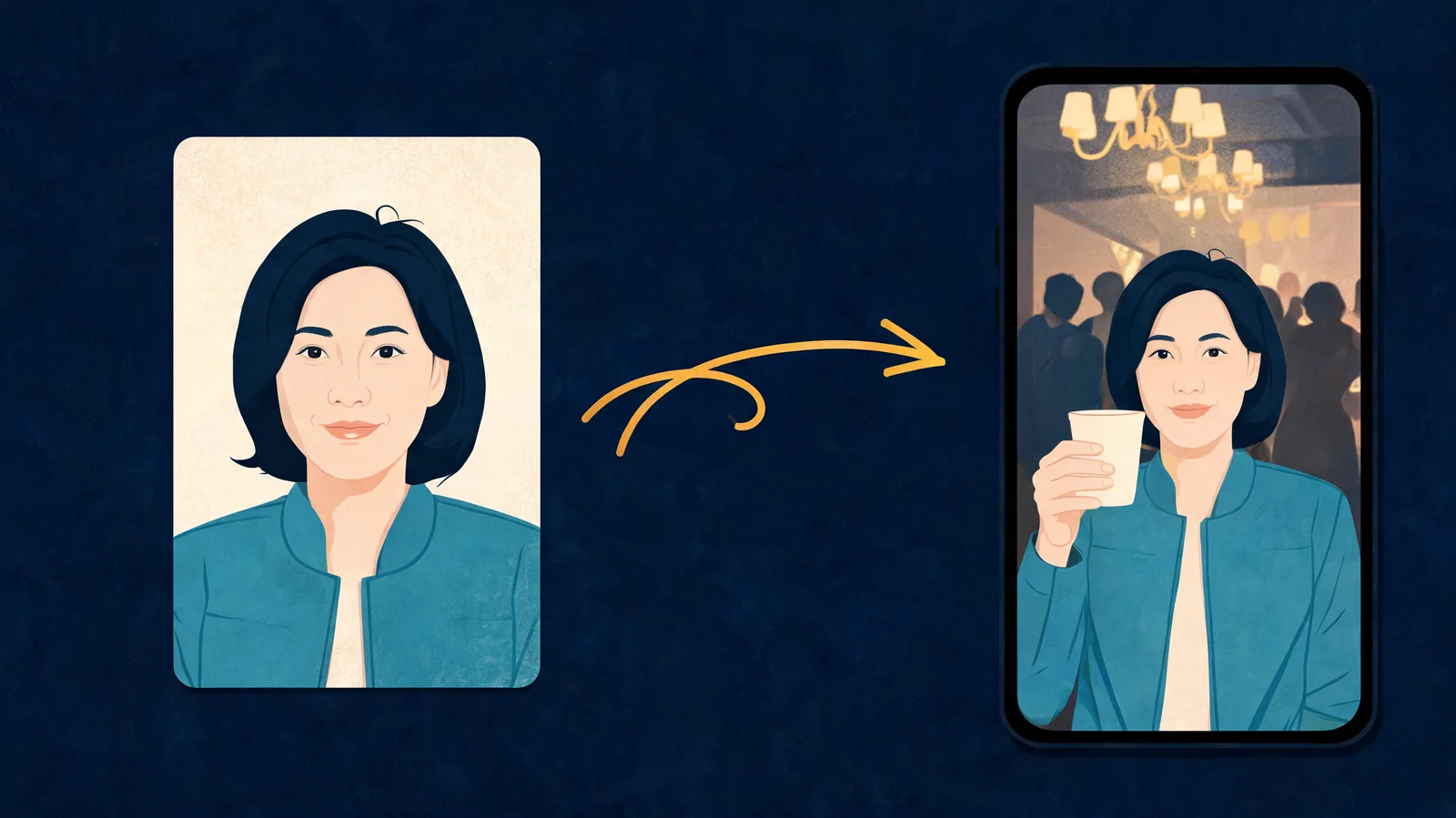
The cover illustrates the workflow; it is not a screenshot or a generated video example. For an actual example, use the input-and-result demo on the effect page.
This guide describes the available workflow as of October 12, 2026. ClipTrend.ai's Burning Bridges AI is an independent fan-made tool, not affiliated with or endorsed by Drake, his label, or his team. Upload only yourself or an adult who agreed to this use. Never upload images of minors.
Before you begin
You need one image of one person or character. You do not need to film a performance, find a party location, supply a song file, or upload a reference video. The effect supplies the scene and movement.
Watch the page's own demo before choosing a photo. It shows the kind of movement your subject will take on, including close views and gestures toward the camera. Ask whether that performance fits the person or character you want to use. A clear portrait is helpful, but it cannot turn this preset into a different scene.
Have access to the account you will use for generation. That matters if you leave while the video is processing: you need to return to the same account to find the result in My Creations. Read the credit amount shown beside Generate before you start.
1. Choose one clear, front-facing photo
Start with a portrait that shows the face, hair, and upper body. The face should be large enough to see without zooming into a tiny part of the picture. Soft, even light makes it easier to distinguish the eyes, nose, mouth, and outline of the head.
A straightforward half-body picture is a useful choice. You do not need to hold a cup or point in the source photo; those actions come from the effect. Instead, make sure the visible clothing and hairstyle are what you want the result to draw from.
Avoid group pictures. Even when you know which person should be the lead, several faces make the input less clear. Also skip sunglasses, masks, heavy beauty filters, and photos where another object hides the mouth or eyes.
| Photo choice | What to check | Practical decision |
|---|---|---|
| Front-facing selfie | Face sharp, eyes visible, enough upper body | Use it if the crop leaves the whole head visible. |
| Half-body portrait | Good light, clear outfit, one subject | A useful starting point when clothing matters. |
| Group photo | Several competing faces | Choose a separate solo picture instead. |
| Filtered or obstructed face | Blur, altered features, sunglasses, or a mask | Use a clearer original rather than sharpening the filtered copy. |
| Original character portrait | Recognizable face, colors, and clothing | Use a simple, front-facing design with one character. |
Crop away unnecessary space if it makes the subject too small, but keep the hair and shoulders in view. Do not cut through the chin or the top of the head. Look at the final saved image, rather than assuming the crop preview exported correctly.
2. Open the effect and compare its demo with your goal
On the Burning Bridges AI page, the generator uses the 1 Photo mode. The example input and example result help distinguish the uploaded portrait from the finished party clip.
Use those examples to decide whether you want this exact format. The current effect makes a vertical 9:16 video, shown as 720P, with a length of 15 seconds. It is a preset party performance, rather than a blank video editor where you design the room or direct every guest.
If you are expecting several friends to appear as individually selected characters, pause here. This workflow has one photo input for the lead. A crowded result does not mean the generator accepts separate portraits for everyone in the room.
3. Upload your photo and check the selected image
Add your chosen image to Upload your photo. Before starting, confirm that you selected the right file and that its face and upper body are visible.
This is an easy place to catch avoidable mistakes: the wrong version of a portrait, a thumbnail downloaded instead of the original, or a crop that removes part of the face. Checking the preview takes less effort than waiting for a video based on an unintended image.
For another adult's portrait, ask for agreement to the generated performance and its intended audience. Permission to keep a photo in a private album does not necessarily mean that person wants to appear in an AI party clip on a public account.
4. Press Generate and allow time for the video
Review the information beside Generate, then start the render. The page's usual estimate is 10–20 minutes, so plan around a processing interval rather than an instant result.
You can leave the page during that wait. The video is saved in My Creations, and returning to the effect page can pick up the same run. Keep track of the account you used so you do not mistake an empty history in another account for a missing result.
If the result is not visible yet, check the run's status before starting another generation. A wait estimate is not a promise that every run finishes at precisely the same minute. Repeating the upload immediately is not a reliable way to make an existing run finish faster.
5. Review the full clip before sharing it
Play all 15 seconds with sound. The effect includes the song, so there is no need to add a separate track to complete this workflow.
Check the face when the camera is close and when the subject turns. Then look at the cup, hands, and pointing gesture. A convincing first frame does not establish that every moving frame is ready to share.
Use this short review:
- Does the lead still resemble the uploaded person or character through the movement?
- Are the eyes, mouth, hair, and clothing consistent enough for your purpose?
- Do the cup and fingers look reasonable during gestures?
- Does the sound play, and does the clip look right in its vertical frame?
- Would the person pictured be comfortable with the finished performance and caption?
If a result does not meet your needs, avoid claiming it is a real recording. Decide whether a clearer source image would address the issue. Some movement artifacts can remain even with a good portrait; a different photo does not guarantee a perfect result.
6. Post a caption that explains the joke
A simple caption can make the format easy to understand: “My AI party cameo” or “Our mascot found the party” tells the viewer what changed. Those are caption ideas, not examples of videos produced by the tool.
Keep the lead visible when adding text. Preview the post in the destination app, since interface buttons and caption overlays can cover part of a vertical clip. Confirm the sound there as well; hearing it in the generator does not tell you how another app will handle your upload.
Describe the video as an AI remake. Do not present it as real event footage or an endorsement by the artist. Song inclusion describes the generated file; it does not establish permission for every advertising or commercial use.
Making a cartoon or original-character version
The same one-photo workflow accepts cartoons, mascots, and original characters. Choose a portrait with a clear face and a readable outfit. A detailed collage of several characters is a less direct input than one character on a simple background.
For a mascot, prioritize the features that identify it: face shape, signature colors, and clothing. You do not need to redraw it holding a cup. For example, an original blue fox in a dinner jacket is a possible input concept; its generated appearance would still need review.
Compare the completed clip with the character reference throughout the movement. The effect aims to carry the character into the party, but small design details can change. Treat the result as a creative rendition rather than a guarantee of frame-by-frame brand consistency.
Which Burning Bridges trend is this?
Here, Burning Bridges AI means the party-clip trend associated with Drake's song from Iceman. Billboard Canada's performance coverage identifies it among the album's songs. This is different from the unrelated Burnin' Bridges AI Music act.
For the scene, meme variants, and background rather than upload instructions, read our explanation of the Drake Burning Bridges AI trend. You can also browse ClipTrend.ai to see other video formats.
FAQ
Do I need to upload the music video?
No. The Burning Bridges AI effect takes one photo. Its party scene, movement, and song are supplied by the effect, so the workflow does not require a music-video upload.
Where do I find the result if I close the page?
Return using the same account and check My Creations. The page says videos are saved there, and returning to the effect page can resume the same run.
Can I use a photo of several friends?
Use one clear image of one subject. The current generator selects the lead from a single photo; it does not offer separate upload slots for a custom group cast.
Should I add the song again when posting?
The generated clip already includes the song. First listen to the saved result and the destination app's preview so you do not unintentionally layer a second track over it.
What if my character looks different during the gesture?
Check that the input has a clear face, recognizable colors, and an unobstructed upper body. Review the whole result, since character details can change during motion. Use a different source only if it addresses a specific weakness in the first image.
Start with the portrait you actually want to use
Choose one clear image of yourself, a consenting adult, or an original character, then make your clip on ClipTrend.ai's Burning Bridges AI page. Allow the processing time and review the full video before sharing it.