How to Animate a Photo With AI Without Editing Skills
To animate a photo with AI, start with one clear image, choose one motion idea, add one camera move, and review whether the subject stays stable from first frame to last. An AI image to video generator is easiest when you do not ask it to redesign the whole picture. The image should anchor the person, product, character, or scene. The prompt should describe motion.
This guide is for creators who want a practical workflow without video-editing skills. You can use it for portraits, product photos, old family pictures, character art, thumbnails, and social clips.
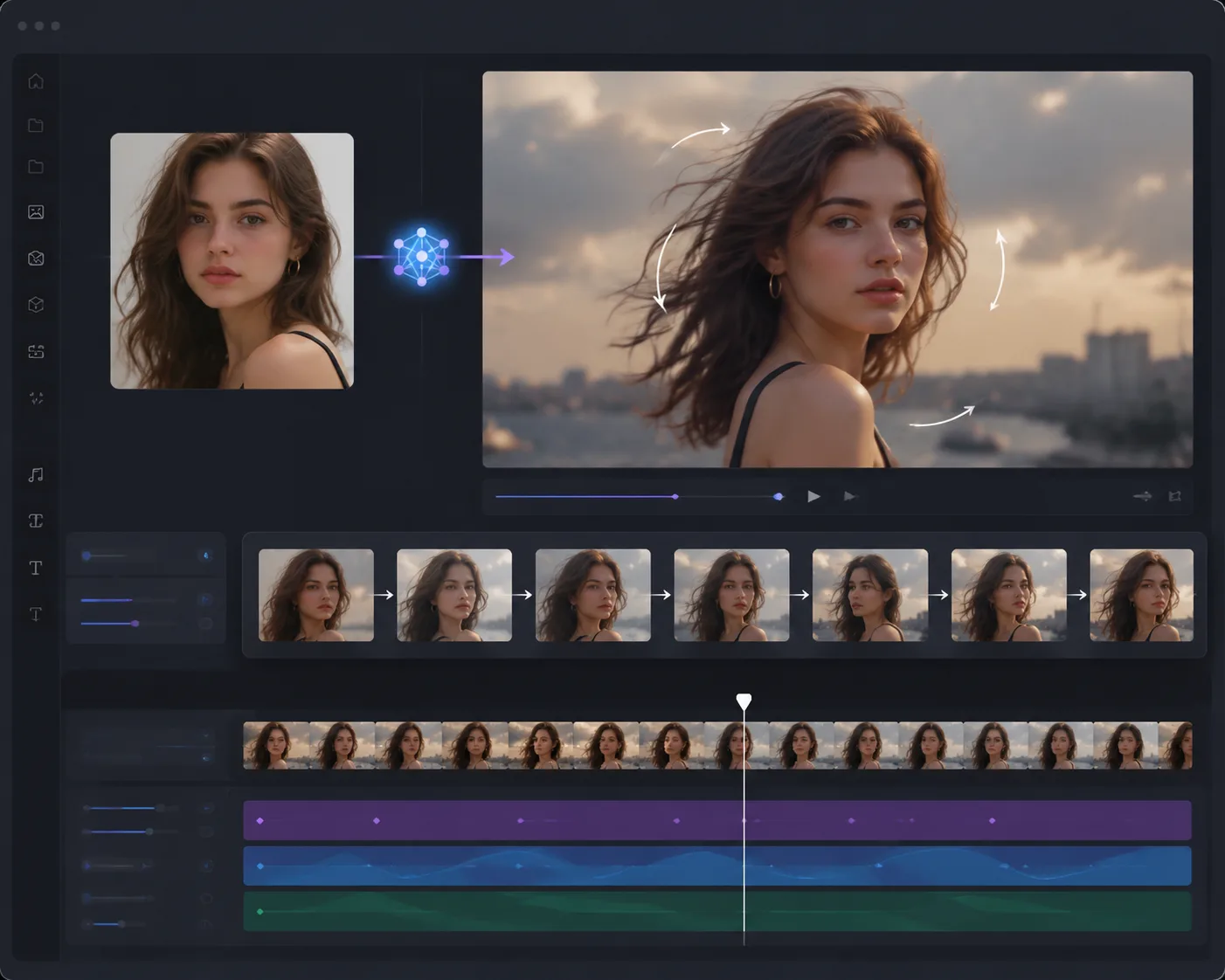
Concept visual: the still image anchors identity and composition; the prompt controls movement.
Quick answer
Use this simple formula:
Keep the uploaded photo's subject, identity, composition, colors, and lighting. Animate [one subject action]. Add [one camera movement]. Keep [protected details] stable. End on [final frame].
Example:
Keep the uploaded portrait's face, hairstyle, clothing, and background unchanged. Animate a subtle smile and gentle hair movement. Add a slow camera push-in. Keep the face stable and natural. End on a clean portrait frame.
The fewer things you change, the more believable the clip will be.
Pick the right photo first
Most failed photo animation starts with a weak still. If the image is blurry, cropped too tightly, or filled with tiny details, the video model has to invent too much.
Use a photo with:
- One clear main subject.
- Sharp face, product, or character edges.
- Enough space around the subject for motion.
- Consistent lighting.
- A simple background.
- Permission to use the image.
Avoid:
- Crowded group shots.
- Low-resolution screenshots.
- Heavy face filters.
- Tiny product labels you expect to stay readable.
- Hands covering important areas.
- Photos of real people you do not have consent to animate.
If you are animating an old portrait, clean the still first. The older guide on how to turn old photos into video explains why restoration comes before motion.
Choose one motion idea
Begin with one motion, not five. A still photo can usually handle a small amount of movement better than a dramatic transformation.
Good first motions:
| Photo type | Safer motion |
|---|---|
| Portrait | Subtle smile, blink, hair movement, gentle head turn |
| Product | Slow push-in, light sweep, rotation, steam, fabric movement |
| Character art | Breathing, cloak movement, small pose shift |
| Landscape | Drifting clouds, water movement, slow camera pan |
| Food photo | Steam, sauce movement, slow table push-in |
Riskier first motions:
- Full-body dance from a cropped portrait.
- Turning a side view into a front view.
- Changing clothes, background, and pose at the same time.
- Fast action with hands or weapons.
- Heavy camera orbit around a flat image.
If you want a larger motion pattern, start from AI video templates instead of a blank prompt.
Add one camera move
Camera language helps the model understand how the viewer should move through the scene. Keep it simple.
Use one:
- Slow push-in.
- Gentle pull-back.
- Small pan left or right.
- Subtle handheld drift.
- Slow orbit, only if the subject has enough depth.
Do not stack pan, zoom, dolly, orbit, and handheld motion in the first test. If the result fails, you will not know which instruction caused the problem. The guide on AI video camera movement prompts breaks down motion terms in more detail.
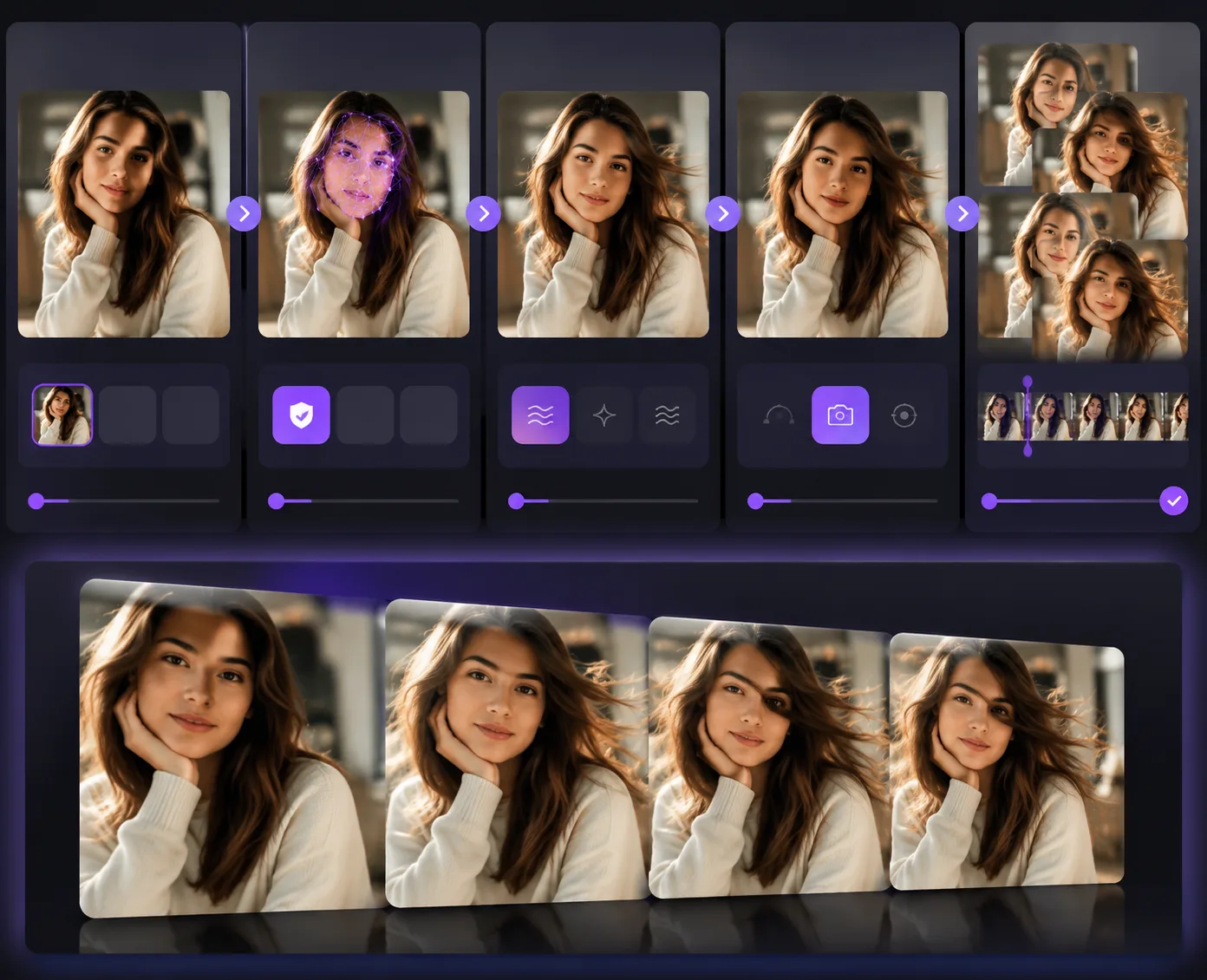
A controlled workflow changes motion first, then camera, then style. Changing everything at once makes failures harder to diagnose.
Protect what must not change
The prompt should say what stays the same. This matters for faces, products, logos, outfits, tattoos, jewelry, pets, and character designs.
Use protection language:
- "Keep the same face and identity."
- "Keep the product shape and label placement stable."
- "Keep the background unchanged."
- "Keep the outfit, pose, and lighting consistent."
- "Do not add extra people or objects."
For product or brand clips, do not rely on AI to preserve tiny text. If the label matters, keep motion subtle and review the final frames.
Template or prompt?
Use a template when the clip shape already exists: product reveal, portrait animation, old-photo movement, character motion, social hook, or camera push-in. A template reduces the blank-page problem and gives you a proven structure.
Use a prompt-first workflow when the photo needs a very specific scene, motion, or story beat. For example, a product photo in a custom holiday setting needs more prompt detail than a simple portrait animation.
The comparison in AI video templates vs prompts explains how to choose between the two.
Review the whole clip
Do not judge the output from the first frame. Watch the entire video.
Check:
- Does the face, character, or product stay consistent?
- Do hands, eyes, teeth, and edges remain natural?
- Does the camera move match the prompt?
- Does the background stay stable?
- Is the final frame usable for a loop, caption, or export?
- Did the model add unwanted objects?
If the subject drifts, reduce motion. If the camera move fails, use one clearer camera term. If details melt, choose a cleaner source photo.
A simple test plan
Make three versions:
- Still image plus one subject motion.
- Same prompt plus one camera move.
- Same motion but from a template.
Compare clarity, stability, and whether the clip communicates the idea in the first two seconds. Pick the winner, then make smaller changes.
Frequently asked questions
Can I animate a photo with AI for free?
Some tools offer free trials or limited credits, but limits change often. Start with one strong source image and one short test so you do not waste credits on unclear prompts.
What is the best prompt to animate a photo?
Use a preservation-first prompt: keep the uploaded photo's subject, identity, composition, colors, and lighting, then describe one action and one camera move.
Can AI animate an old family photo?
Yes, but use consent and care. Clean the photo first, keep motion subtle, and avoid making the person do something that changes the memory or context.
Why does my animated photo look warped?
The source photo may be too blurry, the motion may be too ambitious, or the prompt may be changing too many things at once. Reduce the motion and protect the details that must stay stable.
Bottom line
To animate a photo with AI, make the still image do less and the prompt do only one job at a time. Start with a clean source, protect what matters, add one motion, add one camera move, and review the full clip before exporting.