Turn Old Photos Into Video With AI: Safe Memory Clips
You can turn old photos into video with AI by restoring the scan first, then animating one small movement: a soft blink, a tiny smile, a gentle head turn, or a slow camera push. The result feels best when it is subtle. ClipTrend.ai lets you run the image-to-video AI workflow in your browser, but the real trick is restraint.
Last updated: July 5, 2026 - about 7 min read
Old-photo animation is different from a normal product clip or trend video. The photo may show a parent, grandparent, wedding portrait, childhood memory, or someone who is no longer here. That makes the workflow both technical and personal. When people search how to turn old photos into video, they usually want a memory to feel alive without losing the original person's likeness.
This guide covers the clean way to do it: restore the image, choose a small motion, review for uncanny details, and share the result with care. The safest way to turn old photos into video is to make the still better before asking for motion.
What old photos can and cannot do
AI can bring a still portrait to life, but it cannot recover truth that is not in the image. If a face is tiny, blurred, scratched, or shot at an angle, the model has to invent details. That is where the uncanny look starts.
| Source photo | Expected result |
|---|---|
| Sharp scan, face large and clear | Best for a natural blink, smile, or head turn |
| Slightly faded but detailed portrait | Good after restoration and light upscaling |
| Small face in a group photo | Better for scene motion than individual facial motion |
| Phone photo of a tilted print | Risky unless you rescan or straighten first |
| Heavy scratches across eyes or mouth | Restore before animating |
If the photo matters emotionally, do not rush straight to animation. A better scan and five minutes of cleanup usually improve the final video more than any prompt tweak.
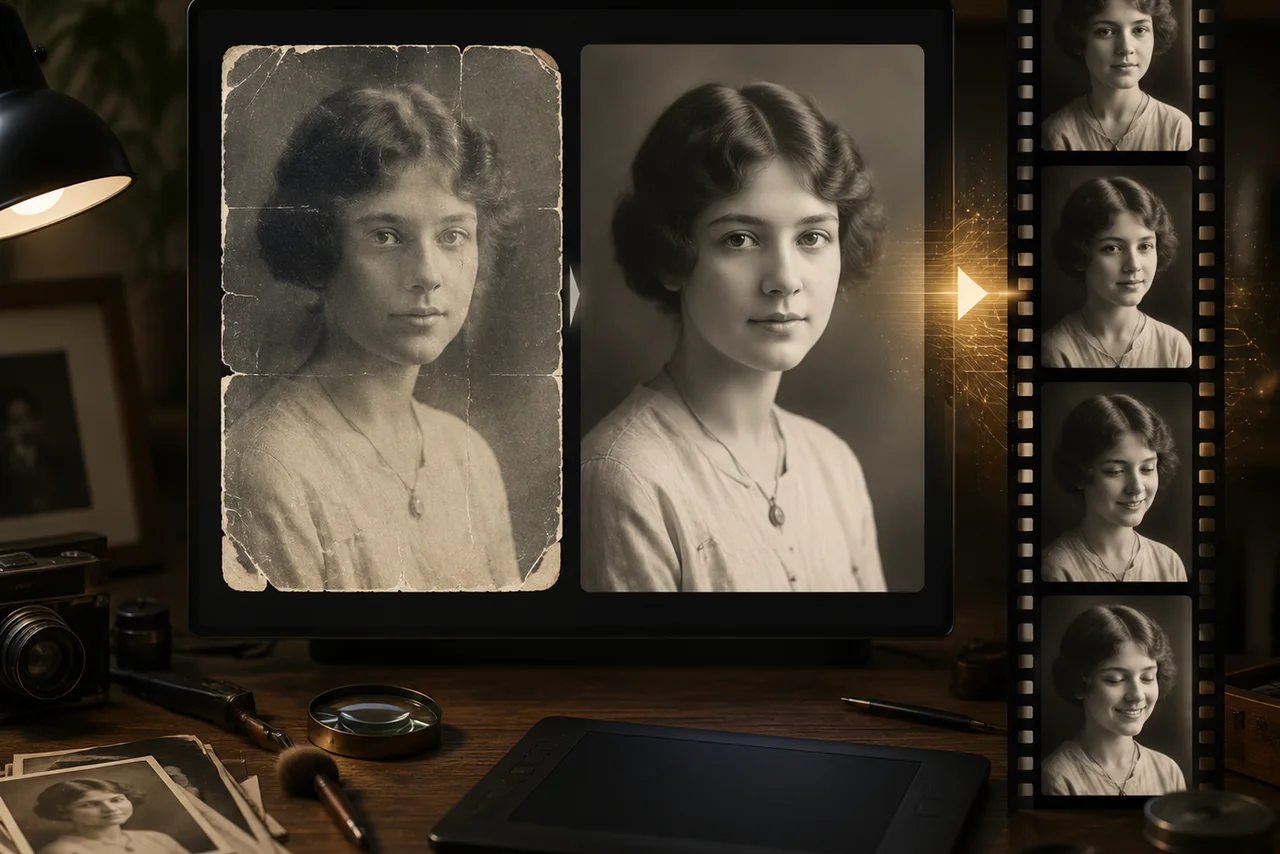
Restore the image before motion. Scratches and blur can turn into strange facial movement if the model reads them as features.
Step 1: restore the photo first
Start with the still image.
- Scan if possible. A flatbed scan at high resolution usually beats a phone snapshot of a print.
- Straighten and crop. Keep the face large enough for the AI video generator to read.
- Clean damage near the face. Scratches over eyes, mouth, cheeks, or hairline matter most.
- Upscale gently. Give the model enough detail, but avoid over-sharpening the skin into plastic.
This step is not cosmetic. Image-to-video AI animates what it sees. If it sees a crease across the mouth, it may move the crease like a smile. If it sees one eye as a blur, the blink can smear.
Step 2: choose one small motion
The safest old-photo motion is quiet.
Good prompts:
- "Subtle natural blink, very slight smile, keep the face faithful."
- "Slow gentle head turn, preserve original expression and lighting."
- "Tiny breathing motion, still portrait style, no speech."
- "Slow camera push-in, keep the person still."
Risky prompts:
- "Make them laugh, wave, and talk."
- "Turn this into a full dancing video."
- "Change the outfit, background, age, and expression."
- "Make them say a line."
When the person is meaningful to you, the goal is not a performance. The goal is a few seconds that feel true to the still photo.
Step 3: run a short test
Use the ClipTrend.ai image-to-video tool for the first render. Start short. A 4- or 5-second test is enough to catch warping, face drift, strange teeth, or eyes that do not blink naturally. This short-test habit matters when you turn old photos into video, because familiar faces reveal mistakes quickly.
Use this prompt:
Keep the person faithful to the original photo. Preserve facial features, expression, clothing, lighting, and background. Add one subtle natural blink and a very gentle head movement. No speaking, no big smile, no new objects. End on a calm still frame.
If the result looks uncanny, reduce motion before changing anything else. Most old-photo failures come from too much movement, not too little.
Step 4: review the result carefully
Before saving or sharing, check:
- Do the eyes stay aligned?
- Does the mouth stay natural?
- Does the face still look like the person in the photo?
- Did any scratches, jewelry, glasses, or hairline details warp?
- Does the motion feel respectful for the context?
If the answer is no, try a smaller prompt. A still photo with a tiny breath can feel more alive than a clip that tries too hard.
A note on consent and taste
Many people use old-photo animation for relatives who have passed. That can be moving, but it should be handled gently.
Use photos you own or have permission to use. Do not animate strangers, public figures, or someone else's family photo. If the person has died and the photo belongs to the family, consider whether others would want to see it before posting publicly.
ClipTrend.ai's real-face and image-to-video workflows are for faithful, consent-based creation. They are not for impersonation, face swap abuse, or putting words in someone's mouth.
Frequently asked questions
Can I turn old photos into video for free?
Many AI video tools offer limited free tests. Use free renders to check whether the motion feels natural, then upgrade only if you want a clean export or higher quality. Start with one important photo, not a whole album.
Why do animated old photos look creepy?
They usually look creepy because the source image is damaged or the prompt asks for too much motion. Restore the face first, then ask for one subtle movement such as a blink or tiny smile.
Should I restore an old photo before animating it?
Yes. Restoration gives the model cleaner eyes, mouth, hairline, and skin detail to animate. If the model reads scratches or blur as facial features, the video can warp.
Can I animate a photo of someone who passed away?
You can, but treat it as a quiet tribute. Keep motion small, avoid speech or exaggerated expressions, and respect family consent before sharing the clip.
What is the best prompt to animate an old photo?
Ask for faithful preservation and one small motion: "Keep the person faithful to the original photo. Add a subtle blink and gentle head movement. Preserve expression, clothing, lighting, and background. No speech."