Wan AI Video Generator: When a Simple Motion Test Is Enough
A Wan AI video generator workflow is useful when you need one short visual moment, not a finished campaign. Give it a clear still or a simple scene description, define one movement, and judge the output as a first motion test. Use an AI video generator when the source image is specific to your project; use AI video templates when the format itself is the idea.
Last updated: July 15, 2026 - about 7 min read
Start with the smallest shot worth making
The first question is not whether a video model can make an entire story. It is whether a short generated shot removes a real production problem. Good candidates are a subtle product reveal, a gentle push into a travel scene, a character turn, or a textured transition that an editor can place between live footage.
Keep the first render short and legible. A request for a running subject, changing weather, moving crowd, flashing signs, and a camera orbit gives the model too many jobs. A request for one product on a clean surface with a slow camera push gives you something you can actually review.
Wan versus a template or an editor
Wan is part of a wider AI-video workflow. The model-led approach is strongest when your source frame and desired movement are unique. A template is often faster when the pacing, transition, and social format are already known. A conventional editor is still the right place for captions, legal copy, music, brand marks, and precise timing.
| Need | Best starting point | Why |
|---|---|---|
| Animate a one-off product or travel still | Wan-style image-to-video test | The source image defines the shot |
| Join a repeatable social trend | Video template | The format is already solved |
| Add prices, readable text, or a call to action | Editor after generation | Generated text needs human control |
| Keep one identity across many scenes | Reference-led tests plus editing | Consistency requires deliberate review |
That split helps avoid a common mistake: expecting one generation to handle creative direction, production design, copywriting, and final delivery. Let the first clip do one visual job, then hand the useful take to the next stage.
Use a prompt that leaves room to evaluate
For a simple image-to-video test, name the stable elements first, then one motion and one camera instruction:
Use the uploaded image as the reference. Keep the main subject, clothing, product shape, lighting, and background stable. Create a slow camera push-in while a soft light passes across the subject. Keep the motion natural. Avoid readable text, logos, sudden scene changes, and fast camera movement. End on a clean frame.
This is not a magic formula. It is a scope control. If the subject drifts or the background breaks, simplify the source or remove the extra motion rather than layering on more adjectives.
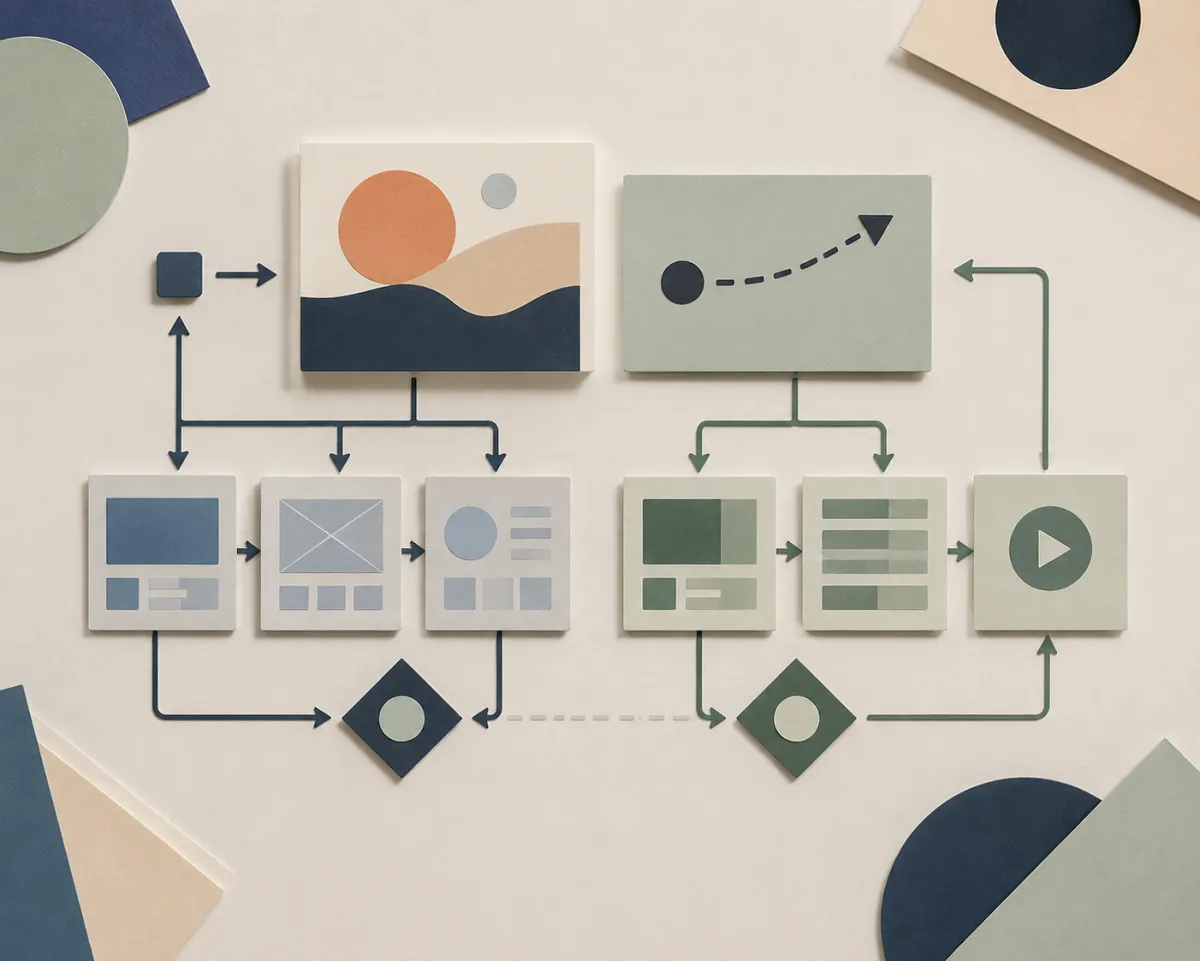
This AI-generated workflow board is an editorial planning visual, not a claim about a particular Wan model output or current model availability.
Review the clip twice
Watch once for the overall idea, then again for the parts people notice when the novelty fades: face or product stability, hands, logos or text areas, background continuity, and the final frame. A clean ending matters because it gives your editor somewhere to cut.
Keep the version that protects the important thing in the shot. The most dramatic version is not always the most usable. If the clip will support a product page or paid post, verify that it still represents the item honestly and that you have the rights to every source asset.
For a more general starting point, see how to animate a photo with AI and image-to-video prompt examples. Model names, access, terms, and limits can change, so check the current interface before a production run.
Frequently asked questions
What is a Wan AI video generator good for?
It is most useful for short, controlled motion clips from a prompt or source image: a product reveal, atmospheric shot, or social insert. Start with one stable subject and one motion.
Should I use Wan or a video template?
Use a model-led workflow when the source image and movement are unique to your project. Use a template when you want a repeatable format, established pacing, or a trend structure.
Can I publish the first clip directly?
Review it before publishing. Check source rights, people and products shown, factual claims, text areas, and the current rules for your intended use. Add final copy in an editor.
Make one clean test before planning a series
Open the AI video generator, give one clear frame a single motion, and build the larger sequence only after the first clip holds together.