How to Turn Travel Photos Into Short AI Videos
To turn a travel photo into a short AI video, keep the original place recognizable and animate one thing at a time: a slow push toward a lake, clouds drifting over a ridge, or a person taking one measured step. An image to video AI tool can create the motion; your job is to choose a source image with depth and write a prompt that does not invent a different trip.
Last updated: July 14, 2026 - about 7 min read
Start with one strong travel photo
The best source has a clear foreground, middle distance, and background. A hiker near a lake, a street leading toward a landmark, or a train-window view gives the camera somewhere to move. A dark restaurant selfie or a crowded group photo has less usable visual structure.
Pick a photo that is already worth looking at still. AI animation will not repair a weak composition. It is most useful when it gives an existing frame a little atmosphere or depth.
Choose one motion beat
An image-to-video prompt works better when one motion is the star. Start with one of these:
- Slow camera push toward a mountain, building, or person
- Light wind through grass, hair, or a jacket
- Clouds moving gently behind a stable landscape
- A small pan along a quiet street or shoreline
- One person taking a short, natural step
Avoid combining a drone orbit, fast walking, moving crowds, rain, birds, and a time lapse in one request. That turns a personal memory into a scene the model has to invent.
Use a prompt like this:
Use the uploaded travel photo as the visual reference. Keep the location, subject, clothing, landmarks, and lighting recognizable. Create a slow camera push-in with gentle movement in the clouds and water. Keep people and architecture stable. No new signs, no text, no sudden scene changes. End on a clean frame.
Build a three-shot micro story
You do not need a long generated video. Three short clips can make a better memory than one unstable sequence.
| Clip | Job | Motion |
|---|---|---|
| Establishing frame | Show the place | Slow push or lateral drift |
| Detail | Make the place feel present | Water, fabric, light, or leaves move |
| Ending | Give the edit a quiet finish | Camera settles on the subject or view |
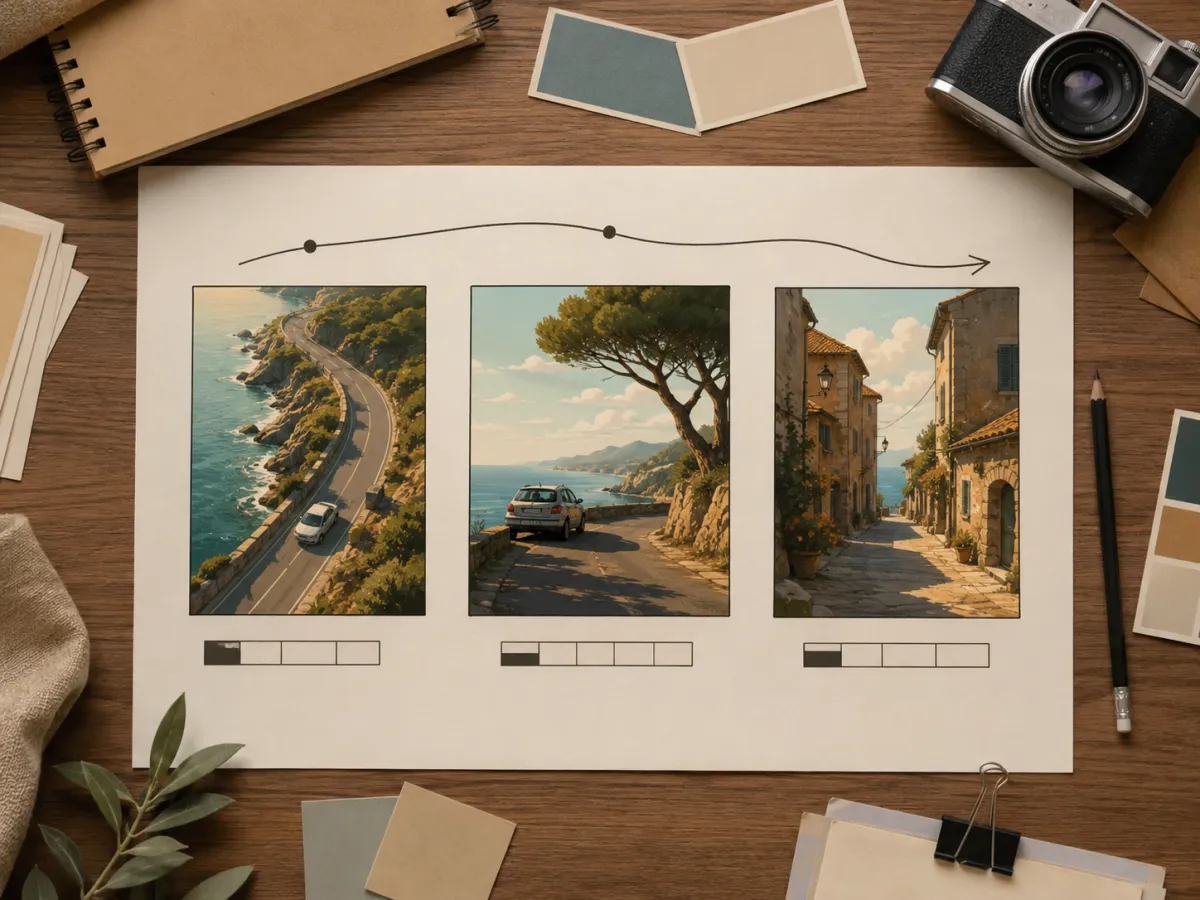
Use a storyboard to separate the shots. It is a planning visual, not a claim that the AI will recreate an exact itinerary.
Keep the place believable
Travel images carry a lot of personal detail. Do not use a prompt that changes a real landmark, creates a fake crowd, adds a different season, or turns a quiet street into an invented event. A restrained result will age better and needs less explanation when you share it.
If a person is visible, keep their face, outfit, and body position protected. Only use photos of people who are comfortable with the animation. For a public post, choose the version that looks natural at normal viewing size and does not create a misleading event or location.
Finish outside the generator
The model supplies the moving frame. Add music, captions, dates, map labels, and transitions in a normal editor after generation. That keeps readable text and factual details under your control. It also means you can reuse the same short clip for a vertical Reel, a Story, or a wider recap without asking the model to redraw titles.
For more general source-photo advice, see AI image to video generator. If the result feels too busy, reduce the camera request using these camera movement prompt patterns.
Frequently asked questions
Can AI turn a travel photo into a video?
Yes. Image-to-video AI can add a short camera move or environmental motion to a travel photo. The most reliable results start from a clear image and use one restrained motion instruction.
What travel photos work best for AI animation?
Choose a sharp photo with visual depth, a clear subject, and visible landmarks or lines. Landscapes, streets, buildings, and outdoor portraits usually give the model more stable structure than crowded or very dark images.
Will the AI keep the place exactly the same?
It can help preserve the main scene when your prompt is simple, but you should review every result. Do not rely on it for exact signs, architecture details, or facts that must remain precise.
Animate the memory, not a replacement for it
Open the AI video generator, give one favorite travel photo a single motion beat, and keep the final edit close to the place you actually saw.