How to Make AI Videos for YouTube
The fastest way to make AI videos for YouTube is to skip filming entirely. Pick a video model, upload one clear image, and write a short motion prompt. Generate a clip, download it vertical for Shorts (or 16:9 for the feed), and upload. Our AI video generator runs that whole loop in your browser — no camera, no editing rig. The rest of this guide is about making it consistent enough to post on a schedule.
Last updated: June 21, 2026 · ~7 min read
We test these tools so you don't have to guess which one survives a real upload schedule. Most "AI YouTube" tutorials stop at "generate a clip." The harder part is doing it twice a week without the output looking random — same look, same speed, same predictable cost per clip. Below is the workflow we actually use, the models that fit YouTube best, and the rights and monetization realities nobody likes to mention.
The 3-step loop for a single YouTube clip
You don't need a script, a voice actor, or an editor to post your first AI clip. You need one good image and one good sentence.
- Pick a model and upload one image. A product shot, a character portrait, a landscape — anything you want to move. One subject, front-facing, good light. (Don't have an image? Generate a still first, then animate that.)
- Write a motion prompt. Describe what moves and how: "slow push-in on the coffee cup, steam rising, warm morning light." Keep it about the motion, not a whole storyboard. These models animate a frame; they don't direct a film.
- Generate, then download for the right slot. Render a short test clip first. When it looks right, export 9:16 vertical for YouTube Shorts or 16:9 for a standard upload, and post.
Tip: Always render a 4–5 second test before committing to a longer clip. Motion drift, weird hands, and warped text show up fast, and a short test costs a fraction of a full render. Fix the prompt, then scale up.
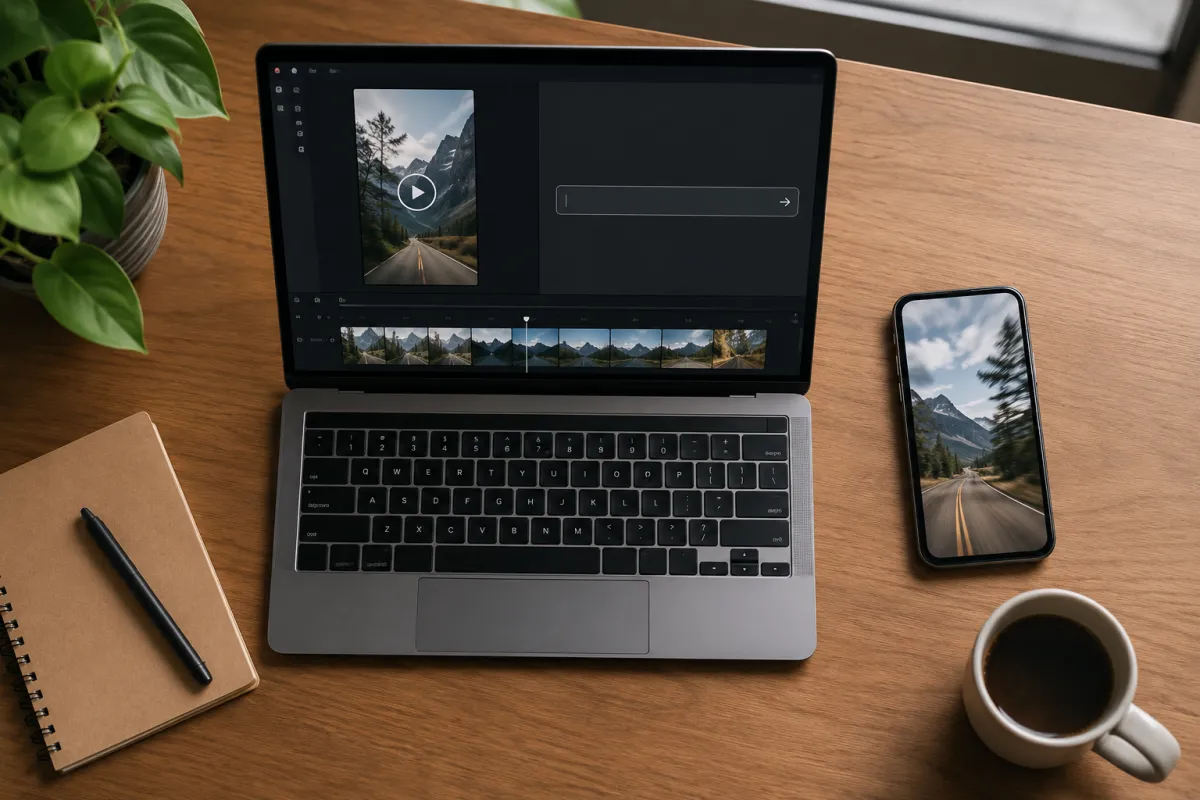
Left side of the loop: one still image and a one-line prompt. Right side: a finished vertical clip ready to post to Shorts.
Which AI model is best for YouTube clips?
There's no single "best." It depends on whether you're optimizing for speed (you post daily), polish (you post weekly), or sound (you need native audio). Here's how the three workhorse models compare for YouTube use specifically.
| Seedance 2 | Veo 3.1 | Kling 3 | |
|---|---|---|---|
| Vendor | ByteDance | Kuaishou | |
| Clip length | 4–15s | 8s | 5–15s |
| Max resolution | 1080p | 4K | 1080p |
| Native audio | Basic | ✅ Yes | ✅ Yes |
| Best for | Fast turnaround, real-face reference | Polished, sound-on clips | Tightest prompt control, multi-shot |
| YouTube fit | Shorts at volume | Flagship uploads | Story sequences |
| Speed | Fast | Slower (heavier render) | Medium |
Honest take: For a high-frequency Shorts channel, lean on the faster model and keep clips short. Consistency beats perfection when you're posting daily. For a weekly "hero" upload where sound and detail matter, the higher-quality model earns its longer render time. You don't have to pick one forever — switch per video.
On watermarks: free consumer apps often stamp a watermark on the output, which looks amateur on a monetized channel. Run the model through a tool that exports clean instead. On ClipTrend.ai you can run Seedance 2 or Veo 3.1 from the same workspace, and the pricing & credits page shows the cost per clip before you build a schedule around it. For full model write-ups, see the Best AI image-to-video generators roundup.
Making AI videos for YouTube Shorts (vertical, fast, repeatable)
Shorts is where AI clips do the most work, because the format rewards volume and consistency more than cinematic polish. Turn your loop into a small system instead of starting from scratch every time.
- Lock a look. Decide on one aesthetic — color grade, subject type, motion style — and reuse it. A channel that looks consistent reads as "a show," not "random AI clips."
- Batch your stills. Generate or collect 5–7 source images in one sitting. Now you have a week of clips queued before you animate anything.
- Reuse one prompt skeleton. Keep a base motion prompt ("slow cinematic push-in, soft light, subtle parallax") and only swap the subject line. Same rhythm, different content.
- Export 9:16 at 1080p. Vertical, full resolution, no watermark. Add a hook in the first second — AI clip or not, retention rules still apply.
Worked this way, one focused hour can produce a week of Shorts. The bottleneck stops being production and becomes ideas, which is exactly where you want it.
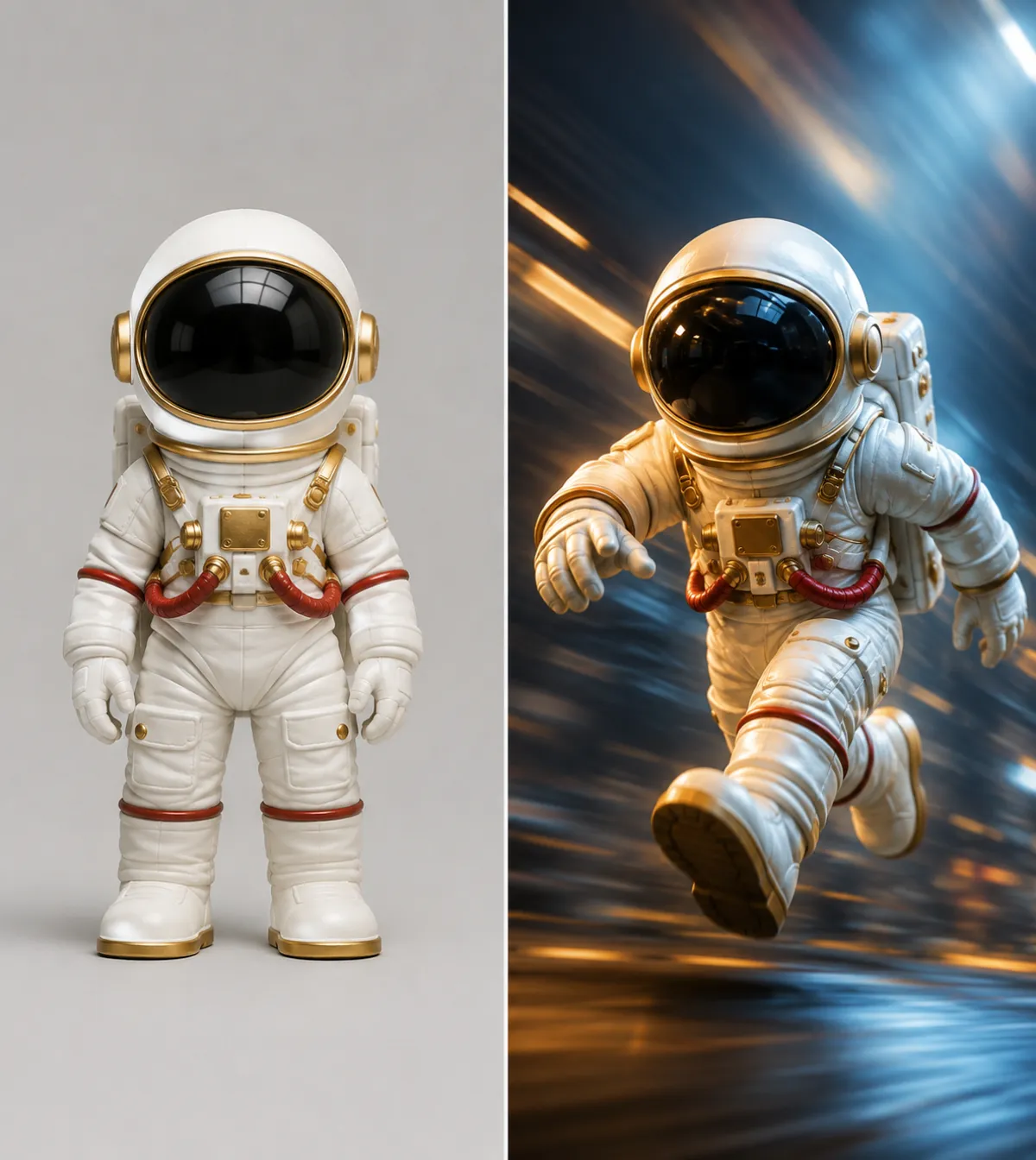
Before: a still image. After: the same subject animated with a short motion prompt — the core move behind every AI Shorts clip.
Don't film? Generate the still, then animate it
If you don't have footage or a good source photo, you can make the whole thing from text. Generate a still image first — a portrait, a scene, a product — then feed that image into a video model as the starting frame. This image-to-video path gives you far more control than text-to-video alone, because you've locked the look before anything moves.
This is the core of an AI YouTube Shorts generator workflow: text → image → motion. We walk through the still-to-motion step in detail in how to turn a photo into a video with AI, and on ClipTrend.ai you can run the animate step directly with the image-to-video tool.
Tip: Image-to-video almost always beats raw text-to-video for YouTube. You see the frame before you spend credits animating it, so you catch a bad composition or a weird face before it's moving, not after.
Rights, disclosure, and monetization (the part people skip)
This is where AI creators get burned, so read it before you scale.
- You need rights to your inputs. Don't animate copyrighted characters, brand logos, or someone else's photos. Use your own images, AI-generated stills you created, or properly licensed assets.
- No real people without consent. Putting an identifiable person — especially a public figure — into an AI clip runs into impersonation and deepfake rules. Use your own face, or someone who has explicitly consented. ClipTrend.ai enforces this with consent and no-impersonation rules; see our Seedance 2 real-face reference guide for the responsible way to keep yourself consistent across clips.
- Disclose AI content. YouTube requires creators to flag realistic altered or synthetic content in the upload flow (the "Altered content" disclosure). It's a checkbox — use it. Undisclosed synthetic content risks removal and demonetization.
- Monetization isn't automatic. The YouTube Partner Program needs real thresholds (subscribers plus watch hours or Shorts views), and it rewards original, authentic content. Channels that just mass-repost generic AI clips with no commentary, narrative, or transformation can fail the "original content" bar. Treat AI as a production tool inside a real show, not the show itself.
Reality check: AI lowers the cost of making video to near zero. It does not lower the bar for good video. The channels that win add a point of view — a voice, a story, a joke, a thread — that AI alone can't supply. The clip is the easy part.
Frequently asked questions
How do I make an AI video for YouTube for free?
Many AI video tools offer limited free generations, usually with a watermark and lower resolution. That's fine for testing the loop, but a watermark looks unprofessional on a monetized channel. For a real posting schedule, use a tool that lets you export clean clips and check the per-clip credit cost first so the math works at volume.
What's the best AI model for YouTube Shorts?
For daily Shorts, prioritize speed and keep clips short — a faster model like Seedance 2 lets you batch. For a polished weekly upload where sound matters, Veo 3.1's native audio and higher resolution are worth the longer render. Kling 3 sits in between with the tightest prompt control. You can switch models per video.
Can I monetize AI-generated videos on YouTube?
Yes, but it's not automatic. You still need to meet YouTube Partner Program thresholds, and YouTube favors original, authentic content. Channels that just repost generic AI clips with no added value, narrative, or commentary risk failing the originality bar. AI is best used as a production tool inside a channel that has a real point of view.
Do I have to disclose that a video was made with AI?
For realistic synthetic or altered content, yes — YouTube has an "Altered content" disclosure in the upload flow, and you should check it. It's required for content that could mislead viewers into thinking something real happened. Failing to disclose risks removal and demonetization, so make it part of your routine.
How long can AI YouTube clips be?
Most models generate short clips — roughly 4 to 15 seconds per render, depending on the model. For longer videos, you stitch several clips together in any editor. That actually suits YouTube Shorts well, since the format is built for short, punchy content under 60 seconds.
Can I make AI videos without any footage or a camera?
Yes. Generate a still image from a text prompt, then animate that image into a clip with image-to-video. The whole pipeline — text to image to motion — runs without a camera. Image-to-video gives you more control than text-to-video because you lock the composition before anything moves.
How do I keep my AI clips looking consistent across a channel?
Lock one aesthetic — color grade, subject type, motion style — and reuse a base motion prompt, only swapping the subject. Batch your source images in one sitting so a whole week of clips shares the same look. Consistency is what makes a channel read as a show instead of a pile of random AI clips.
Can I put my own face in the AI videos?
Yes, responsibly. You can use a real-face reference of yourself (or someone who has consented) to stay the lead character across clips. No public figures, no impersonation, 18+ only. This is different from face swap — you're the subject of your own video, kept consistent shot to shot.
Related guides
Try the free AI video generator →
- Image-to-video tool — upload a photo, write a motion prompt, download a clip.
- Best AI image-to-video generators in 2026 — full model comparisons, tested.
- How to turn a photo into a video with AI — the still-to-motion step in detail.
- Seedance 2 with a real-face reference — keep yourself consistent across clips, responsibly.
- Pricing & credits — see the per-clip cost before you build a schedule.
Ready to post your first AI clip?
You don't need a studio, a camera, or an editing rig — just one image and one sentence. Pick a model, animate a still, export vertical, and upload. Start free with our AI video generator and ship your first YouTube Short today.