How to Animate a Photo (Make It Move) with AI
To animate a photo, upload a still to an AI video model, then describe one small, believable movement — a soft blink, drifting hair, clouds sliding across the sky — and render a short clip. The ClipTrend.ai AI video generator turns a photo into a few seconds of motion, and the secret to a "living photo" is keeping that motion subtle.
Last updated: June 22, 2026 · ~6 min read
Most people animate a photo for one reason: a memory. An old family portrait, a picture of someone they love, a pet that's no longer around, a scanned print from decades ago, or a piece of artwork. That's a different job from making a flashy clip. Here's how to make a still photo move believably, subject by subject, without turning a quiet moment into an uncanny effect.
What "animate a photo" actually means
Animating a photo starts from one image and adds just enough motion to make it feel alive. You're not building a scene or a story. The original frame, the faces, and the composition stay exactly as they are, and the AI introduces small, looping-feeling movement: a breath, a blink, a gust through hair, a wisp of steam.
This is narrower than a general image-to-video workflow. If you want the full mechanics of turning any photo into a clip — angles, prompts, model choice — our how to turn a photo into a video with AI guide covers that. This article is about the living-photo case: memories, portraits, and meaningful stills where less motion is more.
Subtlety is the whole game. A still photo carries emotion because it's frozen. Add too much movement and you break the spell. The face warps, the smile turns into a grimace, and the magic becomes a special effect. Aim for a movement so small a viewer almost isn't sure it happened.
The 3-step way to make a photo move
You don't need video editing skills. You need one good still and one restrained instruction.
- Choose the right photo. Pick a sharp, well-lit image with a clear subject. Faces should be in focus and reasonably large in the frame. If it's an old or scanned photo, a quick cleanup helps the AI read it — straighten it, remove big scratches over the face. One subject, looking toward the camera, works best.
- Add one subtle motion. Describe a single small movement, not a list. "Gentle breathing and a soft, slow blink" beats "she turns, smiles, waves, and the background moves." Name what moves and how slowly. Restraint is the prompt.
- Refine and save. Render a short 4–5 second test first. If the face drifts or warps, dial the motion down further or re-crop closer on the subject. Once it feels natural, export it and keep your original still file untouched.
Tip: Render short and cheap before you commit. Most warping and "uncanny" moments show up in the first few seconds, and a brief test costs a fraction of a long clip. Tune the prompt, then re-render. Don't fix problems by adding more motion.
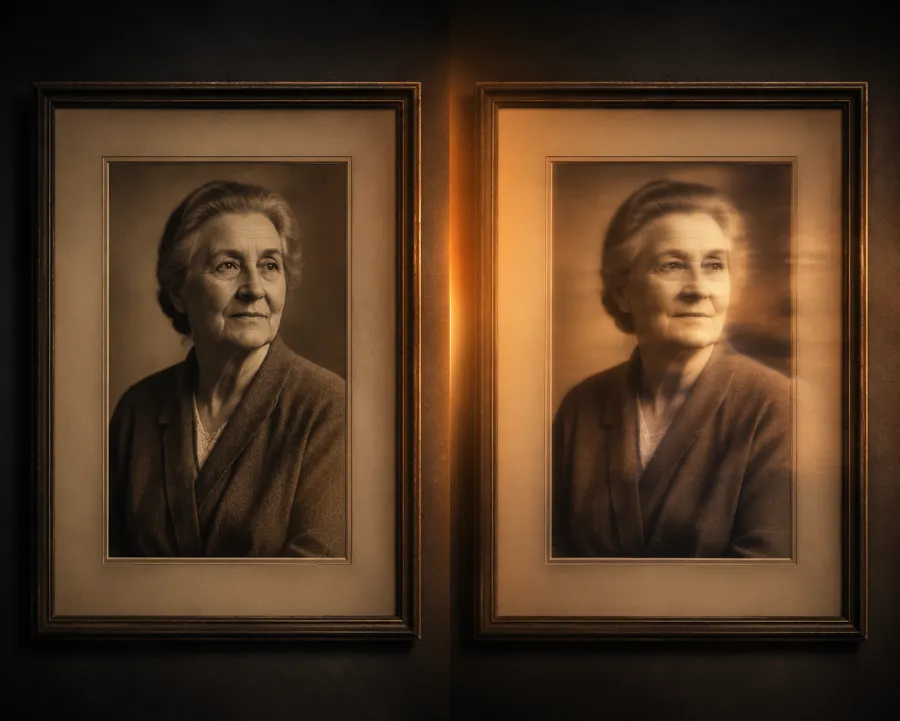
Left: the original still. Right: the same photo with a soft, believable motion — a small blink and a breath, nothing more.
Best subjects to animate (and what motion fits each)
Not every photo wants the same movement. A landscape can take big motion; a face can't. Here's what works, and what to avoid, by subject type.
| Subject | Good motion to add | What to avoid | Tip |
|---|---|---|---|
| Old portrait | Soft blink, faint smile shift, gentle breathing | Head turns, teeth, big expression changes | Crop closer on the face so the AI has less to invent |
| Loved one | Subtle eye movement, slow breath, hair drift | New emotions, fake laughter, lip movement implying speech | Keep the original expression; don't make them "perform" |
| Pet | Ear flick, slow blink, slight head tilt | Mouth opening, running, full body motion | Short clip, single gesture — pets read "off" fastest |
| Landscape / sky | Moving clouds, rippling water, swaying grass | Camera fly-throughs that bend the horizon | This is where bigger motion is safe and looks great |
| Artwork / painting | Slow drift, soft light shift, subtle parallax | Realistic faces on stylized art, texture-melting | Match motion to the medium — gentle, not "deepfaked" |
Honest take: Faces are the hardest and the most rewarding. The more recognizable and beloved the person, the less motion you should add. Your brain notices a wrong blink on a familiar face instantly. Skies, water, and artwork are forgiving; portraits of people you know are not. When in doubt, do less.
Animating old & family photos (the emotional case)
This is the use most people came here for: making a grandparent's photo blink, a childhood picture breathe, a faded print feel present again. It can be genuinely moving, and it deserves a careful hand.
Start by cleaning the scan. Straighten it, fix the worst damage near the face, and crop in so the subject fills the frame. Then ask for the smallest motion that reads as life: a slow blink, a quiet breath, a tiny shift of light. Resist the urge to make them smile, laugh, or "say" something. Invented expressions are where a touching tribute tips into something that doesn't feel like them anymore. You're not rewriting the moment; you're letting it breathe.
Respect the people in your photos. Animate photos of people you knew or who consented — not strangers, not public figures. ClipTrend.ai enforces consent and no-impersonation rules for real faces. If you want to keep a real person consistent across more than one clip, do it the responsible way described in our Seedance 2 real-face reference guide. That feature is a reference for your own or a consenting person's likeness — it is not a face swap, and it shouldn't be treated as one.
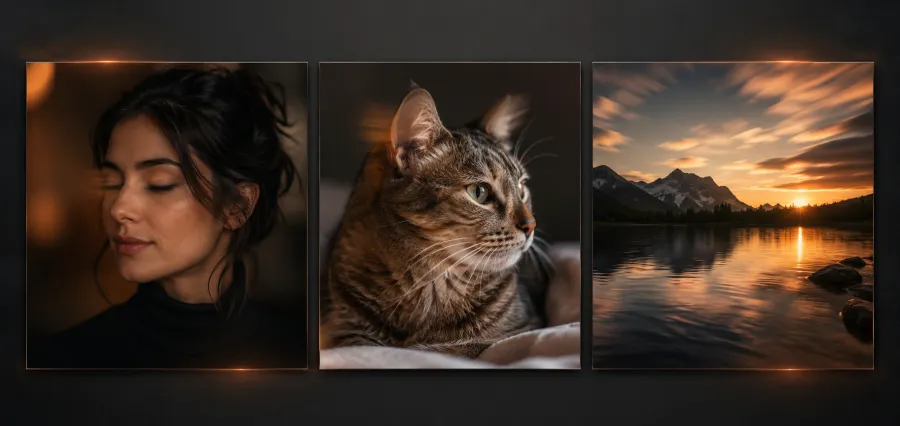
Different subjects, different motion: a portrait blinks, a pet flicks an ear, a landscape's sky drifts. Match the movement to the subject.
Keeping motion subtle & believable
The difference between a "living photo" and an unsettling one is restraint. A few rules hold up across subjects:
- One movement at a time. Pick the single most natural motion and stop there. Layered motions fight each other and warp.
- Slow it down. Slow, small movement looks real. Fast or large movement looks like an effect.
- Protect the face. If the AI distorts features, crop closer and reduce motion instead of re-prompting for "better." You're giving it less to get wrong.
- Test before you scale the length. Image-to-video lets you see the frame before you spend a render. Catch a bad result at 4 seconds, not 12.
The animate step runs directly in the ClipTrend.ai image-to-video tool: upload the still, write your one-line motion prompt, and render. If your first try looks rubbery or warped, the fix is almost always "less motion, tighter crop," which is exactly the kind of thing covered in our common AI image-to-video mistakes and fixes guide. Before you build a habit of animating a whole album, the pricing & credits page shows the cost per clip so you can plan.
Frequently asked questions
How do I make a photo move?
Upload one still image to an AI image-to-video tool, then describe a single small movement — a soft blink, drifting hair, moving clouds. Render a short test clip, and if the motion looks natural, save it. The key is asking for one subtle motion rather than a busy scene, which keeps the original photo recognizable.
Can I animate an old photo?
Yes. Scanned or vintage photos animate well if you clean them up first — straighten the image, repair big scratches near the face, and crop in so the subject fills the frame. Then add the smallest motion that reads as life, like a slow blink or a gentle breath. The clearer the original, the more believable the result.
What's the difference between animating a photo and turning it into a video?
Animating a photo means adding subtle, believable motion while keeping the original frame, faces, and composition intact — it's about making a still "breathe." Turning a photo into a video is the broader workflow of generating a clip from an image, which can include bigger movement, new angles, and a full scene. Animating is the gentle, memory-focused subset.
How do I make a portrait blink or smile naturally?
Ask for one tiny motion and slow it down: "a slow, soft blink and gentle breathing." Crop closer on the face so the AI has less to invent, and render a short test. For a familiar face, prefer a blink or a breath over a new smile — invented expressions are where portraits start to look uncanny, so add less, not more.
Is it free to animate a photo?
Many AI tools offer limited free renders, usually at lower resolution or with a watermark, which is fine for testing the look. For animating a meaningful photo you'll want to keep, use a tool that exports clean and check the per-clip credit cost first so you can plan — the pricing page lists what each render costs.
Can I animate a photo of someone who passed away?
Yes, and for many people it's a touching way to remember them — but please do it with care. Use it as a quiet tribute, add only the smallest, most natural motion (a blink, a breath), and avoid inventing smiles, words, or expressions that weren't theirs. Animate photos of people you knew or who consented; respect the memory and the family, and keep the moment gentle rather than dramatic.
Related guides
Try the free ClipTrend.ai AI video generator →
- Image-to-video tool — upload a photo, add a subtle motion, download the clip.
- How to turn a photo into a video with AI — the general still-to-motion workflow.
- Common AI image-to-video mistakes and fixes — why faces warp and how to stop it.
- Seedance 2 real-face reference guide — keep a consenting person consistent, responsibly.
- Pricing & credits — see the per-clip cost before animating an album.
Ready to bring a photo to life?
You don't need editing skills — just one still and one gentle instruction. Choose a photo, add a single subtle motion, render a short clip, and watch a memory breathe. Start free with the ClipTrend.ai AI video generator and animate your first photo today.