Your ideas, in pictures

AI Image Generator

Use ClipTrend’s AI image generator with a text prompt or an optional reference. GPT Image 2.5 Flare is selected by default, and every available model shows its exact controls and credit price before generation.

Optional reference
Uses your shared ClipTrend credit balanceCost: 4 credits

AI photo generator examples made with ClipTrend

These three wide images were generated for this page through KIE GPT Image 2. They show different kinds of direction, not guaranteed output for every prompt or model.

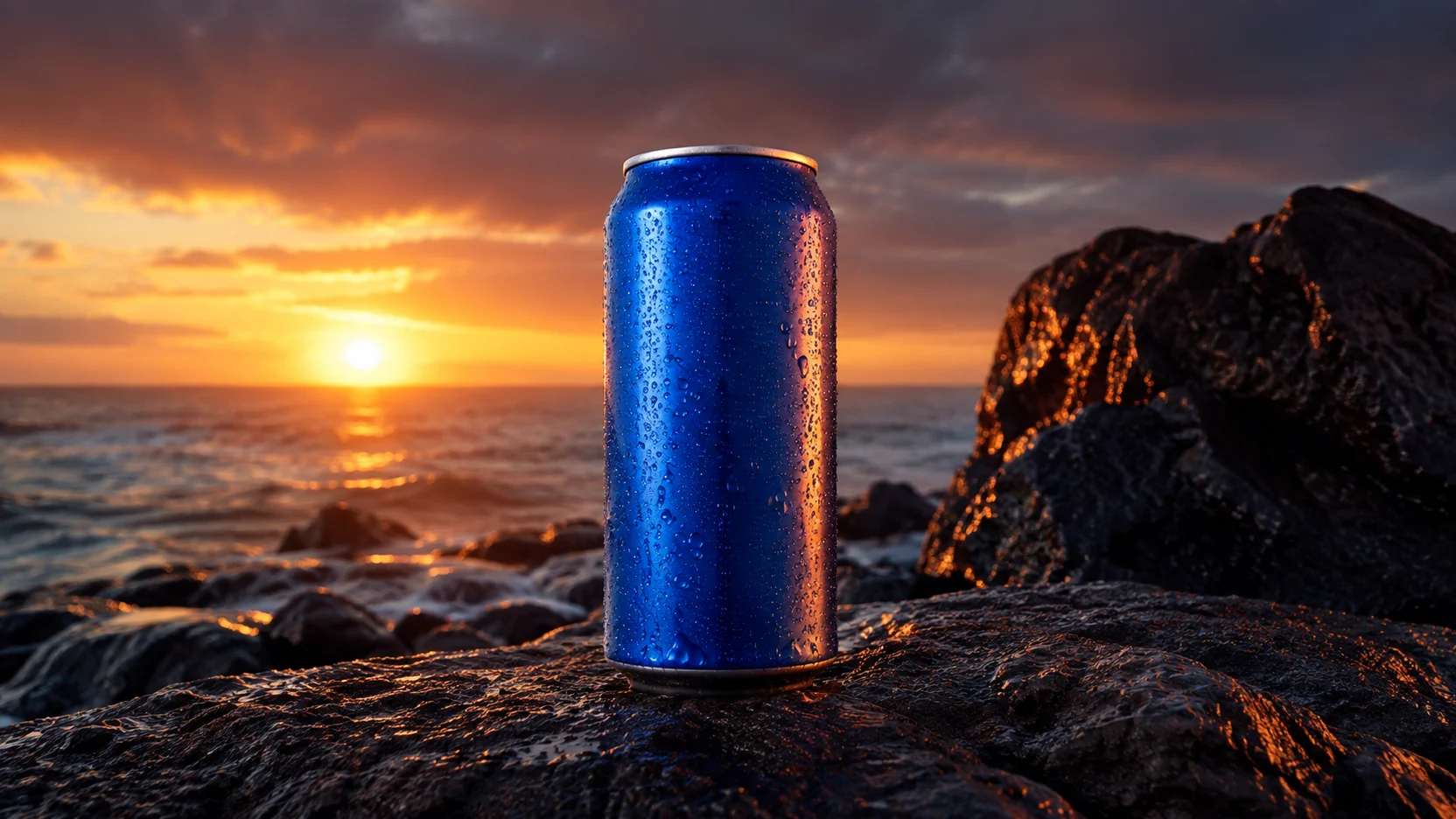
AI image · product

Build a polished product scene

Begin with the object, setting, light, and camera treatment. This example keeps the product unbranded and places it in a believable scene, leaving room around the subject for a banner crop or advertising layout.

Use a reference image when the shape, palette, or material must stay close to an existing product. Always inspect labels and small geometry before publishing a generated visual.

Blue drink can on dark volcanic rock at sunset in a wide commercial photograph
Generated example · 16:9
AI image · portrait

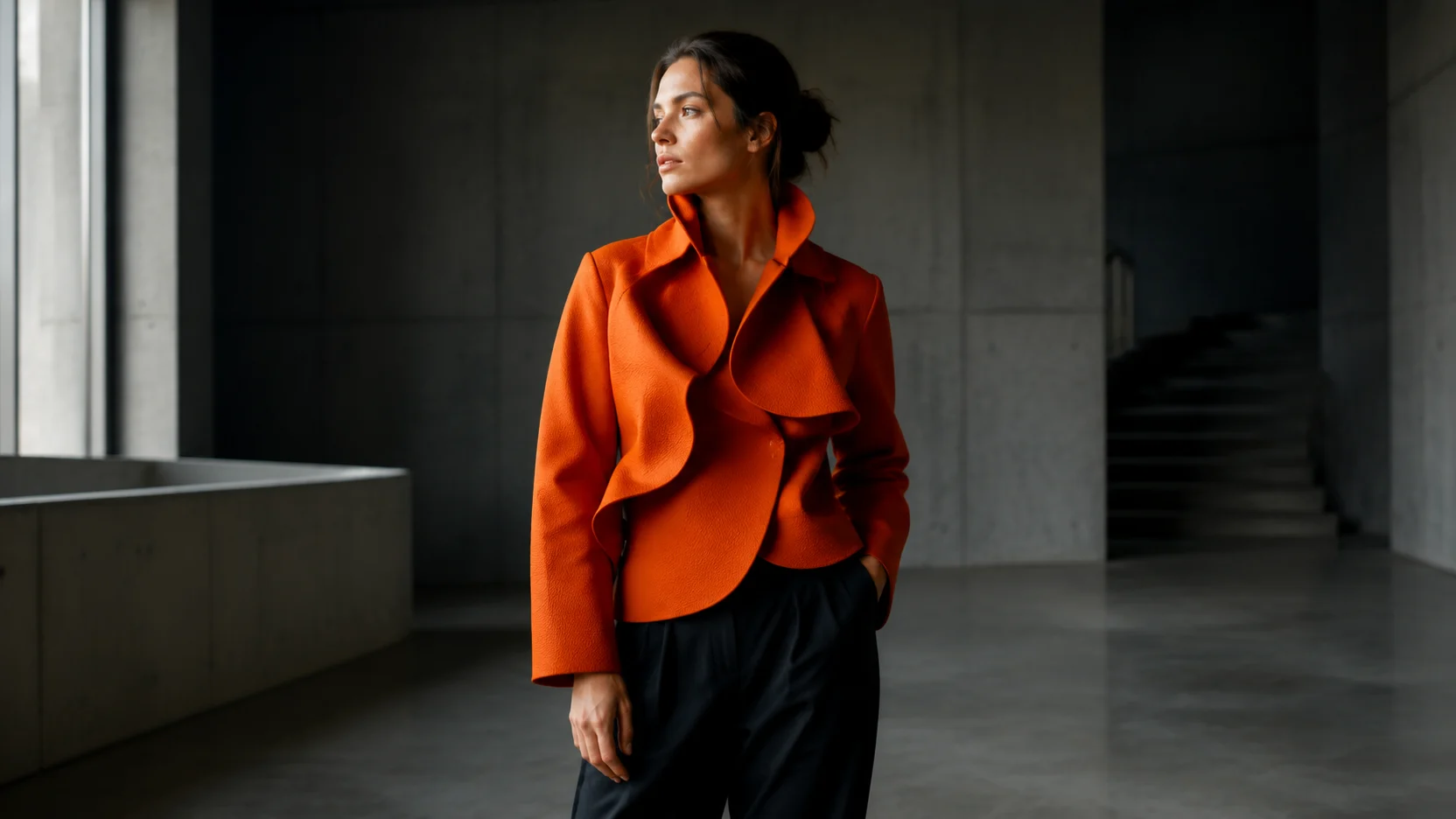
Direct a cinematic editorial portrait

A useful portrait prompt names the adult subject, clothing, location, lighting, and photographic mood. The AI photo generator then has enough direction to create a coherent environment instead of a generic headshot.

Reference images can guide pose, colour, or styling, but they are not a guarantee of identity accuracy. Use images you have permission to upload and review hands, jewellery, and facial details at full size.

Adult woman in an orange jacket standing in a modern concrete gallery
Generated example · 16:9
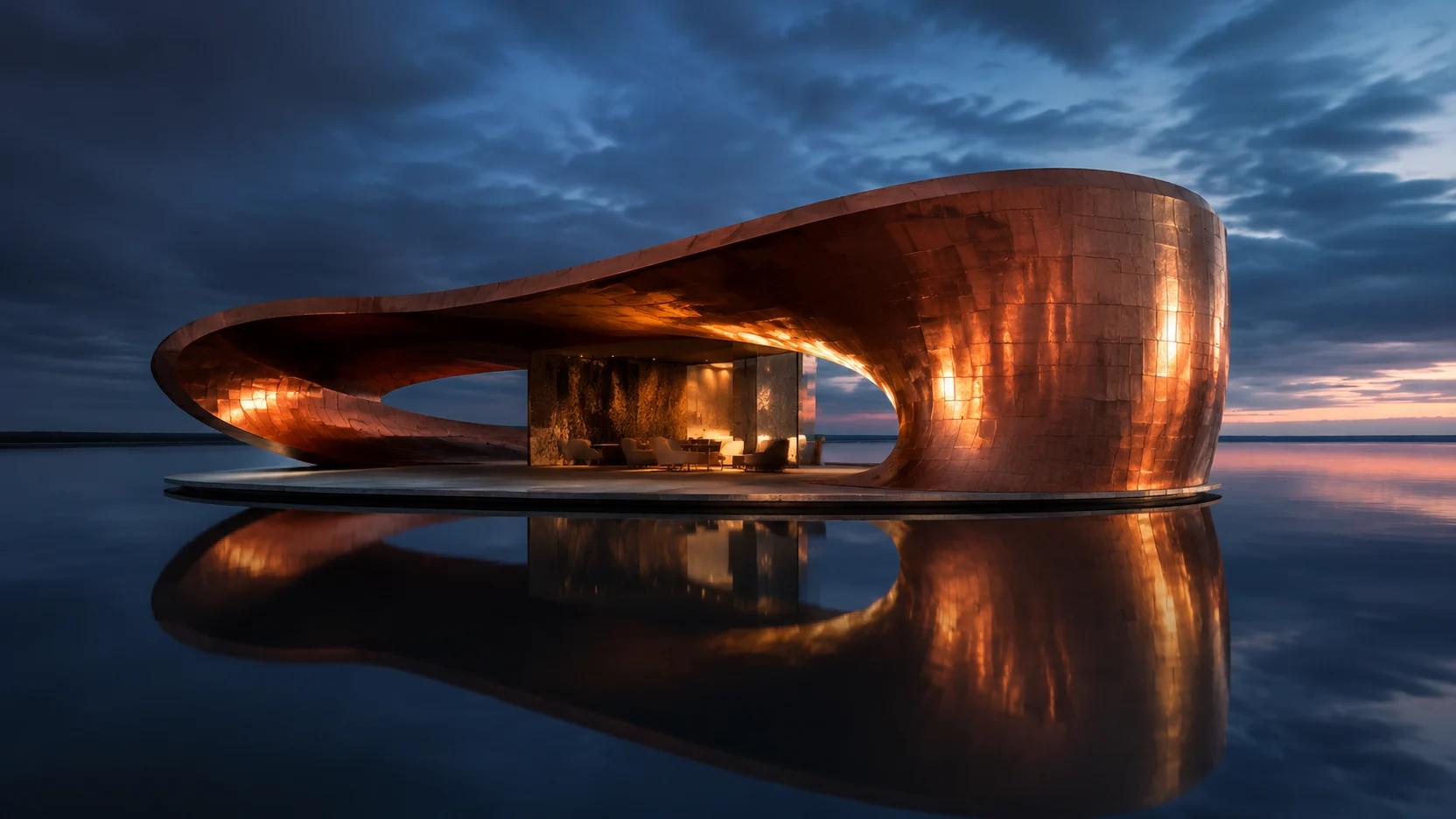
AI image · architecture

Explore an impossible architectural idea

Generative work is especially useful before a concept is practical to photograph. Describe material, scale, time of day, weather, and viewpoint to turn a loose idea into a visual direction for a moodboard or creative brief.

Treat the result as concept art rather than construction documentation. Generated structures can contain impossible joins, dimensions, or reflections even when the overall image looks convincing.

Curved copper pavilion floating over dark reflective water at blue hour
Generated example · 16:9

How to generate an AI image

01

Write one clear prompt

Name the subject first, then add setting, light, composition, and style. A short, concrete brief usually gives the model more useful direction than a pile of conflicting adjectives.

02

Add a reference if needed

Paste or upload an image when colour, shape, pose, or layout should guide the result. ClipTrend detects the reference automatically; you do not have to choose a separate generation mode.

03

Choose shape and detail

Select a supported aspect ratio and resolution. Review the exact credit price, generate, then inspect small text, hands, faces, edges, and product geometry before using the result.

Set up the free AI image generator for your brief

GPT Image 2.5 for the first result

GPT Image 2.5 Flare is the default. It accepts a text prompt or up to 16 reference images and supports 1K, 2K, and 4K output on compatible aspect ratios. Its exact price is shown before you generate. Credits are returned automatically when a provider request fails.

Specialist models when the brief demands one

GPT Image 2 is useful for instruction-heavy editorial work and multiple references. Nano Banana models suit fast general creation, Ideogram focuses on typography, and Wan or Grok offer different compositions and styles. Each model’s price remains visible in the picker.

Aspect ratio controls the canvas shape

Use 1:1 for square cards, 16:9 for wide presentations and video frames, or 9:16 for vertical social work. Other ratios suit portraits, print layouts, and panoramic concepts. The selector changes when a model supports fewer shapes.

Resolution controls delivered detail

In the AI image generator, resolution is separate from orientation. A 16:9 720p image is 1280 × 720, while a square 720-class image is 720 × 720. Higher tiers contain more pixels but cannot automatically repair a weak prompt or an inaccurate generated detail.

Free AI image generator questions

Can I use ClipTrend as an AI photo generator?

Yes. ClipTrend’s free AI image generator also works as an AI photo generator. Start with a written prompt, or add a reference image to guide portraits, product photos, and other scenes. Check faces, text, and small details before publishing the result.

Can I use the AI image generator without uploading a picture?

Yes. Write a prompt and generate directly. Adding a reference is optional; when you attach one, ClipTrend automatically uses a model workflow that accepts image guidance, so there is no separate mode switch. ClipTrend checks the prompt, any reference image, and the generated result for unsafe content.

Which image model is selected by default?

GPT Image 2.5 Flare is selected by default. It supports text prompts, up to 16 reference images, and 1K, 2K, or 4K output on compatible aspect ratios. You can switch to another listed model before generating.

What can a free ClipTrend account generate?

A new account can spend its starter credits on any model currently shown in the picker, including GPT Image 2.5. Add a prompt, optionally attach supported reference images, and review the displayed credit cost before generating.

What changes after I pay?

Purchased credits let you keep generating after starter credits run out. Available models keep the same clearly displayed controls and prices; processing time still varies by provider and demand.

Why do the available settings change between models?

Each provider accepts a different contract. ClipTrend only shows aspect ratios, resolutions, reference-image limits, and other controls that the selected model can actually receive. Unsupported combinations are blocked before credits are charged.

What is the difference between aspect ratio and resolution?

Aspect ratio describes shape, such as 16:9 or 1:1. Resolution describes the amount of image detail, such as 720p, 1K, or 2K. ClipTrend shows the exact pixel dimensions for the selected combination before generation.

How much does each AI image cost?

Each available model shows its exact credit cost before generation. Resolution, image count, or rendering mode can change the price where supported. If a provider rejects or fails a generation, ClipTrend’s existing task and credit safeguards handle the failed run instead of presenting it as complete.

Can I use generated images commercially?

You can use your ClipTrend outputs in creative and commercial projects, subject to the selected model’s terms and applicable law. You remain responsible for uploaded material, trademarks, publicity rights, and checking the final image before publication.
Turn an idea into your next image

Use the free AI image generator above: start with a prompt, add a reference only when it helps, and choose the model controls that match the final placement.

Free AI Image Generator — Create Images Online | ClipTrend