Edit an existing photo

AI Photo Editor

Use the AI Image Editor to upload a photo, describe the change, and choose low quality but fast for one reference or Pro for a precise multi-reference edit.

Model

Choose an editing option.

Tải ảnh lên (16)0/16

Pro accepts 1–10 JPEG, PNG, or WebP references, up to 20 MB each. Extra references add 1 credit per pair.

0/20000
Đang dùng 4 Credit(s)·Mua

Tạo bởi AI. Vui lòng dùng có trách nhiệm.

Edit with a prompt

Make focused changes without rebuilding the whole photo

ClipTrend AI Photo Editor edits an uploaded JPEG, PNG, or WebP with a written instruction. Use the AI Image Editor to replace a background, object, lighting, or style while saying what must stay fixed. Low quality but fast uses one reference; Pro uses up to 10. Unsafe material is blocked and finished images are watermark-free.

The examples below are genuine GPT Image 2 edits generated through KIE.

AI photo editing examples

Product photography

Change the scene, not the product

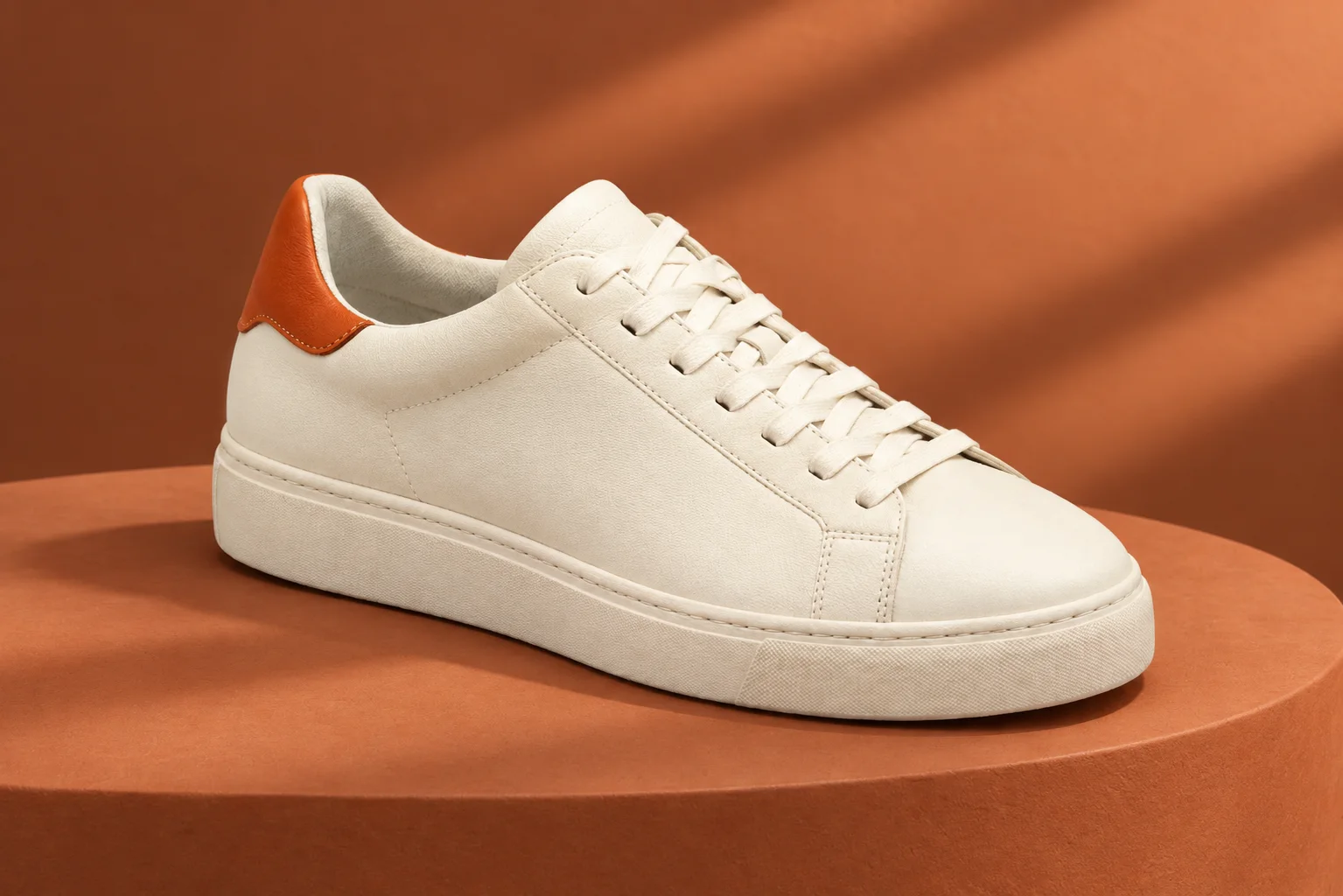
Product photography often needs a new environment without changing the details customers recognise. In the AI Photo Editor, name the sneaker's shape, material, colour, logo placement, camera angle, and sole as details that must remain untouched.

Then describe the new set in one sentence: a terracotta plinth, warm directional light, a softer shadow, and a clean editorial background. The AI Image Editor is more dependable when the fixed product details and the requested scene change are kept separate instead of blended into one vague instruction.
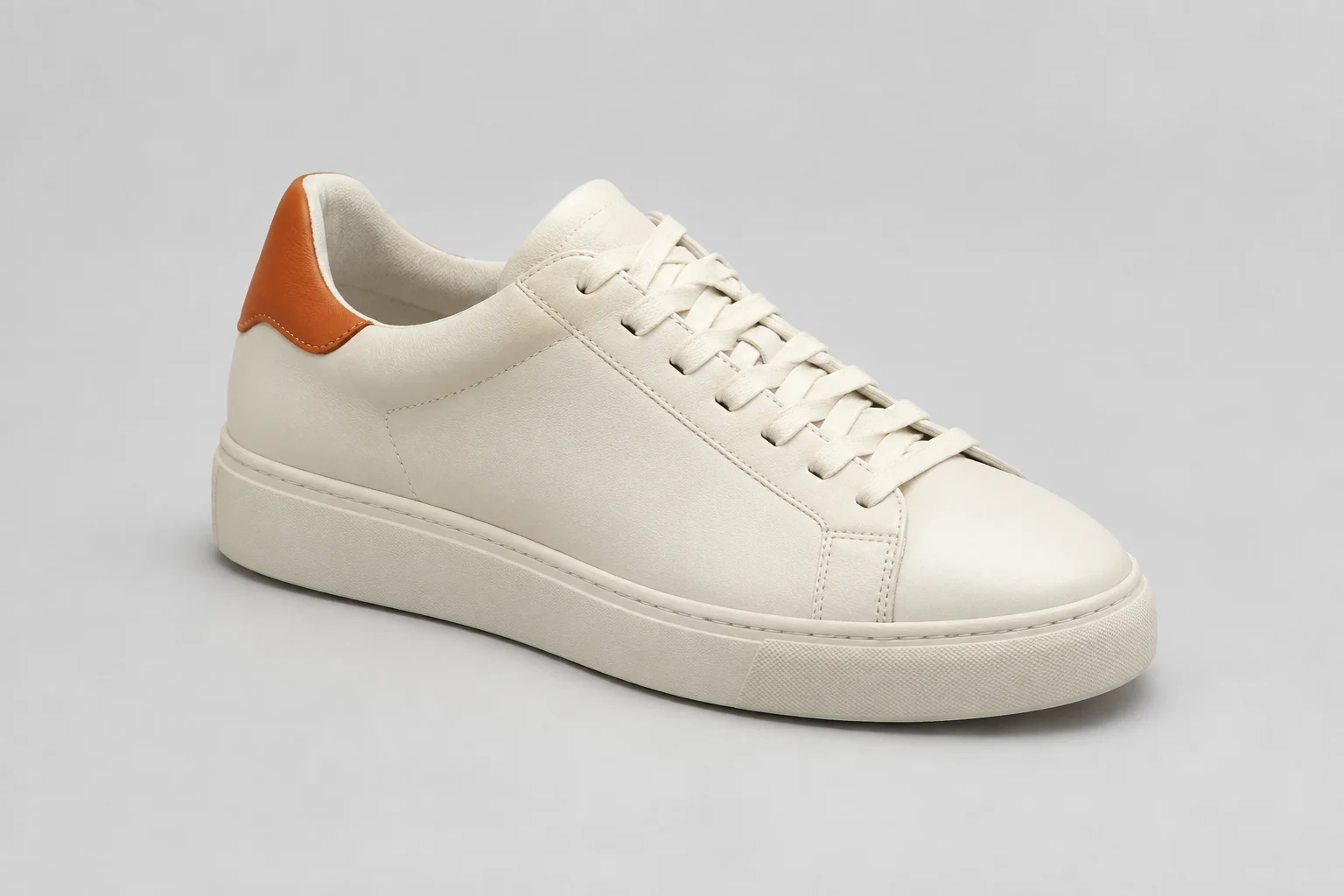
Cream sneaker on a plain studio background before an AI editBefore
Cream sneaker on a terracotta product set after an AI editAfter
GPT Image 2 edit through KIE, using the before image as its reference.

Portrait editing

Move a portrait into a new setting

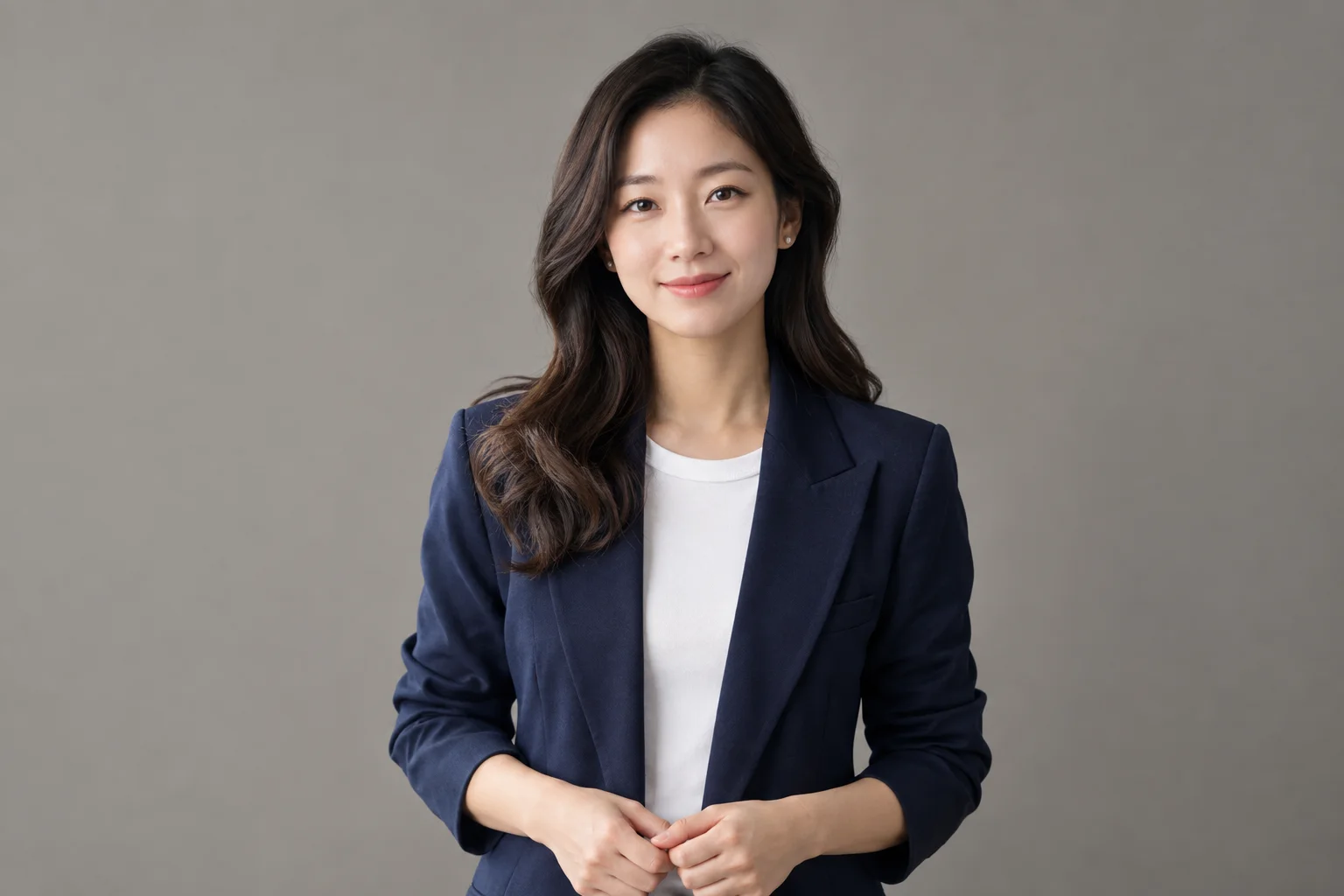
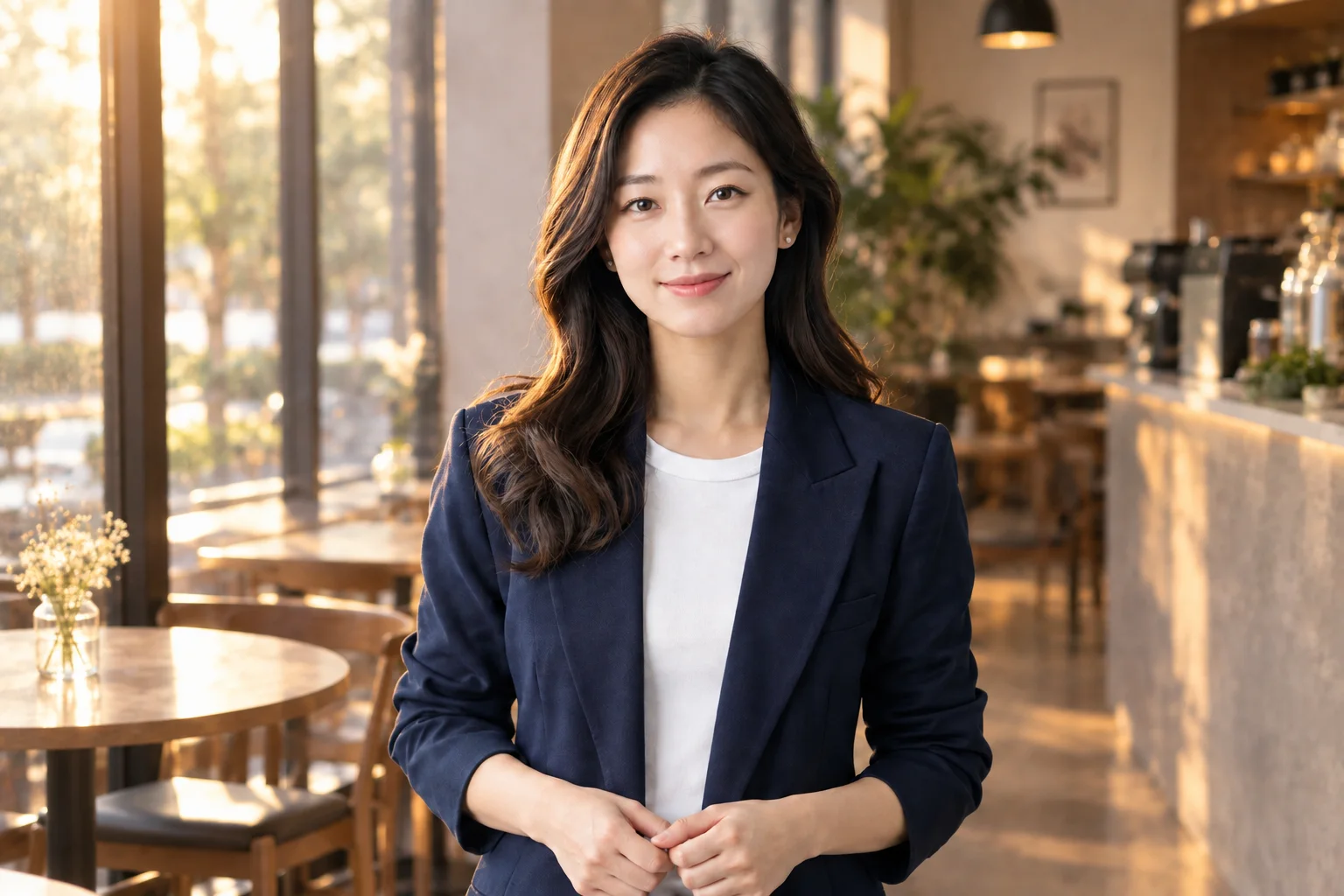
A portrait edit works best when identity and framing are protected explicitly. Tell the AI Photo Editor to keep the person's face, expression, hairstyle, clothing, pose, crop, and lens perspective, then state only the new setting or lighting you want to explore.

For example, move a neutral studio portrait into a quiet café with warm window light while leaving the person unchanged. This makes the AI Image Editor useful for testing campaign settings or social visuals without scheduling another shoot for the same person.

Adult woman in a neutral studio before an AI photo editBefore
Same adult woman in a warm cafe setting after an AI photo editAfter
GPT Image 2 edit through KIE, using the before image as its reference.

Interior restyling

Refresh a room while keeping its layout

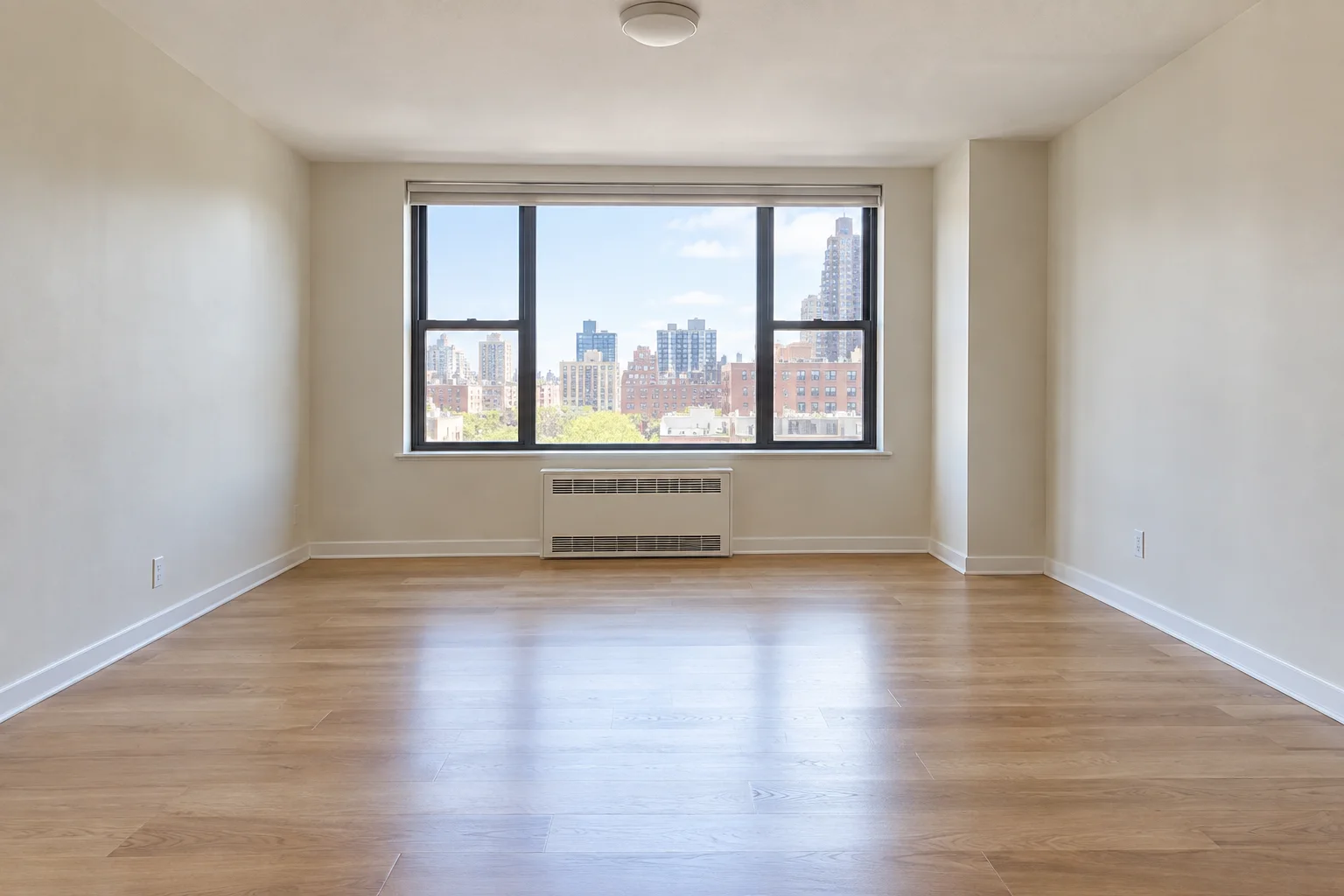
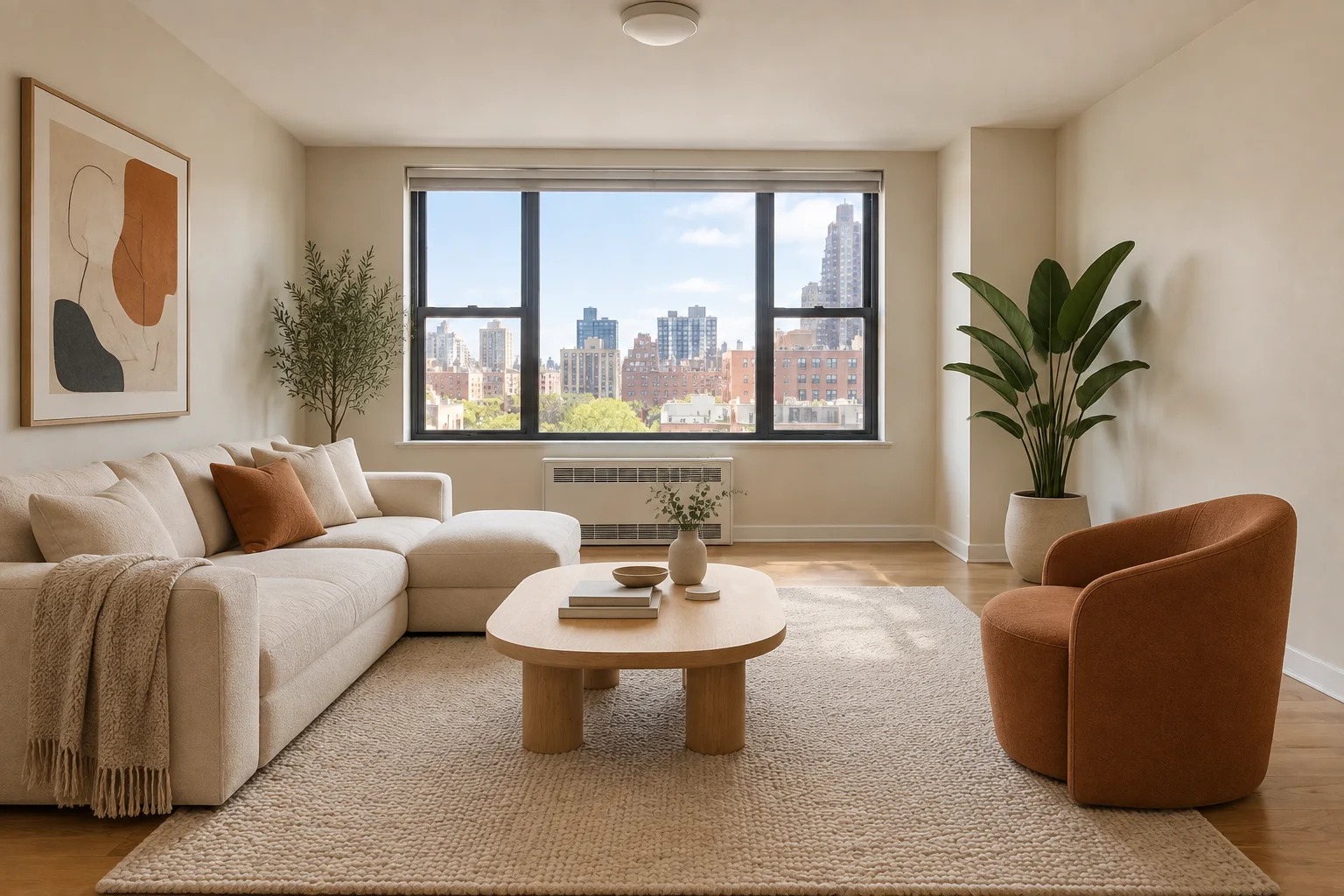
For an interior edit, begin with the elements that define the room: the walls, windows, built-in features, camera viewpoint, and overall layout. Tell the AI Photo Editor which furniture, architectural details, and proportions must remain stable before you describe a new mood or finish.

You can then request a focused update, such as warmer oak tones, softer evening light, linen textiles, and a calmer editorial colour palette. The AI Image Editor works best when the room's fixed structure is clear, so a restyle does not accidentally become a different floor plan.

Neutral living room before an AI interior restyleBefore
Same living room with warm wood and soft evening light after an AI interior restyleAfter
GPT Image 2 edit through KIE, using the before image as its reference.

Start with one clear instruction: say what must stay fixed, then name the single change. Use the result to decide whether the prompt needs a more precise material, setting, lighting, or composition detail. Clear boundaries make it easier to refine an edit without asking the photo to become something else entirely.