Short English clips · Free browser tool
AI Caption: Add Subtitles to Your Clip
Turn a short video or audio file into editable English captions. Preview the words and download SRT or VTT. No sign-up or generation credits needed.
Up to 60 seconds and 50 MB. English speech. Your clip stays on this device; the first run downloads speech files.
Preview overlays stay in this page. Download SRT or VTT to add captions in your video editor.
Turn spoken words into timed captions
AI Caption listens to the English speech in a short clip and creates subtitle segments with start and end times. Choose a video or audio file, then press Create free captions. The first use downloads speech files for your browser, so it can take longer than later runs. Recognition runs on your device. The example comes from a fictional five-second talking portrait and contains two timed sentences. A clear voice and low background noise give you a better starting point than overlapping speakers, music or a very quiet recording. Treat the transcript as a draft to review, rather than assuming every name and word is correct.
Try It Now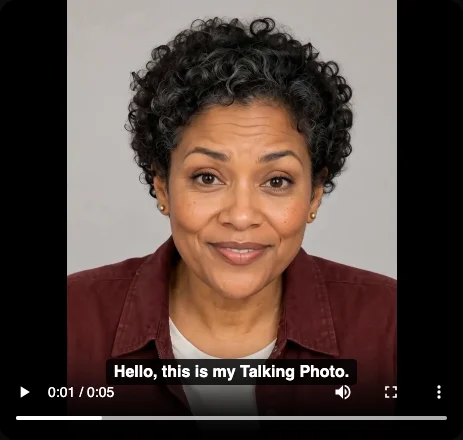
Read the captions against the original clip
Play the original video to check when each subtitle appears. The preview overlays the current caption while keeping your original clip unchanged. Listen for words that are missing or misheard, especially names, abbreviations and speech near the end of the recording. Each segment has its own text box, so you can correct the wording before downloading. The displayed start and end times come from speech recognition; this version does not provide a timeline for moving those boundaries. If a subtitle lands too early or late, make that timing adjustment in your video editor after importing the subtitle file.
Try It Now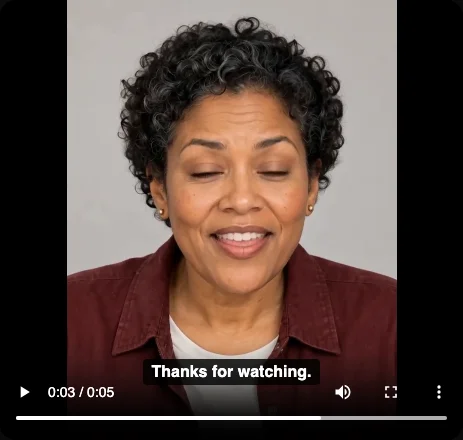
Save subtitles for your video editor
Download SRT for a widely supported subtitle file, or choose VTT for a web-video workflow. Both contain the reviewed text and its timing. Import the file alongside the original clip in an editor or a platform that accepts subtitles. The caption preview on this page is a viewing aid: it does not export a new MP4 with text permanently burned into the picture. Your source file stays unchanged, and the subtitle download is a separate text file. This makes it easy to keep a clean original while deciding on fonts, colors, placement and timing in the editor you already use.
Try It Now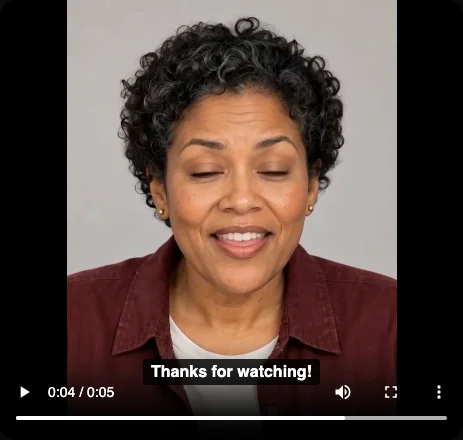
AI Caption questions
What does AI Caption make?
It makes timed English subtitles from a short audio or video clip. You can preview the captions against the original video, edit the words and download SRT or VTT. It does not generate a new video, translate speech or burn text into an MP4.
Is AI Caption free, and do I need an account?
This browser tool is free to use without signing in and does not spend ClipTrend generation credits. Speech recognition runs on your device. It needs an internet connection to download speech files on first use, and processing speed depends on your device and connection.
Does my clip get uploaded?
The file you choose is read locally by this page. Recognition runs in a browser worker; the audio and video are not sent to a transcription API or stored in your ClipTrend account. Your browser downloads recognition files from a model host. Close the page to end the current workspace.
Which files and languages can I use?
Start with clear English speech in a clip up to 60 seconds and 50 MB. Your browser must be able to read the audio track. Common choices are MP4 with AAC audio, MP3 and WAV. Some codecs or damaged files will not decode; try a browser-compatible export if that happens.
Can I fix mistakes or adjust the subtitle style?
You can edit the text of each caption on this page and watch it over the original clip. Review names, punctuation and words in noisy sections. Change segment timing, fonts, colors and final subtitle placement in your editor after importing SRT or VTT. The preview style here is fixed.
Why is the first run taking longer?
The browser downloads recognition files before it can process your clip. A slow connection or a device with limited memory can take longer. Keep the tab open while the status is active. Stop ends the current run and keeps your clip selected; it does not submit a second request.