
Create with Seedance 2.5 Flash
Describe a scene
With Seedance 2.5 Flash, describe a scene and choose a duration, aspect ratio and resolution.
Try text to video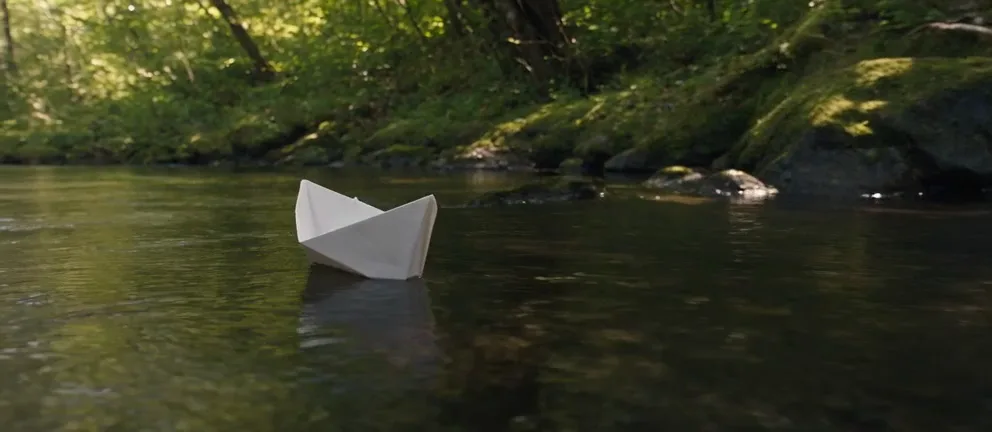 Seedance 2.5 Flash · text to video · 480p · 4 s
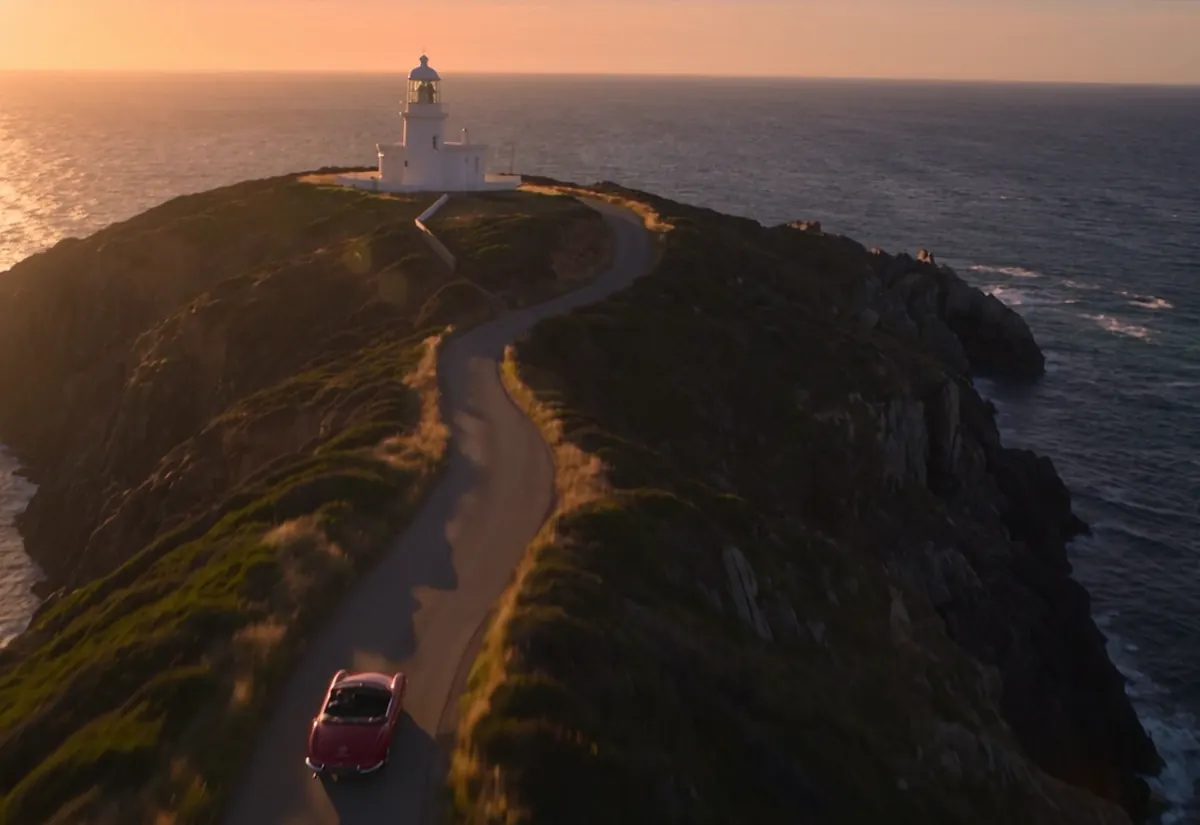
 Seedance 2.5 Flash · image to video · 480p · 4 s
Animate a starting image
With Seedance 2.5 Flash, upload a first frame and optionally add an ending frame to guide the result.
Try image to videoSeedance 2.5 Flash vs Seedance 2.5
- Seedance 2.5 Flash
- 4–30 seconds
- Seedance 2.5
- 4–30 seconds
- Seedance 2.5 Flash
- 480p / 720p
- Seedance 2.5
- Up to 1080p
Verdict — Choose the settings that fit your clip with Seedance 2.5 Flash. The generator shows the credit cost before submission.
Seedance 2.5 Flash, explained
How to make a video with Seedance 2.5 Flash⌄
Start with the result you want to see. For text to video, choose the text tab and describe the subject, its action and the setting. Add one camera instruction, such as a slow tracking shot or a fixed close-up, then select an aspect ratio that fits the destination. Set the length and resolution, review the displayed credit cost and generate. When the result is ready, watch it through before downloading; movement that looks right in the opening frame may change later in the shot.
For image to video, choose a clear starting image and upload it in the image tab. Describe what should move rather than simply listing what is already visible. You might ask a person to turn toward a window while the camera stays still, or a paper boat to drift downstream as the camera follows it. An optional ending frame can guide the final composition. Keep the requested action plausible between the frames and leave enough room around the subject for movement.
A useful prompt gives the model a sequence without trying to direct every frame. Name the main subject first, then the action, setting and camera movement. If a result misses the intended action, change one instruction at a time so you can see what helped. Review hands, faces, lettering and object continuity before using a clip in a finished project. Generated motion can vary, and a detailed prompt does not guarantee an exact take.
Seedance 2.5 Flash settings and credits⌄
On ClipTrend, Seedance 2.5 Flash supports clips from 4 to 30 seconds at 480p or 720p. Choose the duration for the action you need rather than adding seconds that will be cut later. The aspect ratio controls the shape of the frame: a vertical composition can suit a phone screen, while a wider composition gives a landscape or product scene more horizontal space. Optional audio can be selected in the generator; check the finished sound as well as the picture.
The current KIE provider rates used for this model are $0.0925 per second at 480p and $0.205 per second at 720p. ClipTrend converts the provider cost to credits by multiplying by 125, rounding up to the next whole credit and applying a minimum of 69 credits per generation. For example, four seconds costs 69 credits at 480p and 103 credits at 720p. Ten seconds costs 116 credits at 480p and 257 credits at 720p. These examples reflect the current rate and can change if provider pricing changes; the generator shows the applicable amount before submission.
Seedance 2.5 Flash is available to qualifying paid accounts with enough credits. The displayed quote depends on the selected duration and resolution, so check it again after changing either setting. A longer or higher-resolution clip uses more credits under the current per-second pricing. Start with the shortest length that covers the intended action when you are exploring a composition, then choose the settings you need for the final version.
Seedance 2.5 Flash compared with the standard model⌄
Seedance 2.5 Flash and Seedance 2.5 both accept text or a starting image on ClipTrend and offer a 4–30 second duration range. Flash offers 480p and 720p. The standard model also offers 1080p, so it is the option to check when a higher-resolution output is necessary. Compare the quote shown for your chosen model and settings before submitting: credit costs depend on the combination you select.
The best choice depends on the deliverable. A short draft for testing a scene may not need the same resolution as a final presentation. If you need to compare the models, keep the subject, action and frame shape similar so you can judge the result against your own brief. Individual outputs can differ even with similar prompts, so inspect the actual clip rather than assuming a particular visual result from the model name.
Practical uses for Seedance 2.5 Flash⌄
Turn a product photograph into a short scene by describing a restrained camera move and a simple change in the environment. For example, a fixed product on a table might be surrounded by shifting window light while the camera moves slowly closer. Use an image you have permission to edit and check the label, shape and edges against the original; small text and exact product details can change during generation.
Create a visual idea for a story or presentation with text to video. Describe a setting and one clear action: a cyclist passing a bakery at dawn, for example, or a paper lantern moving in a breeze. Choose a wide frame for an establishing shot or a vertical frame for a phone-first presentation. A generated clip can be a starting point for an edit; trim it and combine it with other material in your usual video editor.
Animate an illustration, portrait or travel photo by asking for motion that fits the original frame. A gentle pan, moving clouds or a small gesture is easier to review than several simultaneous actions. For a portrait, make sure you have the subject's permission and examine the face and hands across the whole clip. An ending image can help indicate where the shot should finish, though the result still needs visual review.
Tips for more useful results⌄
Be specific about motion and leave out instructions that compete with each other. 'The camera remains fixed as the subject walks toward the door' is easier to interpret than asking the camera to orbit, zoom and stay still at the same time. If you use an image, refer to the visible subject and describe the change you want; avoid asking the model to recover details that are outside the source frame.
Give the action enough time to happen. A four-second shot can work for a small gesture, while a longer shot gives a subject more time to cross a scene. Check the first and last moments for abrupt transitions, and listen for unwanted audio if you enabled it. For a final deliverable, review the downloaded file at its intended display size and make sure you have rights to the source image and permission to depict the people involved.
Frequently asked questions
What is Seedance 2.5 Flash?⌄
Seedance 2.5 Flash creates videos from a text prompt or starting image. On ClipTrend, choose 4–30 seconds at 480p or 720p, with optional audio.
How do Seedance 2.5 Flash and Seedance 2.5 compare?⌄
Both offer 4–30 second videos on ClipTrend. Flash offers 480p and 720p; the standard model also offers 1080p. Choose the mode and settings that suit your project.
How much does it cost to generate with Seedance 2.5 Flash?⌄
The generator shows the exact credit cost for the chosen duration and resolution before you generate.
Are reference videos supported?⌄
Reference video is not currently available for Seedance 2.5 Flash.
Who can use it?⌄
Seedance 2.5 Flash is available to users with a qualifying paid account and sufficient credits.
Can I choose an ending frame?⌄
Yes. In image to video, you can upload a starting image and optionally add an ending frame to guide the final composition.
Does Seedance 2.5 Flash include audio?⌄
Optional audio is available in the generator. Check the finished sound before using your video.











Create a video with Seedance 2.5 Flash
Choose a prompt or starting image and set your preferred duration with Seedance 2.5 Flash.
Generate video