
From two separate portraits to one shared scene
How Side by Side AI makes one photo
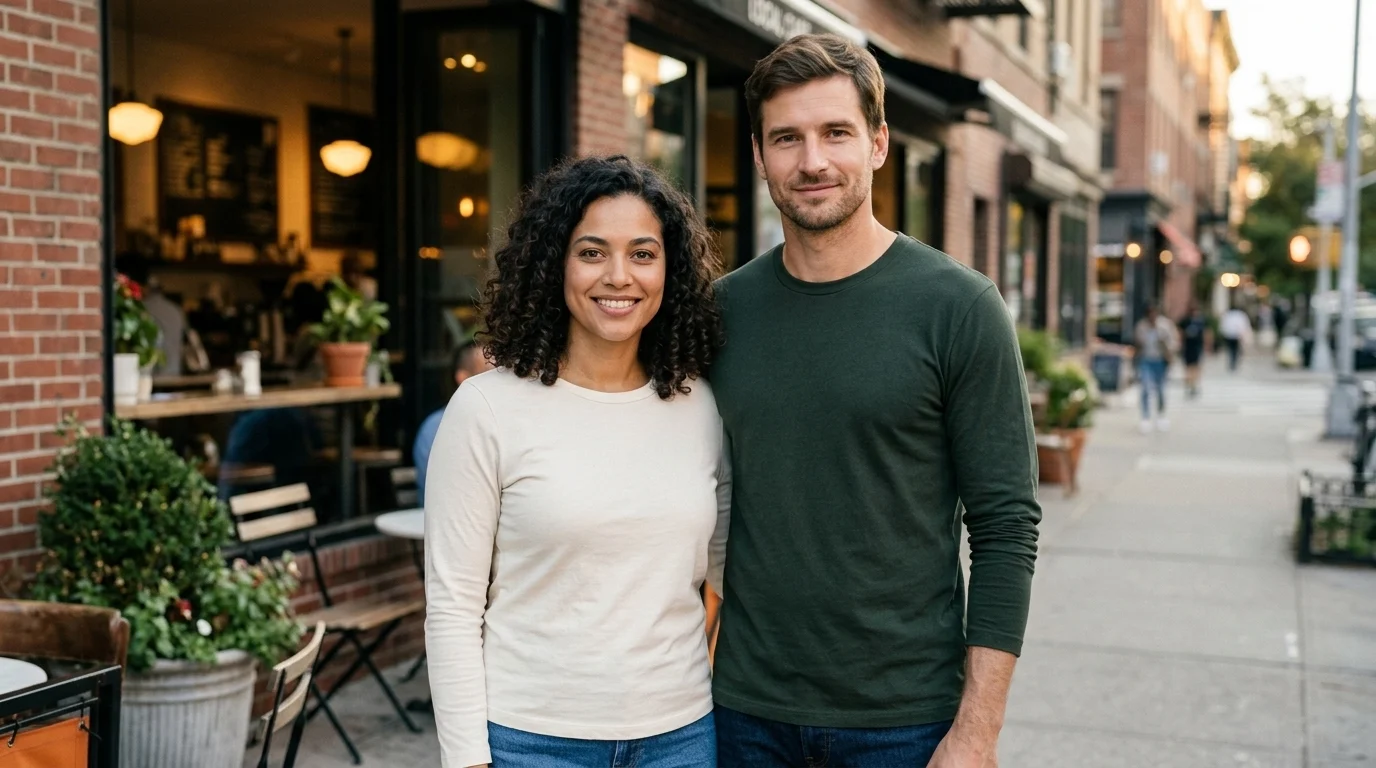
The two people stand next to each other in one newly generated scene. The first upload guides the person on the left side, and the second guides the person on the right side. A shared camera angle and consistent shadows help the result read like a photo taken at the same moment. In the example, both subjects stand close together and their shoulders meet naturally. That overlap helps the two people feel like they are occupying the same space. Use Side by Side AI to make a creative keepsake for a friend who lives far away, picture a pair together for a profile, or make a small gift for two relatives who rarely get to see each other.
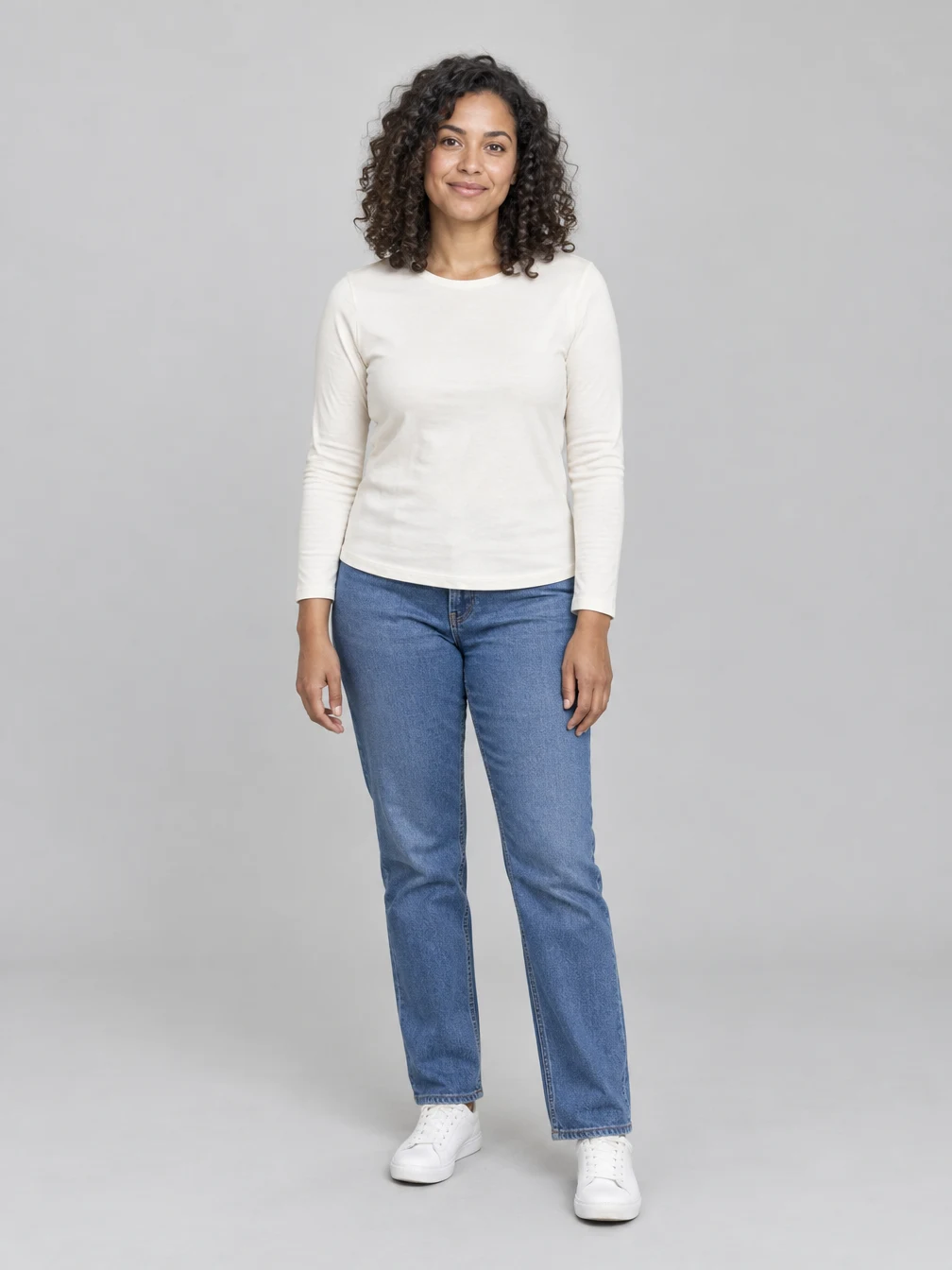
Choose a clear left photo
Add the person you want on the left side in the first upload box. A sharp portrait with an unobstructed face gives the generator a reference for eye shape, hair, skin tone and expression. A little space around the head and shoulders helps it read the person’s build. Choose a familiar expression if likeness matters. A heavily retouched selfie may give the generator an exaggerated version of those features. Avoid screenshots with stickers over the face, crops that cut off the chin, or pictures with several people at the same size. Check the upload preview for rotation before you move on. A simple, well-lit picture already in your camera roll is a good place to start.
Choose a clear right photo
Put the other person on the right side by adding their portrait in the second box. Two source photos taken from similar angles can make likeness easier to judge, even if the backgrounds come from different places. An eye-level photo pairs well with another eye-level photo. A strong downward angle gives less information about how a face should look from a shared camera position. If there is a recognizable jacket, glasses or hairstyle you care about, choose an input that shows it plainly. Review both previews before generating because the upload positions determine the intended order. Switch the references before you generate if you want the pair to stand the other way around.
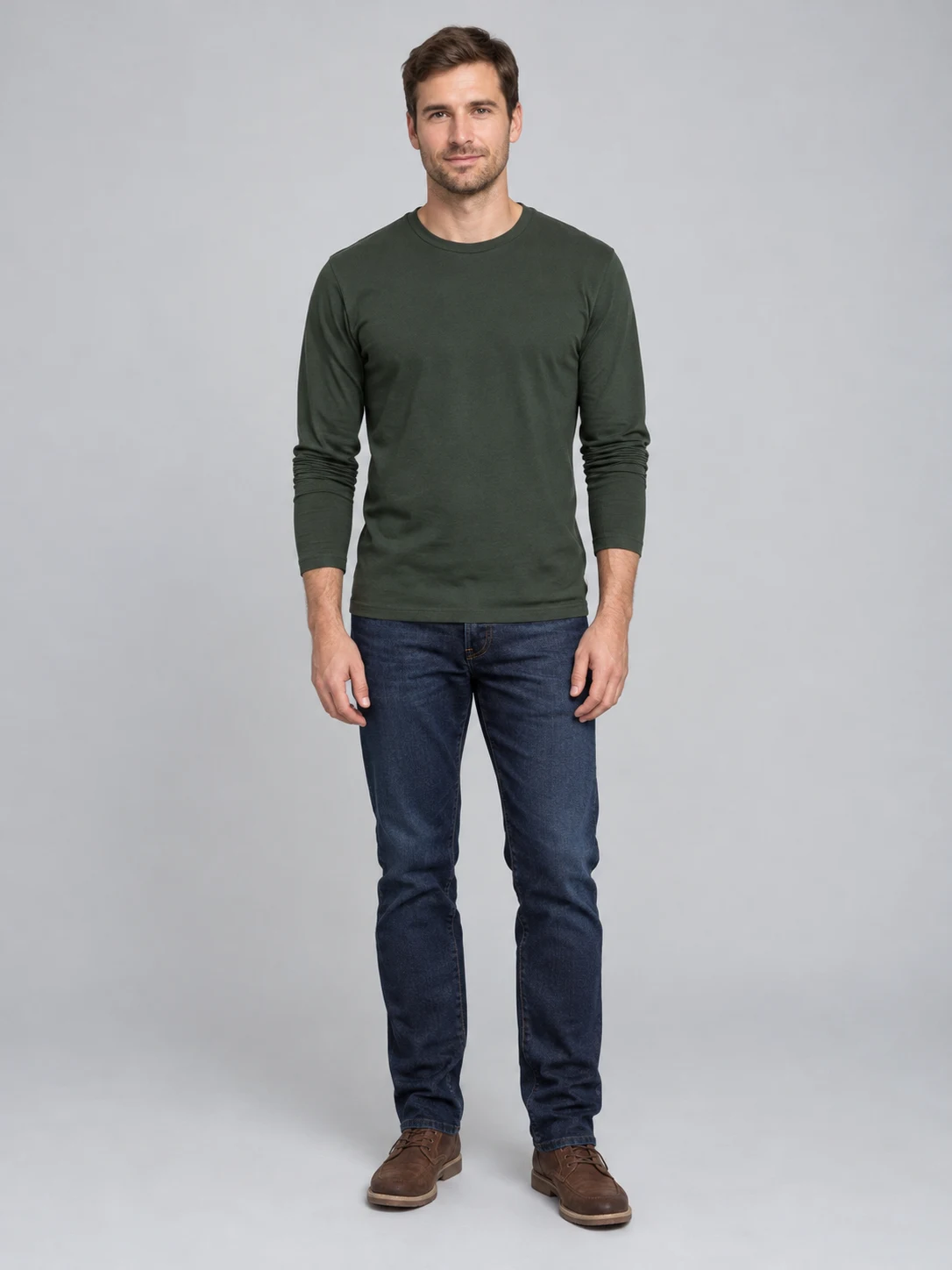
Know what the generated photo can change
Side by Side AI generates a new camera view and background around the two references. It can rebuild someone’s pose, adjust the apparent distance from the camera or change small details in their hair and clothes. Soft light from one direction gives both faces a common highlight and shadow pattern. The camera perspective should keep head and shoulder sizes believable while allowing a natural height difference. Compare each face to its own source, especially around the eyes, mouth and hairline. Check that the background remains continuous between their shoulders. The sample shows one version of a shared scene. The exact expressions and positions can differ from one generated image to the next.
Check and save your photo together
Open the result at full size before saving it. Follow the shoulder line where the two people meet, and check any visible hand for the shape of the wrist and fingers. Look at the contact shadow where one shoulder overlaps the other. If the two faces look lit from different directions, treat the result as a draft. For a profile or gift, check the crop in the destination before sharing. A narrow profile thumbnail may hide a shoulder even if the original looks balanced. Save the original references separately, ask both adults for permission to share a result that uses their likeness, and label the picture as generated when the context calls for it.
What makes two portraits feel like one photo
The source portraits tell the AI who should appear. The new scene determines how they stand together.
Two separate inputs
Side by Side AI
When to use it
Use the left and right upload positions to tell the generator where each person should stand.
What it produces
Two references with recognizable faces and clothing.
- ✓First person on the left side
- ✓Second person on the right side
- ✓One portrait per person
One generated photo
Side by Side AI
When to use it
Both people stand at a believable distance from one camera. The generator gives them the same setting, light and perspective.
What it produces
One landscape still image.
- ✓One location
- ✓Consistent shadows
- ✓Natural shoulder overlap
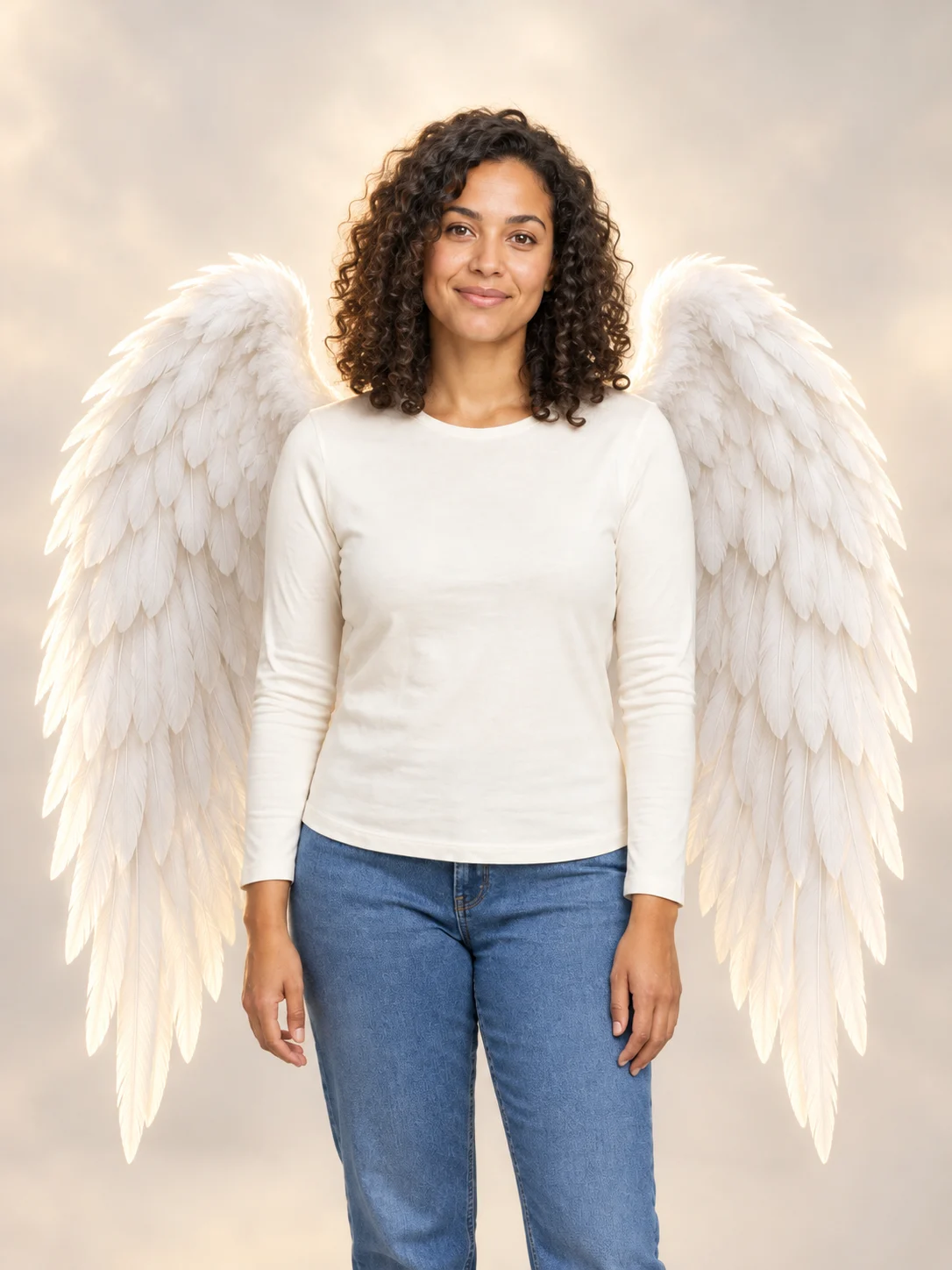
Angel Wings
Add large feathered angel wings to your photo while keeping your own outfit.
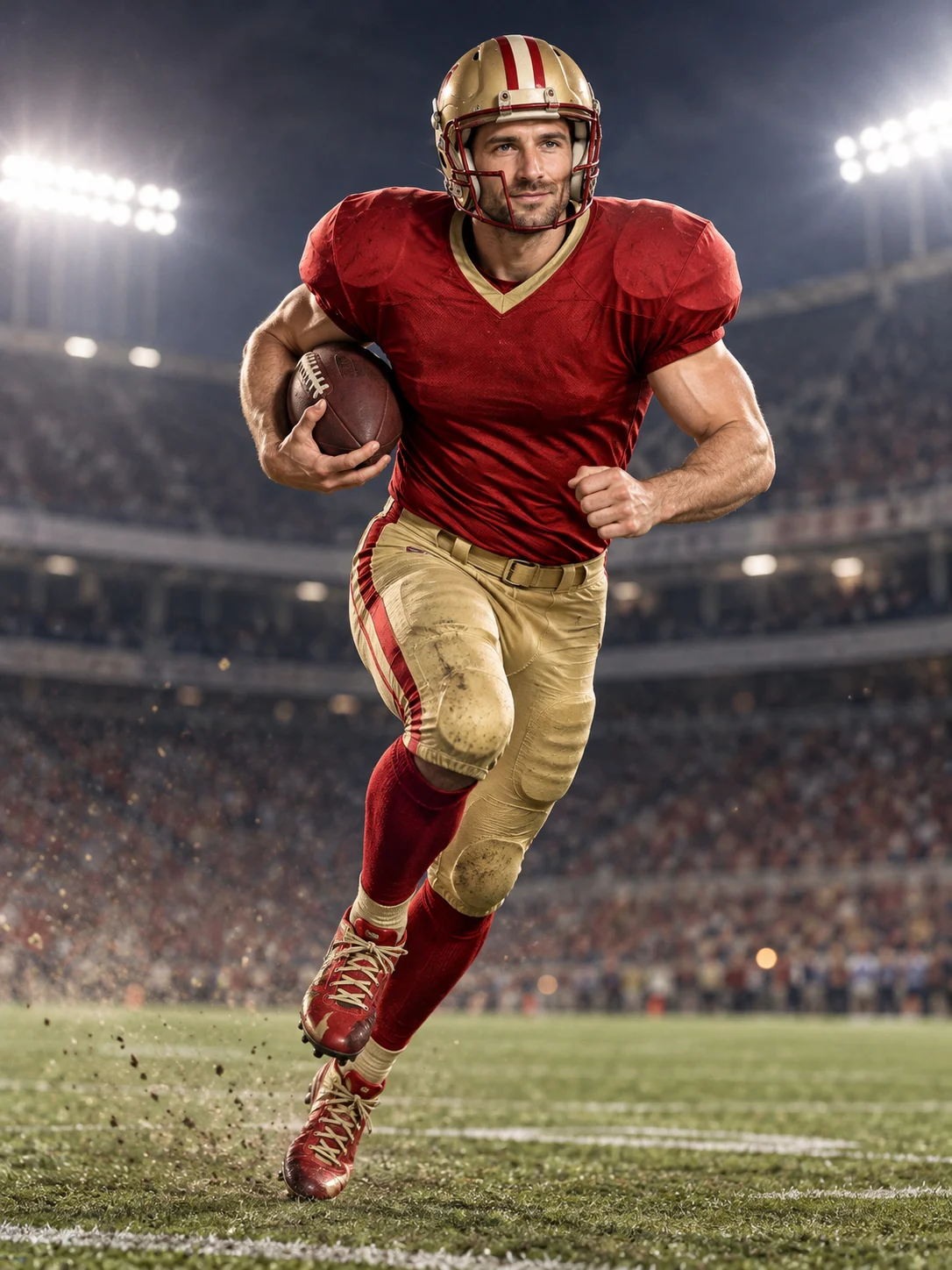
Football Champion
Turn your portrait into an American football action picture with a helmet and a football.
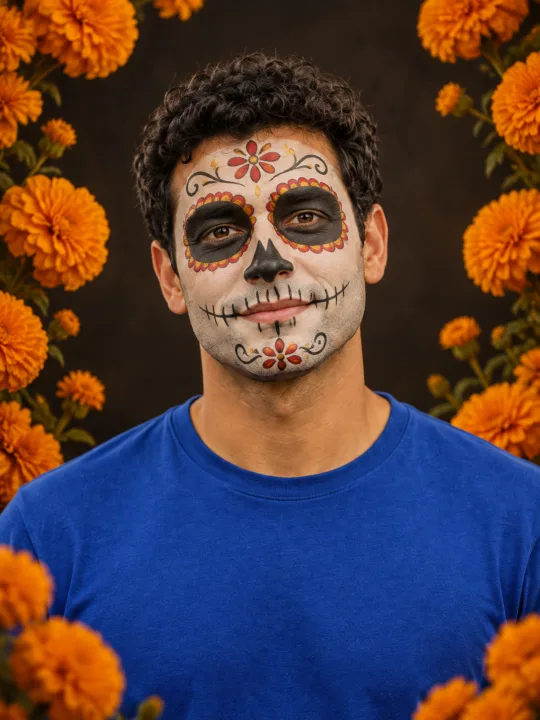
Catrina Makeup
Preview floral Day of the Dead face paint and marigolds on your own portrait.
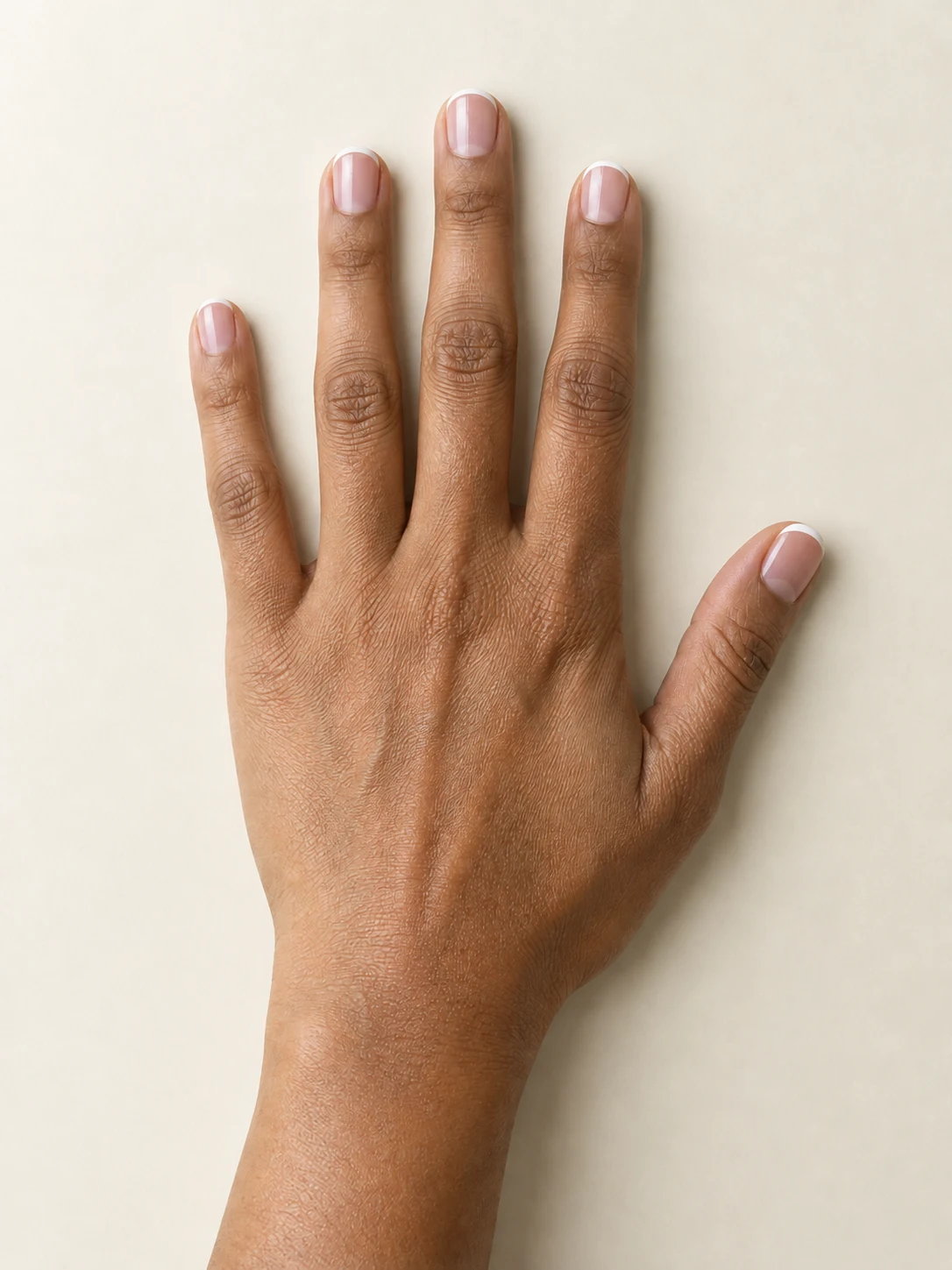
AI Nail
Preview French tips, Burgundy gloss or Pearl shimmer on your hand.
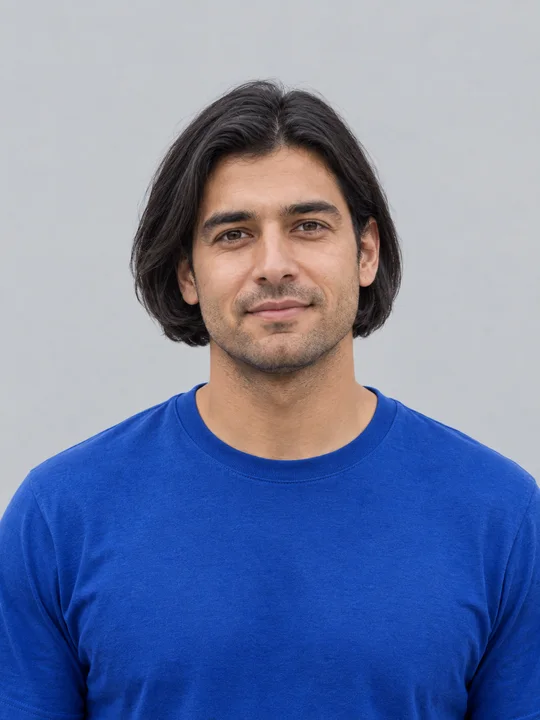
AI Bob Haircut
Preview a chin-length bob on one adult portrait.
Filtro Catrina IA
Add floral Day of the Dead makeup and marigolds to your portrait.
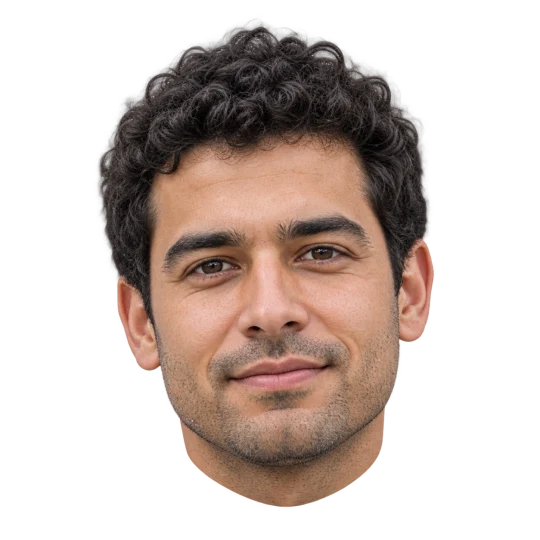
Head Cutout
Create a head-only transparent PNG from one adult portrait.
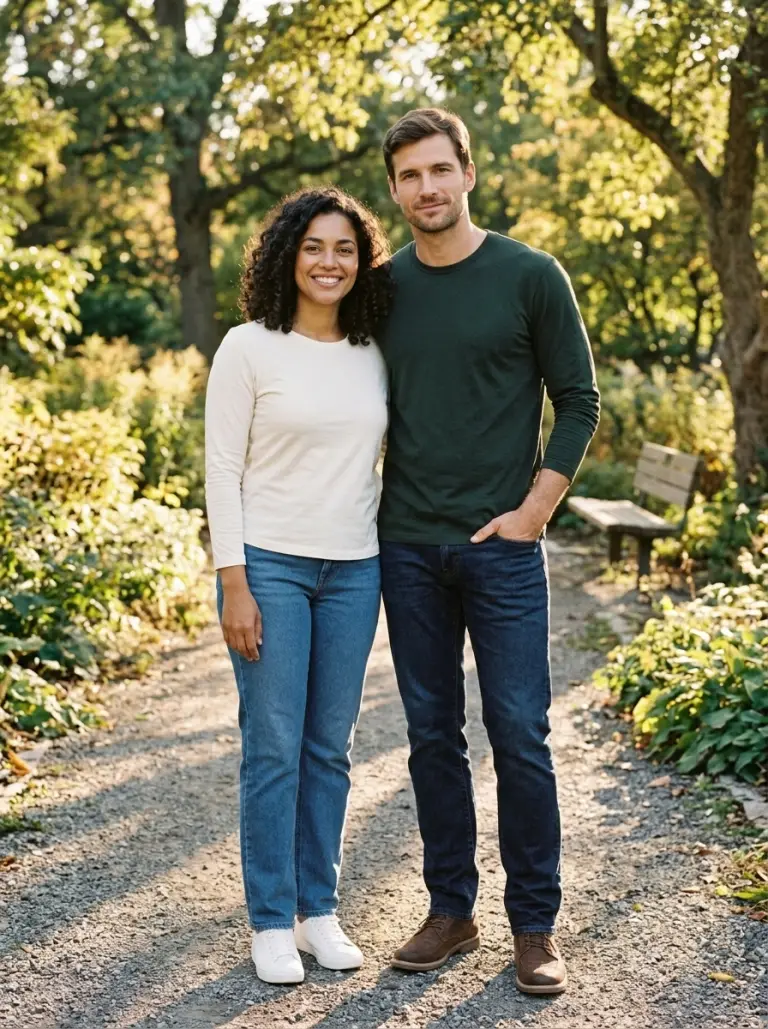
Group AI
Combine two portraits into one group photo.
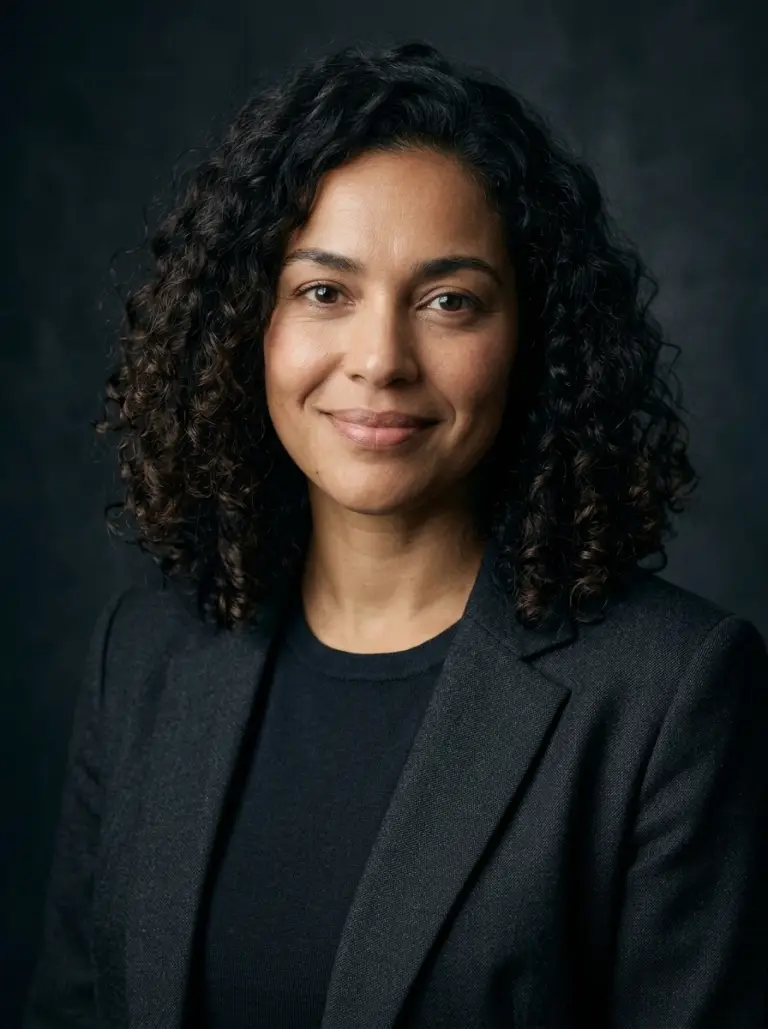
Portrait Photography AI
Create a studio portrait from your photo.
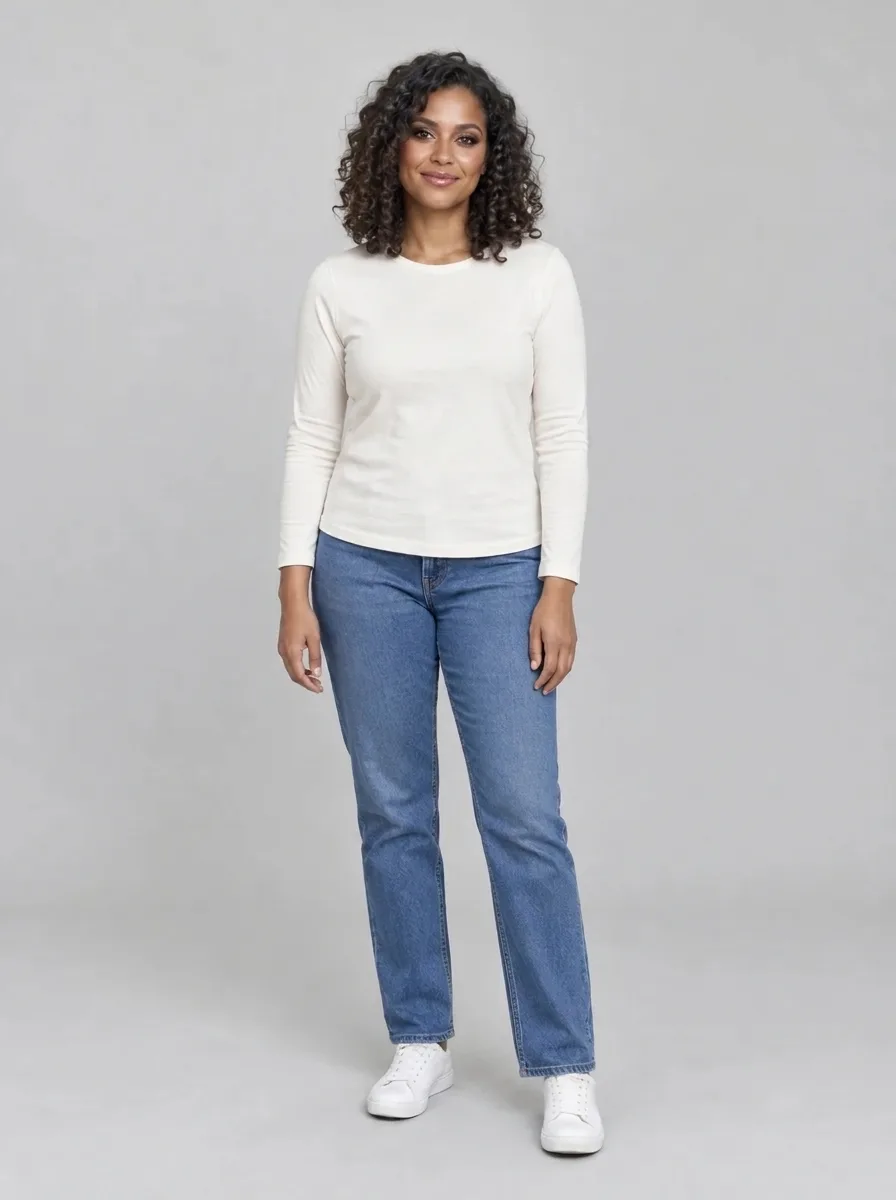
Bold Glamour AI
Give your selfie a bold, camera-ready makeup look.
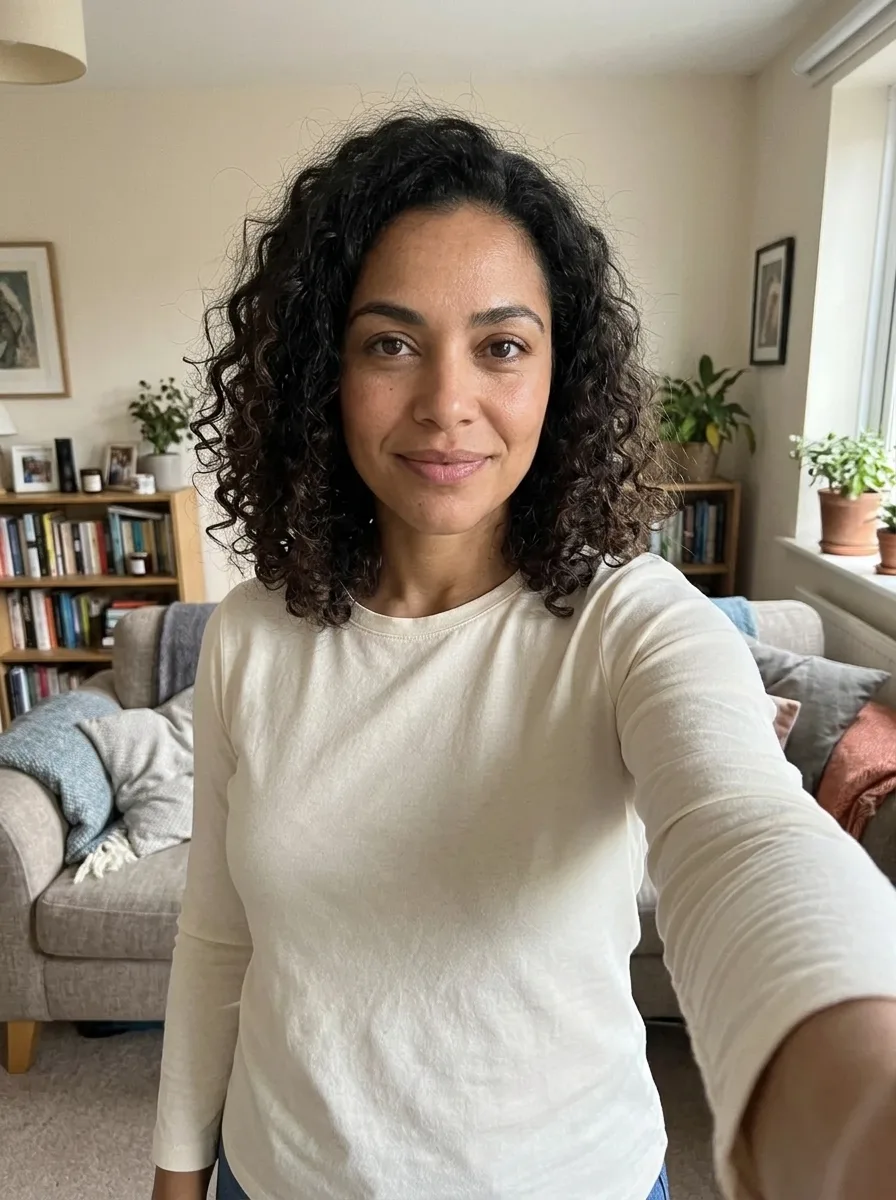
Realistic Selfie AI
Turn your photo into a natural-looking phone selfie.
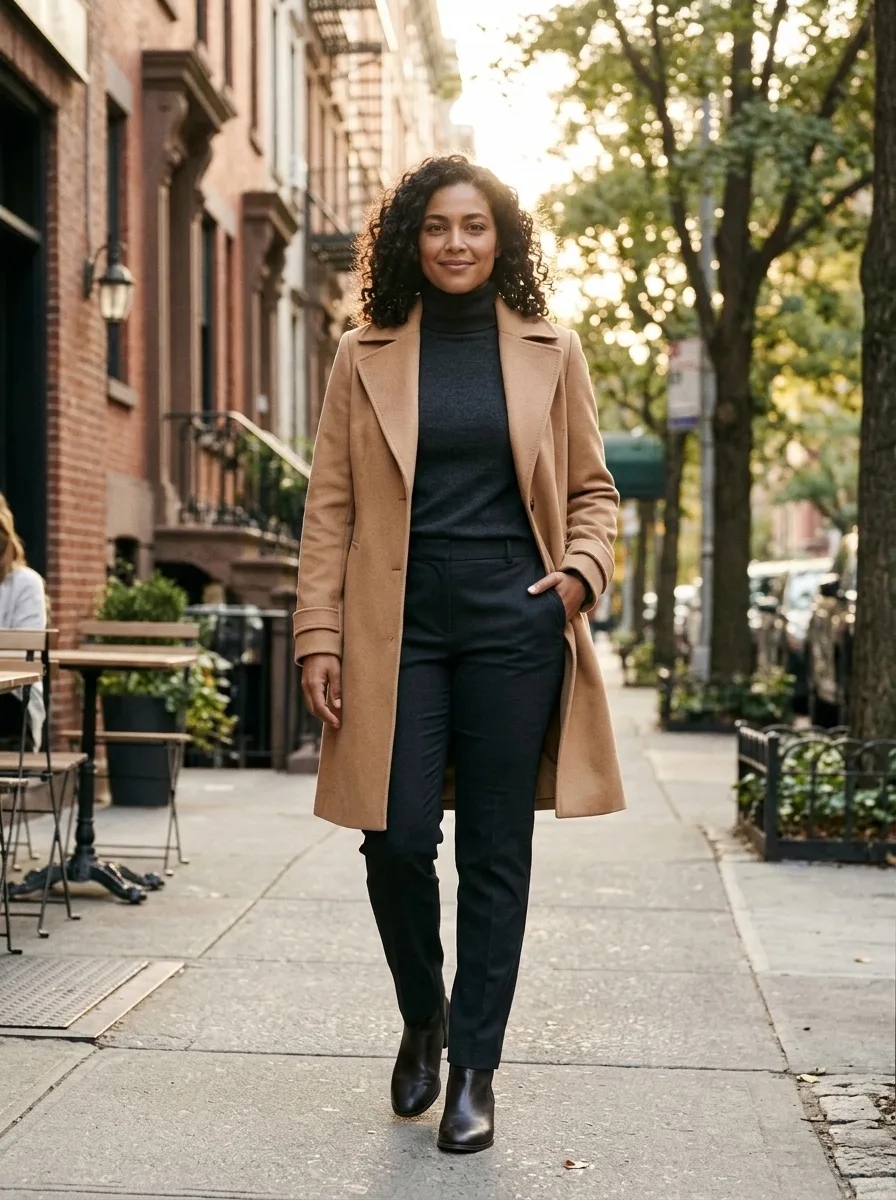
Person Photoshoot AI
Turn your photo into an outdoor fashion photoshoot.
Related models

Related effects
Frequently asked questions
What does Side by Side AI make?⌄
Side by Side AI uses two portraits to generate one landscape photo of both people standing side by side in a shared scene. The first person is placed on the left and the second on the right.
Can I use two photos taken in different places?⌄
Yes. Choose one clear portrait for each person. The image is generated in a new setting with consistent light and camera perspective across both people.
Do I need to upload two pictures?⌄
Yes. Upload one portrait showing each consenting adult. The two required upload positions are labeled Left photo and Right photo.
How many credits does one image cost?⌄
One generated still costs 3 ClipTrend credits. The button shows the cost before submission. Each new generation is a separate request.
Can the two people stand close together?⌄
A relaxed pose with both people standing close is part of the effect. It can produce gentle shoulder contact. The exact expression, posture and spacing vary by result.
What format does Side by Side AI create?⌄
It creates one landscape still image that you can save and share.
Can I switch where the two people stand?⌄
Yes. Put the person you want on the left side in the first box and the person you want on the right side in the second box. Check the order before you generate.
Can I treat the result as a record of a real meeting?⌄
Use the result as a creative generated picture. Keep the original photos for records and disclose that the shared scene was generated when the context calls for it.
Make a photo together
Choose one adult portrait for each side and create a photo of both people standing together.
Choose two portraits