
Make an AI Christmas photo in a few steps
Dress up for Christmas
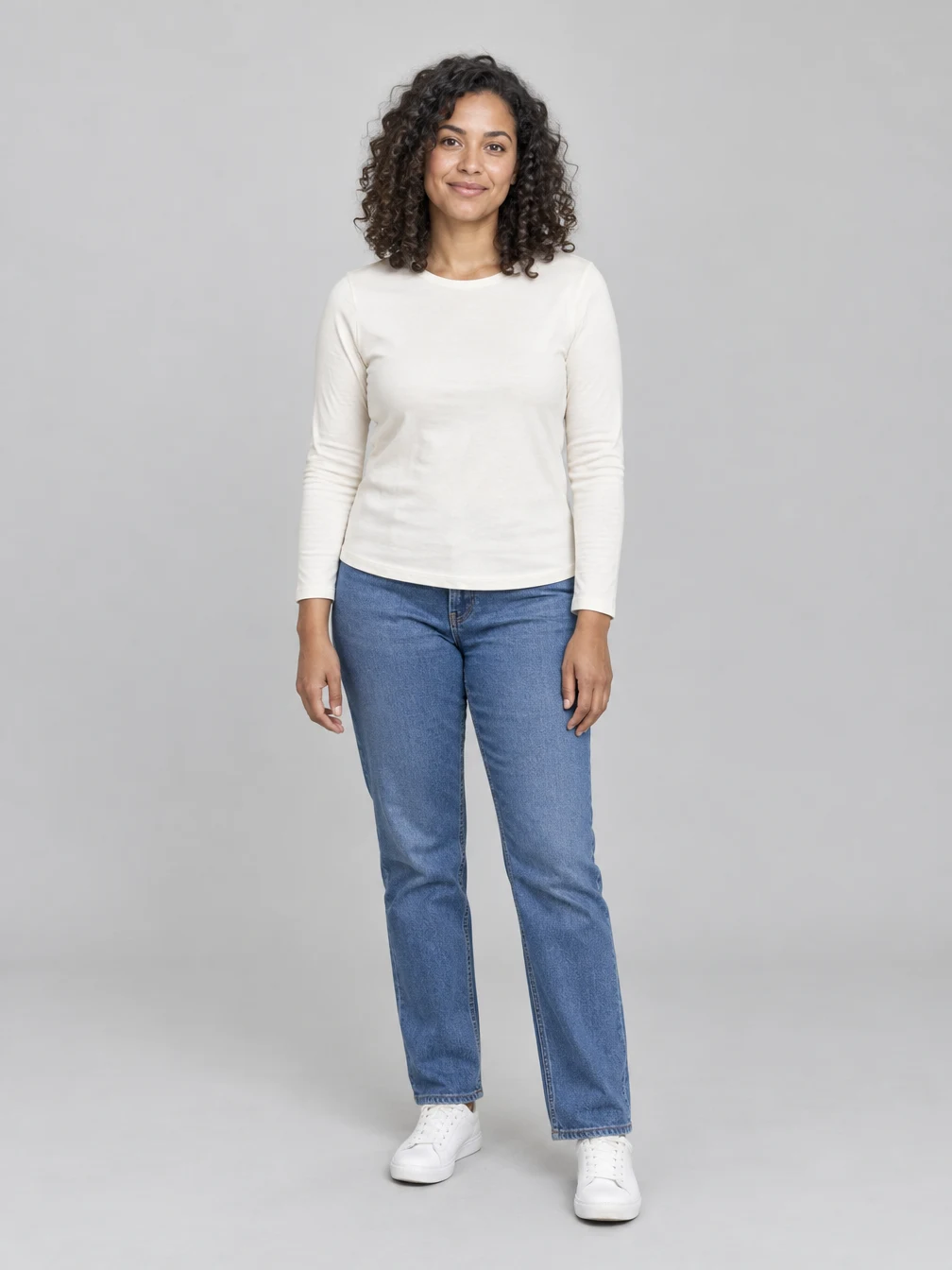
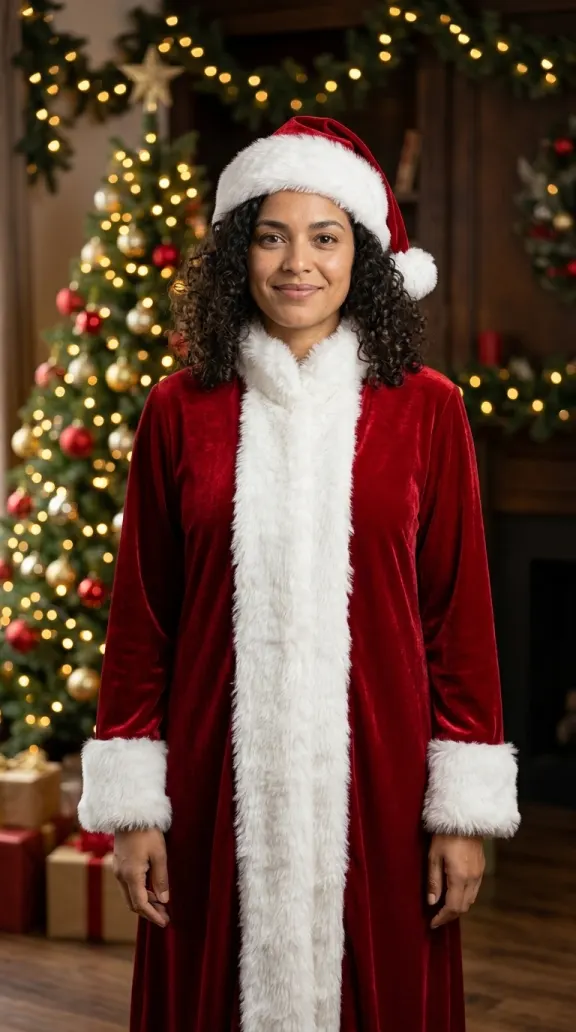
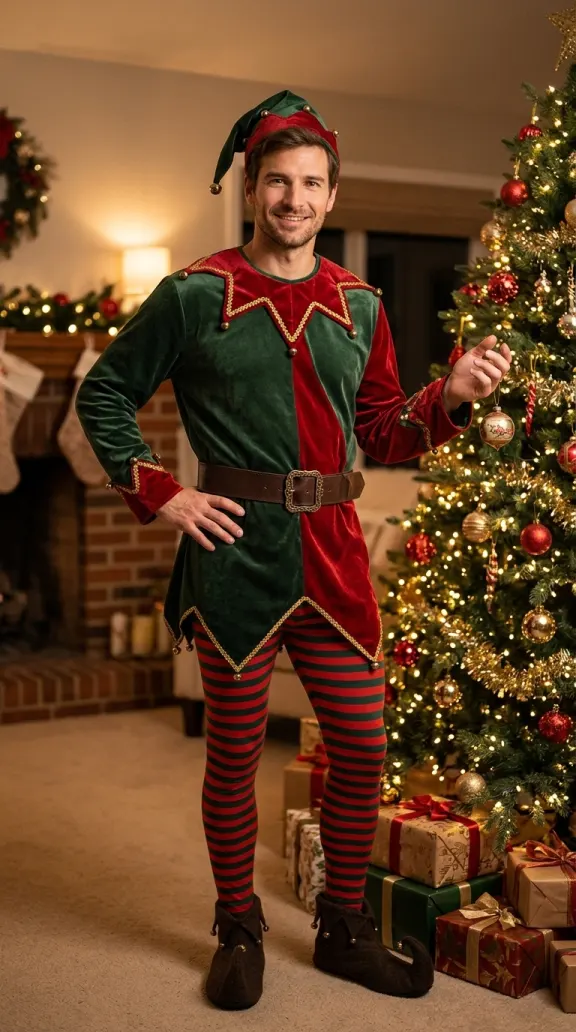
Choose a Santa outfit, Mrs Claus or a playful elf costume. Start with a clear photo and select the look you want. Each result is a new generated image, so details may vary. Santa gives your photo a classic red coat and hat; Mrs Claus adds a velvet look, and the elf preset brings green and red into the scene. Pick the one that suits the picture you want to make. For the clearest starting point, use a well-lit, front-facing photo without sunglasses or a face covering. The examples use fictional adult portraits, and your own result will depend on your uploaded picture.
Make an AI Christmas portrait by the tree
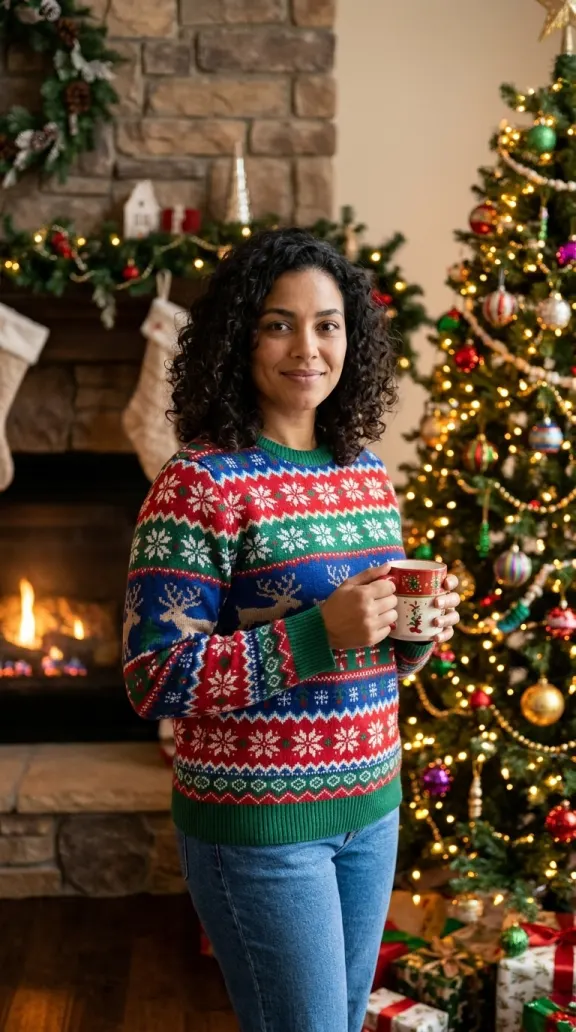
Choose a colorful Christmas sweater or festive pajamas for a cozy indoor portrait. The clothing and background change while the photo guides the person’s appearance. A sweater can make a relaxed portrait for a seasonal message, while pajamas give the picture a quiet morning-at-home feel. Choose either look before pressing Generate; each new version is a separate photo. The tools create the setting as well as the outfit, so you do not need to decorate a room or set up lights. For a photo together, choose Two people and upload a separate clear picture of each person. Friends, couples and adult family members can choose a coordinated look. Check that both faces are recognizable in the finished image. Use photos you have permission to edit. A simple background and an unobstructed face help give the editor a clear reference. Try a different preset if you want another look, and compare the results before choosing one for a card or a seasonal post.
Try a snowy AI Christmas scene
Take your portrait outdoors with a winter coat, scarf and snow. Check the generated face and hands before sharing, and download the picture when you like the result. Snow, clothing and background details are created for each image and may look different from the example. If you want a different festive setting, choose Describe it and enter a few details about the outfit and location. Once the photo is ready, you can keep it as a still or choose a separate five-second video option. Video uses additional credits, and its price appears before you start. Your completed photo remains in My Creations so you can return to it later.
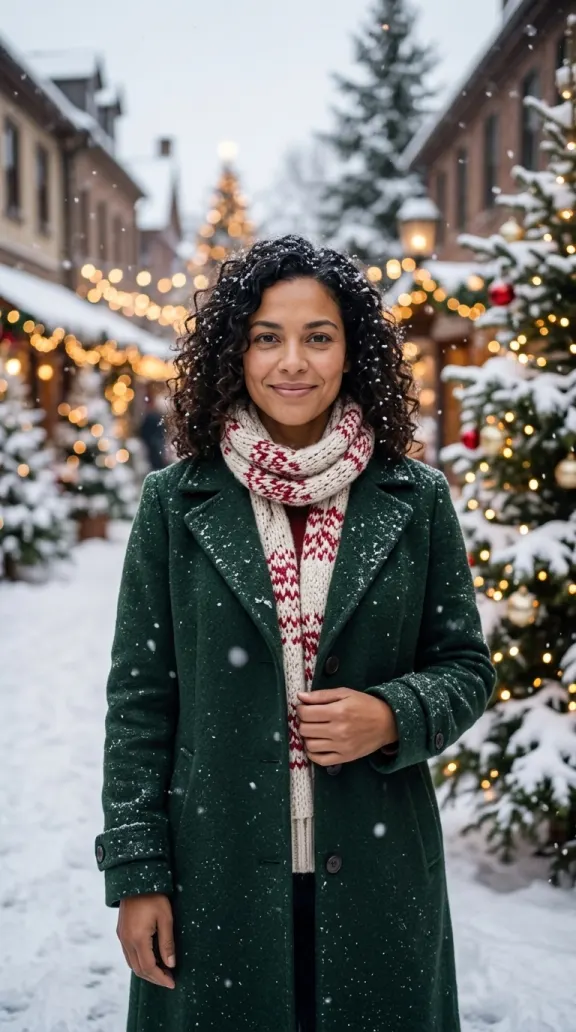
Choose a Christmas look
Start with one clear photo, or choose two people and upload one photo of each.
Pick a preset
Six festive looks
When to use it
You want a ready-made look.
What it produces
A Christmas portrait from your photo.
- ✓Santa or Mrs Claus
- ✓Elf or sweater
- ✓Pajamas or snow
Describe your own
Choose your scene
When to use it
You have another festive idea.
What it produces
A portrait based on your description.
- ✓Describe an outfit
- ✓Choose a setting
- ✓Review the result
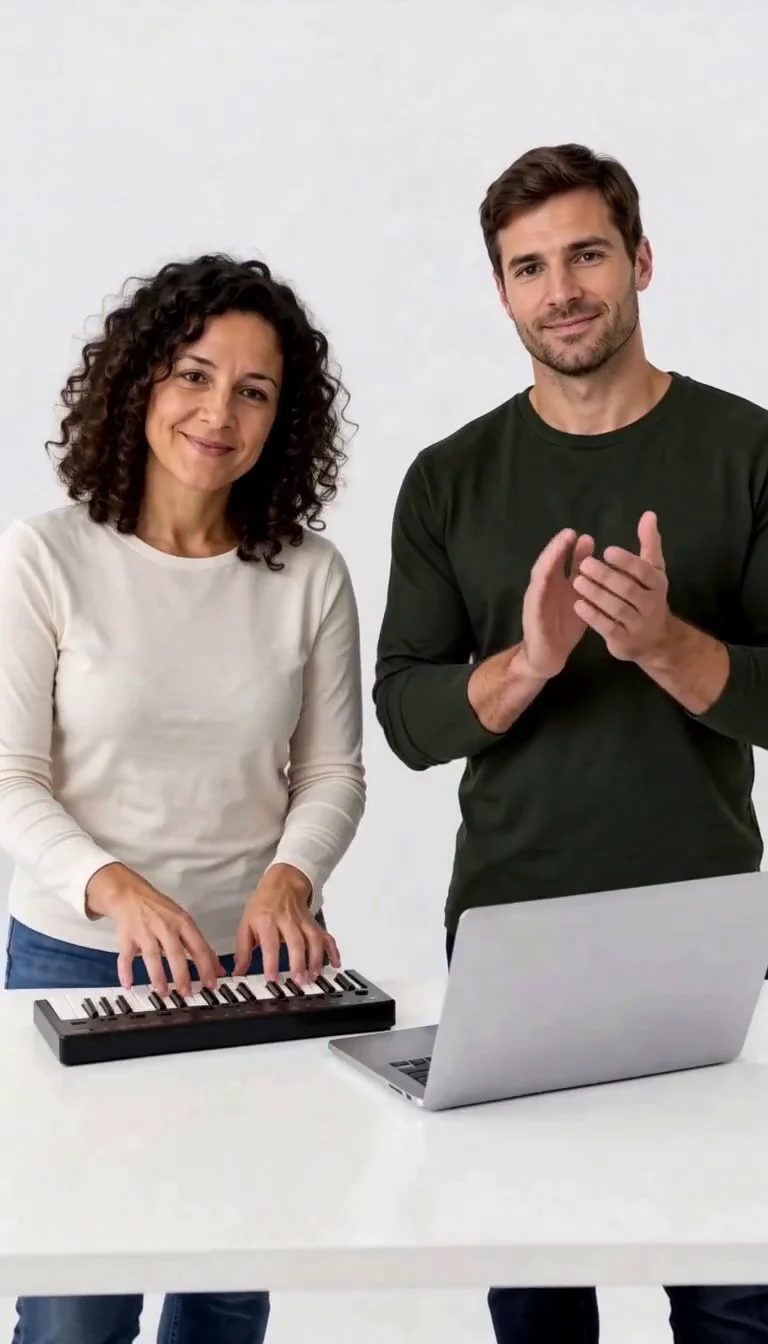
Keyboard Duo
Put two adults in a keyboard-and-clapping studio sketch.
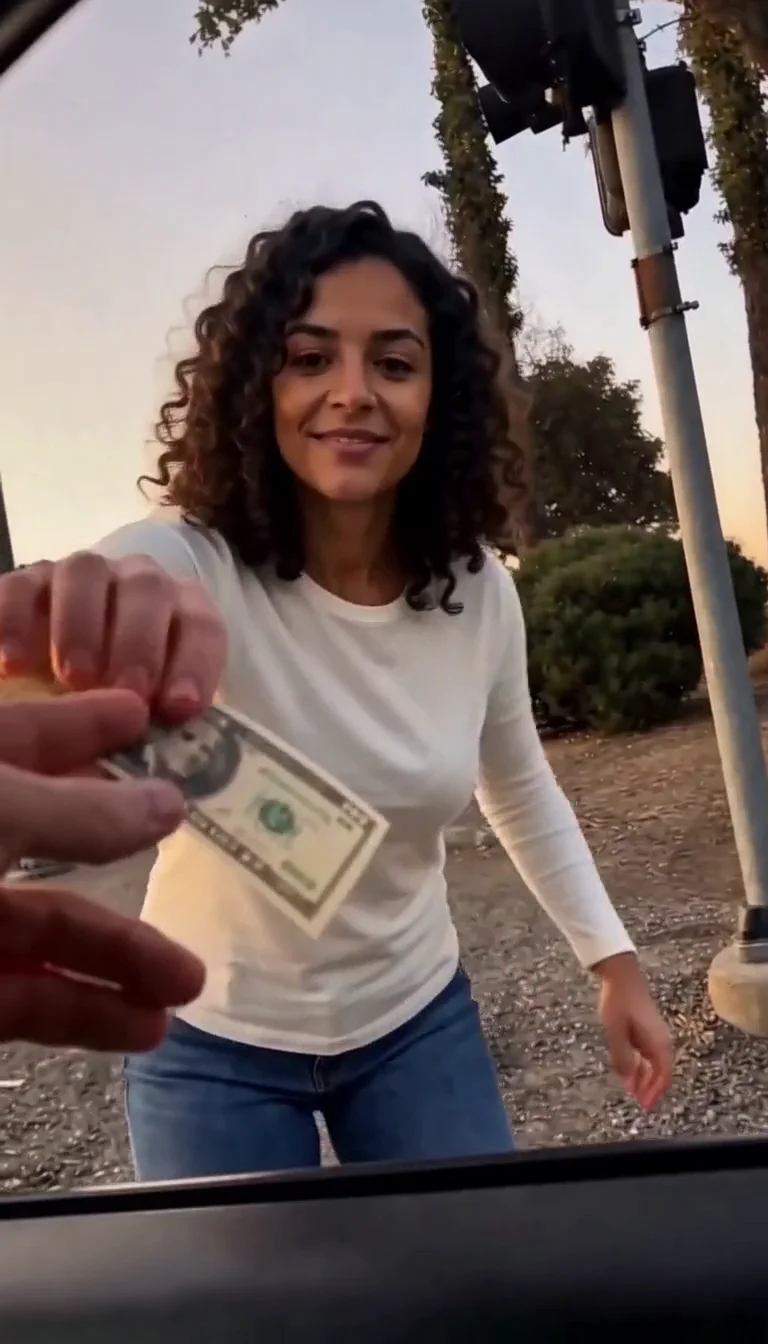
Plug Walk
Follow the car-window cash handoff, then step back into the reference dance.
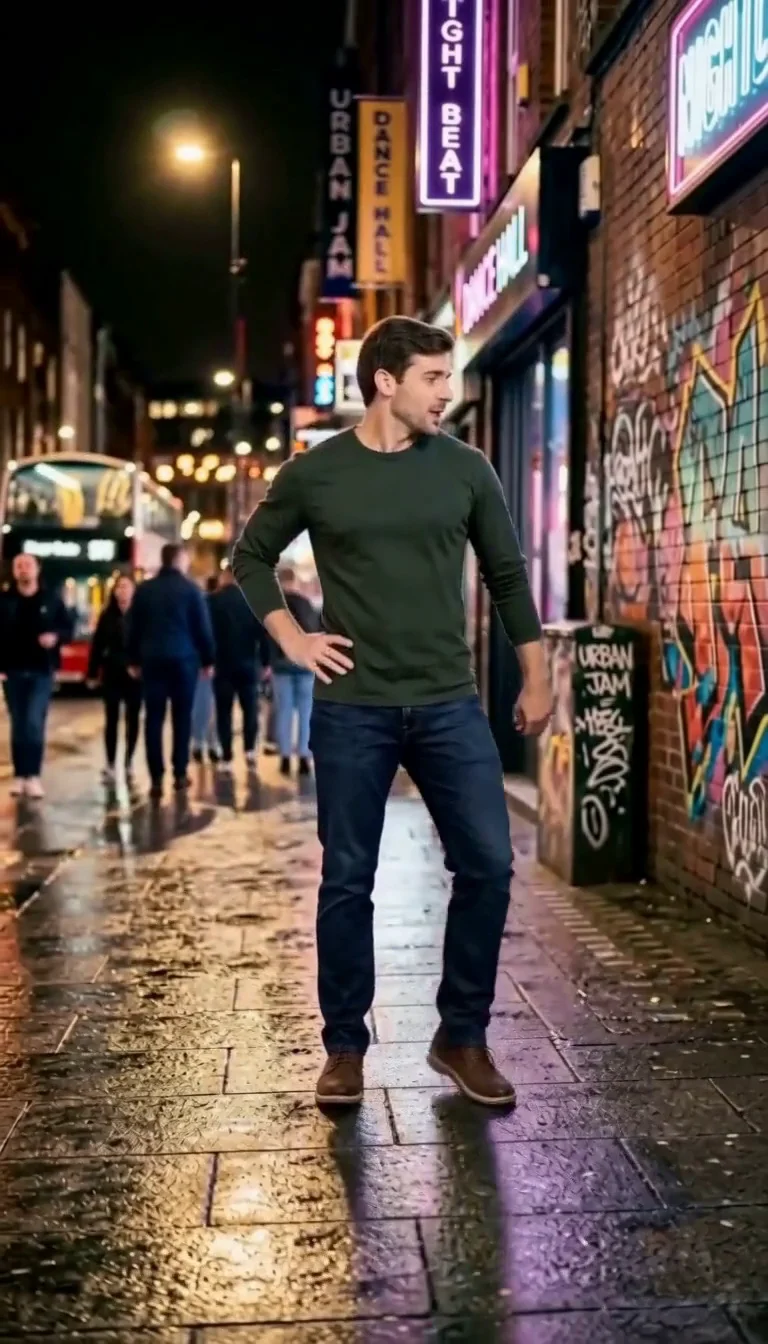
6 7 Dance
Follow a fourteen-second Six Seven street dance with counting gestures, bouncy steps and claps.
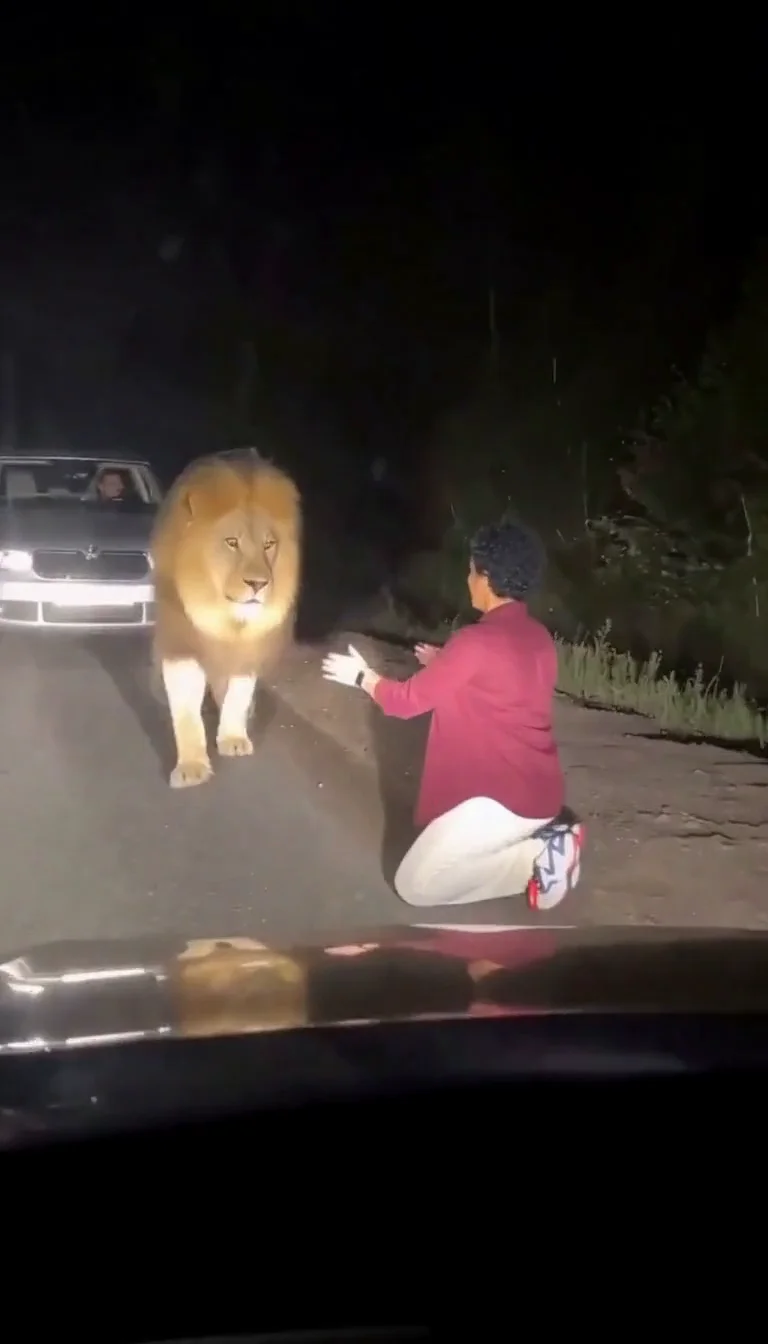
Lion Friend
Meet a calm lion on a nighttime road, stroke its mane and share a fictional embrace.
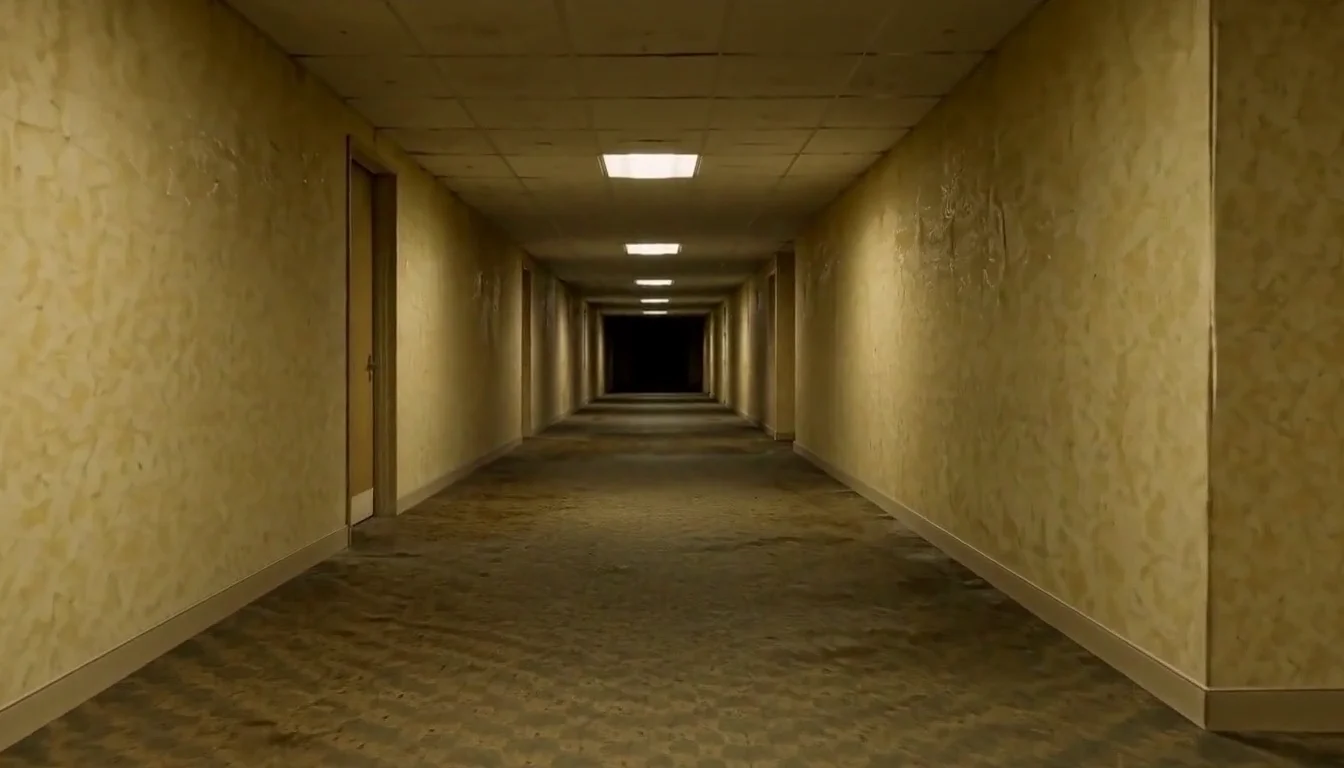
AI Backrooms
Animate your empty corridor with a slow camera push and flickering fluorescent lights.
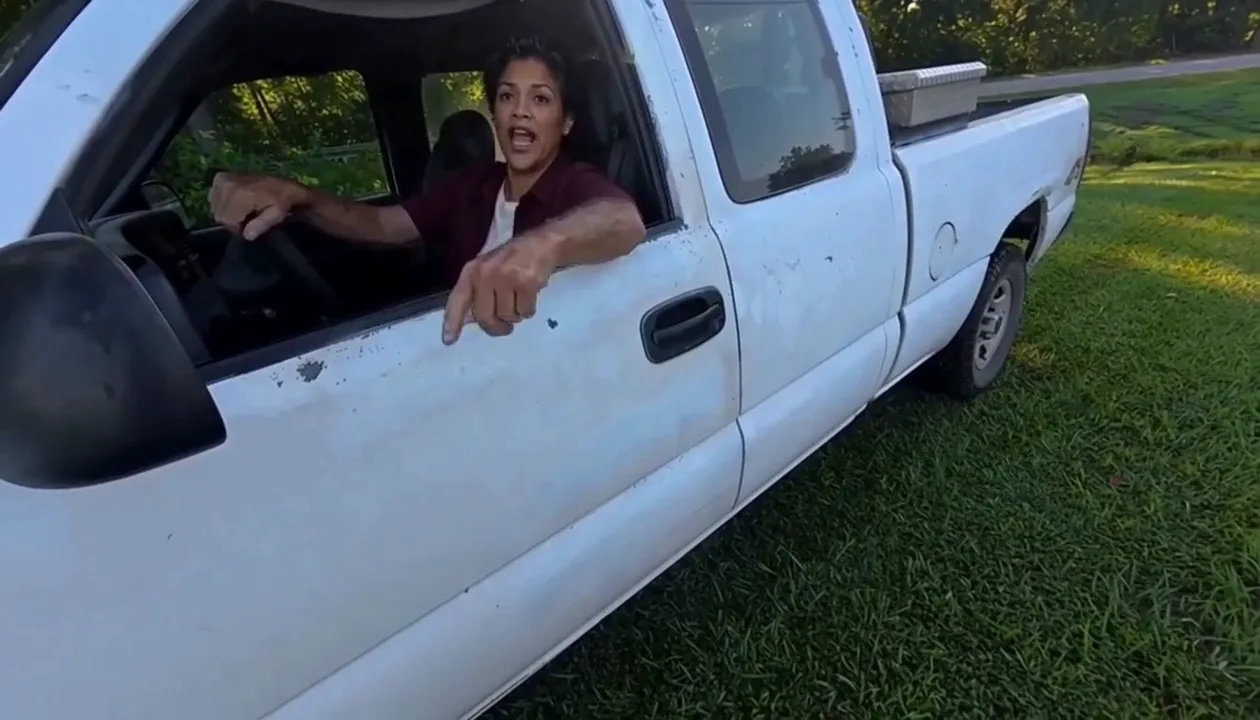
Hit Road Dude
Make a reference-guided pickup-truck meme from one adult portrait.
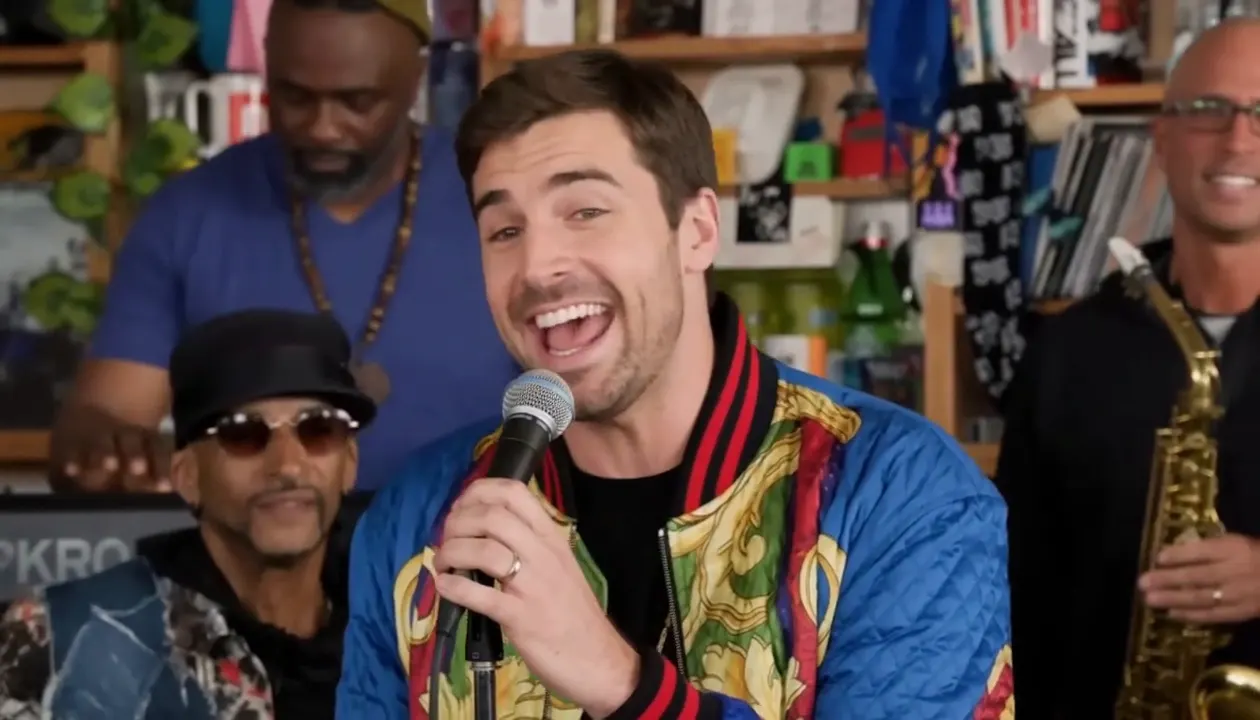
Tiny Desk AI
Put your photo in the lead-singer spot of a ten-second office-desk concert.
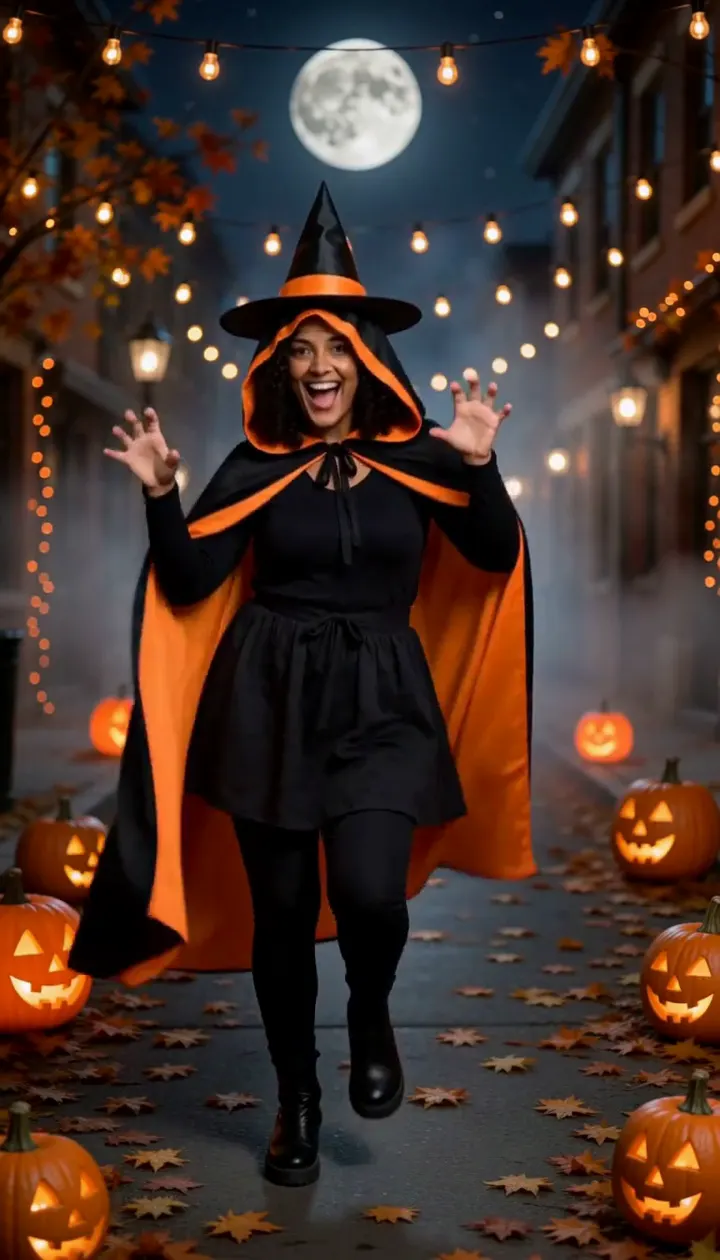
Halloween Dance
Turn one adult photo into a ten-second costume dance on a jack-o'-lantern street.
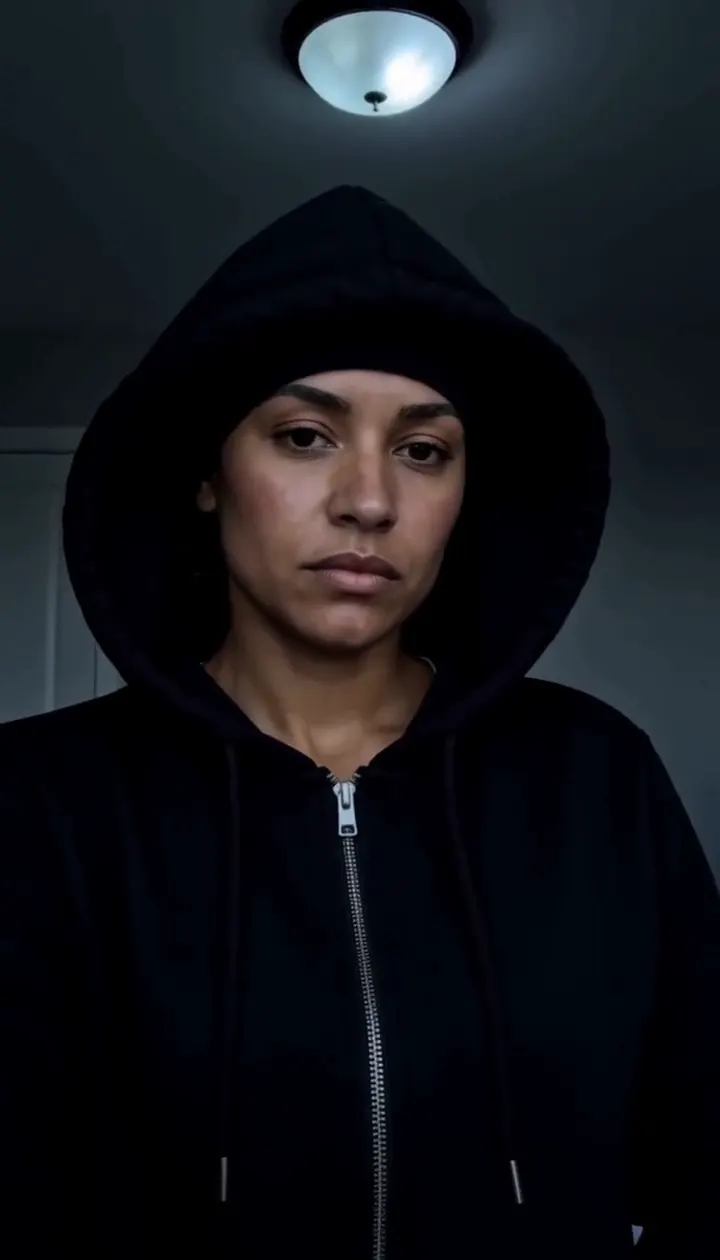
Skull Cap Trend AI
Pull on the cap in a bright room, then hard cut to a cold stare in the dark.
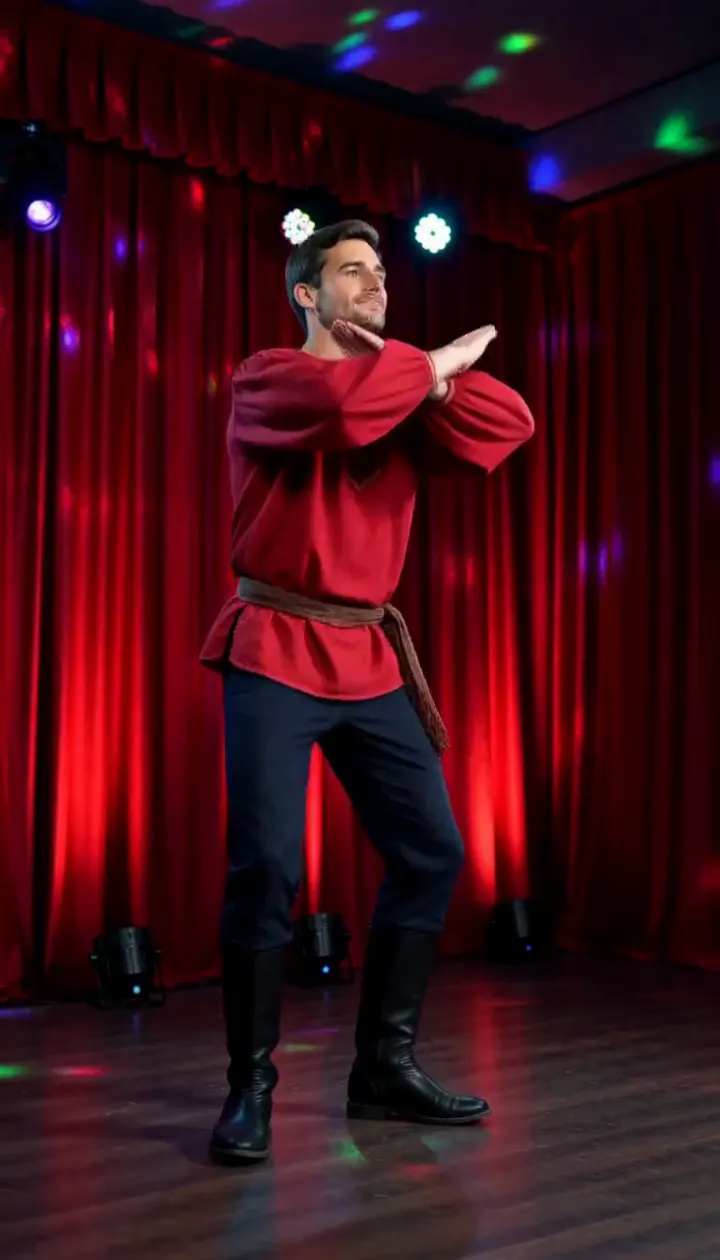
Rasputin Dance AI
Turn one adult photo into a ten-second folk disco dance with squat kicks and a spin.
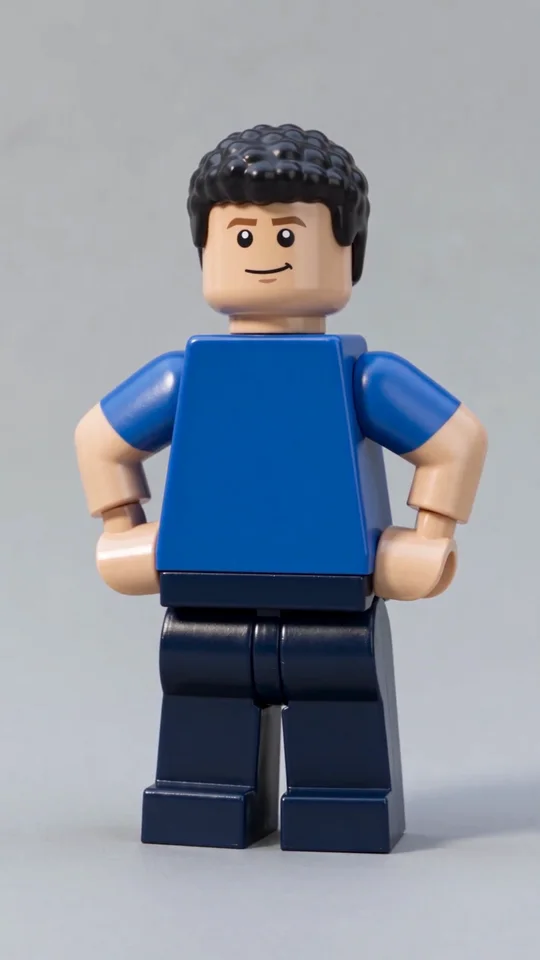
AI Lego Man
Transform one adult photo into a molded brick toy video.
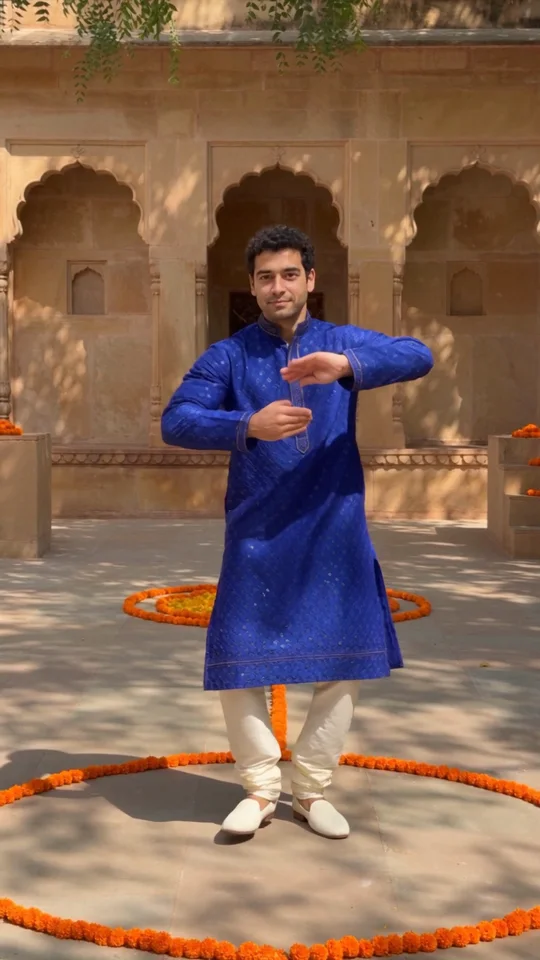
Bollywood Dance
Make a ten-second courtyard dance from one adult photo.
Frequently asked questions
How do I make an AI Christmas photo?⌄
Upload one clear photo, or two separate photos for a portrait together. Choose a Christmas look and generate your portrait. You can also describe a different festive scene.
How much does an AI Christmas photo cost?⌄
A photo costs 20 credits. Eligible new accounts can receive welcome credits, which may cover one photo if enough remain.
Can two people share an AI Christmas photo?⌄
Yes. Choose Two people, upload one clear photo of each adult, and pick a matching Christmas look. The editor combines both people into one portrait.
Can I make a video?⌄
Yes. After your photo is ready, choose a 5-second video option. The price is shown before you generate.
What photo should I use?⌄
Use a clear photo of each adult with their face visible. Only upload photos you have permission to use.
Make your AI Christmas photo
Upload one or two photos and choose your festive look.
Make my Christmas photo