
Turn your portrait into a studio-style photograph.
Create a studio-style portrait
Upload a portrait and create a new studio-style image with controlled lighting and a neutral background. The source photo guides the person’s appearance while the setting and lighting are generated. This is a creative image rather than a photograph taken at a real studio session. Check the face, hair and clothing against the original before sharing; small details can change. The output is one newly generated image rather than a set of images from different angles. Keep the original upload if you need the unaltered source later. You can review the generated face and lighting on your device before deciding where to use the picture. This tool is designed for a single still portrait. It can provide a studio-inspired image for a profile, personal project or a draft of a headshot idea without arranging a physical photo session. The finished image is generated, so it can change the camera angle, expression, outfit and backdrop as well as the lighting. A realistic appearance does not make it a record of a real studio appointment. For uses where identity or professional representation matters, compare the face carefully with your source and follow the rules of the platform where you intend to publish it. Keep the source image as well as the result so you can review the changes at full size.
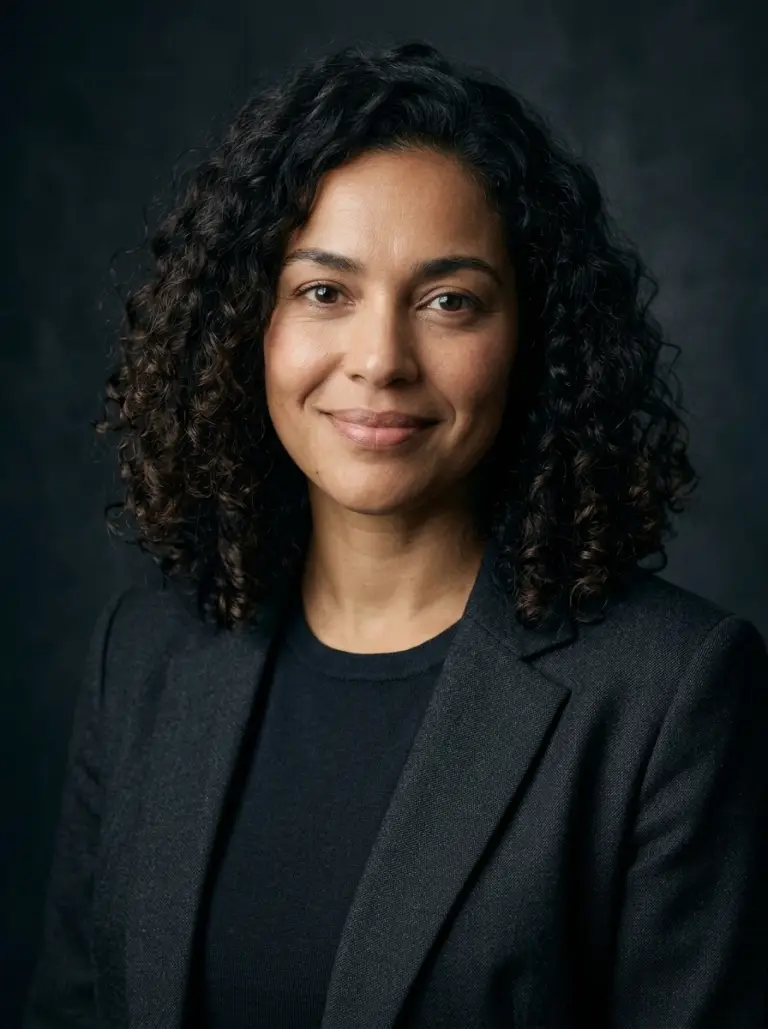
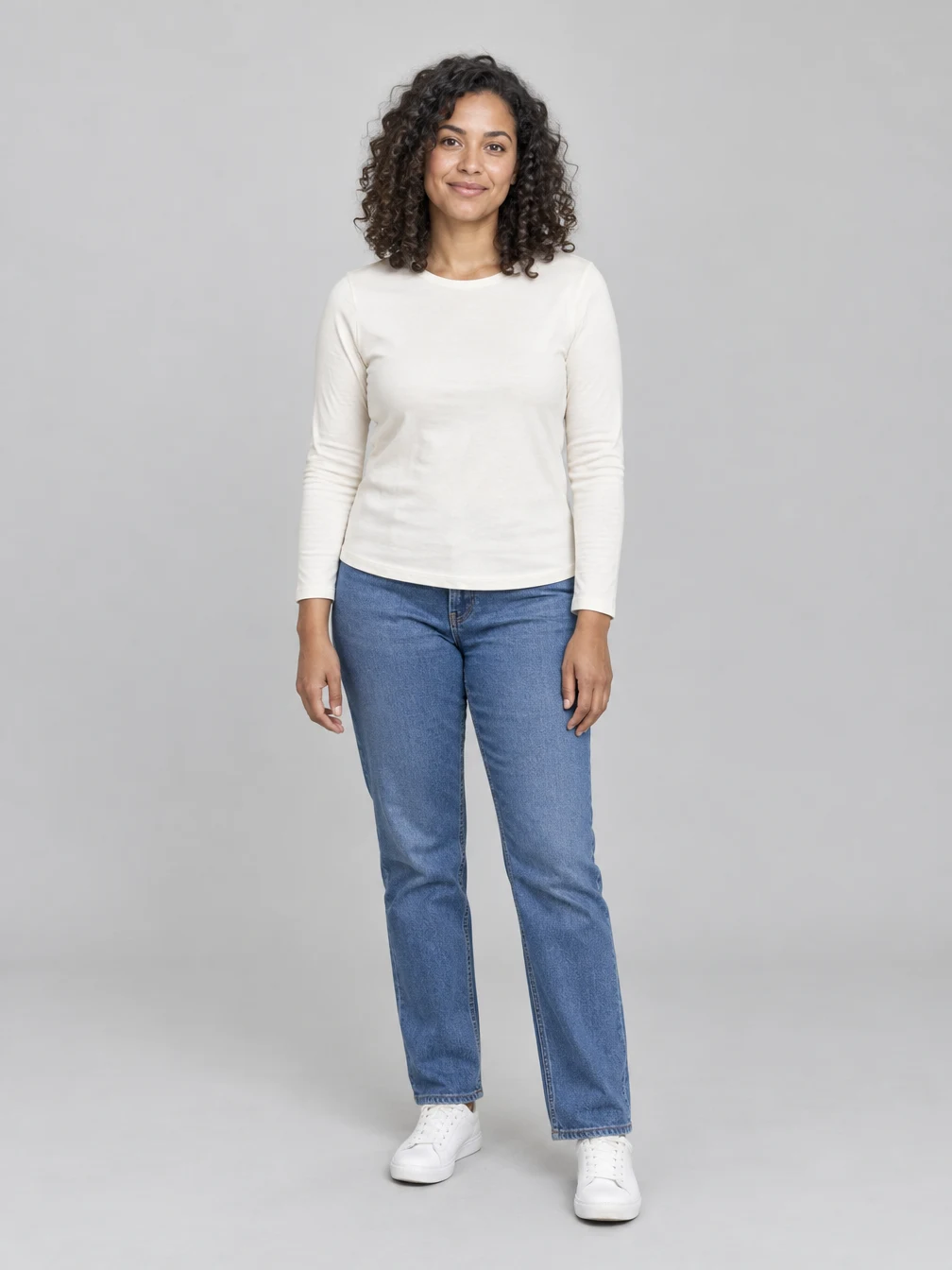
Start with a clear portrait
Choose a sharp, well-lit photo where the face and hair are visible. Avoid heavy filters, dark shadows and objects that cover the face. Use your own picture or a photograph of an adult who agreed to the edit. The example uses fictional adults. The input guides the result but does not lock every detail, and facial features, clothing or proportions can vary. Keep the original photo so you can compare it with the result. A clear head-and-shoulders image is a useful starting point. Give the face some room in the frame and choose even light that makes the eyes, nose and mouth visible. Sunglasses, motion blur, a strong existing filter or deep shadow can make the identity harder to interpret. A full-body source can also be used, but the output is composed as a portrait and may crop the body. The generated image may alter a hairstyle or jacket even when the source remains recognizable. It is not an exact pixel-preserving background replacement, and the tool does not provide editable studio lighting layers.
Check the picture before sharing
Look closely at the generated image, especially the face, hands, hair and edges of clothing. A result can look realistic overall while still containing small errors or changes to the source. Compare each person with their original photo and check the framing and background. The generated setting may not match a real place. Once complete, download the finished image or return to it in your creations. A new generation uses the displayed credits; downloading an existing result does not start a new generation. Review the expression, eye direction and facial proportions, then check smaller details such as earrings, collars, hair edges and the transition into the background. The image may introduce details that were not present in the upload. If the source is very small, another clear photo may provide a better guide, but a closer match is not guaranteed. Each request creates a new image and uses the displayed credits. Viewing the example, choosing a photo and downloading an already completed result do not create a new generation. Use a photo you have permission to edit and obtain consent before sharing someone else’s likeness.
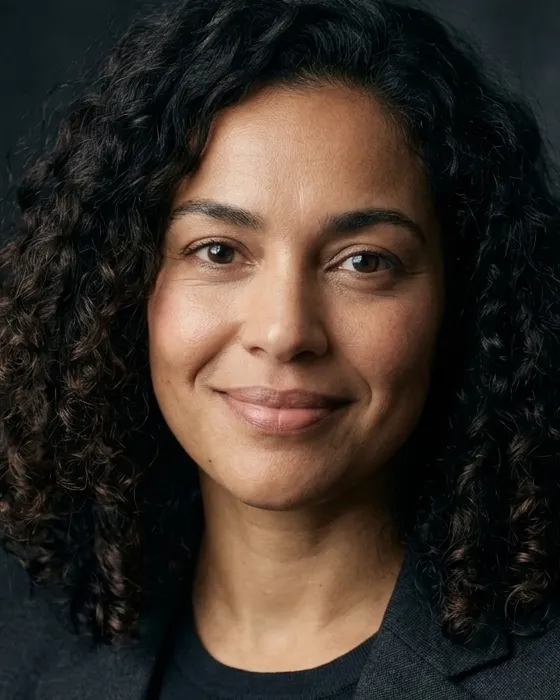
Choose photos for Portrait Photography AI
Use photos you have permission to edit.
Your portrait
One person
When to use it
Turn your portrait into a studio-style photograph.
What it produces
One vertical still image.
- ✓Consenting adults
- ✓Faces visible
- ✓Even lighting
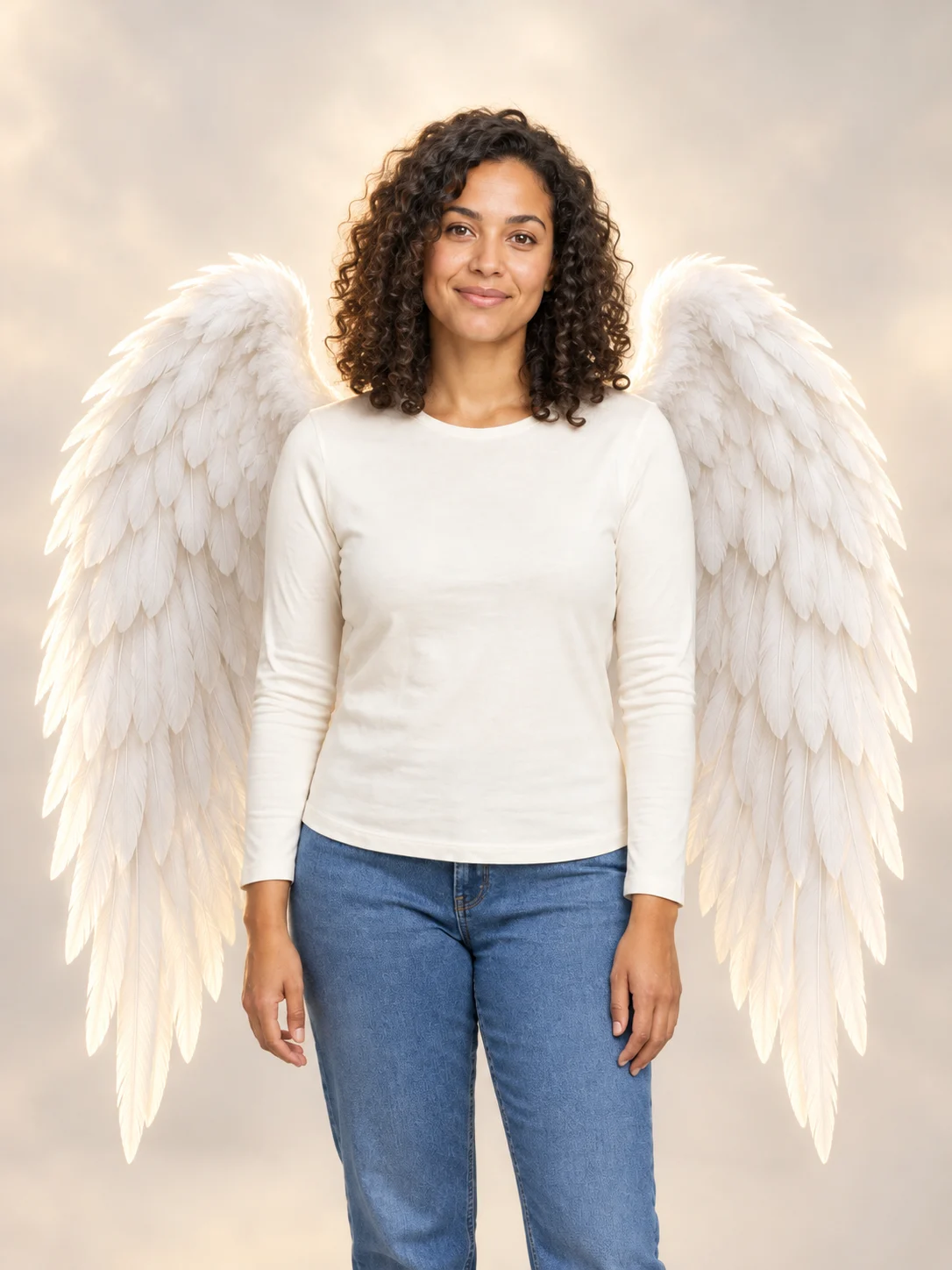
Angel Wings
Add large feathered angel wings to your photo while keeping your own outfit.
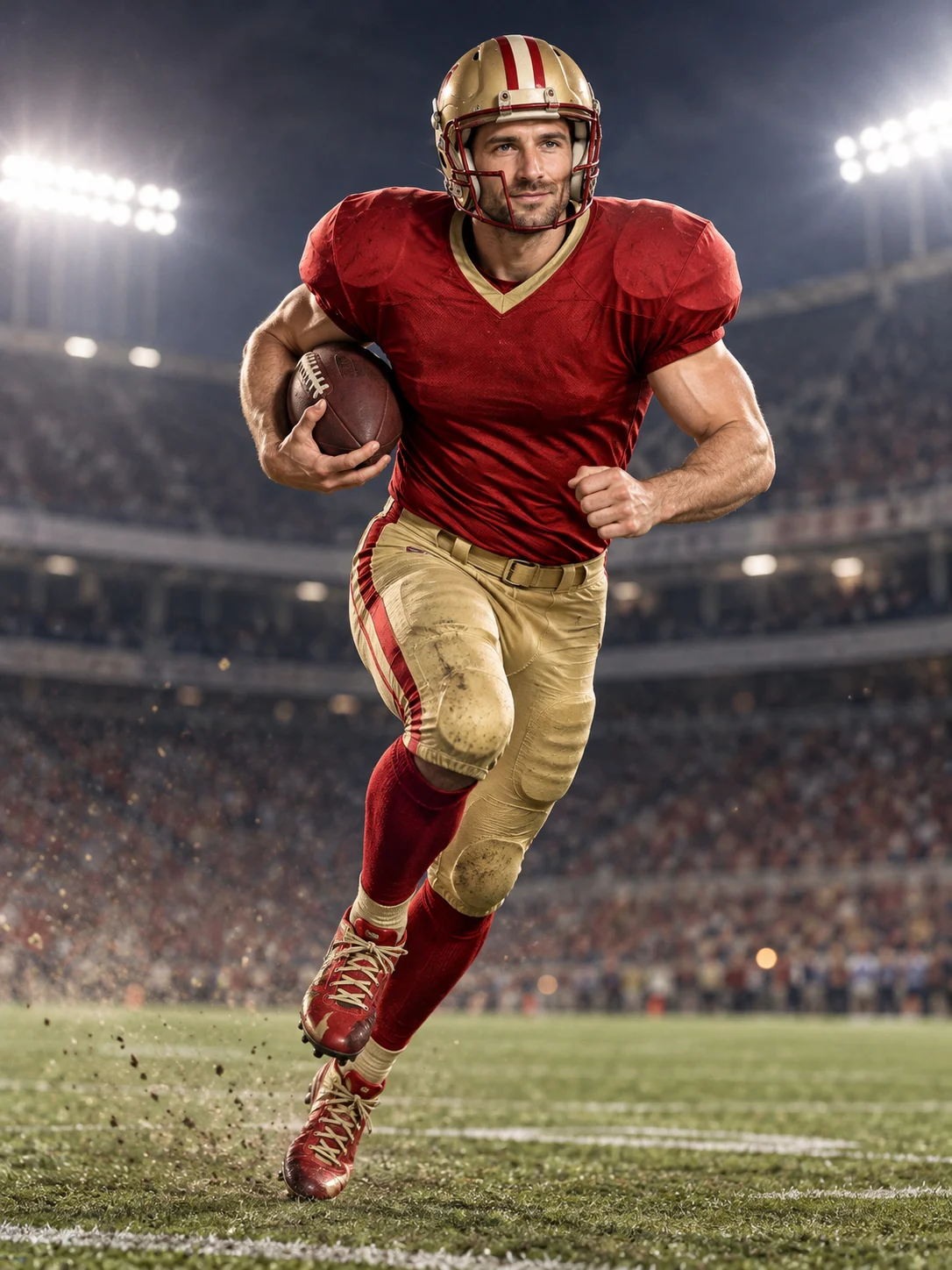
Football Champion
Turn your portrait into an American football action picture with a helmet and a football.
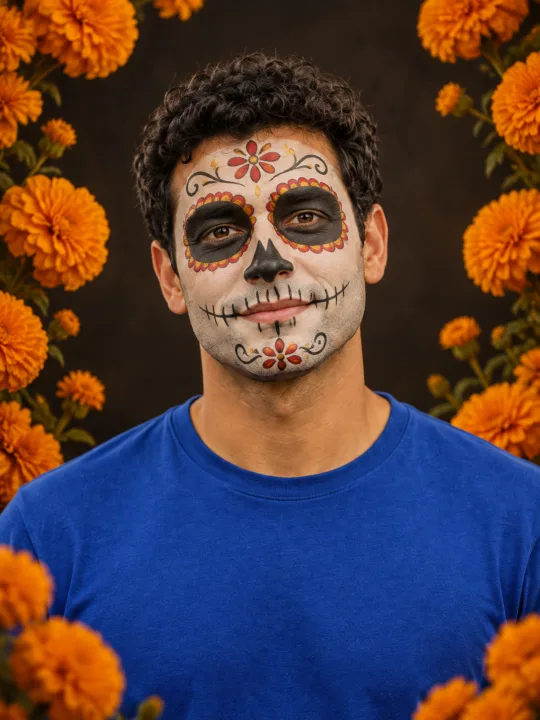
Catrina Makeup
Preview floral Day of the Dead face paint and marigolds on your own portrait.
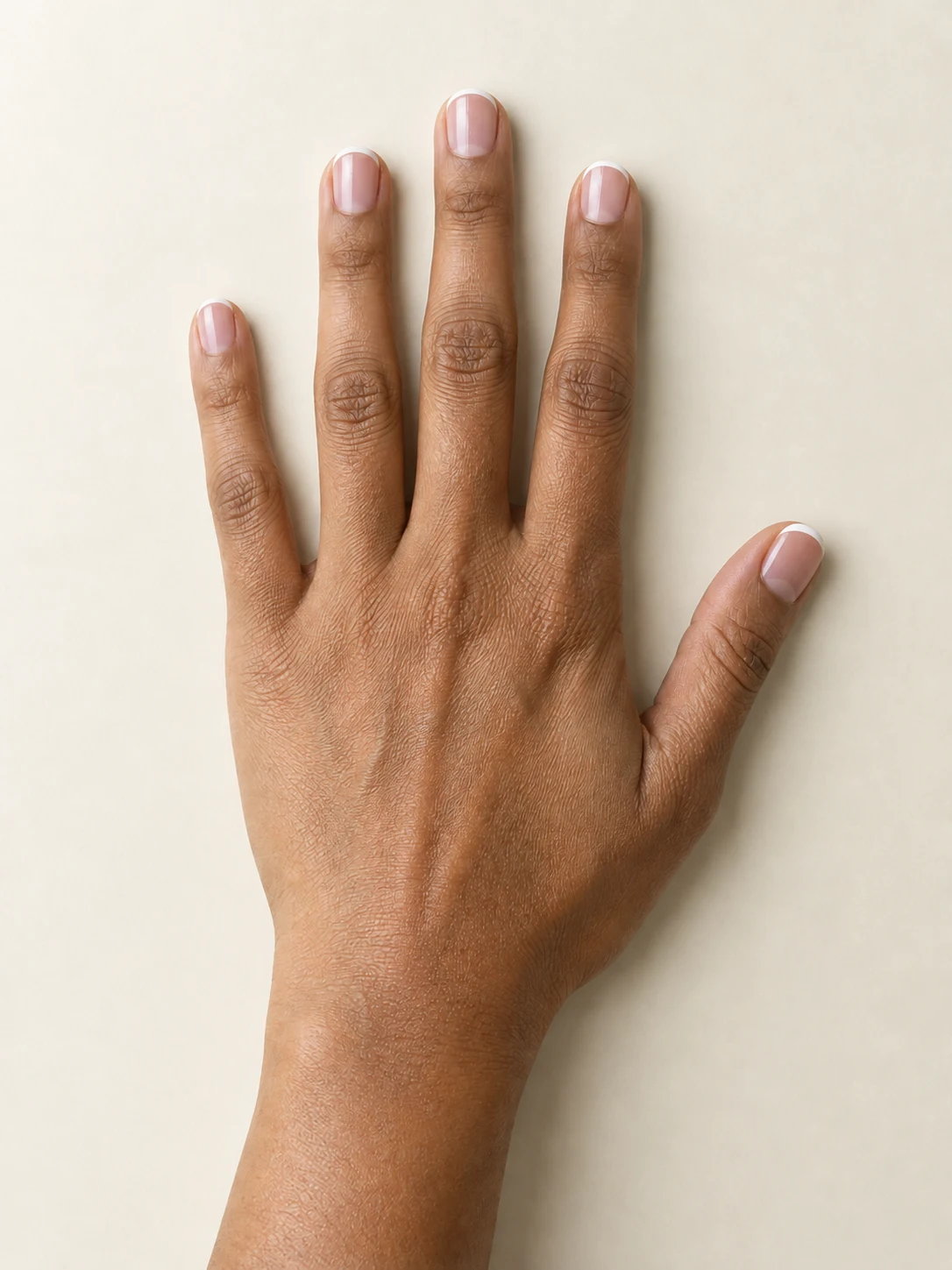
AI Nail
Preview French tips, Burgundy gloss or Pearl shimmer on your hand.
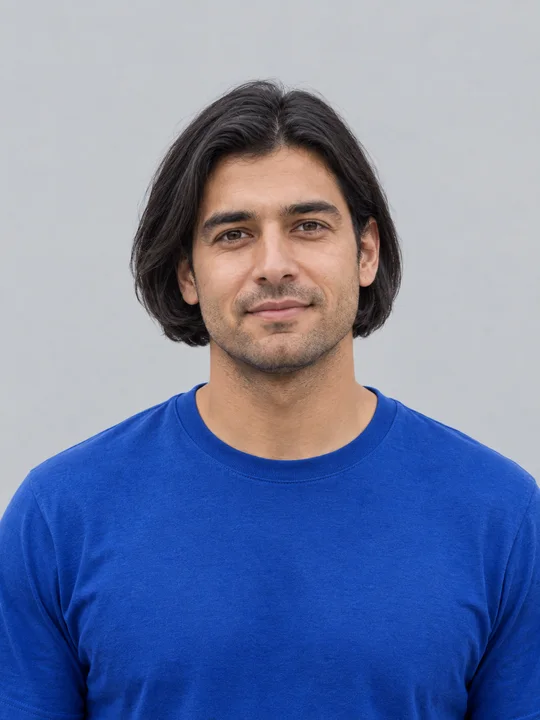
AI Bob Haircut
Preview a chin-length bob on one adult portrait.
Filtro Catrina IA
Add floral Day of the Dead makeup and marigolds to your portrait.
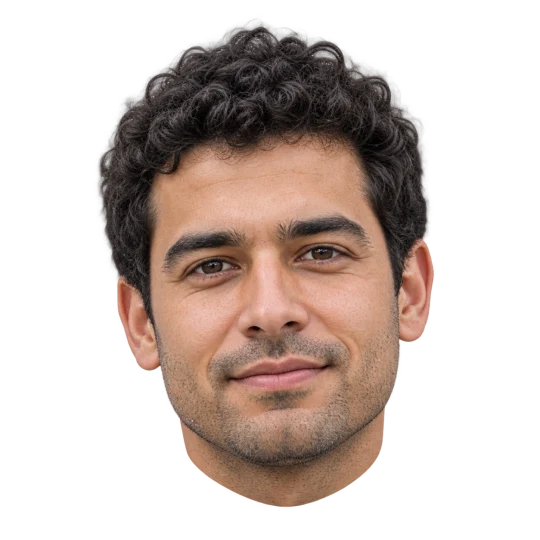
Head Cutout
Create a head-only transparent PNG from one adult portrait.
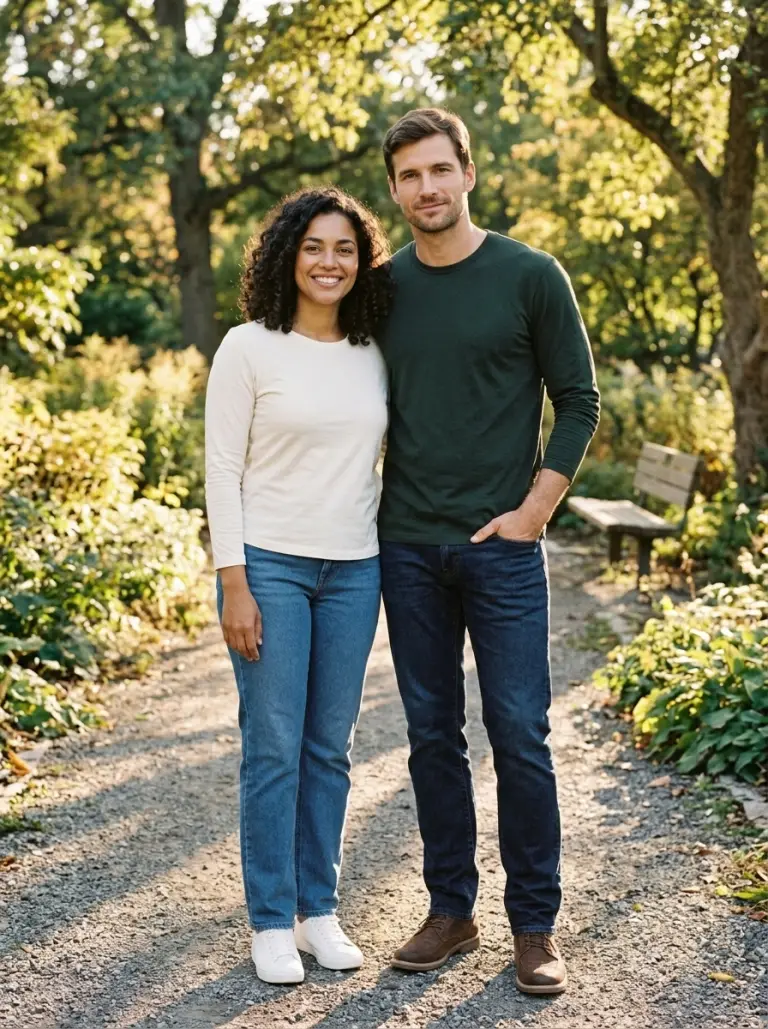
Group AI
Combine two portraits into one group photo.
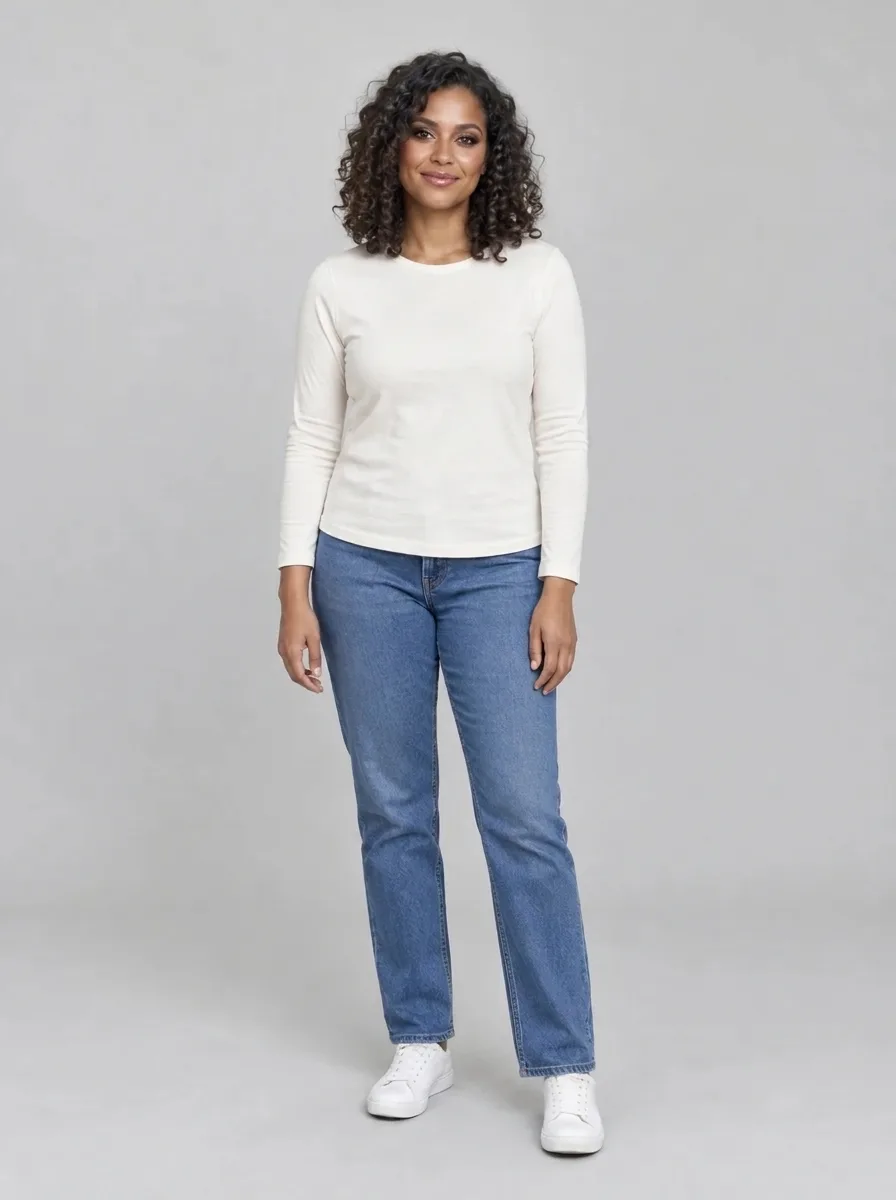
Bold Glamour AI
Give your selfie a bold, camera-ready makeup look.
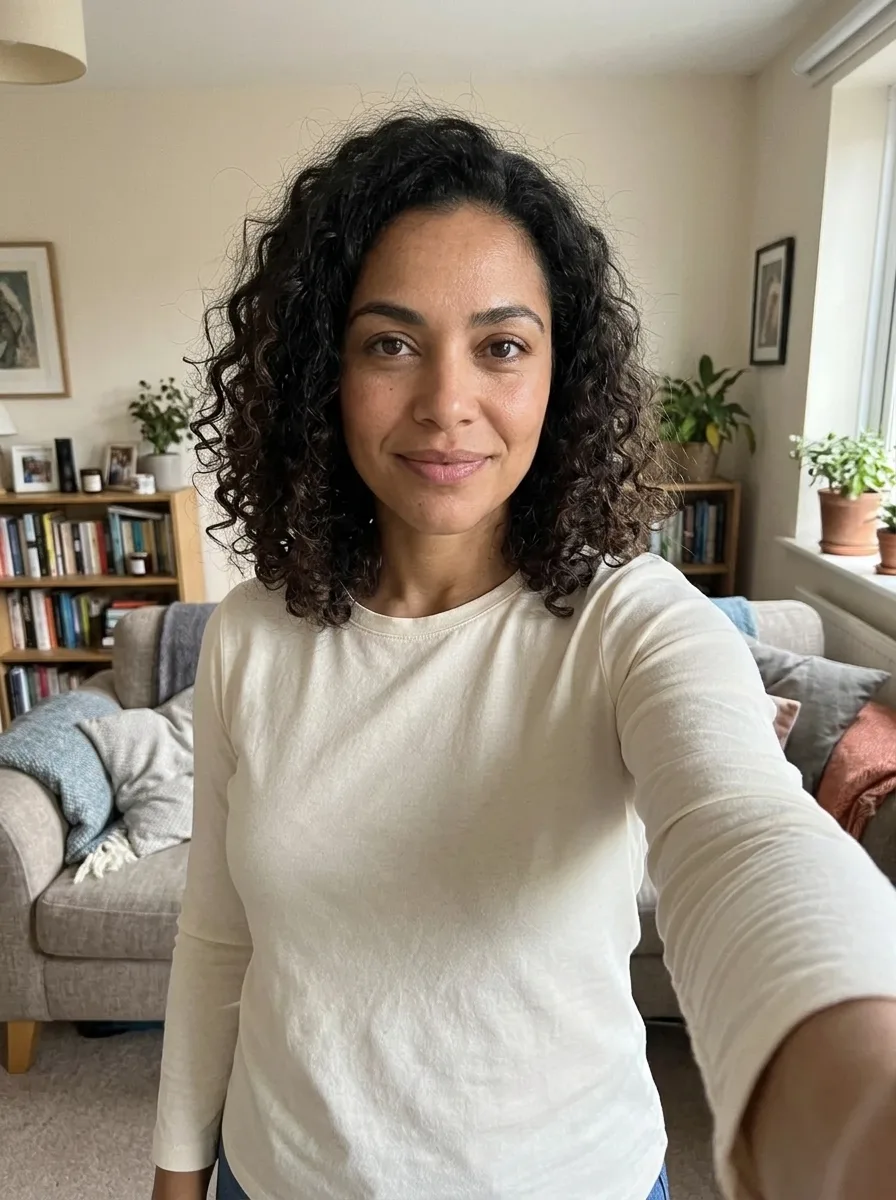
Realistic Selfie AI
Turn your photo into a natural-looking phone selfie.
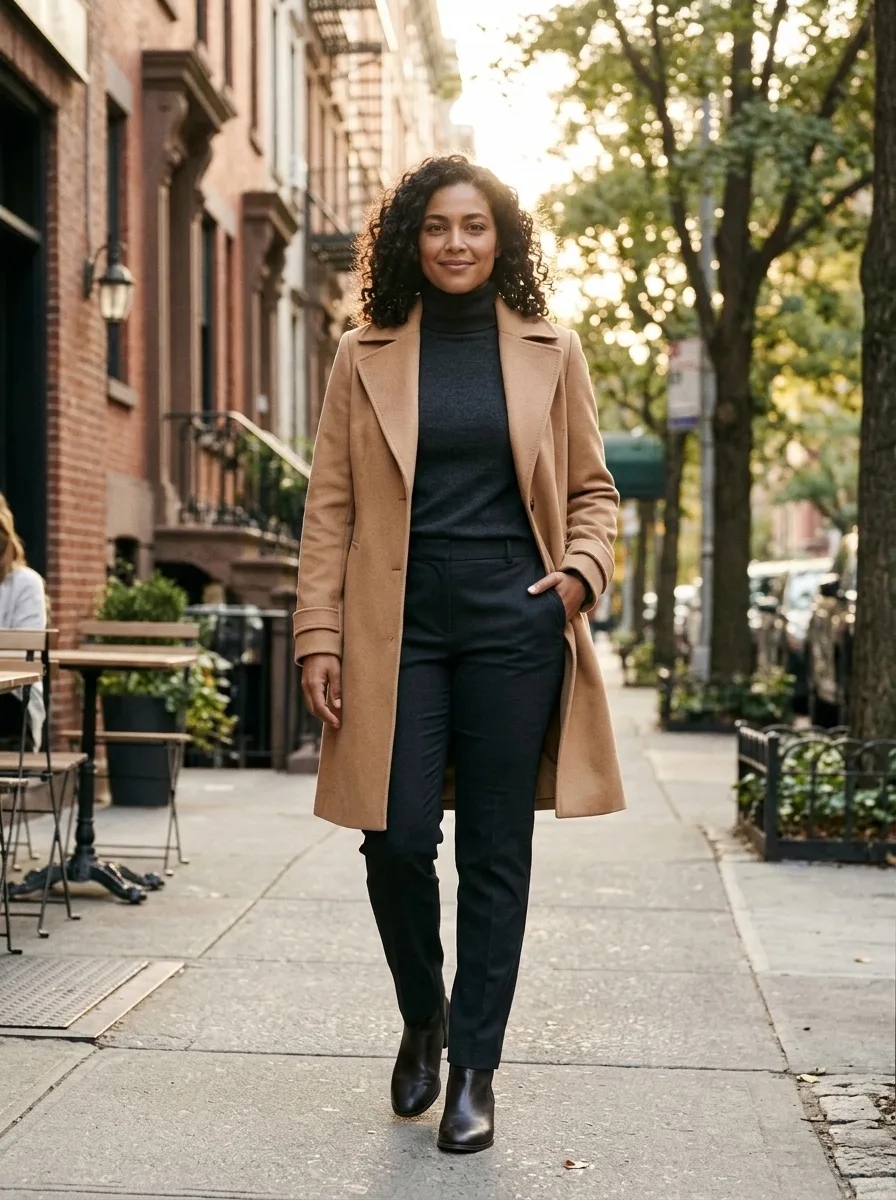
Person Photoshoot AI
Turn your photo into an outdoor fashion photoshoot.
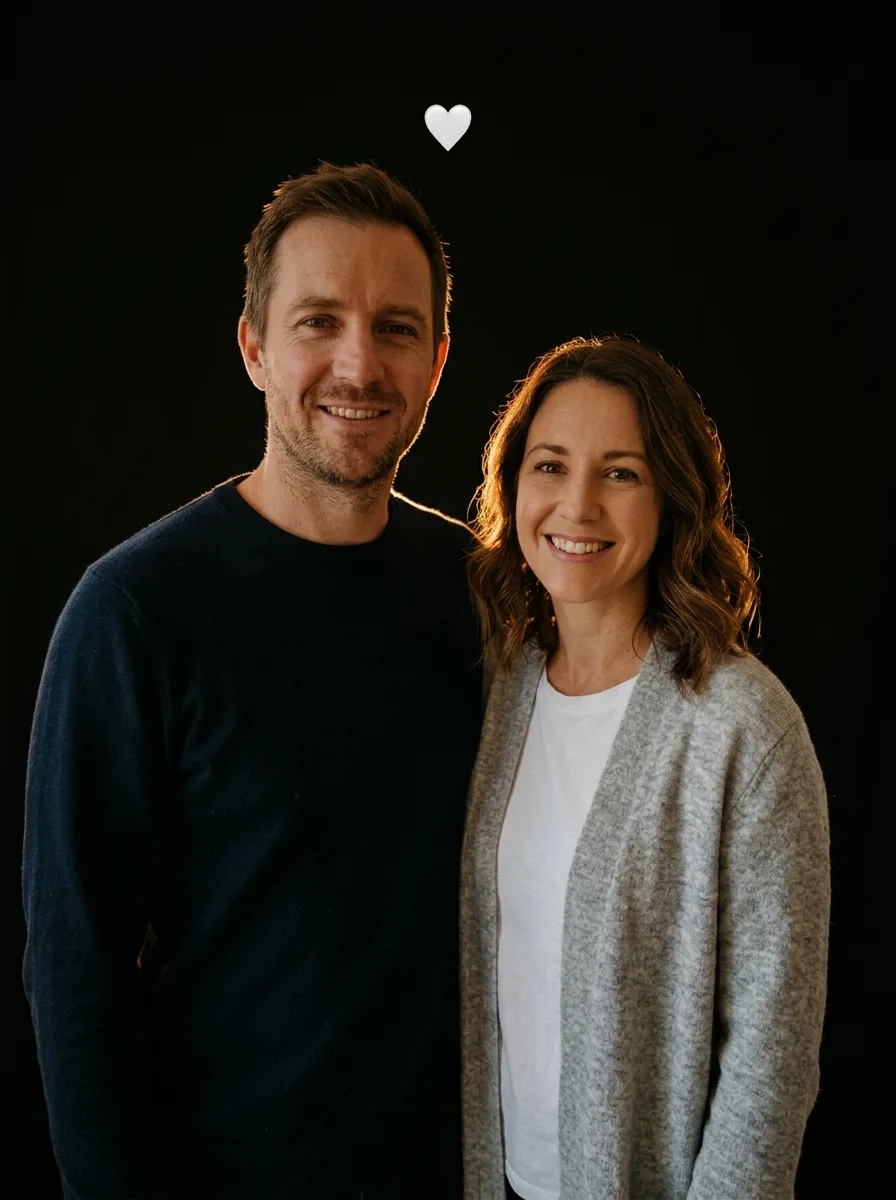
Flash Couple Silhouette AI
Create a warm rim-lit couple portrait on black.
Frequently asked questions
What does Portrait Photography AI create?⌄
Turn your portrait into a studio-style photograph.
How many photos do I need?⌄
One clear portrait.
How many credits does it cost?⌄
One image costs 3 credits. Eligible new accounts can receive welcome credits; check your balance before generating.
Will the picture look exactly like the inputs?⌄
The photos guide the result, but facial details, clothing and surroundings can change. Review it before sharing.
Does this make a video?⌄
No. It creates one still image.
Can I use someone else’s photo?⌄
Only use a photo of an adult who has agreed to the edit.
Create your Portrait Photography AI image
Turn your portrait into a studio-style photograph.
Create my image