
Combine two separate portraits into one group photo.
Bring two people into one picture
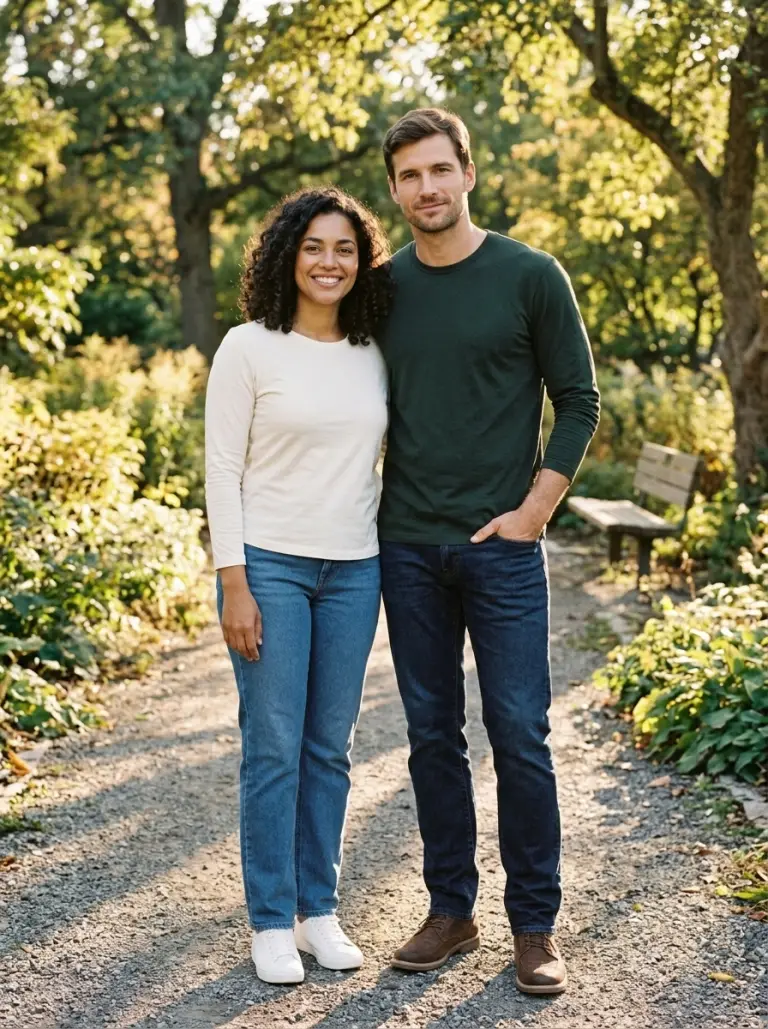
Upload one picture for each person and create a new image of them together. The two source photos guide the appearance of the people while the composition, background and lighting are generated. The result is a creative picture rather than a record of an actual meeting. Choose clear pictures of consenting adults and compare the finished image with both sources before you share it. Facial details and clothing may change. The first release accepts exactly two separate photos and makes a picture with two people. It does not accept a third portrait or promise to reconstruct an existing large group. You might use it to imagine a shared picture with a friend who lives far away or to create a playful keepsake from two portraits. Since the people are generated together, their relative height, pose and clothing can be different from the source. The background is generated too: an outdoor scene in an example is not evidence that either person visited that location. For a result that feels coherent, start with two images that show each face clearly and have broadly similar lighting. Close-up portraits can guide faces, while pictures showing more of the body offer more information about posture and clothing. The model may invent anything outside the frame, so full-length details can differ from a close-up input.
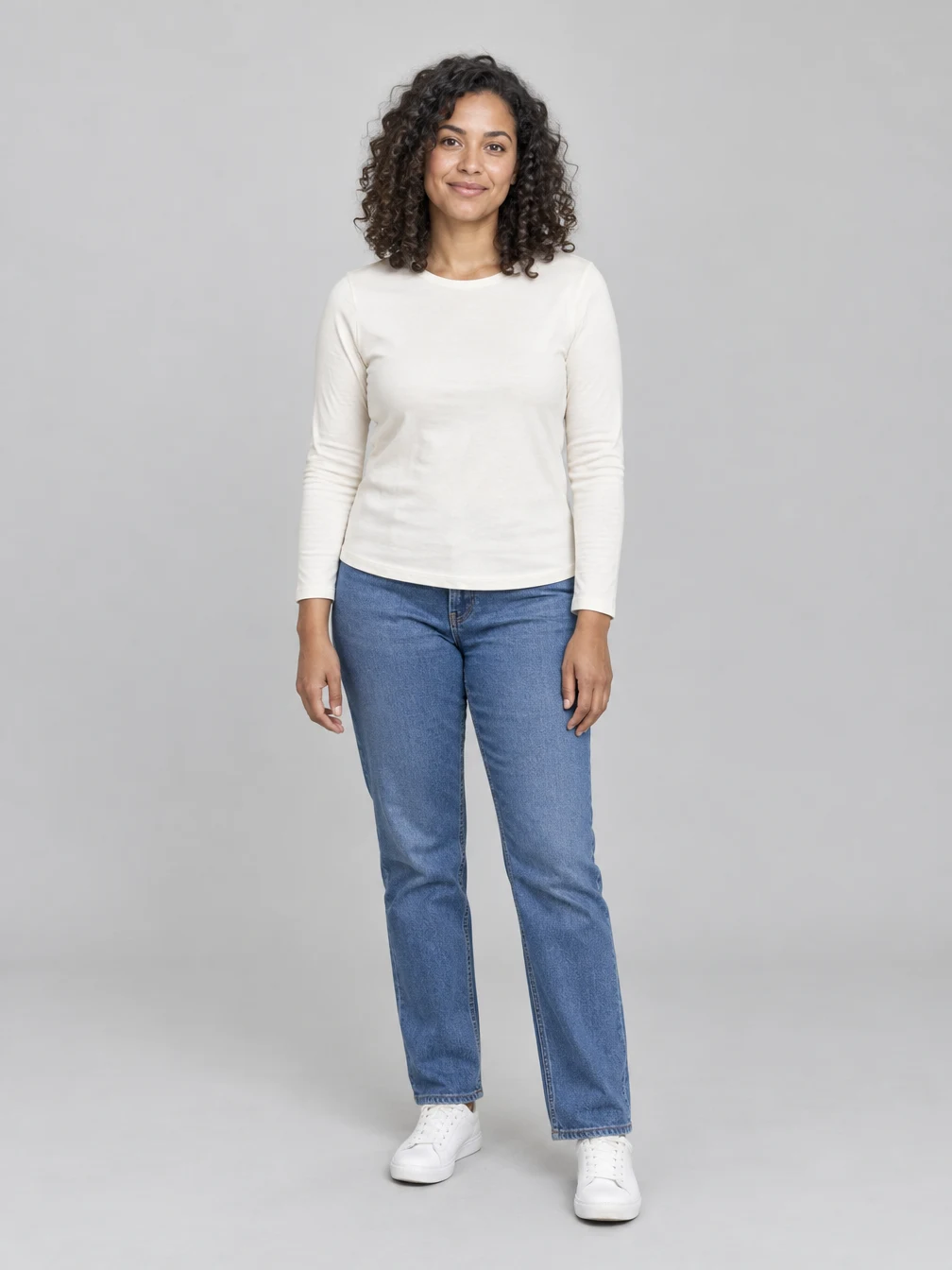
Start with a clear portrait
Choose a sharp, well-lit photo where the face and hair are visible. Avoid heavy filters, dark shadows and objects that cover the face. Use your own picture or a photograph of an adult who agreed to the edit. The example uses fictional adults. The input guides the result but does not lock every detail, and facial features, clothing or proportions can vary. Keep the original photo so you can compare it with the result. Select the first person in the first upload box and the second person in the second box. Check both upload previews before pressing the create button. If a face is small in a crowded picture or hidden behind another person, choose a clearer source instead. Images with heavy beauty filters, deep shadows or a hand across the face give the generator less information to work with. The two input photos do not need to have the same background because the tool creates a new shared setting. Each person should be an adult who agreed to the edit and to the intended use of the resulting picture.
Add another consenting adult
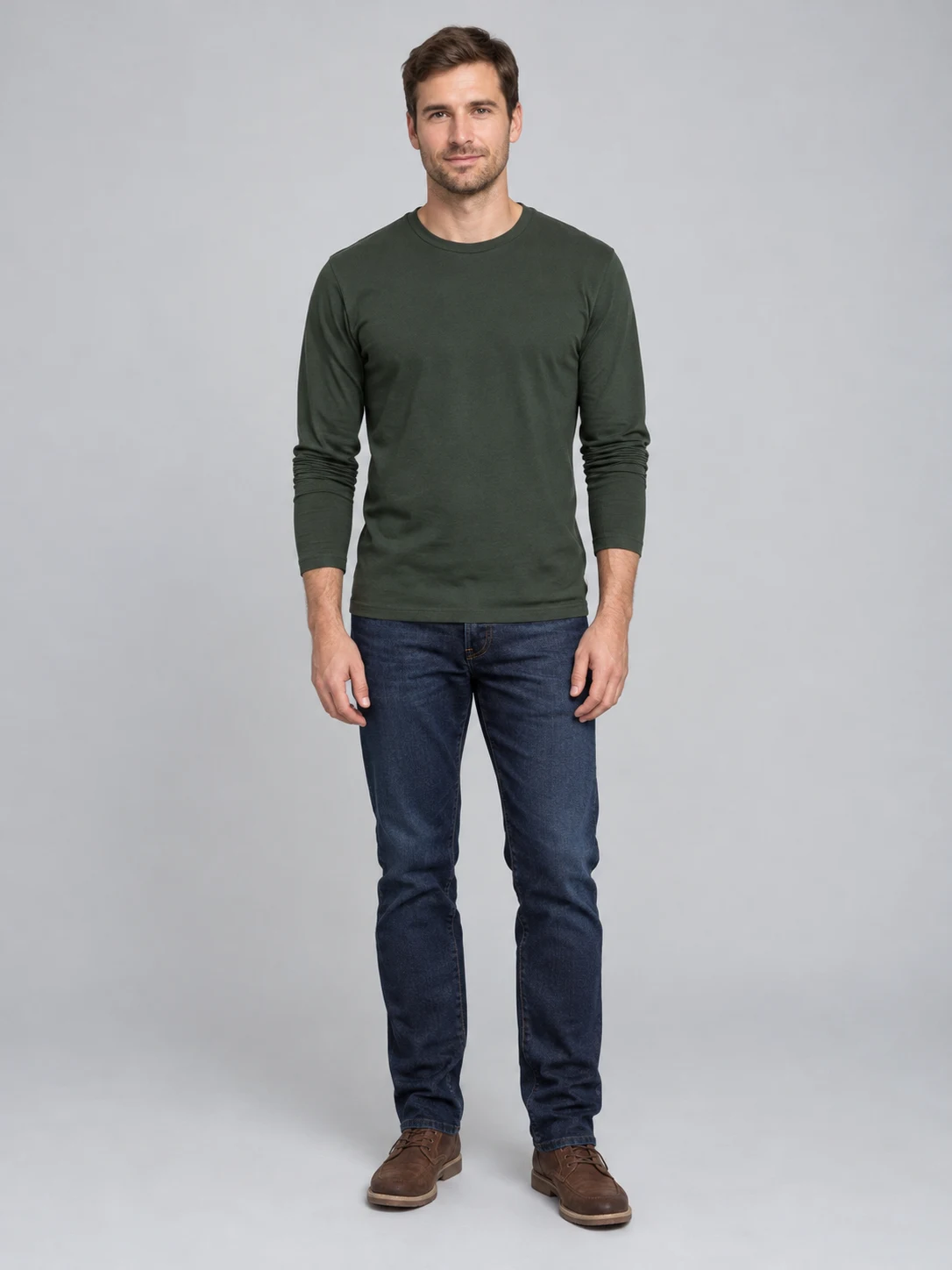
Choose a separate, clear portrait for the second person. The example uses this fictional adult as the second input. Both photos guide the people shown in the final group picture; the scene is newly generated, and likeness or details can vary. Review both faces before sharing the finished image.
Check the picture before sharing
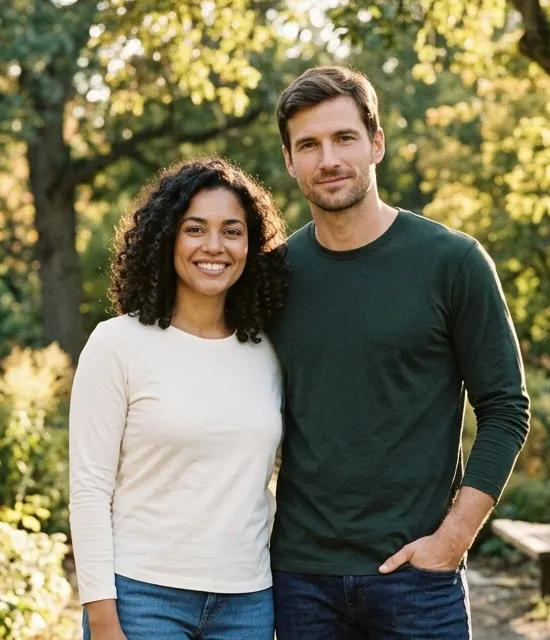
Look closely at the generated image, especially the face, hands, hair and edges of clothing. A result can look realistic overall while still containing small errors or changes to the source. Compare each person with their original photo and check the framing and background. The generated setting may not match a real place. Once complete, download the finished image or return to it in your creations. A new generation uses the displayed credits; downloading an existing result does not start a new generation. Check that the result contains the two intended people and that their features have not been mixed. Inspect hands, shoulders, the way the people overlap and the edges of their clothes. The composition can change on each request, so a second generation is a new image rather than a precise edit of the first. If one person does not look recognizable, a sharper input may help, but no exact likeness is guaranteed. Save the original images separately and share the generated picture only with the permission of the people represented.
Choose photos for Group AI
Use photos you have permission to edit.
Two portraits
Two people
When to use it
Combine two separate portraits into one group photo.
What it produces
One vertical still image.
- ✓Consenting adults
- ✓Faces visible
- ✓Even lighting
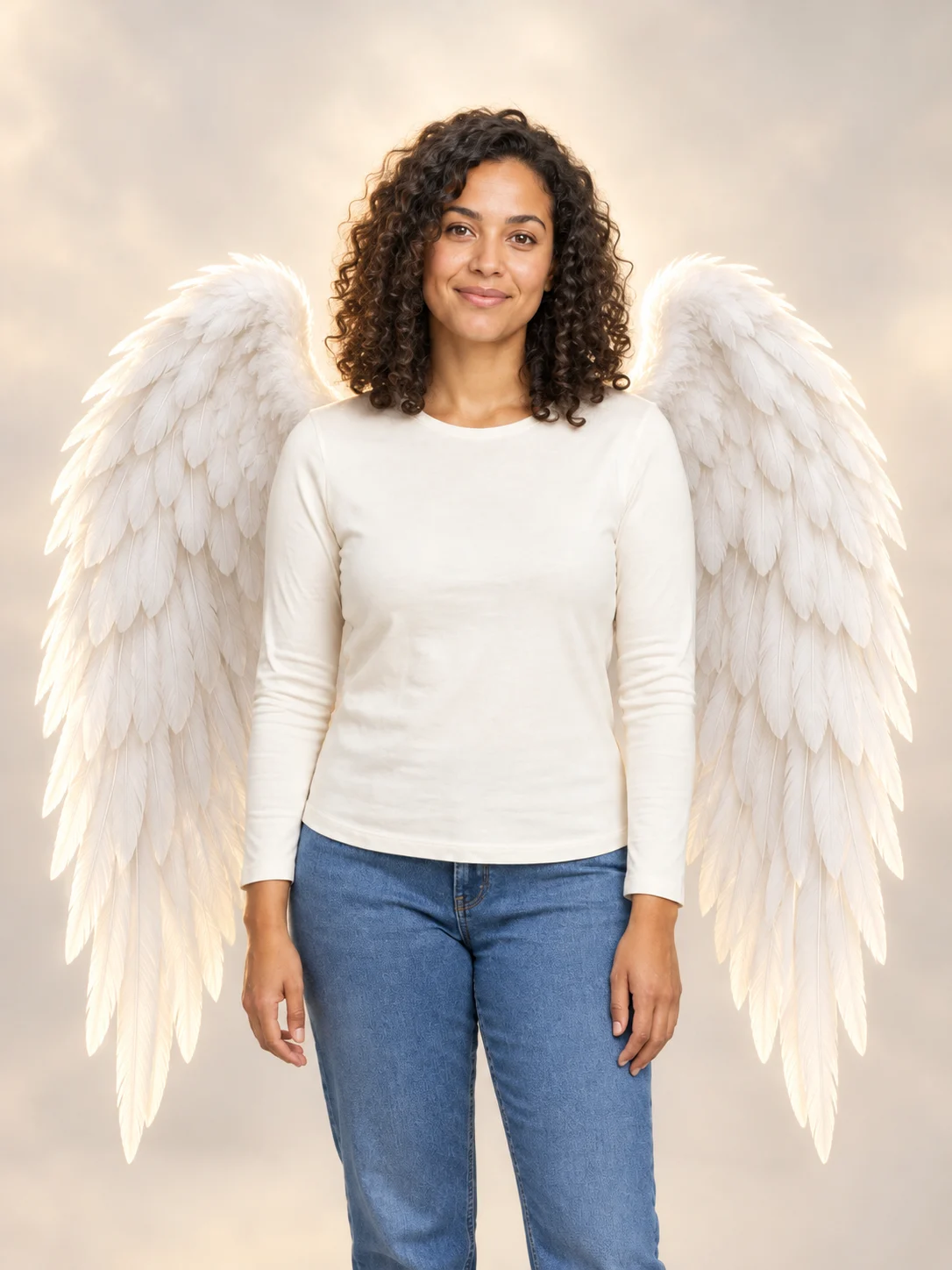
Angel Wings
Add large feathered angel wings to your photo while keeping your own outfit.
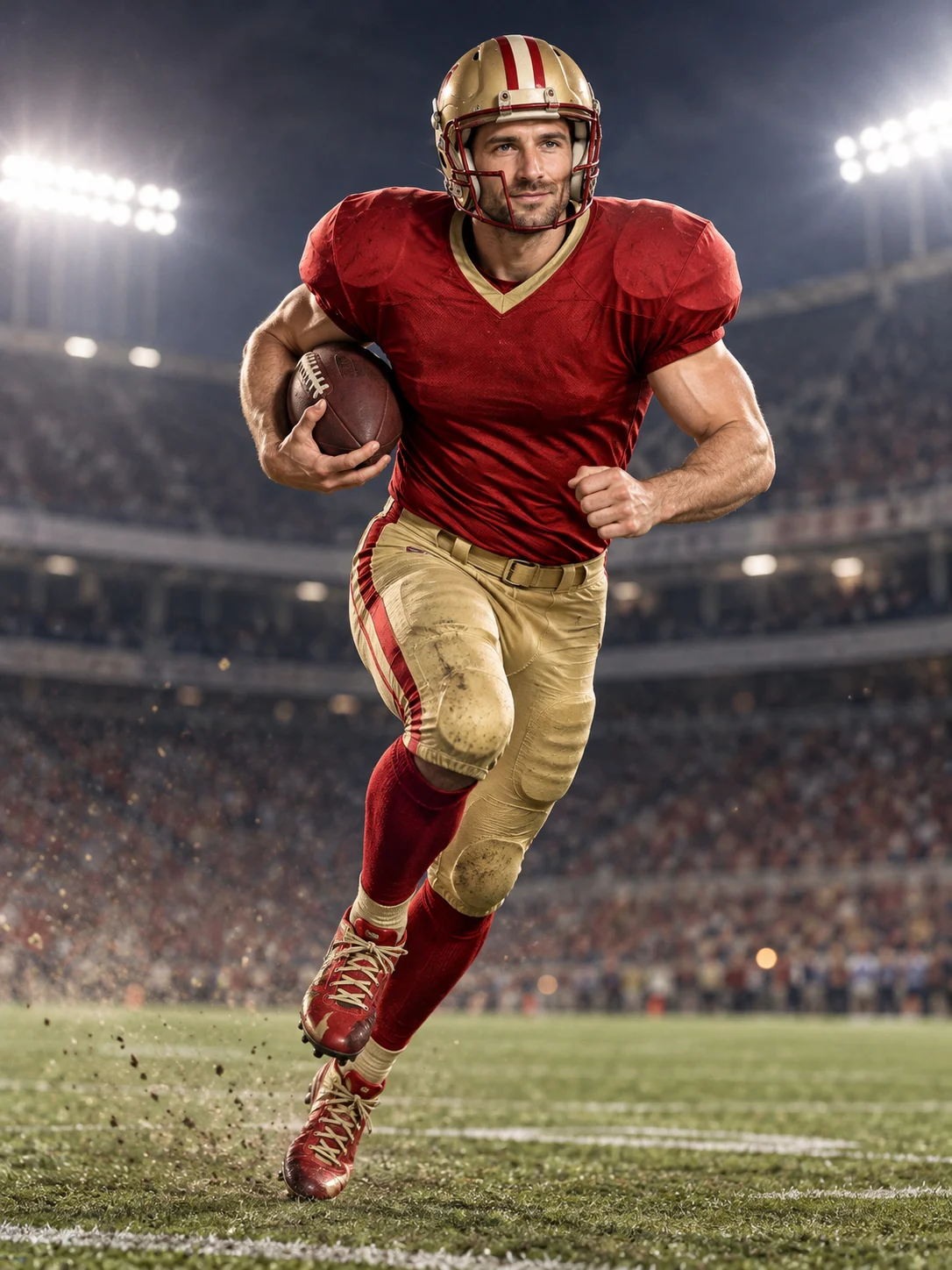
Football Champion
Turn your portrait into an American football action picture with a helmet and a football.
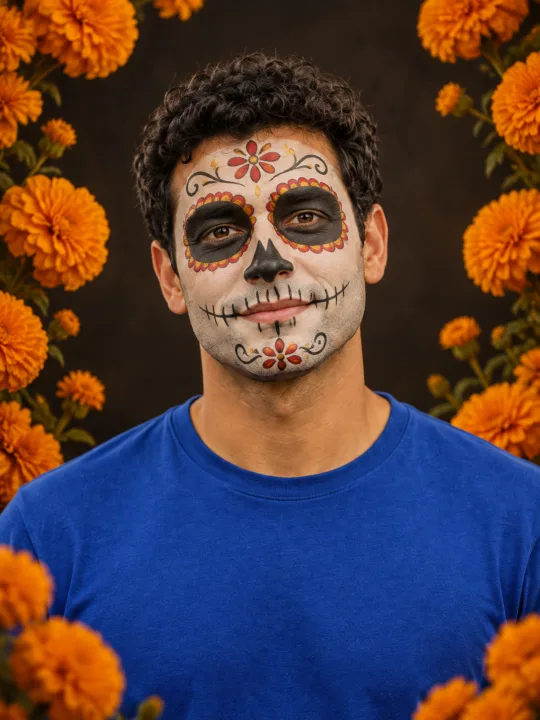
Catrina Makeup
Preview floral Day of the Dead face paint and marigolds on your own portrait.
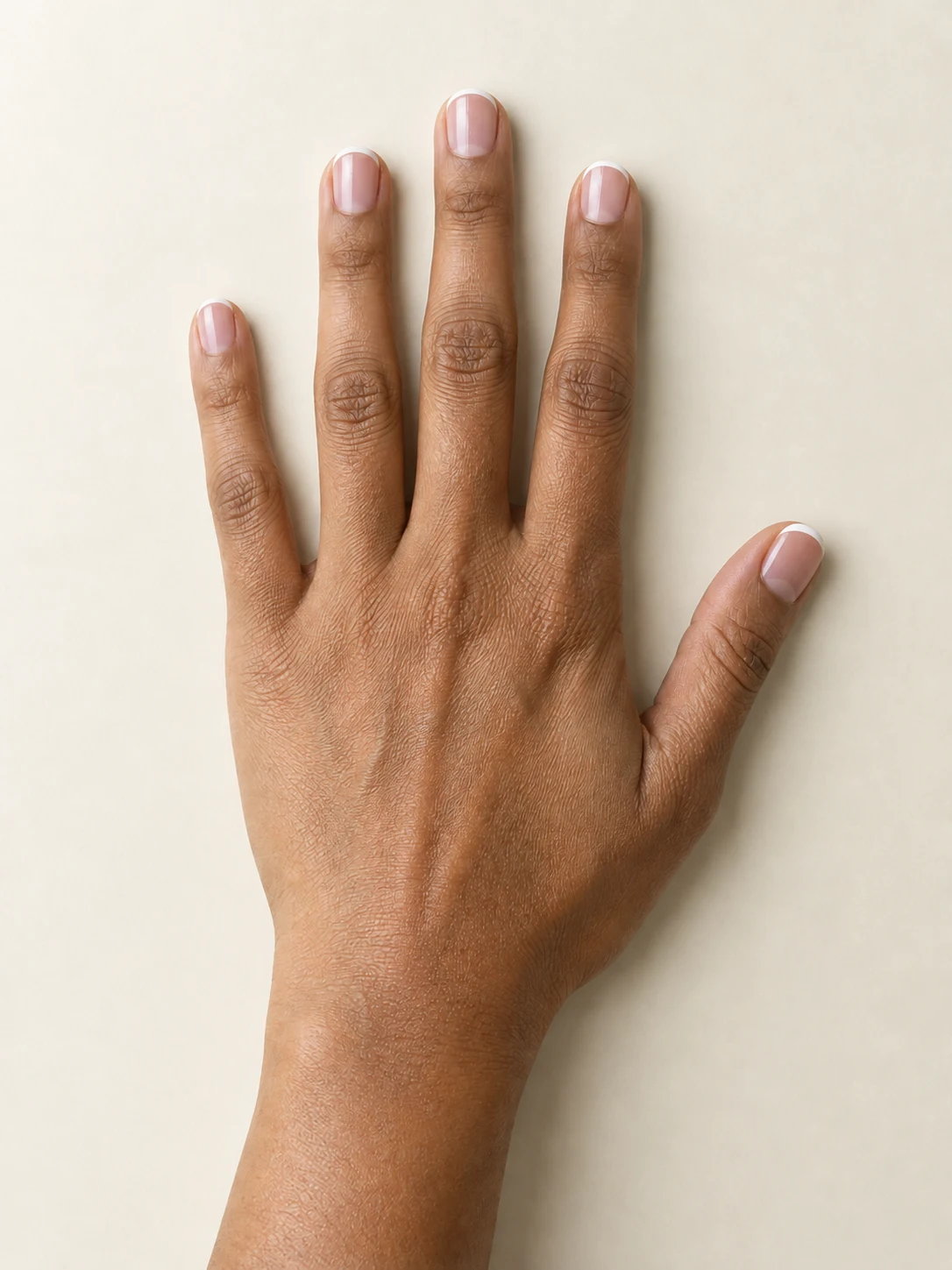
AI Nail
Preview French tips, Burgundy gloss or Pearl shimmer on your hand.
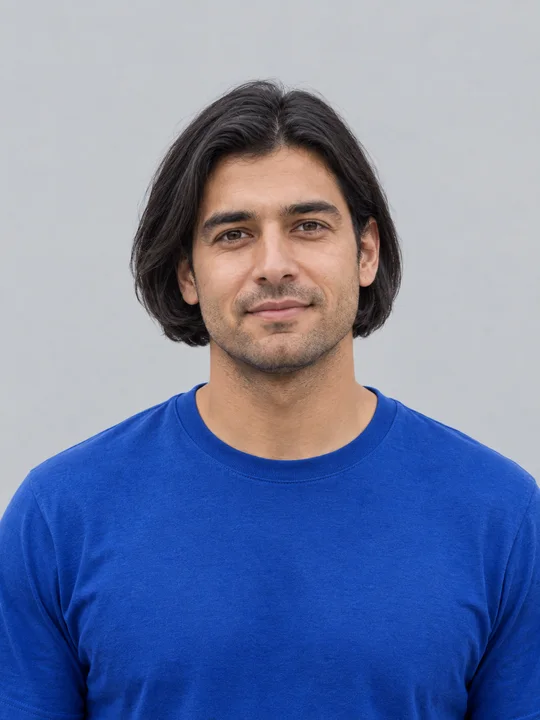
AI Bob Haircut
Preview a chin-length bob on one adult portrait.
Filtro Catrina IA
Add floral Day of the Dead makeup and marigolds to your portrait.
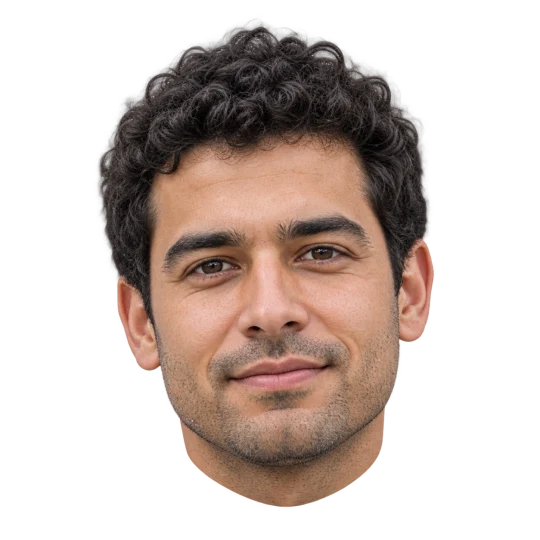
Head Cutout
Create a head-only transparent PNG from one adult portrait.
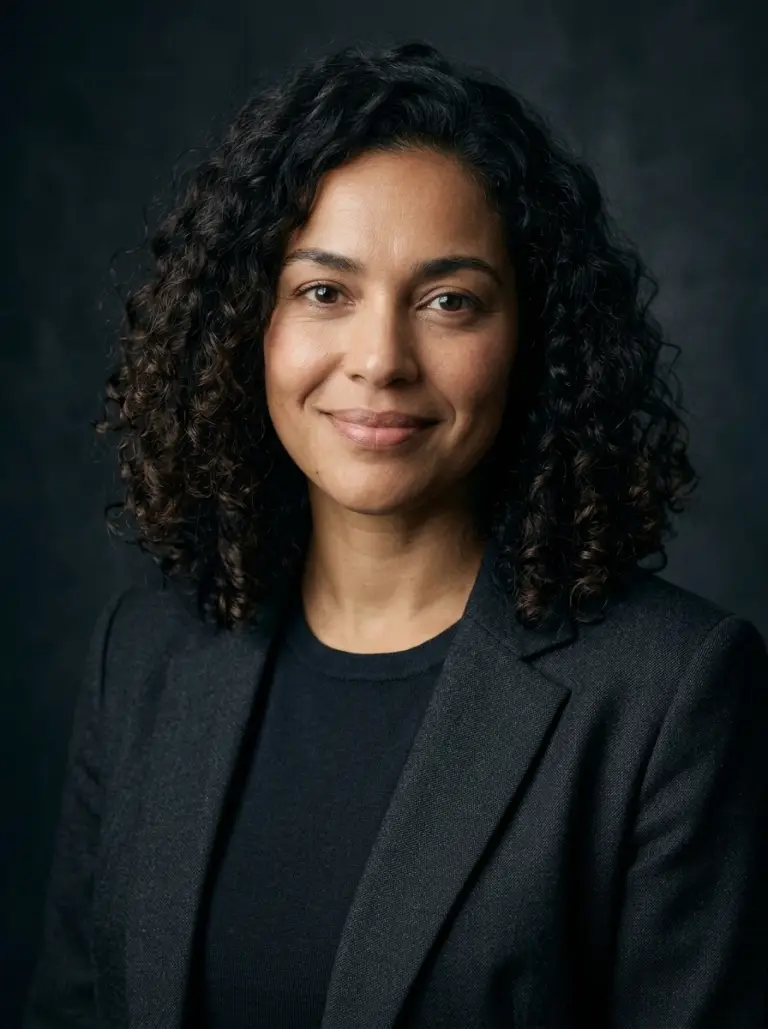
Portrait Photography AI
Create a studio portrait from your photo.
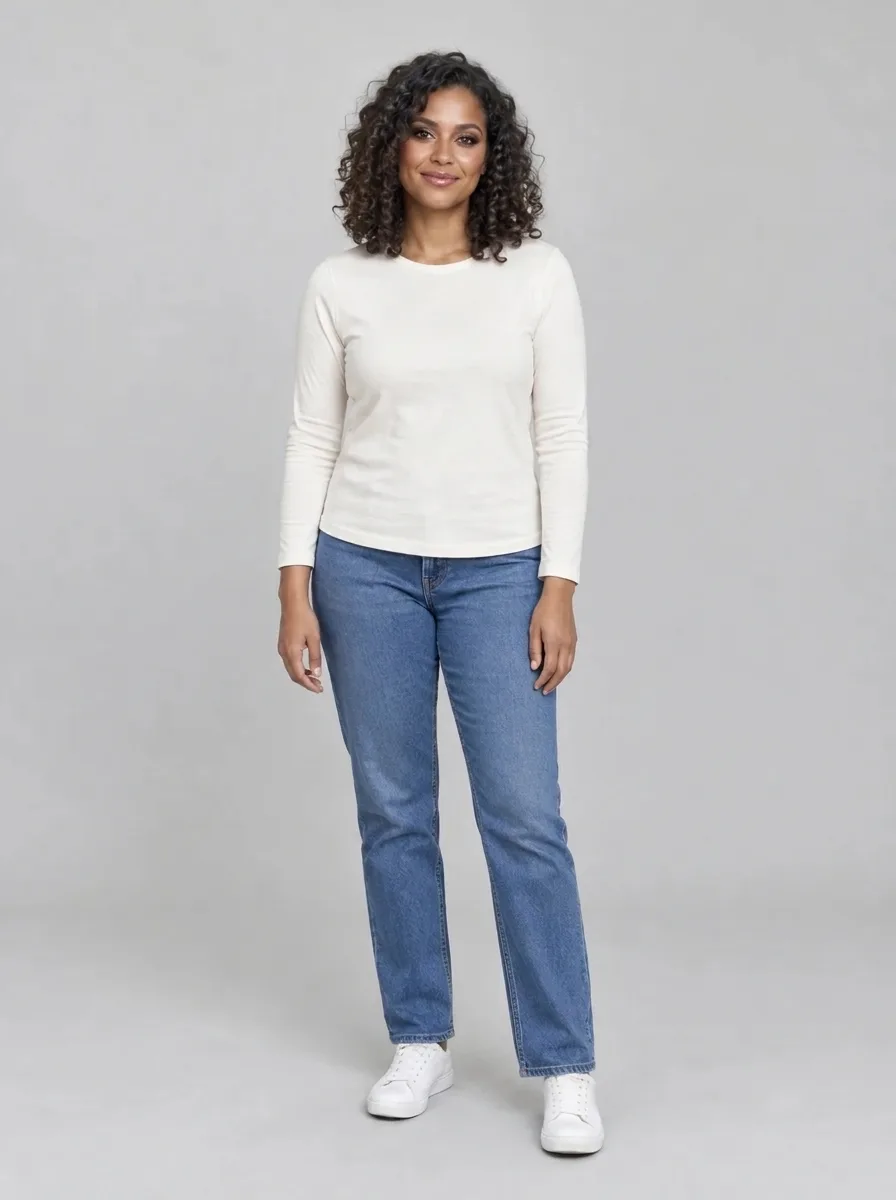
Bold Glamour AI
Give your selfie a bold, camera-ready makeup look.
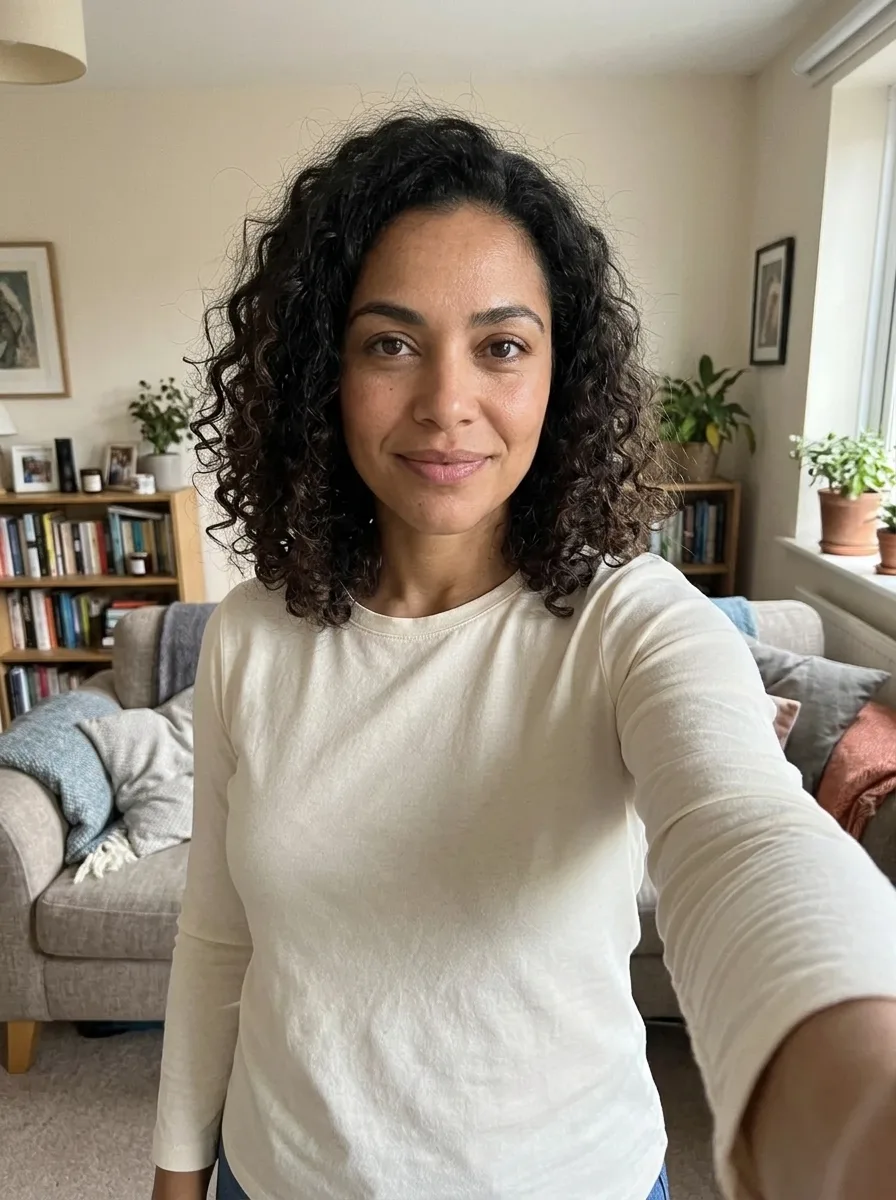
Realistic Selfie AI
Turn your photo into a natural-looking phone selfie.
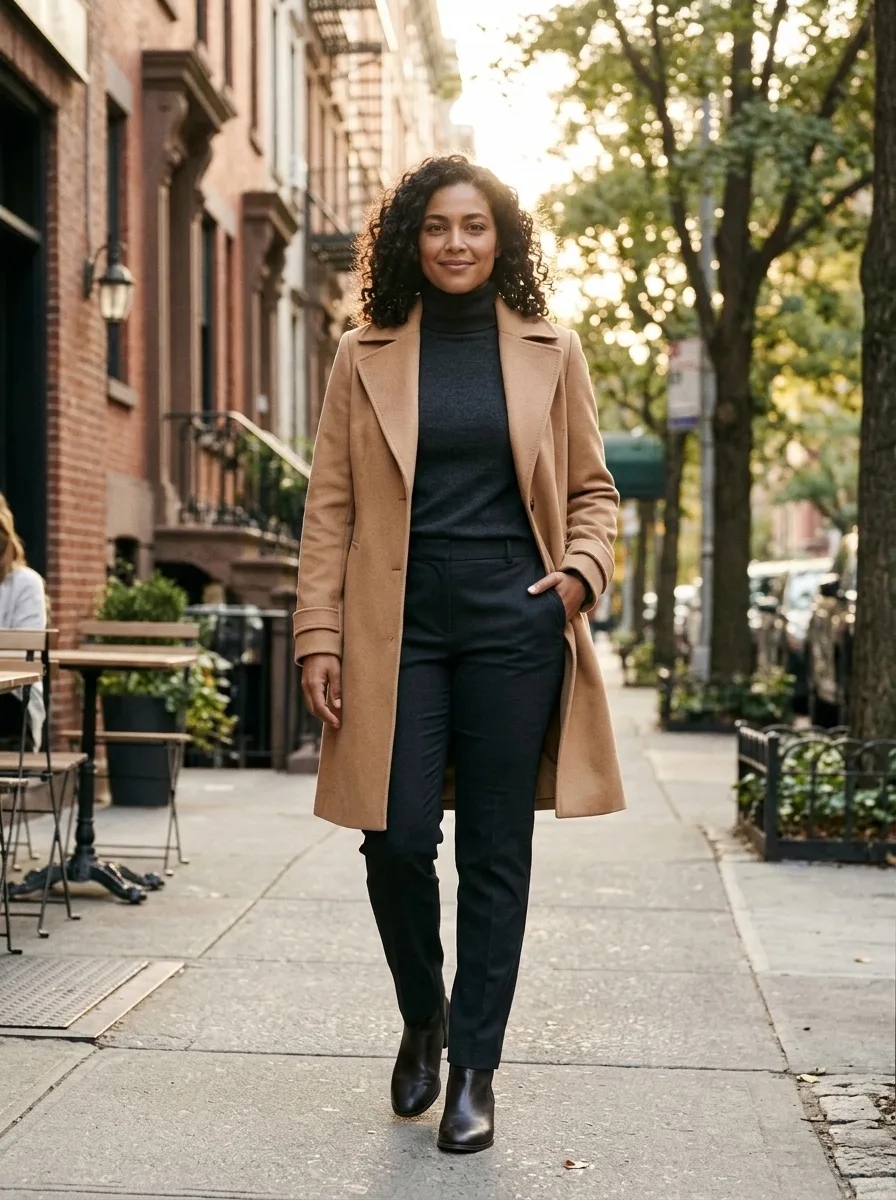
Person Photoshoot AI
Turn your photo into an outdoor fashion photoshoot.
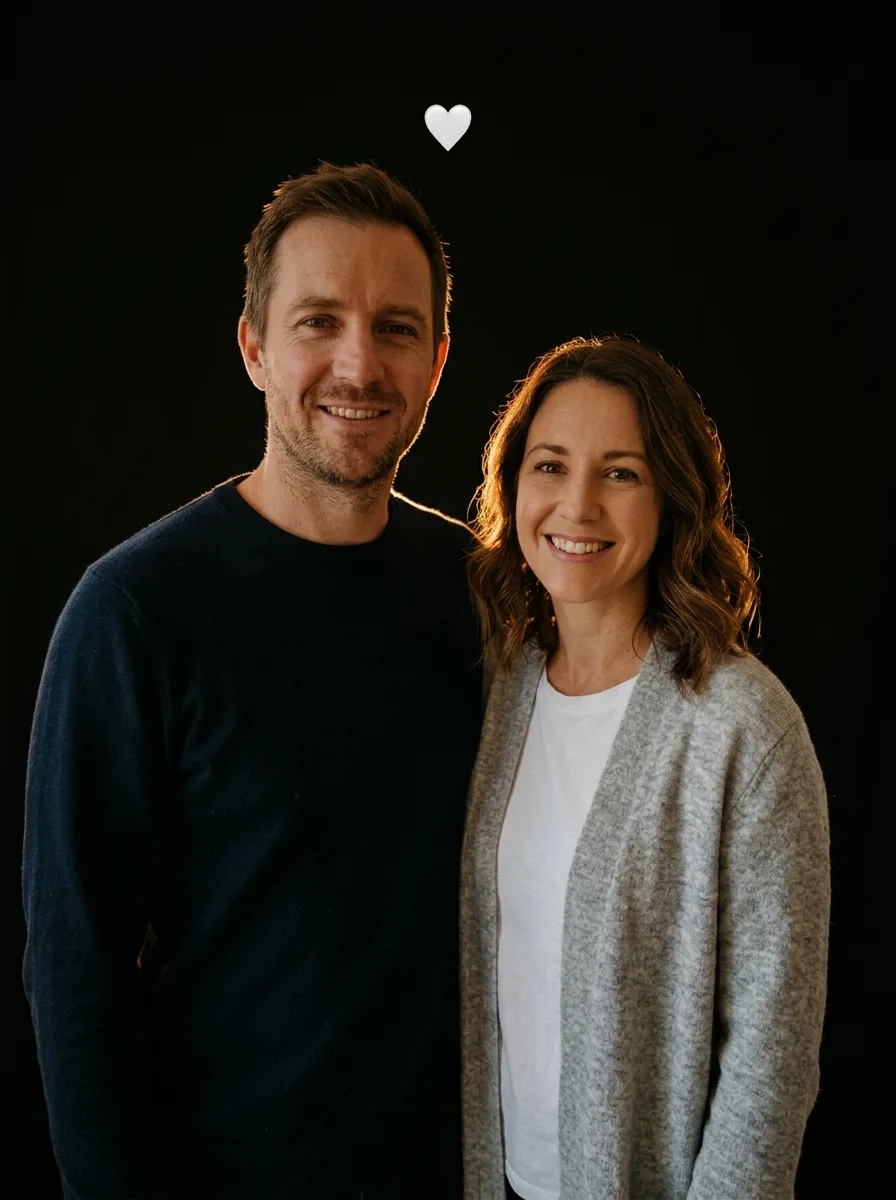
Flash Couple Silhouette AI
Create a warm rim-lit couple portrait on black.
Frequently asked questions
What does Group AI create?⌄
Combine two separate portraits into one group photo.
How many photos do I need?⌄
Two separate portraits, one for each adult.
How many credits does it cost?⌄
One image costs 3 credits. Eligible new accounts can receive welcome credits; check your balance before generating.
Will the picture look exactly like the inputs?⌄
The photos guide the result, but facial details, clothing and surroundings can change. Review it before sharing.
Does this make a video?⌄
No. It creates one still image.
Can I use someone else’s photo?⌄
Only use a photo of an adult who has agreed to the edit.