Magic Hour AI: An Alternative for AI Video Creation

Use ClipTrend to animate an image or create a clip from a prompt. Compare workflows and credits below.

Prompt is optional for this mode.

Image

The photo to animate.

MiniMax H3's 10s and 15s clips need 768p or 2K. Only 5s is available at 480p.

Spending 10 Credit(s)·Buy

ClipTrend is not affiliated with Magic Hour (magichour.ai). Magic Hour is a trademark of its respective owner.

Magic Hour AI and ClipTrend compared

Both platforms can turn a still image or a written idea into a video. Start by comparing how each handles the input you already have, the settings you need, and the price of the output you plan to make.

WorkflowClipTrendMagic Hour AI
Animate a photoUpload a starting image in the workspace above.Offers a dedicated Image-to-Video tool.
Start with a promptSwitch to Text to Video and enter a scene description.Lists a text-to-video generator in its tool FAQ.
Check creditsSee the selected run’s credit cost in the workspace and review ClipTrend pricing.Lists subscriptions and one-time credits on its pricing page.

Magic Hour AI information checked against its public tool and pricing pages on November 26, 2026.

When you compare costs, match the run you actually want. Check the duration, frame shape, and any resolution or audio requirements first. Credit totals alone can be misleading because two platforms may give different outputs for the same number of credits. Check export terms if you plan to publish or deliver a clip to a client.

From source image or prompt to a finished shot

A ceramic cup on a wooden windowsill in morning light
ClipTrend input illustration

Start with a still image

Use image to video when the first frame needs to show a specific product, character, or setting. Start with a well-lit image in the shape you want to publish. A vertical photo gives you room for a phone-first clip. A wide image is a better starting point when you want to keep an entire room in the shot.

Describe the motion you want to see. For the cup shown here, try “Steam curls gently above the cup as the curtain moves in a light breeze.” Keep the cup and window steady in the first test. Once you have a usable clip, try adding a slow camera move in a second run.
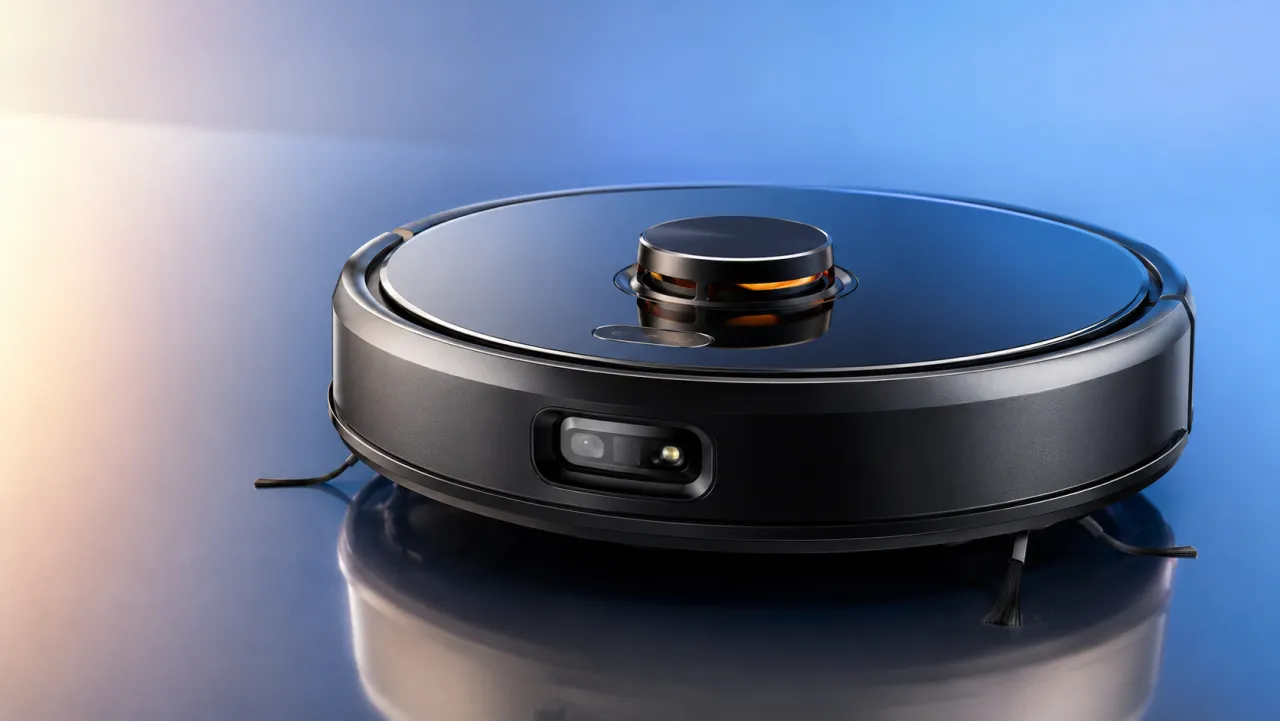
Product hero shot from a ClipTrend video model demo
Still from a ClipTrend product video example

Describe a scene from scratch

Use text to video when you have a shot in mind and no source photo. Start with the subject, then describe what changes during the clip. Add the framing and light after the action. For example, ask for a close shot of a ceramic bottle as the camera glides slowly across a sunlit shelf.

Write for one shot at a time. A short brief makes it easier to see which detail the model followed. If the camera motion is right and the product shape drifts, revise the subject description and keep the camera instruction in place. Compare both clips before spending credits on more variations.

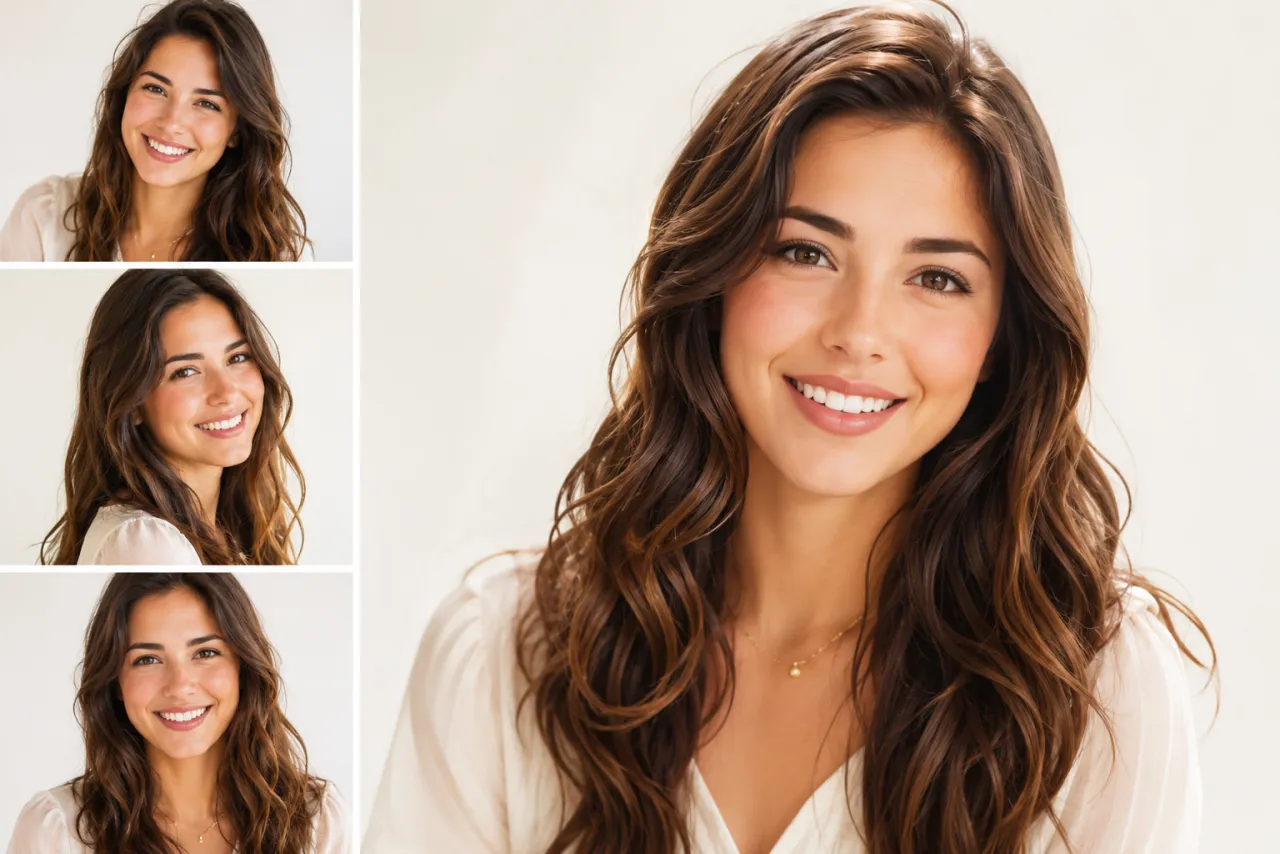
Portrait frame from a ClipTrend video reference example
Still from a ClipTrend reference-video example

Review movement in the full clip

Play the whole clip at normal speed. Check eyes, hands, lettering, and straight lines such as window frames. Pause near the end as well as the beginning, where the original image may still look intact. A small change that is hard to see in a preview can be obvious when you show the clip full screen.

If the shape or expression changes more than you intended, try a shorter movement, a simpler background, or a clearer starting image. Use files you have permission to upload and share. That includes product photos, portraits, and any source image that features another person.

Run a fair side-by-side test

If you are comparing Magic Hour AI and ClipTrend, pick one shot that reflects the work you do most. Use the same starting image or the same prompt on both. Match aspect ratio and duration where the settings allow it, then note which options differ. Keep the first version of each clip so you can compare it with later edits.

Evaluate a clip against the job it needs to do. For a product shot, check whether the product shape stays consistent and whether there is space to add a title. For a portrait, look for changes in expression and identity. For a scene made entirely from a prompt, check whether the subject, timing, and camera action match your brief.

If you build videos for several channels, generate for the frame shape where the shot matters most. Preview a crop before assuming one export will fit every destination. If the crop cuts out the subject’s movement, a second run with an explicit framing instruction may save time in the edit. Confirm the current credit cost before repeating the shot.

Related models

Magic Hour AI alternative FAQ

Can I try a Magic Hour AI alternative on this page?

Yes. The ClipTrend workspace above takes an image or a written prompt. Pick a mode, choose from the available settings, and check the credit total before you generate. Sign in to submit a job. ClipTrend and Magic Hour have separate accounts and credit balances.

Can I start from an image or a prompt?

Use image to video when you already have a first frame. Use text to video to describe the scene from scratch. If you already have footage, try a video editing tool for a clip-based workflow. The generator shows the controls available for your selected model.

Where can I check the cost of a video?

In ClipTrend, the workspace shows the credit cost for your current selection before submission. Model, duration, and resolution can affect that total. Magic Hour publishes its own subscription and credit-pack options. Compare the cost of the clip you want to make because each service defines credits differently.